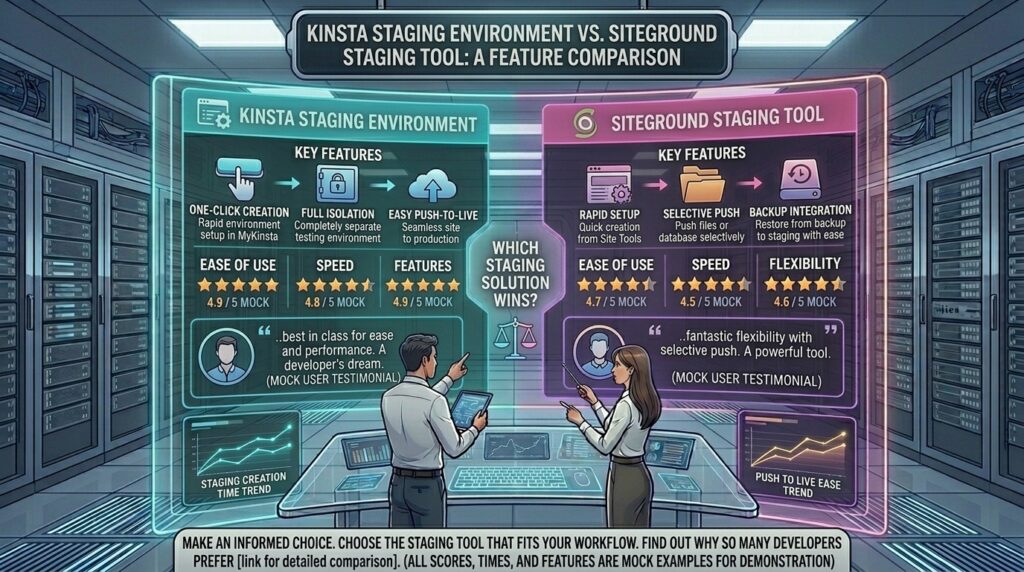
Kinsta staging environment vs siteground staging tool: When maintaining, updating, or completely redesigning a live WordPress website, pushing raw code, theme adjustments, or plugin updates directly onto a production environment is a recipe for disaster. Whether you are running a high-stakes corporate portal in New York, a fast-paced media site in Seattle (Washington), a digital agency in San Francisco, a retail brand in Los Angeles (California), or an e-commerce hub in Austin (Texas), a reliable staging environment is non-negotiable.
Staging environments allow you to create an exact clone of your live website in a secure, sandboxed testing ground. You can break things, test scripts, and upgrade plugins safely without your visitors or customers ever noticing.
Two industry-leading hosts—Kinsta (powered by elite Google Cloud infrastructure) and SiteGround (renowned for its custom Site Tools panel and speed optimization)—offer robust staging mechanisms. However, their underlying technology, push/pull granularity, and pricing architectures differ dramatically.
This comprehensive, highly detailed comparison evaluates Kinsta staging environments vs. SiteGround staging tools across features, deployment flexibility, speed, and real-world utility.
1. Architectural Philosophy: Enterprise Cloud vs. Managed Shared Staging
To understand how each platform handles testing, you must look at how their staging infrastructure is built from the ground up.
- Kinsta Staging Architecture: Built natively on the Google Cloud Platform (C3D and Compute Engine machines utilizing isolated Linux containers). Every Kinsta staging environment is completely sandboxed with dedicated resources, ensuring that performance testing reflects real-world server behavior. Kinsta offers both Standard and Premium staging environments.
- SiteGround Staging Architecture: Integrated directly into SiteGround’s custom Site Tools control panel for mid-tier and high-tier plans (GrowBig and GoGeek). It is optimized for shared and cloud-hybrid environments, allowing users to spin up a clone of their WordPress installation with a single click.
2. Setting Up and Managing Staging Environments
Ease of use during setup dictates how frequently your team will actually utilize testing workflows.
+-----------------------------------+-----------------------------------+
|          KINSTA STAGING           |        SITEGROUND STAGING         |
+-----------------------------------+-----------------------------------+
| • Managed via MyKinsta dashboard  | • Managed via Site Tools panel    |
| • Multi-environment support (Std) | • Single active staging clone     |
| • Distinct subdomain isolation    | • Rapid 1-click creation wizard   |
+-----------------------------------+-----------------------------------+
Kinsta Setup & Management
Through the proprietary MyKinsta dashboard, creating a staging site takes seconds.
- Kinsta allows you to choose between Standard Staging (runs on lighter container resources with 2 PHP threads, ideal for quick code tests) and Premium Staging (which completely mirrors your live production resource tier, including edge caching and CDN nodes).
- Each staging environment is assigned a secure, unique URL (
stg-sitename.kinsta.cloud) that is automatically protected against search engine indexing (noindex), shielding your Google SEO rankings.
SiteGround Setup & Management
SiteGround houses its feature inside Site Tools > WordPress > Staging.
- Creating a staging copy requires just a single click. SiteGround creates a subdirectory or folder clone of your application and database.
- It includes basic password protection tools to block public or bot access while you work on redesigns or template overhauls.
3. Pushing Changes Live: Selective vs. Full Deployment
The most critical moment in any staging workflow is pushing your tested updates back to the live production server. A clumsy push tool can overwrite live customer data, new blog posts, or e-commerce transactions.
+-----------------------------------+-----------------------------------+
|           KINSTA PUSH             |        SITEGROUND PUSH            |
+-----------------------------------+-----------------------------------+
| • Granular selective push options | • Full Deploy or Custom Deploy    |
| • Choose files, database, or      | • Element-by-element selection    |
|   specific database tables        | • Strict database size limits     |
+-----------------------------------+-----------------------------------+
Kinsta’s Selective Push
Kinsta excels in deployment flexibility, particularly for dynamic websites and WooCommerce stores:
- Granular Control: When pushing staging to live, Kinsta allows you to choose whether you want to move files only, database only, or specific database tables and folders.
- This selective push prevents you from accidentally overwriting live user orders, customer registrations, or new comments added to the production site while you were testing code.
- Kinsta automatically generates a system backup right before every push operation.
SiteGround’s Full and Custom Deploy
SiteGround offers two distinct pathways for pushing changes back to production:
- Full Deploy: Overwrites your entire live site (both files and database) with the staging copy in a single click. Warning: Use this only if no live user interactions occurred during testing, as it will overwrite live data.
- Custom Deploy: Allows you to inspect changes and select specific additions, updates, or deletions across files and database tables.
- Limitations: SiteGround imposes technical constraints on its staging tool; your site database must be under 2GB, contain fewer than 500 tables, and maintain specific free storage thresholds to execute deployments smoothly. Furthermore, it does not currently support WordPress Multisite networks.
4. Performance, Speed, and SEO Protection
+-----------------------------------+-----------------------------------+
|          KINSTA STAGING SEO       |      SITEGROUND STAGING SEO       |
+-----------------------------------+-----------------------------------+
| • Default noindex protocol        | • Password protection & blocking  |
| • Isolated container tests        | • Clean directory separation      |
+-----------------------------------+-----------------------------------+
Both platforms ensure that staging URLs do not leak into search engine results, preventing duplicate content penalties or indexing confusion for your primary domain.
- Kinsta automatically applies
noindexheaders to all staging subdomains out of the box. - SiteGround allows you to lock down staging directories with password protection tools directly inside Site Tools, keeping development work private from public crawlers.
5. Pros and Cons Summary
Kinsta Staging
- Pros:
- Exceptional push granularity (selective file and database table deployment).
- Choice between Standard and Premium staging environments matching live resource tiers.
- Automatic system backups triggered prior to every push event.
- Complete container isolation preventing resource crossover.
- Cons:
- Premium staging resources incur additional costs on certain plans.
- Standard staging environments may spin down after long periods of inactivity.
SiteGround Staging
- Pros:
- Incredibly easy 1-click setup within the intuitive Site Tools dashboard.
- Custom Deploy options allow selective file and table merging.
- Included free on mid-tier GrowBig plans and above.
- Password-protect staging subdirectories easily.
- Cons:
- Strict database size limits (under 2GB and 500 tables).
- Incompatible with WordPress Multisite network architectures.
- Shares broader server performance headroom compared to fully isolated cloud containers.
6. Strategic Optimization Tips for US Webmasters
When managing complex development workflows for digital properties targeting competitive markets across New York, San Francisco, or Texas, apply these expert tips:
- Never Test Live E-Commerce Payments on Staging: Always use payment gateway sandbox/test modes when running transaction tests on staging to avoid real customer card charges.
- Sync Media Libraries Carefully: If your staging environment has accumulated heavy test uploads, verify your selective push settings so you don’t overwrite production media directories unnecessarily.
- Run Speed Audits on Staging First: If utilizing Kinsta’s Premium staging, run PageSpeed Insights tests on your staging clone to evaluate how code updates impact Core Web Vitals before pushing live.
- Maintain Off-Site Backups: Always verify that an independent backup exists before executing a full deployment merge, regardless of how robust the host’s automated safety features are.
7. Frequently Asked Questions (FAQ)
1. Which host offers a better staging environment, Kinsta or SiteGround?
Kinsta offers a more robust, enterprise-grade staging environment with granular selective push controls and isolated cloud resources. SiteGround provides a simpler, highly accessible 1-click staging tool for standard business websites on its GrowBig and GoGeek plans.
2. Can I use staging tools on SiteGround’s cheapest StartUp plan?
No. SiteGround’s staging tool is restricted to clients on the GrowBig and GoGeek hosting plans and above.
3. Does Kinsta charge extra for staging environments?
Standard staging environments are included free with Kinsta hosting plans. However, Kinsta’s high-performance Premium Staging environments (which mirror heavy live production server specs) may involve additional pricing tiers.
4. What happens to live e-commerce orders when I push staging to live?
If you push a full site overwrite from staging to live, any new orders or customer registrations placed on the live site during your testing window will be erased. Kinsta’s selective push and SiteGround’s custom deploy options help mitigate this by letting you push code files without overwriting the live database orders table.
5. Can Google crawl and index my Kinsta or SiteGround staging site?
No. Kinsta automatically applies noindex headers to staging subdomains, and SiteGround allows you to password-protect staging directories, preventing search engine cannibalization or SEO ranking drops.
6. Are there database size restrictions on staging tools?
Yes. SiteGround limits its staging tool to databases under 2GB with fewer than 500 tables. Kinsta handles larger enterprise databases much more smoothly across its cloud architecture.
7. Does SiteGround support staging for WordPress Multisite networks?
No. SiteGround’s staging tool is officially incompatible with WordPress Multisite network configurations. Kinsta accommodates complex multisite architectures smoothly.
8. How long does it take to create a staging site on either platform?
Both platforms create staging copies rapidly—usually within 1 to 3 minutes depending on the total file size and media library volume of your production site.
9. Do I need coding knowledge to push staging changes live?
No. Both Kinsta and SiteGround provide visual point-and-click dashboard interfaces that handle file merging, database table synchronization, and URL rewrites automatically.
10. Which platform is better suited for professional developer agencies?
Kinsta is far superior for professional digital agencies due to its advanced MyKinsta environment management, multi-user permissions, staging add-on options, and API integrations.
8. Conclusion
When comparing Kinsta staging environments vs. SiteGround staging tools, your choice depends on the scale and complexity of your digital operations.
Choose SiteGround if you manage standard small-to-medium business sites on a GrowBig or GoGeek plan and want a fast, straightforward, 1-click testing tool for routine theme and plugin updates.
Choose Kinsta if your enterprise, high-traffic e-commerce store, or digital agency demands elite cloud container isolation, granular selective pushes, and uncompromised development workflows designed to safeguard your revenue and Google search rankings.