How to fix too many redirects error after installing ssl on hosting? Welcome to thehostreviews.com—your premier authoritative destination for website security troubleshooting, SSL configuration guides, and web hosting performance audits spanning major technology hubs from New York and San Francisco to Texas, California, and Washington.
Introduction: The Infinite Loop Nightmare
You have just taken a major step toward securing your digital presence. You logged into your web hosting control panel, generated a fresh SSL certificate (such as a free Let’s Encrypt certificate), clicked activate, and watched the status switch to a confident green active checkmark.
Elated, you open a new browser tab, type in your domain name, and hit enter—only to be met with a frustrating, maddening browser error screen:
- Google Chrome: “This page isn’t working – thehostreviews.com redirected you too many times.” (Error code:
ERR_TOO_MANY_REDIRECTS) - Mozilla Firefox: “The page isn’t redirecting properly – Firefox has detected that the server is redirecting the request for this address in a way that will never complete.”
- Safari: “Safari can’t open the page because too many redirects occurred.”
For business owners, e-commerce managers, and bloggers, the “Too Many Redirects” error (also known as an infinite redirect loop or HTTP 310/ERR_TOO_MANY_REDIRECTS) is one of the most common and disruptive post-SSL installation hurdles.
Why does this happen? The error occurs when your web server, your application configuration (like WordPress), and your content delivery network (CDN) or firewall get caught in an endless digital game of tennis. Your server tells the browser to go to HTTPS, but somewhere down the line, a configuration rule forces it right back to HTTP, triggering an endless loop.
This comprehensive, step-by-step masterclass dives deep into the architecture of HTTP-to-HTTPS routing, unpacks the root causes of redirect loops, and provides a foolproof, technical troubleshooting playbook to restore seamless, secure browsing to your hosting environment.
Part 1: Anatomy of an Infinite Redirect Loop
Before jumping into the fixes, it is crucial to understand what is happening under the hood when your browser hits a redirect loop.
1. How a Healthy SSL Redirect Works
Normally, when a visitor types [http://thehostreviews.com](http://thehostreviews.com) into their browser, your web server catches the insecure request and issues an HTTP 301 Permanent Redirect, commanding the browser: “Stop! Don’t load the unencrypted version. Go to [https://thehostreviews.com](https://thehostreviews.com) instead.” The browser obeys, requests the secure version, and successfully loads your site with a padlock.
2. The Loop Breakdown
An infinite redirect loop happens when contradictory routing rules conflict with each other:
- Rule A (Server Level): Your hosting server or
.htaccessfile forces every incoming visitor from HTTP to HTTPS. - Rule B (CMS Level): Your WordPress core settings or an active plugin detects that the incoming request is unencrypted or mismatching, and forces a redirect back to HTTP.
- Rule C (Proxy/CDN Level): Cloudflare or another external proxy intercepts the request, forces HTTPS, but your hosting origin server communicates back over HTTP.
The browser bounces back and forth between HTTP and HTTPS until it hits its maximum redirect threshold and halts execution with an error.
Part 2: Step-by-Step Troubleshooting and Resolution Playbook
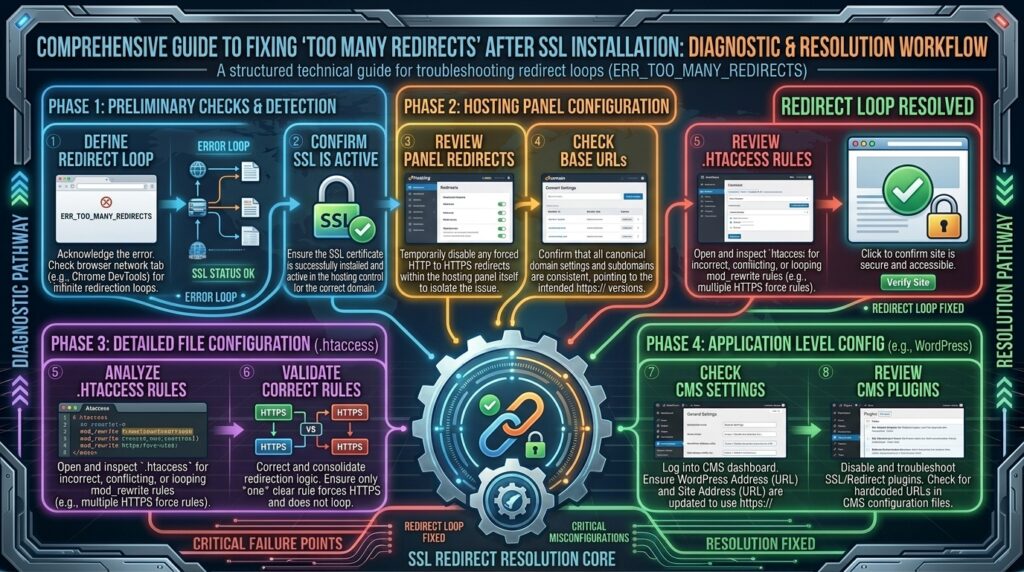
To systematically break the loop and fix your site after an SSL installation, follow this rigorous 5-step engineering workflow:
Step 1: Clear Your Local Browser Cache and Test in Incognito
Before modifying complex server files, rule out simple browser caching quirks:
- Web browsers aggressively cache 301 redirects. Even after you fix an SSL configuration error, your browser may remember the broken loop and continue serving the error page from memory.
- Open a New Incognito Window (Chrome/Edge) or Private Window (Firefox/Safari).
- Type your domain name. If the site loads normally in incognito mode, your server configuration is already fixed, and you simply need to clear your standard browser cache, cookies, and history.
Step 2: Correct Your CMS Application URLs (WordPress Example)
If you recently installed an SSL certificate and forced HTTPS, but your underlying content management system core settings still point to the old http:// address, a redirect loop is virtually guaranteed.
How to Fix WordPress URLs via Dashboard (If Accessible):
- Log into your WordPress admin dashboard (
/wp-admin/). Note: If you cannot access the dashboard due to the loop, skip to the database method below. - Navigate to Settings > General.
- Locate the WordPress Address (URL) and Site Address (URL) fields.
- Ensure both fields explicitly begin with
https://(e.g.,[https://thehostreviews.com](https://thehostreviews.com)). - Scroll down and click Save Changes.
How to Fix WordPress URLs via phpMyAdmin (If Locked Out):
If the redirect loop blocks you from reaching your admin dashboard, fix the settings directly in your database:
- Log into your hosting control panel (cPanel, hPanel, or Plesk) and open phpMyAdmin.
- Select your website’s database from the left sidebar.
- Click on the
wp_optionstable. - Look for the rows where
option_nameis set tositeurlandhome. - Double-click the
option_valuefor both entries and changehttp://tohttps://. Press Enter to save.
Step 3: Check and Clean Conflicting .htaccess Rewrite Rules
If your Apache or LiteSpeed web hosting server has multiple redirect directives fighting each other, your root .htaccess file is often the battleground.
- Open your hosting control panel File Manager and navigate to your website’s root directory (
public_html/). - Locate the
.htaccessfile (enable “Show Hidden Files” if necessary). - Right-click and edit the file.
- Look for duplicate or conflicting HTTPS enforcement blocks. A clean, standard WordPress HTTPS redirect block should look like this:Apache
# BEGIN WordPress <IfModule mod_rewrite.c> RewriteEngine On RewriteRule .* - [E=HTTP_AUTHORIZATION:%{HTTP:Authorization}] RewriteBase / RewriteRule ^index\.php$ - [L] RewriteCond %{REQUEST_FILENAME} !f RewriteCond %{REQUEST_FILENAME} !d RewriteRule . /index.php [L] </IfModule> # Force HTTPS Redirect RewriteEngine On RewriteCond %{HTTPS} off RewriteRule ^(.*)$ https://%{HTTP_HOST}%{REQUEST_URI} [L,R=301] - Remove any redundant or conflicting custom redirect rules that might be looping traffic.
Step 4: Fix Cloudflare Flexible SSL Loop (If Using a CDN)
Thousands of webmasters use Cloudflare as their DNS and CDN provider. If you installed an SSL certificate on your origin web hosting server and enabled Cloudflare, you may fall victim to the classic Cloudflare Flexible SSL Loop.
- The Cause: When Cloudflare’s SSL encryption mode is set to Flexible, Cloudflare connects to your visitors via HTTPS, but communicates with your origin hosting server via unencrypted HTTP. If your hosting server is simultaneously configured to force all HTTP traffic to HTTPS, Cloudflare and your server enter an infinite loop.
- The Fix:
- Log into your Cloudflare Dashboard.
- Select your domain and navigate to the SSL/TLS tab on the left menu.
- Change your encryption mode from Flexible to Full or Full (Strict).
- This ensures Cloudflare communicates with your origin server securely via HTTPS, instantly breaking the loop.
Step 5: Check Proxy Headers and Load Balancer Configurations (wp-config.php)
If your web host utilizes an enterprise reverse proxy, load balancer, or specialized caching architecture (common with advanced cloud platforms in New York and San Francisco hosting clusters), WordPress may not recognize that the incoming request is already secure.
- Open your website’s
wp-config.phpfile via your hosting file manager. - Add the following code snippet right above the final
/* That's all, stop editing! */comment line to force WordPress to properly interpret secure proxy headers:PHPdefine('FORCE_SSL_ADMIN', true); if (isset($_SERVER['HTTP_X_FORWARDED_PROTO']) && $_SERVER['HTTP_X_FORWARDED_PROTO'] === 'https') { $_SERVER['HTTPS'] = 'on'; } - Save the file and reload your website. This instructs the application to accept the proxy’s secure designation without triggering unnecessary internal redirects.
Part 3: Advanced Diagnostic Tools for Redirect Tracing
When simple fixes fail, you need to trace the exact HTTP headers bouncing between your server and the browser.
- Use cURL via Command Line: Run this terminal command to inspect the exact redirect chain returned by your server:Bash
curl -IL https://thehostreviews.comExamine the output lines for repeatingHTTP/1.1 301 Moved Permanentlyheaders pointing back and forth between http and https. - Online Redirect Path Checkers: Use free web tools like Redirect Detective or WhereGoes? to paste your URL and visually trace every single server hop causing your infinite loop.
Part 4: Frequently Asked Questions (FAQ)
1. What causes the “Too Many Redirects” error after installing an SSL certificate?
This error is caused by conflicting redirect rules where your web server forces traffic to HTTPS, while your application settings or CDN try to force it back to HTTP, creating an endless loop.
2. How do I fix the redirect loop if I cannot access my WordPress dashboard?
You can fix it directly in your database using phpMyAdmin by updating the siteurl and home records in the wp_options table to use https://.
3. Why does Cloudflare cause an infinite redirect loop with SSL?
Cloudflare’s “Flexible” SSL mode talks to your server via HTTP while serving HTTPS to users. If your server forces HTTP to HTTPS, a loop occurs. Changing Cloudflare to “Full (Strict)” fixes this.
4. Should I clear my browser cache after fixing an SSL redirect error?
Yes. Browsers aggressively cache 301 redirects. If you fixed the server rules but still see the error, clear your browser cache or test in an incognito window.
5. What role does the .htaccess file play in redirect loops?
The .htaccess file on Apache servers controls URL rewriting. Incorrect or duplicate redirect rules inside this file can trap incoming visitors in an infinite loop.
6. What is the difference between Flexible and Full SSL in Cloudflare?
Flexible SSL encrypts traffic only between the browser and Cloudflare. Full SSL encrypts traffic all the way from the browser through Cloudflare to your origin web hosting server.
7. How do I update WordPress URLs if the site won’t load?
Aside from phpMyAdmin, you can define your URLs directly in your wp-config.php file by adding: define('WP_HOME','[https://thehostreviews.com](https://thehostreviews.com)'); and define('WP_SITEURL','[https://thehostreviews.com](https://thehostreviews.com)');.
8. Does a redirect loop affect my website’s Google SEO rankings?
Yes. If search engine crawlers encounter an infinite redirect loop when trying to crawl your site, they cannot index your pages, which can quickly harm your organic search visibility.
9. Can security or caching plugins cause redirect loops?
Yes. Plugins with built-in SSL enforcement features can conflict with server-level .htaccess rules, triggering duplicate redirects.
10. Who should I contact if I cannot resolve my SSL redirect loop?
If you have checked your .htaccess rules, database URLs, and CDN settings without success, open a support ticket with your web hosting provider’s technical team to review server-level reverse proxy configurations.
Conclusion
Encountering a “Too Many Redirects” error right after installing an SSL certificate can be an exasperating roadblock, but it is an entirely mechanical configuration issue. By methodically clearing your browser cache, correcting application core URLs in WordPress or phpMyAdmin, cleaning conflicting .htaccess rewrite rules, adjusting Cloudflare SSL modes, and configuring proxy headers, you can break the infinite loop and deliver a secure, lightning-fast browsing experience to your visitors.