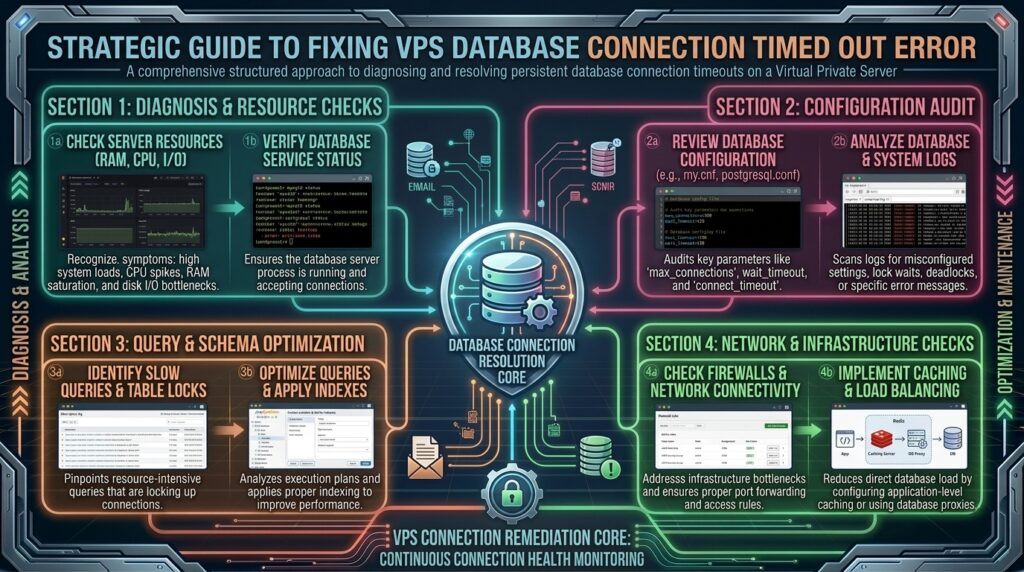
How to fix database connection timed out error on vps? Welcome to thehostreviews.com—your premier authoritative destination for virtual private server administration, MySQL/MariaDB database optimization, and high-performance troubleshooting guides spanning major technology hubs from New York and San Francisco to Texas, California, and Washington.
Introduction: The Dreaded Database Connection Timeout
You are managing a high-performance Virtual Private Server (VPS) powering your core enterprise application, e-commerce store, or digital publication. Suddenly, inbound traffic spikes, or routine maintenance finishes, and your website collapses under a stark, ominous error screen: “Error establishing a database connection” or “Database connection timed out.”
For system administrators, developers, and business owners operating in competitive tech markets like San Francisco, New York, and Austin, a database timeout is an absolute operational emergency. Unlike shared hosting where you rely entirely on technical support to fix database bottlenecks, a VPS grants you absolute root access—meaning you are the system administrator responsible for diagnosing, patching, and tuning the underlying MySQL or MariaDB database engine.
When a database connection times out, it means your web server (such as Nginx or Apache) attempted to communicate with your database server, but the database daemon failed to respond within the allotted time threshold. This failure can stem from exhausted connection pools, misconfigured memory buffers, heavy locked queries, or underlying Linux kernel resource limits.
This comprehensive, step-by-step masterclass dives deep into the architecture of VPS database performance, outlines an advanced diagnostic protocol, and provides a foolproof technical playbook to resolve connection timeouts permanently.
Part 1: Anatomy of a VPS Database Timeout
Before executing commands in your terminal, you must understand what happens during a database transaction on a Linux VPS.
1. The Client-Server Handshake
When a user visits your dynamic website, your CMS (such as WordPress, Magento, or a custom Node.js/PHP application) acts as a database client. It sends a TCP request to the local or remote database server (MySQL or MariaDB) listening on port 3306.
- If the database server is overloaded, out of memory, or locked in heavy disk I/O wait states, it cannot process the incoming handshake.
- Once the connection wait time exceeds the application’s threshold (e.g.,
CONNECT_TIMEOUTor PHP’smax_execution_time), the connection drops, throwing a timeout error.
2. Why VPS Environments are Uniquely Vulnerable
Unlike managed hosting platforms with automatic resource scaling, a VPS operates within fixed RAM, CPU, and disk quotas. If your database configuration (my.cnf or my.ini) requests more memory than your VPS physical RAM allows, Linux triggers the Out-Of-Memory (OOM) Killer, abruptly terminating the MySQL/MariaDB daemon to save the operating system from crashing. This sudden crash manifests as an immediate database connection timeout.
Part 2: Step-by-Step Emergency Diagnostic Protocol
When your VPS database is timing out, do not guess at the solution. Log into your server via SSH and execute this rigorous diagnostic workflow:
Step 1: Check if the Database Service is Actually Running
The most basic cause of a timeout is that the database daemon itself has crashed or stopped.
- Connect to your VPS via SSH as root or a sudo-enabled user:Bash
ssh root@your_vps_ip - Check the active status of MySQL or MariaDB using systemctl:Bash
sudo systemctl status mysql(Note: On some systems, usemariadbinstead ofmysql). - If the service is listed as inactive (dead) or failed, attempt to start it immediately:Bash
sudo systemctl start mysqlIf it fails to start, proceed to Step 2 to read the server error logs.
Step 2: Inspect the MySQL / MariaDB Error Logs
If the database service crashed, the system logs will explicitly state why.
- Open the MySQL error log file using a text editor or tail command:Bash
sudo tail -n 100 /var/log/mysql/error.log(Path may vary depending on your Linux distribution, e.g.,/var/log/mariadb/mariadb.log) - Look for critical keywords:
Out of memory: Indicates your server ran out of RAM and Linux killed MySQL.Table is marked as crashed: Indicates corruption in your storage engine tables.Too many connections: Indicates your max connection limit has been completely exhausted.
Step 3: Check Active Server Resource Utilization (RAM & CPU)
Run system resource auditing tools to see if your VPS is suffocating under resource starvation:
Bash
htop
- Examine your MEM (Memory) and CPU usage bars at the top.
- If your swap memory is maxed out and physical RAM is at 100%, your database queries will crawl, causing widespread connection timeouts across your applications.
Part 3: Step-by-Step Resolution Playbook
Depending on the root cause identified during your diagnostic audit, execute the corresponding technical resolution below:
Resolution 1: Fix “Too Many Connections” Errors
If your application experiences traffic surges, your database server may hit its maximum concurrent connection ceiling, rejecting new incoming requests.
- Log into MySQL via command line:Bash
mysql -u root -p - Check your current maximum connection limit:SQL
SHOW VARIABLES LIKE 'max_connections'; - Check how many connections are currently active:SQL
SHOW STATUS LIKE 'Threads_connected'; - If
Threads_connectedis equal to or dangerously close tomax_connections, you need to increase the limit. Open your MySQL configuration file:Bashsudo nano /etc/mysql/my.cnf(Or/etc/my.cnf) - Under the
[mysqld]section, increase the maximum connection limit:Ini, TOML[mysqld] max_connections = 300 - Save the file and restart your database server:Bash
sudo systemctl restart mysql
Resolution 2: Resolve Out-of-Memory (OOM) Crashes and Tune RAM
If your VPS database daemon keeps crashing due to high memory consumption, you must optimize your database buffer pools to fit securely within your server’s available RAM.
- Open your configuration file (
/etc/mysql/my.cnf). - Locate or add the
innodb_buffer_pool_sizedirective. This is the single most important memory setting in MySQL/MariaDB, dictating how much RAM is allocated to cache data and indexes.- Rule of thumb: On a dedicated database VPS, set this to 50% to 70% of your total server RAM (e.g., set to
2Gon a 4GB RAM VPS).
innodb_buffer_pool_size = 2G - Rule of thumb: On a dedicated database VPS, set this to 50% to 70% of your total server RAM (e.g., set to
- Save the file and restart MySQL to apply the new memory allocation footprint.
Resolution 3: Fix Stuck, Locked, or Slow Queries
Sometimes the database is running, but all available worker threads are trapped processing a massive, unindexed query or deadlocked transactions, blocking new connections from getting through.
- Log into MySQL:Bash
mysql -u root -p - View all currently running queries and processes:SQL
SHOW FULL PROCESSLIST; - Scan the
TimeandStatecolumns. If you see queries sitting in aLockedorSending datastate for hundreds of seconds, note theirId. - Kill the hung query thread immediately to free up server bandwidth:SQL
KILL query_id_number;
Resolution 4: Repair Corrupted Database Tables
If your VPS experienced a sudden power outage, host node reboot, or hard disk failure, database tables can corrupt, throwing connection timeouts when accessed.
- Run the MySQL database check and repair utility directly from your Linux terminal:Bash
mysqlcheck -u root -p --all-databases --auto-repair - Enter your root database password. The utility will automatically scan every table across all databases and repair any corrupted index structures.
Resolution 5: Adjust TCP Keepalive and Connection Timeout Settings
If your web application connects to a remote database server or if network latency drops idle connections prematurely, you can increase connection timeout thresholds.
- Open your configuration file (
/etc/mysql/my.cnf). - Add or modify the interactive and wait timeout parameters under
[mysqld]:Ini, TOML[mysqld] connect_timeout = 60 wait_timeout = 28800 interactive_timeout = 28800 - Save and restart MySQL.
Part 4: Advanced VPS Database Optimization Best Practices
Once your immediate connection timeout crisis is resolved, implement these professional hardening strategies to ensure long-term stability:
- Enable Query Caching and Performance Schema: Monitor slow queries by enabling the MySQL slow query log (
slow_query_log = 1), allowing you to identify and index unoptimized database tables before they choke your CPU. - Implement Swap Space (Virtual RAM): If your VPS runs on tight memory specs, ensure you have an active Swap file configured on Linux. Swap space acts as a safety buffer during unexpected traffic spikes, preventing immediate OOM crashes.
- Use Persistent Connections Wisely: Configure your web application framework to handle connection pooling efficiently so it doesn’t open and abandon thousands of raw TCP sockets simultaneously.
Part 5: Frequently Asked Questions (FAQ)
1. What causes a database connection timed out error on a VPS?
This error is caused when your web application cannot establish communication with the database server before the connection threshold expires, usually due to high server load, maxed-out connections, or daemon crashes.
2. How do I check if my MySQL service is running on my VPS?
You can verify the status of your database service by running sudo systemctl status mysql (or mariadb) inside your VPS terminal.
3. What does “Too many connections” mean in MySQL?
It means your database has reached its maximum concurrent connection limit (max_connections), rejecting all new incoming user requests until active connections drop.
4. How do I increase the max_connections limit on my VPS?
You can increase it by editing your MySQL configuration file (/etc/mysql/my.cnf), adding max_connections = 300 under the [mysqld] block, and restarting the database service.
5. Why does my database daemon keep crashing randomly?
Random crashes on a VPS are typically caused by Linux’s Out-Of-Memory (OOM) Killer terminating MySQL because memory usage exceeded physical RAM limits.
6. What is innodb_buffer_pool_size and how do I set it?
It is the memory allocated for caching database tables and indexes. On a dedicated database VPS, it should be set to roughly 50% to 70% of your total server RAM.
7. How do I kill stuck or locked queries in MySQL?
You can list active processes using SHOW FULL PROCESSLIST; inside the MySQL console and terminate frozen queries using the command KILL [process_id];.
8. Can corrupted tables cause database connection timeouts?
Yes. If core tables are corrupted, database queries freeze or fail instantly when accessed, preventing applications from loading and resulting in connection failures.
9. How do I repair corrupted MySQL databases via command line?
You can automatically scan and repair all database tables on your server by executing the command mysqlcheck -u root -p --all-databases --auto-repair.
10. Who should I contact if my VPS database configuration is unresolvable?
If underlying disk failures, kernel panics, or advanced configuration bottlenecks persist, reach out to your VPS provider’s managed support or system administration experts for deep kernel-level intervention.
Conclusion
Encountering a database connection timed out error on your VPS can halt operations instantly, but mastering Linux terminal diagnostics and database configuration parameters puts you fully in control. By verifying service statuses, auditing error logs, tuning maximum connection limits, optimizing InnoDB memory buffers, and clearing locked queries, you can resolve connection timeouts and ensure a lightning-fast, highly resilient hosting infrastructure.