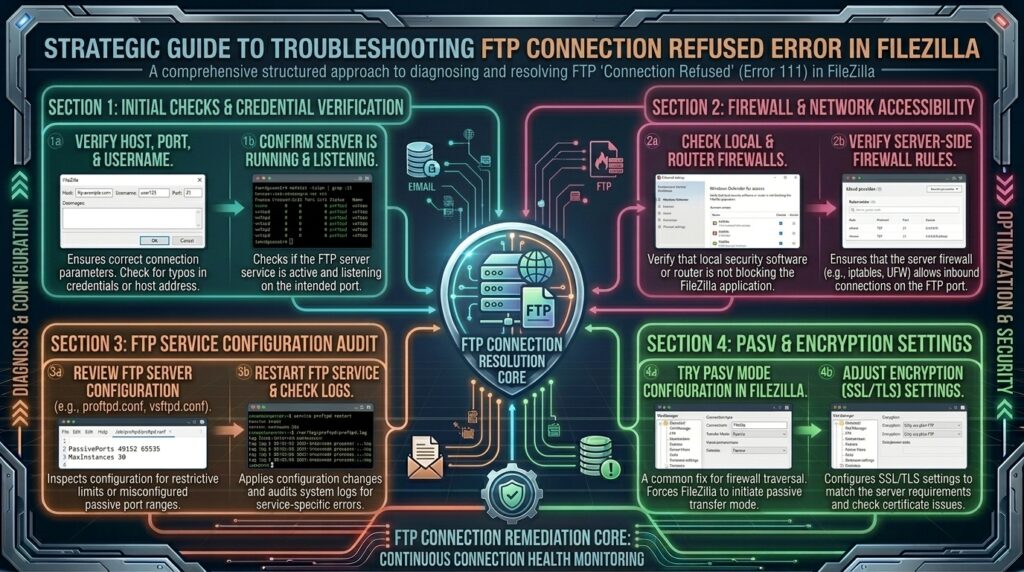
Welcome to thehostreviews.com—your premier authoritative destination for FTP client configuration, server troubleshooting tutorials, and web hosting connectivity reviews spanning major technology hubs from New York and San Francisco to Texas, California, and Washington.
Introduction: The Frustration of the FileZilla Connection Refused Wall
You have just completed building your website files, set up your web hosting account, and opened your favorite FTP client—FileZilla—to upload your directory structure. You type in your host server IP address, username, and password, click Quickconnect, and wait for the remote directory listing to populate.
Instead of a successful handshake, FileZilla flashes a stark, discouraging red error line in the status log:
Error: Connection attempt failed with "ECONNREFUSED - Connection refused by server."Critical error: Could not connect to server
For web developers, designers, and site administrators working across development hubs from New York to San Francisco, the “Connection Refused” error is one of the most jarring hurdles in web management. Unlike a Connection Timed Out error (which suggests a network routing block or firewall drop), a Connection Refused error means your computer successfully reached the target server’s IP address, but the server explicitly rejected the connection request on that specific port.
Why does a server slam the door in FileZilla’s face? This comprehensive, step-by-step masterclass dives deep into the architecture of FTP/SFTP protocols, unpacks the hidden root causes of FileZilla refusal errors, and provides a foolproof technical troubleshooting playbook to restore seamless file transfers.
Part 1: Anatomy of an FTP Connection Refused Error
Before executing troubleshooting commands, it is vital to understand what happens under the hood when FileZilla talks to a web hosting server.
1. The Protocol Divide: FTP vs. SFTP
When configuring FileZilla, users often mix up connection protocols, which is the #1 trigger for refusal errors:
- Standard FTP (File Transfer Protocol): Usually operates over Port 21. It transmits data in clear text. Many modern cloud and shared hosts disable plain FTP by default for security reasons.
- SFTP (SSH File Transfer Protocol): Operates over Port 22 and rides on top of the secure SSH (Secure Shell) protocol.
If your hosting provider requires SFTP on Port 22, but you attempt to connect using standard FTP on Port 21, the server’s security daemon will instantly refuse the handshake.
2. The Server-Side Daemon Status
For an FTP or SFTP connection to succeed, the corresponding software daemon (such as vsftpd, ProFTPD, or the OpenSSH server) must be actively running and listening for incoming socket connections on the host machine. If the service crashed, was misconfigured, or was disabled by your web host, any incoming FileZilla request will meet an immediate refusal wall.
Part 2: Step-by-Step Diagnostic and Troubleshooting Playbook
To systematically eliminate the “Connection Refused” error in FileZilla, follow this rigorous 5-step engineering workflow:
Step 1: Verify Port Numbers and Protocol Settings
The simplest mistakes are often the most common. A mismatched port configuration will cause an instant refusal.
- Open FileZilla and look at your connection parameters at the top (Host, Username, Password, Port).
- Check your Port field:
- If you are connecting via SFTP, ensure the port is explicitly set to
22. - If you are connecting via FTP with explicit TLS, ensure the port is set to
21.
- If you are connecting via SFTP, ensure the port is explicitly set to
- Check the Protocol dropdown in the FileZilla Site Manager:
- Change standard FTP to SFTP – SSH File Transfer Protocol if your host utilizes secure key or password-based SSH access (standard on modern cloud hosting and VPS environments).
Step 2: Test Server Reachability and Port Status
You need to verify whether the port is genuinely open and listening on the server side, or if a network firewall is actively blocking it.
- Open your local computer’s terminal (Command Prompt on Windows, Terminal on macOS/Linux).
- Run a
telnetornc(netcat) command to test the port directly:Bashnc -zv your_server_ip 22(Replaceyour_server_ipwith your actual hosting server IP address). - Interpreting the Output:
- If it returns Connection refused, the remote server is actively rejecting traffic on that port (either the service is down or the firewall is blocking it).
- If it hangs indefinitely without responding, a local or network firewall is dropping the packets completely (which points to a timeout rather than refusal).
Step 3: Check Local Antivirus and Firewall Software
Aggressive third-party antivirus suites, internet security software, and firewalls (such as Windows Defender Firewall, Norton, McAfee, or Bitdefender) frequently inspect outgoing FTP traffic and misinterpret it as malicious port-scanning behavior, blocking FileZilla locally before packets even leave your machine.
- Temporarily disable your third-party firewall or antivirus real-time network shielding.
- Attempt to connect via FileZilla again.
- If the connection succeeds, add FileZilla (
filezilla.exe) to your antivirus application’s Allowed Apps / Exclusion List to prevent future blocks.
Step 4: Review Server-Side Firewall Blocks (CSF, Fail2ban, or cPanel)
If you recently typed your FTP password incorrectly three or more times in a row, automated server security systems (like CSF – ConfigServer Security & Firewall or Fail2ban running on your hosting server) will instantly blacklist your local public IP address, throwing immediate connection refused errors for all subsequent attempts.
- Log into your hosting control panel or cloud VPS dashboard.
- Check your server security logs for IP blocking notices.
- If your home or office IP address was flagged, whitelist your IP address inside your host’s firewall manager to restore access.
Step 5: Verify That the FTP/SSH Service is Running on the Server
If you manage your own Virtual Private Server (VPS) or dedicated server, the underlying FTP or SSH daemon may have crashed or stopped running.
- SSH into your VPS as root:Bash
ssh root@your_server_ip - Check the status of your SSH/SFTP service:Bash
sudo systemctl status ssh(Or check your FTP daemon status, e.g.,sudo systemctl status vsftpd). - If the service is stopped, restart it immediately:Bash
sudo systemctl restart ssh
Part 3: Advanced FileZilla Configuration Tweaks
If basic network tests and port verifications check out, adjust these advanced settings inside FileZilla to optimize connection stability:
- Limit Number of Simultaneous Connections: Shared and managed hosts often limit how many concurrent connections a single IP address can open simultaneously. If FileZilla tries to open 10 threads at once, the server may refuse the extra sockets.
- Open FileZilla Site Manager.
- Select your site profile and click on the Transfer Settings tab.
- Check the box for Limit number of simultaneous connections.
- Set the Maximum number of connections to a conservative number like
2or3. Click OK.
- Increase Timeout Thresholds:
- Go to Edit > Settings > Connection.
- Increase the timeout value from the default 20 seconds to
60seconds to give slow server handshakes enough time to complete.
Part 4: Frequently Asked Questions (FAQ)
1. What does “ECONNREFUSED – Connection refused by server” mean in FileZilla?
This error means your computer successfully reached the server’s IP address, but the server explicitly rejected the connection request on that specific port, usually due to a closed port, wrong protocol, or down service.
2. What is the difference between Port 21 and Port 22 in FileZilla?
Port 21 is used for standard unencrypted FTP connections, while Port 22 is used for secure SFTP (SSH File Transfer Protocol) connections. Using the wrong port for your host setup causes connection refusals.
3. Why does my host require SFTP instead of standard FTP?
Modern web hosts mandate SFTP (Port 22) because it encrypts all transmitted data using SSH keys and secure passwords, whereas standard FTP transmits credentials in clear text.
4. Can my local antivirus block FileZilla connections?
Yes. Overzealous local antivirus suites and firewalls can misinterpret FTP handshakes as unauthorized network activity and block FileZilla locally, triggering connection errors.
5. What should I do if my IP address got blocked by the server firewall?
If you entered incorrect passwords multiple times, automated server firewalls (like CSF or Fail2ban) may blacklist your IP. You must log into your hosting dashboard and whitelist your IP address.
6. How do I check if the FTP/SSH service is running on my server?
If you have VPS root access, log in via SSH and run sudo systemctl status ssh or sudo systemctl status vsftpd to verify that the daemon is active and running.
7. How do I limit simultaneous connections in FileZilla?
You can limit connections by going to Site Manager, selecting your site, opening the Transfer Settings tab, checking “Limit number of simultaneous connections,” and setting it to 2 or 3.
8. Why does FileZilla work on mobile data but fail on my home Wi-Fi?
If it works on mobile data, your home internet router firewall, ISP network settings, or dynamic home IP address may be blocking outbound FTP/SFTP ports.
9. Should I use Quickconnect or Site Manager in FileZilla?
You should always use Site Manager (Ctrl + S), as it allows you to save your exact protocol, port, encryption type, and logon credentials without risking Quickconnect defaults.
10. Who should I contact if I cannot resolve a FileZilla connection refused error?
If your local firewall is clear, your credentials are accurate, and port testing fails, reach out to your web hosting provider’s technical support team to verify server-side FTP/SSH daemon status.
Conclusion
Encountering a “Connection Refused” error in FileZilla can temporarily halt your web development workflow, but it is a systemic issue that can be diagnosed and resolved methodically. By verifying your port numbers (Port 21 vs. Port 22), checking local antivirus interference, ensuring server daemon availability, and configuring simultaneous connection limits, you can establish a secure, lightning-fast connection to your hosting environment.