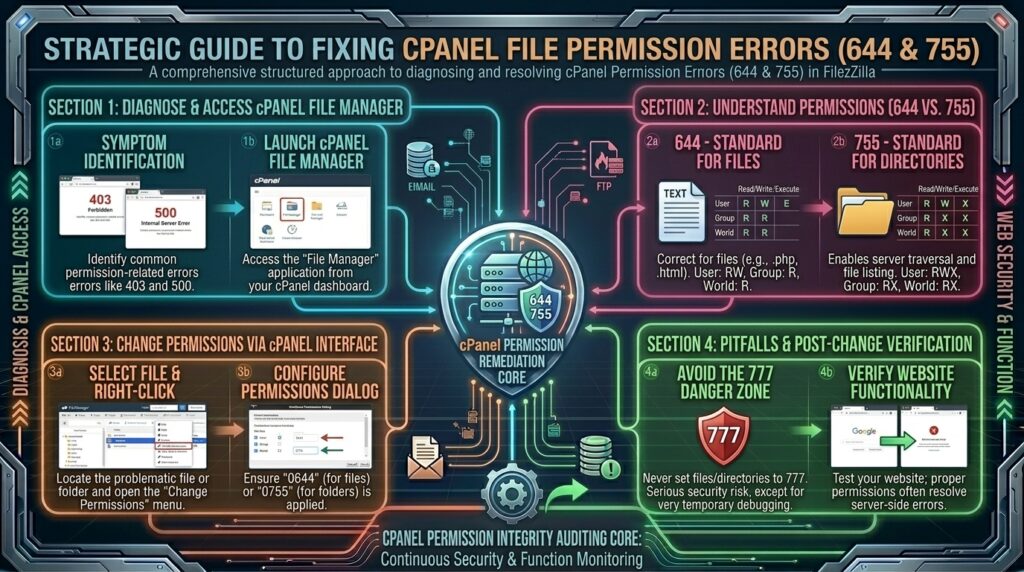
How to fix file permission errors 644 and 755 in cpanel? Welcome to thehostreviews.com—your premier authoritative destination for server administration tutorials, cPanel permission optimization guides, and web hosting security reviews spanning major technology hubs from New York and San Francisco to Texas, California, and Washington.
Introduction: The Invisible Wall of File Permissions
You upload a brand-new theme or plugin package to your web hosting account, navigate to your website address, and instead of a fully functional page, you encounter a frustrating roadblock: “500 Internal Server Error”, “403 Forbidden: Access Denied”, or a cryptic message stating that the server cannot write to configuration files.
For website owners, developers, and digital agencies managing platforms on cPanel-powered shared hosting or cloud servers, file permission errors are among the most frequent obstacles encountered. Unlike database queries or syntax bugs, permission errors deal directly with the Linux operating system’s security matrix. Every file and folder on your server has a specific numeric code that dictates who is allowed to read, write, or execute it. When these codes fall out of sync, Apache or LiteSpeed web servers immediately slam the door, halting your site’s operation.
This comprehensive, step-by-step masterclass dives deep into the architecture of Linux file permissions (specifically 644 for files and 755 for directories), explains why permission corruption happens, and provides a foolproof technical playbook to diagnose and resolve errors securely through cPanel.
Part 1: Demystifying Linux File Permissions (The Math Behind 644 and 755)
Before touching your server files, it is vital to understand what those three-digit numbers actually mean. Linux divides file access rights into three distinct user classes:
- User (Owner): The specific cPanel account owner who created or uploaded the file.
- Group: System users assigned to the same group as the file owner.
- World (Public): Every external visitor or web browser trying to access your site over the internet.
Each of these three classes is assigned a numeric value based on three core permissions:
- Read (r): Value of 4 (Permission to view or open the file/directory contents).
- Write (w): Value of 2 (Permission to modify, edit, upload, or delete the file/directory).
- Execute (x): Value of 1 (Permission to run a script or traverse/enter a folder).
Understanding 644 (Standard File Permission)
When you see a standard PHP file, HTML document, image, or stylesheet set to 644:
- Owner (6 = 4 + 2): Can Read and Write (modify the file).
- Group (4): Can only Read the file.
- World (4): Can only Read (view) the file through a browser.
- Why it matters: No one on the public internet can modify your core code, but the web server can read it to display your website correctly.
Understanding 755 (Standard Directory Permission)
When you see a folder or directory set to 755:
- Owner (7 = 4 + 2 + 1): Can Read, Write, and Execute (open and create files inside).
- Group (5 = 4 + 1): Can Read and Execute.
- World (5 = 4 + 1): Can Read and Execute (traverse the folder structure).
- Why it matters: Directories must have the execute bit (
1) enabled so that the web server can step inside them to fetch files. If a folder is set to700, the server cannot enter it, triggering an immediate 403 Forbidden error.
Part 2: Step-by-Step Guide—Fixing Permissions via cPanel File Manager
If your website is throwing permission-related error codes, you can correct them quickly using cPanel’s built-in File Manager interface without needing command-line SSH access.
Step 1: Access cPanel File Manager and Enable Hidden Files
- Log into your cPanel Account Dashboard provided by your web host.
- Scroll down to the Files section and click on File Manager.
- In the top-right corner, click on the Settings button.
- Ensure that the checkbox for Show Hidden Files (dotfiles) is checked. (This is critical because configuration files like
.htaccessbegin with a dot and will remain invisible otherwise). - Click Save. Navigate to your website’s document root folder, which is typically
public_html/.
Step 2: Fixing File Permissions (Applying 644)
- Inside your
public_html/directory, locate your files (such asindex.php,wp-config.php, images, and scripts). - Look at the Permissions column on the right side of the file table. You should see numeric values like
644,777, or600. - Right-click the file you want to change (or click the permission digits directly) and select Change Permissions.
- A small permission matrix window will pop up featuring checkboxes for User, Group, and World.
- Set the checkboxes to achieve a numeric value of 644:
- User: Read + Write (Check boxes 4 and 2 = 6)
- Group: Read only (Check box 4 = 4)
- World: Read only (Check box 4 = 4)
- Click Change Permissions.
Step 3: Fixing Directory Permissions (Applying 755)
- Locate your folders inside
public_html/(such aswp-admin/,wp-includes/,wp-content/, or custom upload folders). - Right-click the folder and select Change Permissions.
- Adjust the matrix checkboxes to achieve a numeric value of 755:
- User: Read + Write + Execute (Check boxes 4, 2, and 1 = 7)
- Group: Read + Execute (Check boxes 4 and 1 = 5)
- World: Read + Execute (Check boxes 4 and 1 = 5)
- Click Change Permissions.
Part 3: Advanced Bulk Permission Correction (Recursive Fixes)
If your website contains thousands of files nested deep inside multiple subfolders, manually changing permissions one by one is impossible. You can apply bulk permissions recursively, with extreme caution.
The Danger of Blanket Recursive Changes
Never blindly apply 755 to all files or 644 to all directories across your entire public_html/ folder.
- If you set all files to
755, your security configuration becomes vulnerable because files become executable by the public world. - If you set all directories to
644, the server cannot enter the folders, breaking your website completely.
How to Safely Fix Permissions in Bulk via cPanel Terminal
If your web host provides access to the Terminal utility inside cPanel, you can execute precise Linux find commands to fix all files and folders instantly without risking structural integrity:
- Open Terminal from your cPanel dashboard.
- Navigate to your website root directory:Bash
cd public_html - Run this command to set all directories recursively to
755:Bashfind . -type d -exec chmod 755 {} + - Run this command to set all files recursively to
644:Bashfind . -type f -exec chmod 644 {} + - Secure your core configuration file (
wp-config.php) by tightening it further:Bashchmod 440 wp-config.php
Part 4: Special Permission Requirements for Critical Files
While 644 for files and 755 for directories cover 95% of your website structure, certain specialized files require tighter security constraints to prevent hacker exploits:
wp-config.php(WordPress Configuration): Should be set to640or440. This ensures that even if a malicious script reads your public directory, it cannot easily view your database username and password..htaccess(Apache Rewrite Rules): Should remain at644.wp-content/uploads/directory: Must be set to755, but any PHP files uploaded here must be rigorously blocked to prevent backdoor malware execution.
Part 5: Why Do Permissions Keep Breaking? (Common Triggers)
If you fix your permissions today, only to find them broken again next week, your system is suffering from an underlying workflow issue:
- Bad FTP Client Upload Settings: Some older FTP clients (like FileZilla) default to saving custom file transfer masks (
chmodflags) that force uploaded files to inherit777or insecure permissions automatically. Check your FileZilla transfer settings. - Automated Plugin / Theme Installers: Poorly coded plugins that write directly to server files using incorrect native PHP functions (
mkdirorchmodwithout proper masking) can corrupt directory permissions upon installation. - File Ownership Mismatches (UID/GID): If you extracted a large backup zip archive via root SSH or a command-line script, the extracted files may be owned by the
rootsystem user instead of your specific cPanel account user. This mismatch triggers instant 403 errors even when permissions look like644on paper. Contact your host to run a recursive ownership fix (chown).
Part 6: Frequently Asked Questions (FAQ)
1. What do file permission numbers 644 and 755 mean?
Number 644 grants the owner read/write access and the public read-only access for files. Number 755 grants the owner full access and the public read/execute access for directories.
2. Why does my website show a 500 Internal Server Error due to permissions?
A 500 error is often triggered when server configuration files (like .htaccess) or folders are set to overly permissive values like 777, which web servers reject for security reasons.
3. Can I set all my website files to 777 for convenience?
Never! Setting files or folders to 777 gives anyone on the internet read, write, and execute permissions, inviting hackers to upload malicious scripts and compromise your server.
4. How do I change file permissions in cPanel File Manager?
Log into cPanel, open File Manager, right-click the target file or folder, select “Change Permissions,” adjust the matrix checkboxes, and click save.
5. What is the correct permission for the wp-config.php file?
It should be set to 640 or 440 to protect your sensitive database login credentials from unauthorized reading.
6. Why do folders need execute (1) permissions?
Execute permissions on a directory allow the web server to enter and traverse the folder structure to locate index files. Without execute rights, browsers throw a 403 Forbidden error.
7. How do I fix permissions recursively without breaking my site?
You can use cPanel Terminal commands (find . -type d -exec chmod 755 {} + for folders and find . -type f -exec chmod 644 {} + for files) to apply correct bulk rules safely.
8. What causes file permissions to change automatically?
Permissions can change due to insecure FTP client settings, poorly coded plugins running automated updates, or manual file extractions performed under root user accounts.
9. What should I do if changing permissions in cPanel doesn’t fix the error?
If permissions are correct (644/755) and errors persist, check your server error logs for syntax issues, .htaccess corruption, or file ownership mismatches.
10. Who should I contact if my file ownership is misaligned?
If files were extracted via root and your cPanel username no longer owns them, reach out to your web hosting support team to run a recursive ownership reset (chown).
Conclusion
Mastering file permissions (644 for files and 755 for directories) is a foundational skill for anyone managing a website on cPanel web hosting infrastructure. By understanding the Linux security matrix, utilizing cPanel File Manager correctly, applying safe recursive terminal commands, and securing sensitive configuration files, you eliminate server error screens and protect your digital assets against malicious intrusions.