How to Setup SPF, DKIM, and DMARC Records for Hosting Email: The Ultimate Domain Security Master Guide
Welcome to thehostreviews.com—your premier authoritative destination for web hosting evaluations, infrastructure management, and technical server administration guides spanning tech hubs across New York, San Francisco, Texas, California, and Washington.
Introduction: The Critical Importance of Email Authentication
In the modern digital landscape, email remains the primary backbone of business communication. Whether you are running a fast-growing e-commerce store in Texas, a digital marketing agency in New York, a SaaS company in San Francisco, or a technical consulting practice in Washington, how your emails are handled by receiving servers dictates your operational success.
However, the internet’s underlying email protocol (SMTP) was originally designed decades ago with zero built-in security validation. This fundamental design flaw makes it remarkably easy for malicious actors, spammers, and phishing bots to spoof your domain name—sending fraudulent emails that look like they came directly from you@yourdomain.com.
When your domain is spoofed or lacks proper email authentication:
- The Inbox Disaster: Major inbox providers like Gmail, Outlook, Yahoo, and Apple Mail aggressively flag or completely drop your emails into the Spam/Junk folder.
- Brand Damage: Legitimate clients, partners, and customers receiving phishing emails bearing your domain name lose trust instantly.
- Domain Reputation Blacklisting: Your domain’s sender reputation plummets, causing even your transactional, password-reset, and order-confirmation emails to fail.
To protect your brand and ensure 100% inbox delivery, you must configure three vital DNS security protocols: SPF, DKIM, and DMARC.
This comprehensive, expert-level guide will walk you through everything you need to know to understand, generate, and implement these authentication records on your web hosting account.
Part 1: Demystifying SPF, DKIM, and DMARC
Before diving into step-by-step configuration workflows, it helps to understand what each protocol does and how they work together as a cohesive security shield.
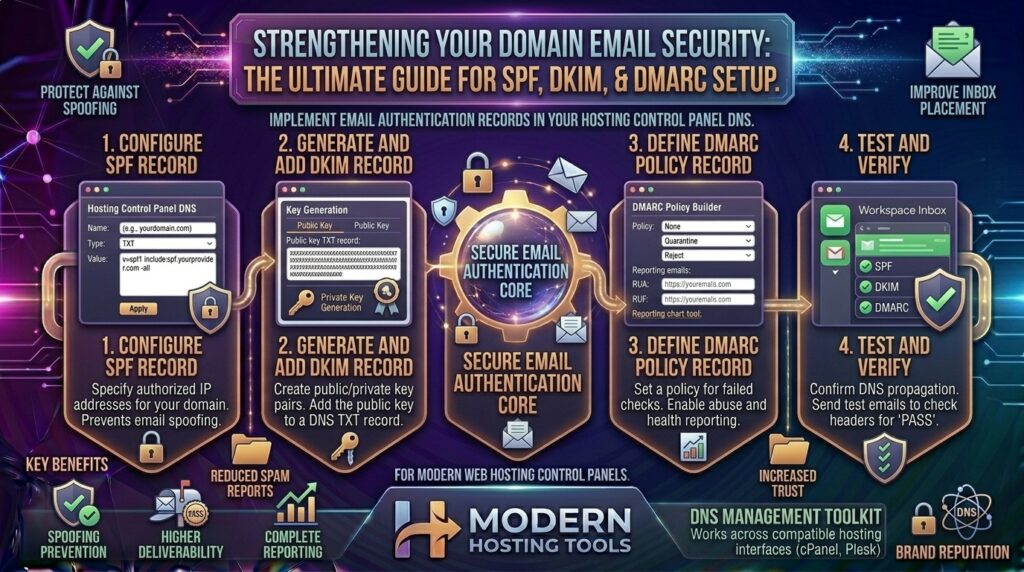
1. SPF (Sender Policy Framework)
- What it is: SPF is a TXT record published in your DNS settings that explicitly lists all the mail servers and IP addresses authorized to send emails on behalf of your domain name.
- How it works: When a receiving mail server gets an email from
support@yourdomain.com, it checks your domain’s DNS for your SPF record. If the email originated from an IP address listed in your SPF record, it passes. If it came from an unauthorized server, it fails.
2. DKIM (DomainKeys Identified Mail)
- What it is: DKIM adds a cryptographic digital signature to every outgoing email header. This signature is tied to a public cryptographic key published in your DNS records.
- How it works: Your email server signs each outbound message with a private key. When a receiving mail server gets the message, it uses the public key found in your DNS to verify the digital signature. If the signature matches, it proves two things: the email genuinely originated from your domain, and the message content was not altered or tampered with in transit.
3. DMARC (Domain-based Message Authentication, Reporting, and Conformance)
- What it is: DMARC is the master policy protocol that ties SPF and DKIM together. It tells receiving mail servers what they should do if an email fails SPF or DKIM checks (e.g., monitor only, quarantine the email to spam, or reject it entirely).
- How it works: DMARC also provides forensic reporting, sending automated daily XML feedback logs back to your administrative email address, detailing every server attempting to send mail using your domain.
Part 2: Step-by-Step Guide to Setting Up SPF in cPanel
For most web hosting environments utilizing cPanel, SPF records are either automatically generated or easily managed via the Zone Editor.
Step 1: Log Into cPanel
- Navigate to your hosting login portal and open your primary cPanel dashboard.
Step 2: Open Zone Editor
- Scroll down to the Domains section and click on Zone Editor.
- Locate your domain name and click Manage.
Step 3: Locate or Create Your SPF Record
- Filter the record list by clicking the TXT button.
- Look for an existing TXT record starting with
v=spf1. - If you use your local cPanel hosting mail server, your SPF record typically looks like this:Plaintext
v=spf1 +mx +a ~all - If you use external mail services (like Google Workspace or Microsoft 365), you must include their servers in your SPF string. For example, a combined SPF record for Google Workspace looks like this:Plaintext
v=spf1 include:_spf.google.com ~all - Click Save Record. (Crucial Rule: A domain can only have one active SPF record. Combining multiple includes into a single record is mandatory if you use multiple mail services).
Part 3: Step-by-Step Guide to Setting Up DKIM in cPanel
DKIM requires a unique cryptographic key pair generated specifically for your domain and mail server architecture.
Step 1: Open Email Deliverability in cPanel
- Return to the main cPanel home screen and locate the Email module section.
- Click on Email Deliverability.
Step 2: Review Domain Status
- cPanel will display your domain name along with the status of your mail records (SPF, DKIM, and DMARC).
- If DKIM is listed as Invalid or missing, click the + Install The Suggested Record button next to your domain.
- cPanel will automatically generate and insert the correct cryptographic DKIM public key into your DNS zone file.
(Note: If you use an external email provider like Google Workspace or Microsoft 365, you must generate your DKIM record inside their respective admin consoles and paste it into your cPanel Zone Editor as a TXT record).
Part 4: Step-by-Step Guide to Setting Up DMARC
Unlike SPF and DKIM, DMARC gives you granular control over enforcement policies. It is best to start with a “monitoring” policy (p=none) before graduating to strict blocking (p=reject).
Step 1: Construct Your DMARC Record String
A standard DMARC record is deployed as a TXT record with a specific naming convention and policy tags. The host name must always be _dmarc.yourdomain.com.
Here is a recommended baseline DMARC record for beginners:
Plaintext
v=DMARC1; p=none; rua=mailto:dmarc-reports@yourdomain.com; pct=100
Breakdown of DMARC Tags:
v=DMARC1: Specifies the DMARC protocol version.p=none: The policy setting.nonemeans monitor and report only (does not block failing emails, perfect for auditing). Later, you can upgrade this top=quarantine(send failures to spam) orp=reject(block outright).rua=mailto:...: The email address where receiving servers should send daily XML forensic report logs.pct=100: Applies the policy to 100% of your outgoing mail traffic.
Step 2: Add the DMARC Record to cPanel Zone Editor
- Open your cPanel Zone Editor and click Manage next to your domain.
- Click + Add Record.
- Fill out the fields:
- Valid Zone Name / Name:
_dmarc.yourdomain.com.(Ensure you include the trailing dot if required by your cPanel interface). - TTL:
14400(or default). - Type:
TXT - Record / TXT Value: Paste your DMARC string (e.g.,
v=DMARC1; p=none; rua=mailto:admin@yourdomain.com;).
- Valid Zone Name / Name:
- Click Save Record.
Part 5: Advanced Optimization and Best Practices
To maintain pristine email deliverability, implement these expert-level administration tips:
- Monitor DMARC Reports: Do not skip the
ruareporting tag. Reviewing your daily XML reports helps you discover unauthorized services or third-party marketing tools (like Mailchimp or HubSpot) sending mail on your behalf that need to be added to your SPF record. - Gradually Enforce Policies: Once you review reports for 2–4 weeks and confirm all legitimate mail passes SPF and DKIM, upgrade your DMARC policy from
p=nonetop=quarantine, and eventually top=rejectfor maximum security. - Use DNS Validation Tools: Always test your records using third-party diagnostic utilities like MxToolbox or Mail-tester.com to ensure syntax correctness.
Part 6: Frequently Asked Questions (FAQ)
1. Can I have multiple SPF records for a single domain?
No. RFC standards dictate that a domain must have exactly one SPF record. If you have multiple services (e.g., cPanel hosting + Google Workspace + Mailchimp), you must combine them into a single SPF string using multiple include: statements.
2. What happens if I make a typo in my DMARC record?
If a DMARC record contains a syntax error, receiving mail servers will ignore it, leaving your domain unprotected. Always verify your records using online DMARC checkers.
3. How long does it take for DNS changes to propagate?
DNS record propagation for SPF, DKIM, and DMARC typically takes anywhere from 15 minutes to 4 hours globally, though complete worldwide propagation can take up to 24 hours.
4. Do I need DMARC if I already have SPF and DKIM?
Yes. SPF and DKIM authenticate your messages, but they do not tell receiving servers what action to take when authentication fails. DMARC provides that missing policy instruction and reporting feedback.
5. Will setting up email authentication improve my SEO rankings?
Indirectly, yes! Ensuring your transactional emails, password resets, and customer notifications successfully land in inboxes rather than spam folders prevents user frustration and enhances overall domain trust signals.
6. Can I set up DMARC without setting up SPF and DKIM first?
Technically yes, but it will fail. DMARC relies entirely on SPF and DKIM alignment to validate emails. If your base SPF and DKIM records are misconfigured, DMARC will flag 100% of your mail as failing.
7. What is the difference between p=none, p=quarantine, and p=reject?
p=none: Monitor only; logs failures but delivers emails normally.p=quarantine: Sends failing emails directly to the recipient’s spam/junk folder.p=reject: Blocks failing emails outright so they are never delivered.
8. Why are my legitimate emails still going to spam after setting up authentication?
SPF, DKIM, and DMARC solve authentication, but inbox placement is also influenced by content quality, recipient engagement, domain age, and IP reputation. Check your sending content for spam trigger words.
9. Do subdomain emails need their own DMARC records?
Yes. DMARC policies do not automatically cascade down to subdomains unless you define a wildcard DMARC record for your subdomain structure (e.g., _dmarc.sub.yourdomain.com).
10. How do I check if my SPF, DKIM, and DMARC records are working correctly?
You can use free online diagnostic tools like MxToolbox or send a test email to Mail-tester.com, which scores your server configuration out of 10/10 points.
Conclusion
Configuring SPF, DKIM, and DMARC records on your web hosting account is an absolute necessity for protecting your brand, preventing spoofing, and achieving flawless email deliverability. By following this expert guide, you establish a secure, enterprise-grade email infrastructure that safeguards your communications worldwide.