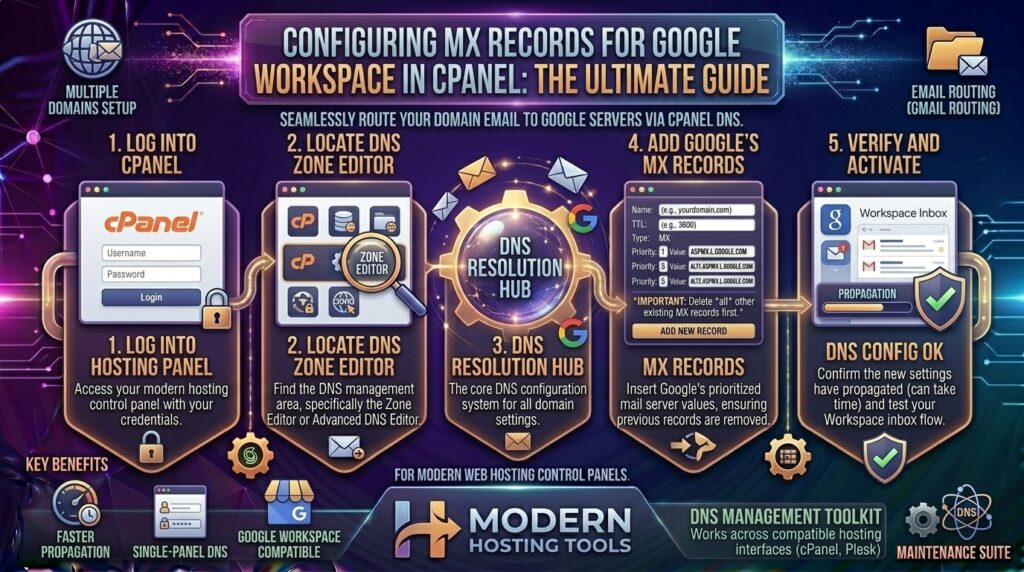
Configuring MX Records for Google Workspace in cPanel: The Definitive Master Guide
Welcome to thehostreviews.com—your premier authoritative destination for web hosting evaluations, infrastructure management, and technical server administration guides spanning tech hubs across New York, San Francisco, Texas, California, and Washington.
Introduction: Why Professional Email Hosting Matters for Your Brand
When building a digital presence—whether launching an e-commerce platform in Texas, a SaaS startup in San Francisco, or a media agency in New York—how you handle email communication dictates your brand’s credibility. While standard web hosting accounts come with built-in mail servers (handled via cPanel and Exim), growing businesses frequently demand enterprise-grade reliability, massive storage capacity, advanced spam filtering, and seamless calendar integrations.
This is where Google Workspace (formerly G Suite) comes in.
Migrating your professional domain email (e.g., you@yourdomain.com) to Google Workspace gives you access to Gmail’s powerful infrastructure, Google Drive collaboration, and enterprise security. However, to route incoming mail from the global internet to Google’s servers instead of your local web hosting server, you must correctly configure your domain’s MX (Mail Exchange) Records.
This comprehensive, expert-level guide will walk you through the exact step-by-step process of configuring Google Workspace MX records inside your cPanel hosting account, ensuring a seamless, zero-downtime email migration.
Part 1: Understanding MX Records and How Email Routing Works
Before modifying DNS settings, it is essential to understand what an MX record is and what role it plays.
What is an MX Record?
An MX (Mail Exchange) Record is a type of DNS (Domain Name System) record that specifies which mail servers are responsible for accepting email messages on behalf of a specific domain name.
When someone sends an email to contact@yourdomain.com:
- Their sending mail server queries the public DNS database for your domain’s MX records.
- The DNS system returns a prioritized list of mail server hostnames provided by your email provider.
- The sender’s server delivers the message directly to the highest-priority mail server listed.
Default cPanel Mail vs. Google Workspace MX Records
By default, when you purchase web hosting and point your domain to your cPanel server, your MX records point to your local host (e.g., mail.yourdomain.com). This routes incoming mail to your cPanel webmail inbox (Roundcube/Horde).
To use Google Workspace, you must replace those default local MX records with Google’s official, globally distributed server hostnames and priority numbers.
Part 2: Step-by-Step Guide to Configuring Google Workspace MX Records in cPanel
Follow this meticulous, step-by-step framework to update your mail routing configuration inside cPanel safely.
Step 1: Gather Google Workspace MX Values
Before opening cPanel, ensure you have signed up for Google Workspace and have your official Google MX record values handy. Google requires five specific MX records configured with precise priorities:
| Priority | Mail Server Hostname |
| 1 | SMTP.GOOGLE.COM (or ASPMX.L.GOOGLE.COM) |
| 5 | ALT1.ASPMX.L.GOOGLE.COM |
| 5 | ALT2.ASPMX.L.GOOGLE.COM |
| 10 | ALT3.ASPMX.L.GOOGLE.COM |
| 10 | ALT4.ASPMX.L.GOOGLE.COM |
(Note: Always double-check your current Google Workspace admin console for the exact string values provided during your workspace setup).
Step 2: Log Into Your cPanel Dashboard
- Navigate to your web hosting provider’s login portal, enter your credentials, and open your primary cPanel dashboard.
Step 3: Open the Zone Editor (or Advanced DNS Editor)
- Scroll down the cPanel home screen until you find the Domains or Networking module section.
- Click on the icon labeled Zone Editor (or Advanced DNS Zone Editor depending on your cPanel version).
Step 4: Locate Your Domain and Open MX Management
- Find your target domain name in the list of domains displayed on the screen.
- Click on the Manage button next to your domain to open its complete DNS record table.
Step 5: Remove or Replace Existing MX Records
- Filter the DNS record list by clicking the MX filter button at the top of the table.
- You will see your existing local hosting MX records (pointing to your local server hostname with priorities like
0or10). - Click the Delete button next to each existing local MX record. (Caution: Do not delete your A records or CNAME records—only remove the MX record entries).
Step 6: Add Google’s Official MX Records
Now, add Google’s five records one by one:
- Click the + Add Record dropdown button at the top right.
- Set the record type dropdown to MX.
- Fill out the fields using Google’s specifications:
- Valid Zone Name / Name: Enter your domain name (
yourdomain.com.). - Priority: Enter
1(for the primary server). - Destination / Points To: Enter
ASPMX.L.GOOGLE.COM.(Ensure you include the trailing dot if required by your cPanel zone interface).
- Valid Zone Name / Name: Enter your domain name (
- Click Save Record.
- Repeat this exact process for the remaining four backup servers, setting priorities to
5,5,10, and10respectively, and inputtingALT1.ASPMX.L.GOOGLE.COM,ALT2.ASPMX.L.GOOGLE.COM,ALT3.ASPMX.L.GOOGLE.COM, andALT4.ASPMX.L.GOOGLE.COM.
Step 7: Update the cPanel Email Routing Setting (Crucial Step!)
This is the single most common mistake webmasters make when migrating to Google Workspace in cPanel. Even if you update your DNS MX records, cPanel has a built-in local mail routing switch that can intercept mail if not adjusted.
- Return to the main cPanel home screen and locate the Email module section.
- Click on Email Routing.
- Select your domain from the dropdown menu.
- By default, it is set to Automatically Detect Configuration or Local Mail Exchanger. You must change this setting to Remote Mail Exchanger.
- Click Change.
This tells your cPanel server: “Do not look for local mailboxes on this server; route all incoming mail externally to our remote mail provider (Google).”
Part 3: Essential Post-Migration Security Settings (SPF, DKIM, DMARC)
Changing your MX records is only half the battle. To ensure your outgoing Google Workspace emails do not land in your recipients’ spam folders, you must configure authentication records inside cPanel.
1. Configure the Google SPF Record
Sender Policy Framework (SPF) tells receiving servers which IP addresses are authorized to send email on behalf of your domain.
- In your cPanel Zone Editor, locate your domain’s TXT record starting with
v=spf1. - Update or add a TXT record containing Google’s official SPF include string:Plaintext
v=spf1 include:_spf.google.com ~all
2. Enable DKIM in Google Workspace
DomainKeys Identified Mail (DKIM) adds a cryptographic digital signature to every outgoing email. Log into your Google Workspace Admin Console, navigate to Apps > Google Workspace > Gmail > Authenticate email, and generate your domain’s custom DKIM record, then paste it back into your cPanel Zone Editor as a TXT record.
Part 4: Troubleshooting Common Migration Errors
- Error: “Mail delivery failed: returning message to sender” after migration
- The Cause: You forgot to update the Email Routing setting in cPanel from Local to Remote, causing your local server to reject external mailboxes.
- The Fix: Go back to cPanel > Email Routing and switch your domain to Remote Mail Exchanger.
- Error: Emails are delayed or not arriving from specific senders
- The Cause: Global DNS propagation can take anywhere from 1 to 24 hours. During this propagation window, some global internet service providers may still route mail to your old hosting server.
- The Fix: Use online DNS propagation checkers (like MxToolbox) to verify that Google’s MX records are globally visible across public nameservers.
Part 5: Frequently Asked Questions (FAQ)
1. Will changing my MX records cause my website to go down?
No. MX records exclusively handle incoming email routing. They have zero impact on your website’s files, databases, or front-end web server uptime.
2. Do I need to keep my old cPanel email accounts active?
Once you switch your mail routing to Google Workspace, your old cPanel webmail inboxes (Roundcube) will stop receiving new messages. Make sure you migrate or back up any historical emails from cPanel before switching.
3. How long does it take for Google Workspace MX records to propagate?
DNS propagation typically takes anywhere from 15 minutes to 4 hours globally, though complete worldwide propagation can occasionally take up to 24 hours.
4. What happens if I make a typo in Google’s priority numbers?
If priority numbers are misconfigured, sending mail servers may fail to connect to the primary server or fallback servers, resulting in delayed email delivery or bounce-back errors. Always match Google’s exact priority numbers (1, 5, 5, 10, 10).
5. Can I use Google Workspace email if my domain registrar is different from my web host?
Yes. You can configure your MX records either at your domain registrar level (e.g., GoDaddy, Namecheap) or inside your cPanel hosting Zone Editor, provided your domain’s nameservers point to your cPanel hosting account.
6. Why is the Email Routing setting in cPanel so important?
If you change your DNS records to Google but leave cPanel’s Email Routing set to Local, your hosting server will attempt to look for local mailboxes matching the sender addresses, resulting in delivery failures and missing emails.
7. How do I test if my Google Workspace MX records are working?
You can use free online diagnostic utilities like MxToolbox MX Lookup. Simply type in your domain name, and the tool will query live DNS servers to confirm whether Google’s servers (ASPMX.L.GOOGLE.COM) are correctly responding.
8. Will my existing email forwarding rules work after moving to Google Workspace?
cPanel-based forwarders stop functioning once you switch to Remote Mail Exchanger because mail no longer hits the local cPanel server. Instead, you must set up email aliases and forwarding rules directly inside your Google Workspace Admin Console.
9. Does Google Workspace require a paid subscription?
Yes. Google Workspace is a paid business productivity suite, though Google typically offers a 14-day free trial period for new business accounts.
10. Can I revert back to cPanel webmail if I cancel Google Workspace?
Yes. If you ever decide to stop using Google Workspace, you simply log back into cPanel, delete Google’s MX records, re-add your hosting provider’s default local MX records, and switch your cPanel Email Routing back to Local.
Conclusion
Configuring your MX records for Google Workspace inside cPanel is a vital administrative workflow that elevates your business communication infrastructure to enterprise-grade reliability. By carefully updating your DNS records, setting your cPanel mail routing to remote, and establishing proper SPF/DKIM security, you ensure secure, lightning-fast email delivery.