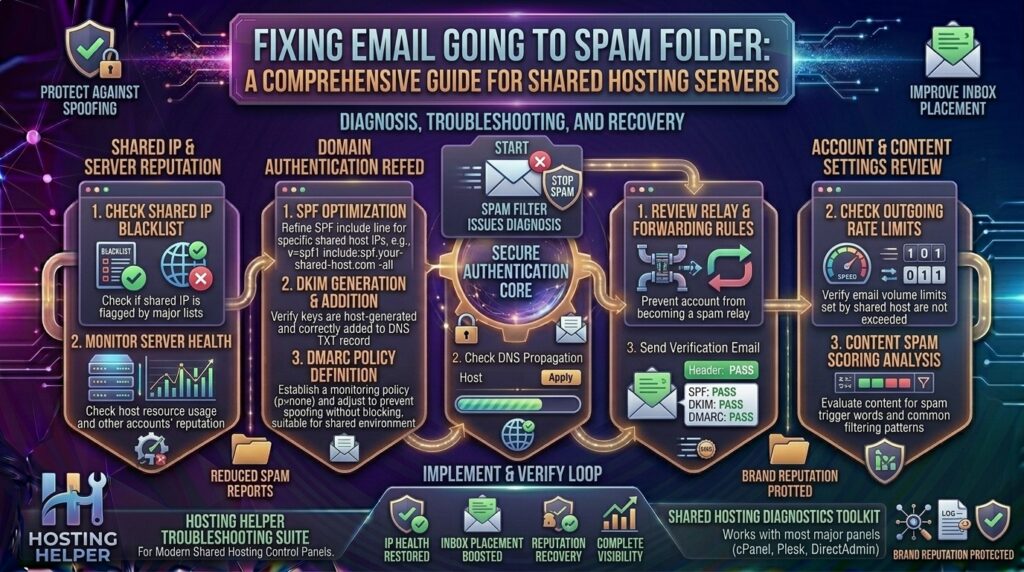
Fixing Email Going to Spam Folder on Shared Hosting Servers: The Definitive Deliverability Master Guide
Welcome to thehostreviews.com—your premier authoritative destination for web hosting evaluations, infrastructure management, and technical server administration guides spanning tech hubs across New York, San Francisco, Texas, California, and Washington.
Introduction: The Shared Hosting Email Deliverability Crisis
Every day, thousands of business owners, entrepreneurs, and developers launch websites on shared hosting platforms located in data centers across Texas, New York, California, and beyond. They carefully configure their WordPress contact forms, set up e-commerce transactional checkout notifications, and send out email marketing campaigns to their subscribers.
Then, disaster strikes: their emails are landing straight in the recipient’s Spam or Junk folder.
If you are running an email account on a shared hosting server (using cPanel, Plesk, or standard webmail control panels), struggling with inbox placement is one of the most frustrating obstacles you will face. When a client or prospect misses a vital quote, invoice, or password reset because your server message triggered spam filters, your business suffers real financial and reputational damage.
Why does this happen, and how can you fix it? Shared hosting servers inherently share IP addresses among hundreds of different user accounts. If a single bad actor on your server sends spam, the shared server IP address can get blacklisted, dragging down your email deliverability right along with it.
This comprehensive, expert-level guide will walk you through the root causes of email delivery failure on shared hosting and provide a step-by-step framework to fix your server configuration, authenticate your domain, and guarantee 100% inbox placement.
Part 1: Why Shared Hosting Emails Get Flagged as Spam
To fix email deliverability, you must first understand how modern spam filters (Gmail, Outlook, Yahoo, Apple Mail) evaluate incoming messages. When an email hits a mail server, it is audited against multiple security pillars:
- IP Reputation & Neighborhood Effects: On shared hosting, your domain shares an outgoing mail server IP address with dozens of other websites. If another user on that exact same server is spamming, the IP reputation plummets, causing your legitimate emails to get blocked.
- Missing or Broken Authentication (SPF, DKIM, DMARC): If your domain lacks cryptographic verification records, receiving servers assume your emails are forged phishing attempts.
- Invalid Reverse DNS (rDNS) / PTR Records: Mail servers check whether the server’s IP address maps back cleanly to a valid host domain name. Shared servers occasionally suffer from misconfigured reverse DNS pointers.
- Content and Keyword Triggers: Writing emails loaded with aggressive sales jargon, broken HTML code, or misleading subject lines triggers automated spam heuristics.
Part 2: Step-by-Step Framework to Fix Spam Folder Issues on Shared Hosting
Follow this rigorous, chronological troubleshooting workflow to diagnose and resolve your email delivery issues permanently.
Step 1: Test Your Current Email Score (Mail-Tester.com)
Before making changes, you need a baseline diagnostic score.
- Open your web browser and go to Mail-tester.com.
- Copy the unique, temporary test email address provided on the homepage.
- Open your web hosting webmail (Roundcube) or your client mail app, and send a test email containing standard text to that test address.
- Return to the website and click Then check your score.
- Analyze your score out of 10. The tool will break down your failures: missing authentication, server blacklisting, broken headers, or spam content tags.
Step 2: Implement Bulletproof DNS Authentication (SPF, DKIM, DMARC)
The single most effective way to keep your emails out of the spam folder is setting up strict authentication records in your hosting DNS zone editor:
- SPF (Sender Policy Framework): Ensure your DNS contains an active SPF record authorizing your shared hosting mail server. Example:Plaintext
v=spf1 +mx +a ~all - DKIM (DomainKeys Identified Mail): Log into your cPanel dashboard, open Email Deliverability, and click Install the Suggested Record to ensure your server signs every outbound email cryptographically.
- DMARC (Domain-based Message Authentication): Add a baseline DMARC monitoring record to your DNS zone editor to instruct mail servers on handling unverified mail:Plaintext
v=DMARC1; p=none; rua=mailto:admin@yourdomain.com;
Step 3: Check Shared Server IP Blacklists
If your emails are still landing in spam even after setting up SPF, DKIM, and DMARC, your shared server’s IP address may be listed on a public blacklist database (RBL).
- Go to MxToolbox or DNSBL Lookup.
- Find your web hosting server’s outgoing IP address (visible in your email header trace or cPanel server info page).
- Paste the IP address into the blacklist checker.
- If your server IP is listed on blacklists like Spamhaus or Barracuda, contact your web hosting support team immediately. Demand that they investigate the abusive account on the server and move your domain to a clean IP address or clear the blacklist block.
Step 4: Fix Reverse DNS (rDNS) and PTR Records
Mail servers verify the identity of sending servers using reverse DNS lookups.
- On shared hosting, you typically cannot set PTR records yourself because you do not own the physical IP block.
- If your mail-tester report flags a missing or mismatched reverse DNS (
PTR) record, open a support ticket with your host and ask: “Please verify and update the rDNS / PTR record for our shared server IP to match our hostname.”
Step 5: Clean Up Your Email Content and Structure
Even with perfect server configurations, poor email body construction can trigger spam filters instantly. Follow these copywriting and formatting rules:
- Avoid Spam Trigger Words: Refrain from excessive use of words like “Free”, “Guaranteed”, “Act Now”, “Make Money Fast”, or using all-caps subject lines.
- Include a Plain-Text Alternative: If you send HTML emails (via newsletters or applications), always include a clean plain-text alternative version. Mail servers penalize HTML-only emails.
- Include a Clear Unsubscribe Link: For marketing emails, always provide a working unsubscribe link. If recipients hit “Report Spam” instead of unsubscribing, your sender reputation plummets.
Part 3: Advanced Alternative: Migrate Outbound Mail to a Professional SMTP Relay
If your shared hosting provider’s server IP has a chronically poor reputation or refuses to fix blacklist blocks, fighting shared server limitations is an uphill battle.
The professional enterprise solution used by web developers across California and New York is routing your application and transactional mail through a Dedicated SMTP Relay Provider (such as Amazon SES, SendGrid, Mailgun, or Postmark).
How to Route Shared Hosting Mail via External SMTP:
- Create an account with a transactional email provider (e.g., SendGrid or Amazon SES).
- Install a WordPress SMTP plugin (like WP Mail SMTP or FluentSMTP) on your website.
- Configure the plugin using your external SMTP relay credentials (API key or SMTP port settings).
- This bypasses your shared hosting’s local mail server entirely, routing your emails through high-reputation, dedicated cloud infrastructure that guarantees inbox delivery.
Part 4: Frequently Asked Questions (FAQ)
1. Why are my emails going to spam even though my website is brand new?
New domains lack an established sender reputation. When a brand-new domain starts sending emails from a shared server IP without proper SPF, DKIM, and DMARC records, spam filters treat them with high suspicion until a positive sending history is established.
2. Does changing my web host fix email spam issues?
Yes, if your current shared host has a poor network reputation or refuses to clean blacklisted server IPs, migrating to a reputable, performance-focused web hosting provider can instantly resolve delivery bottlenecks.
3. Can I use my personal Gmail address to send emails from my domain?
Yes! Many website owners bypass shared hosting webmail entirely by connecting their domain (you@yourdomain.com) to Google Workspace or Microsoft 365, leveraging Google’s world-class server infrastructure to avoid spam filters.
4. What is the fastest way to check why my email was marked as spam?
Send a test email to Mail-tester.com. It provides an instant diagnostic breakdown highlighting exact authentication failures, spam content triggers, and server blacklist infractions.
5. Will adding an image to my email signature cause it to go to spam?
If your email consists solely of a massive image with zero accompanying text, spam filters will flag it because they cannot read the content. Always ensure your emails have a healthy text-to-image ratio.
6. What is a server IP blacklist?
A blacklist is a public real-time database tracking server IP addresses known for sending spam. If another user on your shared hosting server abuses their mail privileges, the shared server IP can get blacklisted.
7. How do I contact my web host regarding spam issues?
Open a support ticket and provide the exact error logs or mail-tester report. Ask them explicitly to check if your server’s outgoing mail IP is blacklisted and request that they clear or re-route your mail traffic.
8. Does a DMARC record guarantee my emails won’t go to spam?
DMARC verifies your domain identity and prevents spoofing, but it does not evaluate message content or recipient engagement. It is a vital foundation, but inbox placement also depends on IP reputation and user interaction.
9. Why do emails sent to Gmail hit spam, while emails sent to Outlook pass?
Different inbox providers use distinct proprietary AI spam filters and heuristic algorithms. Gmail relies heavily on user engagement metrics and domain reputation, whereas enterprise Outlook filters focus intensely on technical DNS alignment.
10. Should I use a transactional email plugin on shared hosting?
Yes. Using a plugin like WP Mail SMTP combined with an external mail relay (like SendGrid or Mailgun) is the gold standard for ensuring that WordPress form submissions and order notifications never hit the spam folder.
Conclusion
Fixing email deliverability on shared hosting servers requires a systematic approach: auditing your server reputation, locking down bulletproof SPF, DKIM, and DMARC authentication, optimizing your email content, and—if necessary—transitioning to a dedicated SMTP relay. By following this expert guide, you ensure your professional communications bypass spam filters and land securely in the primary inbox every single time.