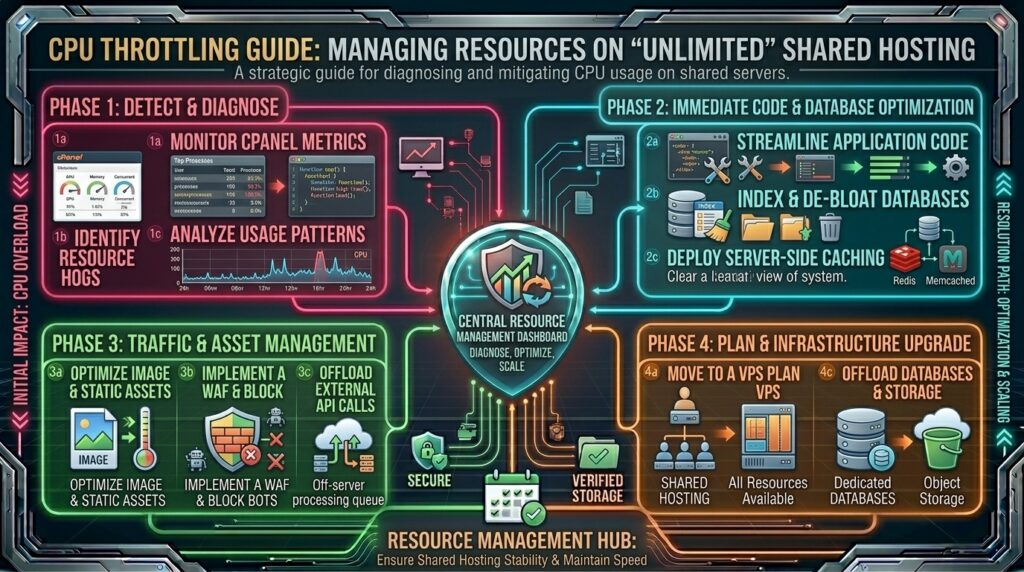
Dealing with cpu throttling on unlimited shared hosting plans: Welcome to thehostreviews.com—your premier authoritative destination for web hosting performance tuning, server resource analysis, and infrastructure reviews spanning major technology hubs from New York and San Francisco to Texas, California, and Washington.
Introduction: The Great Illusion of “Unlimited” Shared Hosting
When you purchase a web hosting plan marketed as “Unlimited Disk Space, Unlimited Bandwidth, and Unlimited Websites,” it sounds like a dream come true. For a few dollars a month, you believe you have secured an infinite digital playground where your website can grow indefinitely without restrictions.
Weeks later, reality strikes. Your website begins to load at a crawl, visitors encounter intermittent 500 Internal Server Error or 508 Resource Limit Reached screens, and you receive an automated warning email from your hosting provider stating that your account has been CPU Throttled.
You check your traffic analytics, and you aren’t even experiencing viral traffic. So why is your server throttling your performance?
The dirty secret of the web hosting industry is that while disk space and bandwidth can be scaled cheaply, CPU processing power and physical memory (RAM) are strictly finite commodities. On shared hosting servers, hundreds of individual customer accounts share the exact same physical hardware. To prevent a single runaway script or growing website from crashing the entire server node for everyone else, hosting providers enforce strict resource caps using environment monitors like CloudLinux.
This comprehensive, step-by-step masterclass breaks down the mechanics of CPU throttling, uncovers the hidden triggers that activate server limits, and provides an actionable engineering playbook to optimize your code, tame background processes, and run smoothly within shared hosting constraints.
Part 1: Demystifying CPU Throttling and Resource Limits
Before you can fix CPU throttling, you need to understand how web hosting resource allocation works behind the scenes.
1. What Does “CPU Throttling” Actually Mean?
On modern shared hosting servers running CloudLinux, each cPanel account is allotted a specific fraction or percentage of a CPU core (e.g., equivalent to 100% or 250% of a single core).
- The Burst Window: When a user requests a page, your server runs dynamic scripts (PHP, database queries), which temporarily spikes your CPU usage. Short bursts are normal.
- The Throttle Action: If your website keeps processing heavy scripts continuously over a sustained period, you hit your maximum CPU quota. Instead of instantly suspending your account, the server throttles your processing speed—meaning your CPU allotment is artificially slowed down, forcing your scripts to wait in a queue. This results in agonizingly slow page generation times.
2. The Core Metrics: CPU, RAM, EP, and I/O
When managing a cPanel account, CPU throttling is usually tied to a family of resource boundaries monitored via your Resource Usage dashboard:
- CPU Usage: The processing power consumed by your scripts.
- Memory Usage (RAM): The amount of physical server memory your active processes consume. Exceeding this causes immediate 500/503 errors.
- Entry Processes (EP): The maximum number of simultaneous web requests (dynamic PHP processes) hitting your site at the exact same moment. If you hit your EP limit (e.g., 20 simultaneous connections), incoming visitors receive a 508 error.
- Disk I/O: The speed at which your account reads from and writes to the storage drive.
Part 2: Step-by-Step Diagnostic Protocol—Finding the Culprit
Never guess what is causing your CPU spikes. Use cPanel’s built-in diagnostic suite to pinpoint the exact bottleneck.
Step 1: Check the cPanel “Resource Usage” Dashboard
- Log into your cPanel Account Dashboard.
- Scroll down to the Metrics section and click on Resource Usage.
- Look at the primary summary box. It will tell you explicitly: “Your site has been limited X times” during specific periods.
- Click on the Details tab or look at the historical Snapshots graph. You can filter data by 1 hour, 24 hours, or 7 days to match spike timelines with specific traffic events or automated cron executions.
Step 2: Analyze Raw Access Logs and Error Logs
If the resource graph points to a specific timeframe, correlate it with your server logs:
- Navigate to the Metrics section in cPanel and open Access Logs. Download a raw log file for the date in question.
- Look for repetitive bot loops, aggressive scraper traffic, or single IP addresses hammering resource-heavy backend URLs (like
wp-login.phporxmlrpc.php). - Check your Error Logs for PHP memory warnings, database timeout notices, or missing file exceptions that force scripts into endless execution loops.
Part 3: The Ultimate Optimization Playbook to Eliminate CPU Throttling
If your website is triggering CPU limits, optimizing your application architecture can dramatically reduce your resource footprint without requiring an expensive server upgrade.
Step 1: Implement Aggressive Page and Object Caching
Dynamic execution is the number-one killer of CPU allowances. Every time a visitor loads a page without caching, WordPress or your CMS executes hundreds of PHP lines and queries the database.
- Deploy Page Caching: Install a high-performance caching plugin (such as LiteSpeed Cache if your host uses LiteSpeed servers, or WP Rocket). Page caching converts dynamic PHP pages into static HTML files, serving subsequent visitors instantly with zero CPU overhead.
- Enable Object Caching (Redis/Memcached): If your host supports Redis or Memcached, enable it. Object caching stores database query results directly in server RAM, preventing repetitive, heavy database lookups.
Step 2: Audit and Trim Resource-Heavy Plugins and Themes
Not all code is written equally. A single poorly optimized plugin can consume more CPU power than your entire remaining website framework.
- Deactivate Bloated Plugins: Review your plugin list. Remove social media counters that make external API calls on every page load, heavy page builders with excessive DOM nesting, and unmaintained plugins.
- Profile Database Queries: Use a developer tool like Query Monitor to check how many database queries your theme executes per page load. If your theme runs over 100 queries per view, switch to a lightweight, performance-optimized framework.
Step 3: Tame Background Processes and Cron Jobs
Many website owners assume CPU throttling only happens when human visitors browse their site. In reality, background tasks are frequent culprits.
- WordPress Cron Optimization: By default, WordPress runs its cron system (
wp-cron.php) on every single page load, triggering scheduled tasks, pingbacks, and plugin checks concurrently. This spikes CPU usage instantly during traffic peaks.- The Fix: Disable default WordPress cron execution by adding
define('DISABLE_WP_CRON', true);to yourwp-config.phpfile. - Then, set up a genuine server-level Cron Job inside cPanel to run
wp-cron.phponce every 30 to 60 minutes quietly in the background.
- The Fix: Disable default WordPress cron execution by adding
- Aggressive Backup Schedules: Check your backup plugins (like UpdraftPlus or All-in-One WP Migration). If your site is large and backups run daily during peak daytime traffic hours, they will instantly trigger CPU and I/O throttling limits. Reschedule all heavy database backups and site archiving jobs to run late at night during low-traffic windows.
Step 4: Block Malicious Bots, Scrapers, and Brute-Force Attacks
Up to 50% of the traffic hitting shared hosting accounts consists of bad bots, vulnerability scanners, AI scrapers, and brute-force login bots. These automated requests bypass visual caching and force heavy PHP and database processing.
- Leverage Cloudflare Protection: Route your domain through a free Cloudflare account. Enable Bot Fight Mode to automatically challenge and block malicious automated scrapers before they ever touch your shared hosting server.
- Harden WordPress Security: Install a security firewall plugin (like Wordfence or Solid Security) to block repetitive brute-force login attempts targeting
wp-login.phpandxmlrpc.php, which trigger massive spikes in Entry Processes (EP).
Part 4: When Optimization Fails—Knowing When to Graduate from Shared Hosting
Even the most meticulously optimized website will eventually outgrow the physical limitations of an unlimited shared hosting environment. If your business is scaling, optimization can only stretch your resources so far.
Consider upgrading your hosting architecture when:
- Your traffic has grown organically: Your daily unique visitor count has increased past the threshold of what a shared server partition can physically process.
- You run resource-heavy applications: E-commerce stores (WooCommerce, Magento), membership portals, and active forums require constant database read/write actions that inherently demand dedicated CPU resources.
- You need server-level control: Shared hosting locks you out of modifying core Apache/Nginx configurations, PHP memory limit caps (
memory_limit), and OPcache settings.
Alternative Hosting Tiers to Consider:
- Managed Cloud VPS: Provides dedicated, isolated vCPUs and guaranteed RAM allocations that eliminate noisy neighbor interference entirely.
- Cloud Hosting with Auto-Scaling: Ideal for sites with predictable surges, allowing you to scale computing power dynamically.
Part 5: Frequently Asked Questions (FAQ)
1. What does “CPU Throttling” mean on unlimited shared hosting?
CPU throttling is a resource control mechanism used by hosts (via CloudLinux) to artificially slow down your script execution speed when your account exceeds its allocated share of server processing power.
2. If my hosting is “unlimited,” why am I getting CPU limit errors?
While storage and bandwidth may be unlimited in marketing terms, physical server processing power (CPU and RAM) is strictly finite and shared among all users on the server node.
3. How do I check my CPU usage in cPanel?
Log into cPanel, locate the Metrics section, and click on Resource Usage to review historical snapshots and active throttle counts.
4. What causes sudden CPU spikes on a WordPress website?
Common causes include unoptimized database queries, uncached dynamic pages, heavy background cron jobs, plugin conflicts, and malicious bot scraping activity.
5. How does page caching reduce CPU usage?
Page caching serves pre-rendered static HTML files to visitors, completely bypassing PHP script execution and database queries, which reduces CPU load to near zero.
6. What is an Entry Processes (EP) limit error?
An EP limit error (often error 508) occurs when your site reaches the maximum number of simultaneous dynamic web requests allowed to run at the exact same fraction of a second.
7. How do I stop WordPress cron jobs from causing CPU spikes?
You can disable default page-load cron execution by editing wp-config.php and creating a scheduled server-level cPanel cron job to run background tasks during off-peak hours.
8. Can malicious bots cause my hosting account to be throttled?
Yes. Automated scrapers, vulnerability scanners, and brute-force login attempts force heavy server processing, quickly exhausting your CPU and entry process limits.
9. Will upgrading my plugins fix CPU throttling?
Optimizing or removing bloated plugins can significantly lower your resource footprint, but if your website traffic has naturally outgrown shared hosting infrastructure, optimization alone may not be enough.
10. When should I upgrade from shared hosting to a VPS?
You should upgrade to a Virtual Private Server (VPS) or cloud hosting plan when your site consistently hits resource caps despite thorough caching, database tuning, and bot protection.
Conclusion
Dealing with CPU throttling on unlimited shared hosting plans can be a frustrating hurdle, but it serves as an invaluable diagnostic signal regarding how your website interacts with server resources. By understanding the mechanics of shared hosting limits, implementing robust page and object caching, taming background cron tasks, and filtering out malicious bots, you can maximize your shared hosting performance and maintain a lightning-fast user experience.