What to do when cron jobs fail to run on schedule in hosting? For digital agencies, web developers, and application administrators scaling their infrastructure across major technical hubs like Texas, New York, California, Washington, and San Francisco, automated background tasks are the invisible engine keeping modern websites functional. Whether you are running a high-volume WordPress e-commerce store, managing automated client data syncs, processing scheduled database backups, or sending automated invoice emails, you rely entirely on cron jobs to execute tasks precisely on schedule.
There are few tech support nightmares worse than discovering your automated tasks have silently stopped working. Scheduled posts miss their publication windows, membership subscriptions fail to renew, cache cleanup scripts stall, and database bloat spirals out of control.
When cron jobs fail to run on schedule in a web hosting environment, it is rarely a failure of the server’s core timing daemon; rather, it is usually driven by syntax errors, missing file paths, environment mismatches, PHP execution limits, or incorrect file permissions.
This comprehensive, highly detailed troubleshooting guide will walk you through diagnosing why your cron jobs are failing and how to fix them permanently.
Understanding How Cron Jobs Work in Web Hosting
Before diving into debugging, it helps to clarify how scheduled tasks execute in shared hosting, cPanel, and VPS environments:
- The Daemon (
cron): A background system service on Linux servers that constantly checks the system clock against a user-defined schedule (the crontab). - The Trigger: When the current time matches your schedule parameters (minute, hour, day, month, weekday), the cron daemon wakes up and executes the specified command.
- The Execution Layer: The command usually invokes a PHP binary (
/usr/local/bin/php) to run a local script, or triggers an HTTP request via tools likewgetorcurl.
Why WP-Cron Differs From Server Cron
If you run WordPress, you likely rely on WP-Cron, a virtual cron system that triggers tasks every time a visitor loads a page on your site. On low-traffic sites, if no visitors arrive, tasks fail to run on time (causing “Missed Schedule” errors). Replacing WP-Cron with a true server-side cPanel cron job is the industry-best practice for reliability.
Phase 1: Step-by-Step Diagnostic Triage
When your cron jobs refuse to run, do not guess at the fix. Follow this systematic debugging framework to isolate the root cause.
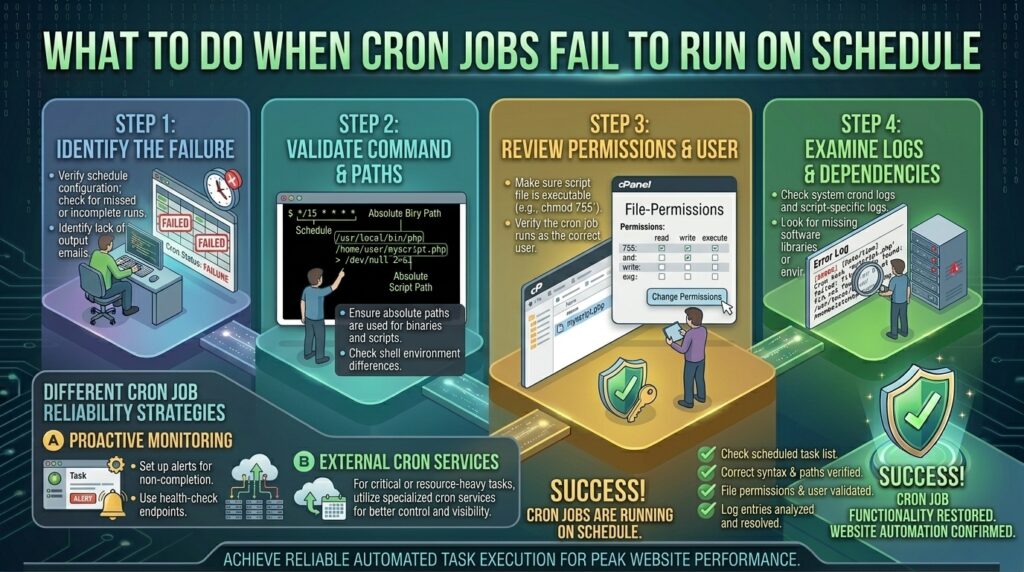
1. Verify Your Cron Syntax and Timing Parameters
The most common reason a cron job fails to run is a simple typo in the schedule timing fields. Cron scheduling uses a precise 5-part syntax followed by the execution command:
Plaintext
* * * * * /usr/local/bin/php /home/username/public_html/cron-script.php
│ │ │ │ │
│ │ │ │ └── Day of the week (0 - 6, Sunday=0)
│ │ │ └──── Month (1 - 12)
│ │ └────── Day of the month (1 - 31)
│ └──────── Hour (0 - 23)
└────────── Minute (0 - 59)
- Common Timing Mistakes: Using incorrect ranges, or accidentally setting a task to run every minute (
* * * * *) when it was intended to run once a day (0 0 * * *).
2. Test Your Command Directly in the Terminal
If a cron job appears configured correctly in cPanel but never executes, test the exact command manually inside your server’s Terminal or via SSH.
- Open cPanel and launch the Terminal tool (or connect via SSH).
- Copy your exact cron command (e.g.,
/usr/local/bin/php /home/username/public_html/cron.php). - Paste it into the command line and hit Enter.
- What this tells you: If the script throws a PHP fatal error, outputs a database connection failure, or reports a missing dependency in the terminal, you have found the underlying script error preventing cron from completing successfully.
3. Capture Cron Output and Enable Logging
By default, cron jobs run completely silently. If a script errors out or fails, you will never know unless you configure output logging.
- How to Fix: Update your cron command to redirect standard output and error messages into a log file inside your home directory: Bash
/usr/local/bin/php /home/username/public_html/cron.php >> /home/username/cron.log 2>&1(The2>&1ensures that both regular responses and error codes are captured). You can then viewcron.logvia cPanel File Manager to read exact error histories.
Phase 2: Fixing Common Cron Failure Root Causes
| Error Symptom / Scenario | Root Cause | Permanent Solution |
| Command runs manually in SSH, fails in cron | Minimal environment paths; cron lacks shell variables | Use absolute paths for binaries and scripts |
| Silent failure with no logs | Missing output redirection or disabled mail alerts | Append >> /home/user/cron.log 2>&1 to capture errors |
| PHP memory exhausted error in logs | Cron script hitting shared hosting RAM ceiling | Increase memory_limit via MultiPHP INI editor |
| Permission denied (126 / 127) | Script lacks executable permissions or wrong PHP path | Run chmod 755 or update PHP binary path |
1. Always Use Absolute Paths (The Golden Rule)
In an interactive terminal shell, your system knows where php or your scripts are located because of your user PATH environment variables. Cron runs in a stripped-down, minimal environment that lacks these paths.
- Wrong:
php cron.php - Right:
/usr/local/bin/php /home/username/public_html/wp-content/plugins/my-plugin/cron.php - Tip: Always check with your hosting provider (or run
which phpin your terminal) to confirm your server’s exact PHP binary path.
2. Choosing Between php, wget, and curl Execution Options
Depending on what your script requires, how you trigger the cron job matters significantly:
- Direct PHP Execution (
php): Executes the PHP script directly via the command line. Fastest and most efficient, but bypasses web server configurations (.htaccessrules, web-based authentication). - URL Request Triggers (
wgetorcurl): Hits a specific public URL (e.g.,wget -q -O - [https://yourdomain.com/wp-cron.php?doing_wp_cron](https://yourdomain.com/wp-cron.php?doing_wp_cron) >/dev/null 2>&1). Essential if your script requires HTTP headers, cookies, or web-app session data to function correctly.
3. Fixing File Permissions
If your cron script is a custom PHP file or shell script, the server user must have permission to execute it.
- Log into cPanel File Manager, locate your script, and verify its permissions are set to 755 (Owner: Read/Write/Execute, Group/World: Read/Execute).
Phase 3: Advanced Troubleshooting for WordPress Sites
If your cron failures are specifically tied to WordPress scheduled events, posts, or WooCommerce action schedulers, use these targeted tactics:
1. Switching to a True Server-Side Cron
To stop relying on erratic site traffic for WordPress scheduling:
- Open your
wp-config.phpfile via File Manager. - Add this line right above the
/* That's all, stop editing! */comment to disable default visitor-triggered cron execution:PHPdefine('DISABLE_WP_CRON', true); - Go to your cPanel Cron Jobs dashboard and set up a new server cron job to run every 5 or 10 minutes:Plaintext
*/5 * * * * /usr/local/bin/php /home/username/public_html/wp-cron.php >/dev/null 2>&1This guarantees your WordPress core tasks run like clockwork independently of visitor traffic.
Preventative Best Practices for Cron Management
- Monitor Cron Logs Monthly: Review your custom log files (
cron.log) periodically to catch silent deprecation warnings or slow-running queries before they break your automations. - Set Up Email Alerts Correctly: Ensure your cPanel contact email is active and monitored so that automated error reports generated by cron daemons actually reach your inbox.
- Avoid Overlapping Executions: If a heavy data-sync cron script takes 15 minutes to run, do not schedule it to run every 10 minutes, or you will spawn duplicate processes that exhaust your server’s RAM and CPU.
Frequently Asked Questions (FAQ)
1. Why does my cron job run successfully in the terminal but fail in cPanel?
This is almost always caused by environment differences. The terminal runs with your user’s full shell environment variables, while cron runs in a stripped-down, minimal environment. Fixing this requires using absolute paths for your PHP binary and script files.
2. How do I know if my cPanel cron job actually executed?
By default, cron jobs run silently. To confirm execution, append >> /home/username/cron.log 2>&1 to your cron command. This writes a history log of all outputs and errors to a text file that you can inspect in File Manager.
3. What is the difference between using php, wget, and curl in a cron job?
Using php executes the file directly via the command-line interface (CLI). Using wget or curl sends an HTTP GET/POST request to a web URL, which is useful when a script needs to be processed through the web server layer.
4. Why is my WordPress site still showing “Missed Schedule” errors after setting up a cron job?
If you added define('DISABLE_WP_CRON', true); but your server-side cron job has a typo in its path or uses the wrong PHP version, WordPress background tasks will remain frozen. Verify your script path and test the command manually via terminal.
5. Can low PHP memory limits stop a cron job from running?
Yes. Cron scripts—especially those handling backups, XML imports, or database optimization—frequently consume heavy RAM. If the script hits your account’s PHP memory ceiling mid-execution, it crashes silently.
6. Why am I getting “Permission Denied” errors in my cron log?
This happens when the script file lacks execute permissions or the user running the cron job does not own the file. Set your script file permissions to 755 via cPanel File Manager.
7. How frequently should I run my cron jobs?
It depends on the task. Routine tasks like cache purging or temporary file cleanups can run once daily (0 0 * * *). Core maintenance tasks, email queues, or e-commerce syncs typically run every 10 to 30 minutes (*/15 * * * *). Avoid running heavy scripts every single minute (* * * * *).
8. Do database changes affect existing cron jobs?
Yes. If you change your MySQL database password or migrate your website to a new hosting provider, any cron scripts containing hardcoded database credentials or old file paths (/home/olduser/) will fail instantly.
9. Will upgrading my hosting plan fix broken cron jobs?
If your cron jobs are failing due to a strict resource cap (like CPU throttling or RAM exhaustion on cheap shared hosting), upgrading to a higher-tier cloud plan or a VPS with dedicated resources will resolve the bottleneck.
10. When should I contact my hosting provider about cron failures?
If you have verified your command syntax, used absolute paths, enabled error logging, and confirmed that the server’s cron daemon itself is failing to fire system events, open a support ticket. Your host can inspect master server logs to see if cron service daemon restrictions are active on your node.
Conclusion
When cron jobs fail to run on schedule, it can disrupt critical automated workflows across your web properties. However, by methodically checking timing syntax, testing commands inside the terminal, capturing output errors via log redirection, and ensuring absolute paths are used, you can quickly isolate and resolve the issue. Maintain proactive monitoring, optimize your script execution intervals, and follow these expert guidelines to ensure your automated background tasks run reliably and seamlessly.