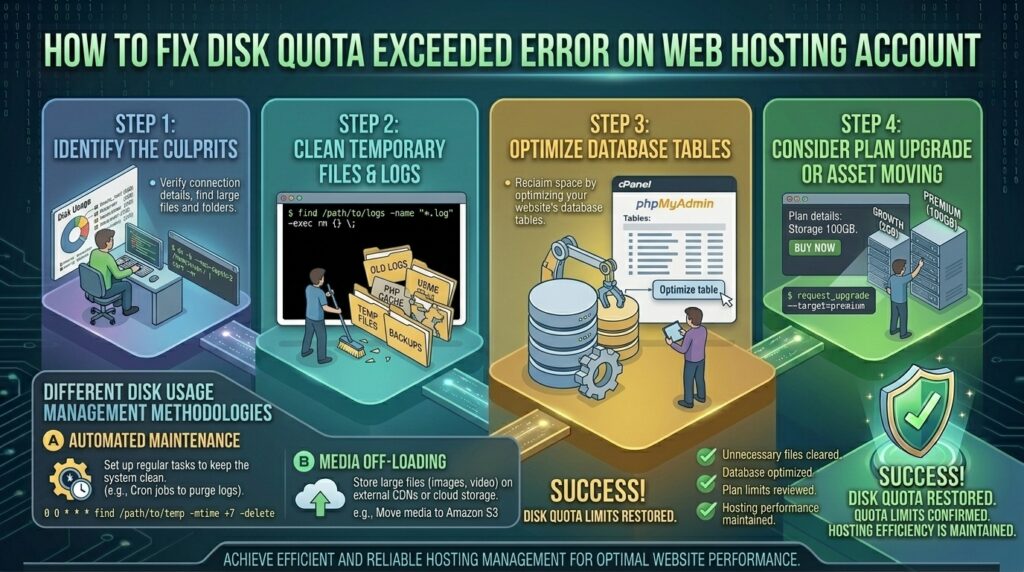
How to fix disk quota exceeded error on web hosting account? For business owners, digital agencies, and e-commerce entrepreneurs scaling their web infrastructure across major tech hubs like Texas, New York, California, Washington, and San Francisco, hitting a sudden hosting wall can trigger immediate panic. When you attempt to upload a new product image, update a database, or receive a client email, only to be stopped dead in your tracks by a “Disk Quota Exceeded” error, your entire digital operation grinds to a halt.
When your hosting account runs out of allocated server space, your website may experience broken forms, missing images, database write failures, and complete email delivery blackouts. Fortunately, fixing this error does not always require immediately upgrading to an expensive server plan. Often, it is simply a matter of identifying hidden file clutter, clearing out old system backups, and purging unnecessary log data.
This comprehensive, highly detailed troubleshooting guide will walk you through diagnosing, fixing, and permanently preventing disk quota limitations on your web hosting account.
Understanding How Web Hosting Disk Quotas Work
To effectively fix and manage disk space, you must first understand how your hosting provider allocates storage.
When you purchase a web hosting plan (whether shared hosting, a reseller account, or a managed cPanel VPS), your hosting provider assigns a strict physical storage limit (e.g., 10GB, 50GB, or Unlimited—which typically comes with fair-use inode caps).
What Contributes to Your Total Disk Usage?
Your cPanel disk quota is a combined measurement of everything stored under your specific account username. This includes:
- Website Files (
public_html): Core code, media uploads, themes, plugins, and cache directories. - Email Accounts: All stored messages, attachments, and archive folders sitting on the mail server.
- Databases: MySQL / MariaDB databases storing your WordPress posts, user data, and plugin configurations.
- System Logs & Backups: Automated cPanel backup archives (
.tar.gzfiles) and raw server error logs stored inside your home directory.
Phase 1: Checking Where Your Storage Is Going (Disk Usage Audit)
Before deleting files blindly, you must locate exactly which folders or services are eating up your disk quota.
1. Using cPanel’s Disk Usage Tool
- Log into your cPanel dashboard.
- Scroll down to the Files section and click on Disk Usage.
- Scroll down the page to view a detailed, folder-by-folder breakdown of your account storage.
- Sort the directories to see if
public_html,mail, or hidden backup directories are consuming the bulk of your quota.
Phase 2: Step-by-Step Fixes to Clear Disk Space Quickly
Once you have identified the heavy directories, execute these targeted cleaning steps to recover gigabytes of space instantly.
1. Delete Unused Full cPanel Backups (.tar.gz)
One of the most common causes of sudden disk quota exhaustion is forgotten full-account backups stored directly inside the home directory. If you generated a full backup via cPanel and forgot to download it to your local computer, it sits on the server taking up massive amounts of space.
- How to Fix:
- Open cPanel File Manager.
- Look in your root home directory (one level above
public_html). - Look for large archive files ending in
.tar.gzor.zip(e.g.,backup-3.15.2026_...tar.gz). - Download them to your local PC if needed, then Delete them from the server.
2. Purge Website Cache and Optimization Folders
Caching plugins (like LiteSpeed Cache, W3 Total Cache, or WP Rocket) store pre-rendered HTML files on your server. Over time, these cache directories can bloat to dozens of gigabytes.
- How to Fix:
- Log into your WordPress admin dashboard and clear all site caches.
- Alternatively, check your file manager under
public_html/wp-content/cache/and safely delete accumulated cache files.
3. Clean Out Bloated Media Uploads and Unused Plugins
- Media Library: Delete old, high-resolution product images or unused PDFs that are no longer referenced on your live site.
- Inactive Plugins and Themes: Inactive themes and plugins sitting dormant in your directory add unnecessary weight. Delete any theme or plugin you are not actively using.
4. Clear Webmail Trash and Spam Folders
If you host your business email accounts on the same cPanel server, accumulated messages in mailboxes can easily fill your entire disk quota.
- How to Fix:
- Log into your webmail client (Roundcube).
- Go through your mailboxes and permanently empty the Trash and Spam / Junk folders for all email accounts.
Phase 3: Advanced Storage Clean-Up via SSH / Terminal
If you have shell access (SSH) to your server, you can execute powerful Linux commands to locate hidden large files instantly.
1. Finding the Largest Files and Folders
Log into your server via SSH and run this command to list the largest directories inside your home folder:
Bash
du -h --max-depth=1 /home/username | sort -hr
(Replace username with your actual cPanel account name).
2. Truncating Massive Error Logs
Sometimes, a misconfigured plugin or broken PHP script can spam error logs, causing error_log files to grow to massive sizes (e.g., 5GB+). You can safely truncate (empty) an error log file without deleting the file itself:
Bash
> /home/username/public_html/error_log
Phase 4: What to Do If You Can’t Access File Manager (Disk Full Lockout)
When your disk quota hits a hard 100%, cPanel may prevent you from logging into your File Manager or executing database writes because the system cannot write temporary session files.
- The Emergency Solution:
- Connect to your server via SFTP (using FileZilla) or SSH. Even when cPanel blocks web interfaces due to full disk space, SFTP/SSH command-line access often permits file deletion.
- Delete a large backup or log file to drop usage down to 95%.
- Once breathing room is restored, your cPanel dashboard and File Manager will become accessible again.
Preventative Best Practices to Avoid Future Quota Limits
- Offload Media Storage: Utilize cloud object storage (such as Amazon S3, Google Cloud Storage, or BunnyCDN) to host heavy media assets and video uploads instead of local server storage.
- Automate Remote Backups: Instead of saving cPanel backup archives on the same server, configure automated backups to save directly to a remote FTP destination, Google Drive, or Dropbox.
- Monitor Quota Alerts: Set up email notifications in cPanel to alert you when your storage hits 80% capacity, giving you time to clean up before a hard lockout occurs.
Frequently Asked Questions (FAQ)
1. What happens to my website when my disk quota exceeds 100%?
When your disk quota is maxed out, your website will immediately fail to write new data. Visitors may encounter 500 server errors when submitting forms, database queries will fail, and incoming emails will bounce back with a “Mailbox is full” error.
2. Why does my Disk Usage show 100% full, but I can’t find large files?
This is usually caused by hidden system files (like .tar.gz backup archives or large hidden .log files) that standard file managers hide by default. Ensure “Show Hidden Files (dotfiles)” is enabled in your File Manager settings.
3. Can I temporarily increase my disk quota on shared hosting?
If you are on shared hosting, you cannot change your own quota limit. You must either delete files to free up space or contact your hosting provider’s support team and request a plan upgrade with higher storage limits.
4. Do database sizes count toward my cPanel disk quota?
Yes. All MySQL and MariaDB databases associated with your cPanel account consume physical storage space on the server’s hard drive and count directly toward your overall disk quota.
5. Why do my cPanel backups keep filling up my server space?
When you generate a full backup in cPanel, it saves a copy of the archive directly inside your home directory. If you generate weekly backups and forget to download and delete them, they will accumulate and max out your quota.
6. How do I check if my email accounts are taking up all my storage?
Go to cPanel > Email Accounts. This page displays the exact storage consumption of every individual mailbox hosted on your domain, allowing you to see if a specific staff email account is overflowing.
7. Does deleting files from Trash in File Manager instantly free up space?
Yes, but remember that some content management systems (like WordPress) or file managers have secondary trash bins or temporary staging directories that must also be purged to reclaim physical disk space.
8. What is an “Inode” limit, and how does it relate to disk quota?
An inode limit is the maximum number of individual files and folders you can store on your account, regardless of their physical size. Having millions of tiny cache files can exhaust your inode limit even if your gigabyte disk quota looks fine.
9. Can I use a plugin to clean up my WordPress disk space?
Yes. Plugins like WP-Optimize or Advanced Database Cleaner can automatically sweep away orphaned post revisions, spam comments, and transient database options to free up space.
10. When should I contact my hosting provider about a disk quota error?
If you have deleted all unnecessary backups, cleared your caches, emptied your email trash, and still hit a quota wall because your business has genuinely outgrown your current plan, it is time to contact your host to upgrade to a higher-tier package or VPS.
Conclusion
Hitting a “Disk Quota Exceeded” error can disrupt your digital operations, but it is an entirely solvable issue with a methodical cleanup approach. By auditing your directory storage, purging forgotten server backups, clearing bloated caches, and monitoring your database and mail quotas, you can restore full server functionality. Maintain proactive storage habits and follow these expert guidelines to ensure your website operates smoothly and without interruption.