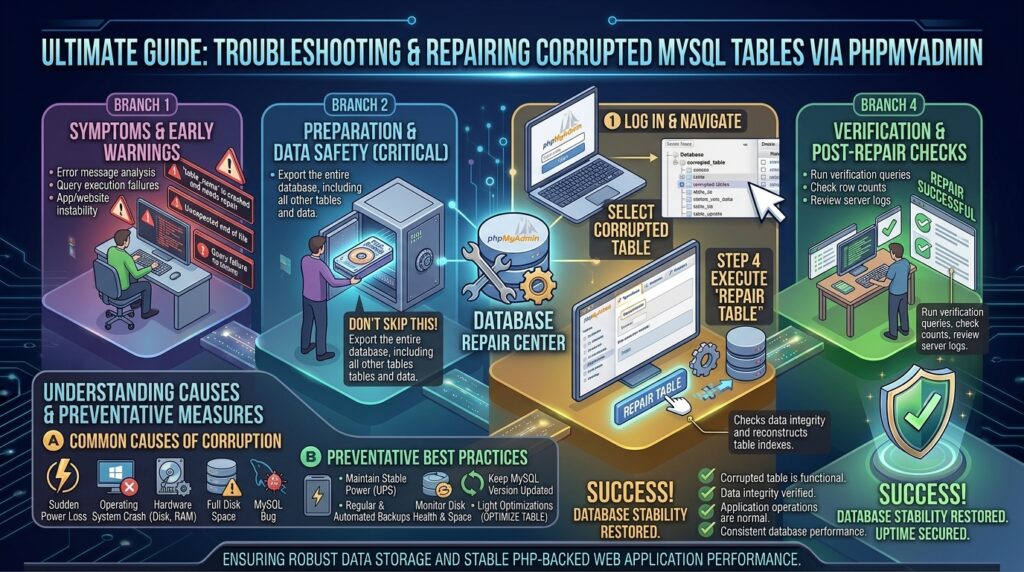
For web developers, database administrators, and technical entrepreneurs managing web properties across major digital hubs like Texas, New York, California, Washington, and San Francisco, encountering a sudden database error can bring an entire business operation to a grinding halt. When you visit your website and are greeted by the dreaded “Error establishing a database connection” message, or notice that specific application pages throw white screens of death and raw SQL exceptions, a database corruption issue is often the culprit.
Database corruption can strike without warning due to unexpected server power outages, sudden hard disk failures, abrupt server reboots, faulty NVMe storage sectors, or interrupted MySQL/MariaDB shutdown sequences. When tables become corrupted, the storage engine can no longer read or write data pages reliably.
While advanced system administrators might fix corruption via secure shell (SSH) command-line utilities, phpMyAdmin remains the most accessible, user-friendly, and universally available graphical interface for diagnosing and repairing corrupted tables across shared hosting, cPanel VPS, and managed cloud environments.
This comprehensive, step-by-step masterclass guide will walk you through identifying, troubleshooting, and repairing corrupted MySQL database tables safely using phpMyAdmin.
Understanding Why MySQL Tables Become Corrupted
Before diving into the repair toolkit, it helps to understand what database corruption actually means under the hood of the InnoDB and MyISAM storage engines.
1. The Nature of Corruption
A MySQL table consists of structural metadata files and data storage files. Corruption occurs when a physical write operation to disk is cut short—for example, if the server loses power mid-transaction or if a process is killed abruptly while MySQL is updating an index tree (.ibd or .MYI files). The internal pointers and checksums within the database files no longer match, causing MySQL to reject queries to that table to prevent cascading data loss.
2. InnoDB vs. MyISAM Corruption Behavior
- InnoDB (Modern Standard): InnoDB features built-in crash recovery mechanisms and transactional logs (
redo logs). When a server restarts cleanly, InnoDB usually rolls back incomplete transactions automatically. However, severe hardware failures or disk exhaustion can still corrupt InnoDB tablespaces. - MyISAM (Legacy): MyISAM lacks advanced transactional logging. It is notoriously fragile and prone to index corruption whenever a web server crashes or restarts unexpectedly. If you still inherit legacy MyISAM tables, corruption happens far more frequently.
Phase 1: Diagnosing Table Corruption
Never run blindly into repair routines without confirming which specific database and tables are corrupted.
1. Identifying the Error via Application Logs
When a table is corrupted, your web application (such as WordPress, Magento, or a custom PHP app) will usually log specific error strings:
- WordPress Example:
Table 'database_name.wp_options' is marked as crashed and should be repairedorIndicated table is marked as crashed and last automatic repair failed.
2. Accessing phpMyAdmin
- Log into your hosting control panel (such as cPanel, Plesk, or your managed cloud dashboard).
- Locate and click on the phpMyAdmin icon under the Databases section.
- Once phpMyAdmin loads in your browser, select your target website database from the left-hand sidebar.
Phase 2: Step-by-Step Table Repair via phpMyAdmin
phpMyAdmin provides a built-in visual interface that wraps native SQL maintenance commands (CHECK TABLE, REPAIR TABLE, ANALYZE TABLE, and OPTIMIZE TABLE) into simple point-and-click options.
| Maintenance Operation | Purpose | When to Use |
| Check Table | Scans table files for errors without modifying data | First step to verify corruption |
| Repair Table | Rebuilds index and data structures (MyISAM only) | Fixing crashed legacy tables |
| Optimize Table | Defragments data files and reclaims unused space | Regular performance maintenance |
| Analyze Table | Updates index distribution statistics for the query optimizer | Post-repair query optimization |
Method 1: Using the Visual Menu (Best for Quick Fixes)
- In phpMyAdmin, click on your database name on the left to view the complete list of tables in the Structure tab.
- Scroll down to the bottom of the table list. Check the box next to “Check All” to select every table in your database, or selectively check only the tables throwing errors in your application logs.
- Locate the “With selected:” dropdown menu located directly below the table list.
- Click the dropdown and select Check table. phpMyAdmin will execute a scan across all selected tables and output a green “OK” or red “Corrupt” status report in real-time.
- If phpMyAdmin flags any tables as corrupted or crashed, return to the “With selected:” dropdown menu and select Repair table.
- Note: The
REPAIR TABLEcommand works natively and instantly on MyISAM tables. For modern InnoDB tables, if a repair fails via phpMyAdmin, specialized server-side configuration steps are required.
- Note: The
Method 2: Running Manual SQL Repair Commands
If you prefer executing explicit SQL commands rather than using UI dropdown menus:
- Click on the SQL tab at the top navigation bar of phpMyAdmin.
- Paste the following SQL syntax (replacing
wp_postswith your actual corrupted table name):SQLCHECK TABLE wp_posts; - Click Go. If the output indicates corruption (
Status: Corrupt), run the repair command:SQLREPAIR TABLE wp_posts; - Click Go to execute the repair and verify that the status returns as
OK.
Phase 3: Advanced Recovery for Stubborn InnoDB Corruption
While MyISAM tables repair easily via phpMyAdmin, InnoDB corruption is more complex. Because InnoDB enforces strict data integrity checks, standard REPAIR TABLE queries are sometimes disabled or unsupported for InnoDB tables in older MySQL versions.
If phpMyAdmin fails to repair an InnoDB table, you must take these advanced steps:
1. Forcing InnoDB Recovery via Server Configuration (Requires Root/Host Support)
If you manage your own VPS or dedicated server, you can configure the InnoDB storage engine to ignore corruption flags and force a dump of the data:
- Open your MySQL configuration file (
/etc/my.cnfor/etc/mysql/my.cnf) asrootvia SSH. - Under the
[mysqld]section, add theinnodb_force_recoverydirective:Ini, TOML[mysqld] innodb_force_recovery = 1(You can scale this integer value from1to6if lower levels fail to start MySQL). - Restart MySQL:
sudo systemctl restart mysql. - Once MySQL successfully starts in recovery mode, immediately log into phpMyAdmin, export (
Exporttab) the corrupted database as an SQL file, disableinnodb_force_recovery, restart MySQL normally, and import the clean backup.
Phase 4: Restoring from Backups (The Ultimate Safe Route)
If database corruption is extensive and automated repair tools fail, attempting manual SQL hacks can result in permanent data loss. The fastest, cleanest, and safest resolution is restoring a clean backup.
How to Restore via phpMyAdmin:
- In phpMyAdmin, select your database from the left sidebar.
- Click on the Import tab at the top.
- Click Choose File and select your most recent
.sqlor.sql.gzbackup archive from your local computer. - Leave import options at default settings (Format: SQL) and click Go at the bottom right.
- Once complete, phpMyAdmin will display a success message confirming that all tables have been successfully recreated and populated from your healthy backup.
Preventative Best Practices for Database Integrity
- Implement Automated Backups: Ensure your hosting provider or website backup plugin (such as UpdraftPlus or Jetpack) runs automated daily backups stored off-site.
- Enable UPS Power Protection: If you host your own physical servers in an office or local data center in Texas or California, always equip your hardware with an Uninterruptible Power Supply (UPS) to prevent abrupt power-cut corruptions.
- Avoid Unsafe Reboots: Never restart a Linux server using a hard power kill switch (
sudo rebootor graceful service shutdowns viasystemctl restart mysqlshould always be used).
Frequently Asked Questions (FAQ)
1. What causes a MySQL table to become marked as crashed?
Tables crash when a write operation is abruptly interrupted—such as during a server power outage, a hard reboot, a sudden kernel panic, or a disk space exhaustion event that cuts off database writes.
2. Can I repair InnoDB tables using phpMyAdmin?
You can run CHECK TABLE and basic optimization commands on InnoDB tables via phpMyAdmin. However, complex InnoDB corruption that damages primary keys or data pages often requires administrative access to server configuration files (innodb_force_recovery).
3. Will repairing a table in phpMyAdmin cause data loss?
Using CHECK TABLE and OPTIMIZE TABLE is completely safe and causes zero data loss. Using REPAIR TABLE on MyISAM tables rebuilds indexes safely, but if a table is severely corrupted beyond structural repair, some fragmented records may be lost.
4. What should I do if phpMyAdmin times out during a large table repair?
If you manage a massive database table with millions of rows, running a repair via phpMyAdmin in a web browser can hit PHP execution time limits (max_execution_time). For large tables, it is safer to run repair commands via the SSH command line using mysqlcheck:
Bash
mysqlcheck -u username -p --repair database_name table_name
5. Why does my website show a database connection error after a server reboot?
This usually means MySQL failed to start cleanly during the boot sequence because one or more tables crashed or corrupted during the sudden shutdown, causing the database service daemon to crash upon initialization.
6. Is MyISAM better or worse than InnoDB for corruption recovery?
MyISAM is much worse. While MyISAM tables are easy to repair with a single click, they corrupt far more frequently than InnoDB because they lack transaction logs and crash-recovery features. You should convert all MyISAM tables to InnoDB.
7. Can I select and repair all databases at once in phpMyAdmin?
Yes. If you click on the root Server: localhost link on the top-left home page of phpMyAdmin and go to the Databases or Status tabs, you can check and maintain multiple databases simultaneously, though checking individual production databases is safer.
8. What is the difference between REPAIR TABLE and OPTIMIZE TABLE?
REPAIR TABLE fixes corrupted or crashed table files. OPTIMIZE TABLE defragments table storage, reclaims unused disk space left behind by deleted rows, and updates index statistics to improve query speeds.
9. Should I back up my database before running a repair?
Always. Even though tools like phpMyAdmin are generally safe, it is a cardinal rule of database administration to export a quick backup copy before executing repair or alteration commands on production tables.
10. When should I contact my web hosting support team about corrupted tables?
If your database is completely locked, phpMyAdmin throws permission errors, or server error logs indicate failing physical hardware sectors on your host’s NVMe drives, open a support ticket immediately. Your host can inspect system-level storage health and restore system partitions.
Conclusion
Encountering a corrupted database table can trigger instant anxiety, but with phpMyAdmin, diagnosing and repairing table crashes is an accessible, manageable process. By systematically checking table integrity, running targeted repair routines, understanding the limitations of InnoDB versus MyISAM engines, and maintaining reliable backup schedules, you can restore your web applications quickly and protect your digital infrastructure against future disruptions.