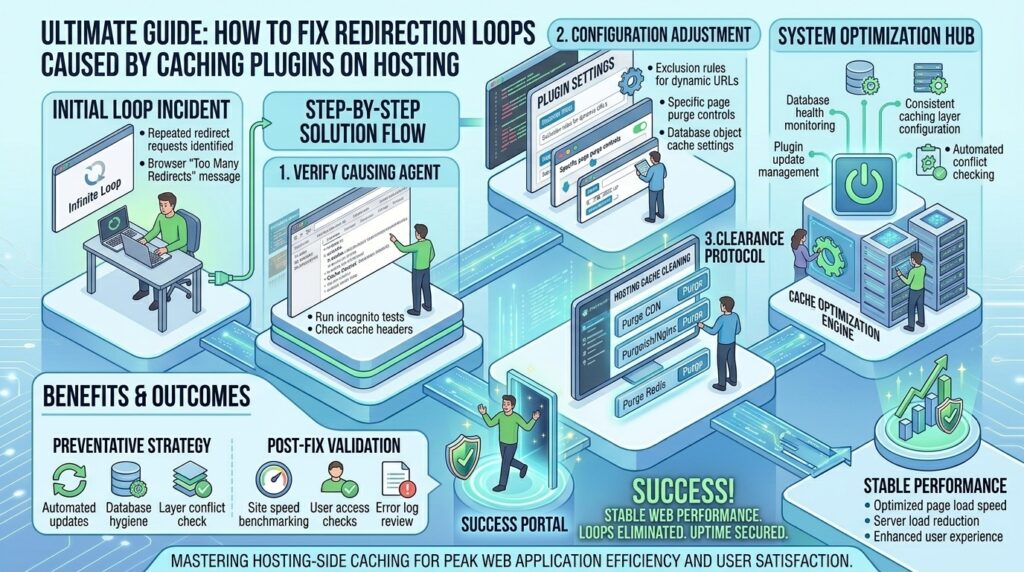
For digital agency owners, systems architects, web developers, and modern entrepreneurs launching and scaling web applications across major tech hubs like Texas, New York, California, Washington, and San Francisco, few error codes induce as much instant panic as the dreaded browser alert: “ERR_TOO_MANY_REDIRECTS” (or This webpage has a redirect loop).
When this error strikes, your production website becomes completely inaccessible to visitors and search engine crawlers alike. While redirect loops can originate from misconfigured SSL certificates, conflicting .htaccess rules, or incorrect URL settings in your database, one of the most frequent yet elusive culprits is aggressive or misconfigured caching plugins running on your web hosting environment.
When a caching plugin caches an old HTTP-to-HTTPS redirect rule incorrectly, traps a login page in a recursive state, or conflicts with your server-side caching layer (such as Nginx FastCGI, Varnish, or Cloudflare), your browser gets caught in an infinite digital ping-pong match.
This comprehensive, step-by-step masterclass guide will teach you how to diagnose, troubleshoot, and permanently resolve redirection loops caused by caching plugins on your web hosting server.
Understanding Why Caching Plugins Trigger Redirect Loops
To fix a redirection loop effectively, you first need to understand how caching plugins interact with your server’s routing protocols.
1. The Anatomy of a Redirect Loop
A redirect loop occurs when URL A tells the browser to redirect to URL B, but URL B (due to a configuration error, stale cache, or conflicting rule) immediately tells the browser to redirect back to URL A.
- Modern web browsers detect this infinite cycle after a few iterations, halt the connection, and display the
ERR_TOO_MANY_REDIRECTSmessage.
2. How Caching Amplifies the Loop
Caching plugins (such as WP Rocket, W3 Total Cache, LiteSpeed Cache, or WP Super Cache) are designed to save static snapshots of your dynamic web pages to serve them instantly and reduce server strain.
- If your site experienced a temporary SSL misconfiguration or a protocol change (e.g., forcing HTTPS), and your caching plugin captured that temporary redirect rule into its static cache files, the plugin will continue serving the broken redirect loop to every subsequent visitor, even after you fix the original server setting.
Phase 1: Triage — Confirming the Caching Culprit
Before modifying server files or deleting plugin directories, you must verify whether your caching plugin is indeed the root cause.
1. Bypass the Cache Using Incognito Mode
Open a private browsing window (Incognito mode in Chrome or Private Browsing in Firefox/Safari) and load your website.
- Why this matters: Private browsing windows ignore local browser caches and cookies. If your website loads normally in Incognito mode, the issue is strictly a cached state inside your browser or your caching plugin.
2. Inspecting Network Headers with Developer Tools
Open your browser’s Developer Tools (F12 or right-click $\rightarrow$ Inspect) and navigate to the Network tab. Check the Disable cache box, then reload your page.
- Look at the list of requests. A redirect loop will display a repeating sequence of status codes:
301 Moved Permanentlyor302 Foundpointing back and forth between identical URLs.
Phase 2: Immediate Fixes — Purging and Disabling Caching
If you can still log into your content management system (CMS) dashboard, or if you have basic file manager access, you can clear the offending cache immediately.
Method 1: Purging Caching Plugins via the Dashboard
If your backend is accessible:
- Log into your WordPress or web application dashboard.
- Navigate to your caching plugin’s settings panel (e.g., WP Rocket, LiteSpeed Cache, W3 Total Cache).
- Click the global command to “Clear All Cache”, “Purge All”, or “Empty Cache”.
- Clear your browser cache and test your front-end pages.
Method 2: Disabling Caching Plugins via FTP or Hosting File Manager
If the redirect loop locks you out of your admin dashboard entirely, you must disable the caching plugin manually via your hosting control panel (cPanel, Plesk, or your cloud VPS file manager):
- Log into your hosting account and open the File Manager, or connect via an SFTP client.
- Navigate to your website’s root directory (typically
public_htmlorhttpdocs). - Open the
wp-contentfolder and locate thepluginsdirectory. - Temporarily rename your caching plugin’s folder (e.g., rename
wp-rockettowp-rocket-disabled), or temporarily rename the entirepluginsfolder toplugins_oldto deactivate all plugins at once. - Refresh your website. If the redirect loop disappears, you have successfully isolated the plugin conflict. Rename your folders back to normal, keep the caching plugin deactivated, and log in to investigate its configuration settings.
Phase 3: Fixing Specific Caching Plugin Misconfigurations
Certain common settings inside popular caching plugins are notorious for creating infinite redirection loops. Review and correct these settings:
| Caching Plugin / Layer | Common Misconfiguration Triggering Loops | Corrective Action |
| Cloudflare Enterprise/Free | “Flexible SSL” mode conflicting with origin server HTTPS | Change Cloudflare SSL setting to Full or Full (Strict) |
| LiteSpeed Cache | Enforcing HTTPS rewrites while hosting server handles SSL | Disable “Force HTTPS” inside plugin if server-level .htaccess already forces it |
| WP Rocket / W3 Total Cache | Stale static .htaccess redirect rules cached by plugin | Clear plugin cache, regenerate server rewrite rules |
| Nginx FastCGI Cache | Caching temporary 301/302 redirect headers globally | Purge Nginx cache via SSH or restart Nginx service |
1. Resolving SSL Protocol Mismatches in Caching & CDN Layers
The most common cause of caching-induced redirect loops is an HTTPS mismatch. If your caching plugin or CDN (such as Cloudflare) is set to force HTTP while your server forces HTTPS—or vice versa—the server gets trapped in an endless loop.
- The Fix: Ensure that your WordPress URL settings (
Settings > General$\$rightarrow WordPress Address and Site Address) both explicitly usehttps://. Verify that your caching plugin’s SSL enforcement matches your hosting server’s SSL state. If using Cloudflare, ensure your encryption mode is set to Full (Strict) rather than Flexible.
2. Flushing Server-Level Caching (Nginx / Varnish / Redis)
Sometimes, the issue isn’t just the WordPress plugin, but your hosting provider’s server-level caching layer holding onto a bad header.
- If you manage a VPS via SSH, restart your web server and caching daemons to flush persistent routing memories:Bash
# For Nginx & PHP-FPM servers sudo systemctl restart nginx sudo systemctl restart php8.3-fpm # For Redis object caches redis-cli flushall
Phase 4: Advanced Troubleshooting & Clean-Up
If clearing the cache and disabling plugins does not instantly resolve the redirection loop, inspect deeper configuration files.
1. Inspecting and Cleaning the .htaccess File
Corrupted or conflicting rewrite rules inside your .htaccess file combined with static plugin caching can lock loops in place.
- Access your root directory via File Manager or SFTP.
- Download a backup copy of your
.htaccessfile, then delete it from the server. - Visit your website. If the loop stops, your
.htaccessfile was corrupted. - Log into your dashboard, navigate to Settings > Permalinks, and click Save Changes to automatically generate a fresh, clean, default WordPress
.htaccessfile.
2. Checking Database URL Consistency via phpMyAdmin
Sometimes caching plugins store serialized URLs in your database that conflict with your active domain protocols.
- Open phpMyAdmin from your hosting dashboard.
- Select your database and open the
wp_optionstable. - Check the
siteurlandhomerows to ensure they match your exact live domain structure ([https://yourdomain.com](https://yourdomain.com)) without trailing slash discrepancies or mixed HTTP/HTTPS prefixes.
Frequently Asked Questions (FAQ)
1. Why does a redirection loop happen only when a caching plugin is active?
Caching plugins store static copies of your web pages, including any HTTP headers or redirect instructions present at the time the cache was generated. If a temporary redirect rule was active when caching ran, the plugin will serve that broken redirect infinitely.
2. How do I fix a redirect loop if I am locked out of my admin dashboard?
You can disable your caching plugin by logging into your hosting account’s File Manager or via an SFTP client, navigating to wp-content/plugins, and renaming the caching plugin’s folder. This forces WordPress to deactivate the plugin instantly.
3. Does Cloudflare caching cause redirection loops?
Yes. If Cloudflare’s SSL setting is set to “Flexible” while your origin web server also redirects HTTP traffic to HTTPS, it creates an infinite loop. Changing Cloudflare’s SSL mode to “Full (Strict)” resolves this.
4. What browser error code indicates a redirection loop?
In Google Chrome and Microsoft Edge, it appears as ERR_TOO_MANY_REDIRECTS. In Mozilla Firefox, it displays as The page isn't redirecting properly.
5. Will clearing my browser cache fix a server-side redirect loop?
If the loop is caused by a server-side caching plugin, clearing only your browser cache may not be enough. You must clear both the browser cache and the plugin’s internal server cache to stop the loop.
6. Can an expired SSL certificate trigger a caching redirect loop?
Yes. If your SSL certificate expires, your server or security plugins may automatically attempt to redirect visitors to an insecure HTTP version, while other rules force HTTPS back, creating an instant loop.
7. How do I prevent caching plugins from causing redirect loops in the future?
Always test SSL and domain URL changes in a staging environment before pushing them live. Clear your website’s caching plugin immediately after making changes to your site’s domain structure or HTTPS settings.
8. What is the role of the .htaccess file in redirect loops?
The .htaccess file controls server-level URL rewrites. If a caching plugin writes conflicting rewrite rules or if rules conflict with your hosting provider’s default configurations, a loop can occur.
9. Should I use multiple caching plugins simultaneously?
No. Running multiple caching plugins (such as WP Rocket and W3 Total Cache together) will cause severe file conflicts, broken rewrite rules, and frequent redirection loops. Stick to one robust caching solution.
10. When should I contact my web hosting support team?
If you have disabled all plugins, purged server caches, regenerated your .htaccess file, and verified your SSL settings, but the redirect loop persists, contact your hosting provider. They can inspect server-level Nginx/Apache proxy rules or reverse-proxy configurations.
Conclusion
Encountering a redirection loop caused by a caching plugin can bring your digital operations to a sudden halt, but it is entirely fixable with a methodical troubleshooting approach. By bypassing local caches, purging plugin storage, inspecting SSL protocols across CDNs and origin servers, and cleaning up rewrite rules, you can restore normal site functionality. Maintain clean configuration protocols and proactive caching habits to keep your web infrastructure fast, secure, and fully accessible for your global audience.