Troubleshooting 504 Gateway Timeout Error on Web Host: The Ultimate Infrastructure Optimization Guide
When operating or scaling a digital platform, agency network, or e-commerce store targeted at high-demand digital markets like Texas, New York, California, Washington, and San Francisco, web performance is everything. Users expect instantaneous page loads, and search engine crawlers penalize sluggish architectures. However, few infrastructure failures are as frustrating—or as damaging to your revenue and search visibility—as the infamous 504 Gateway Timeout Error.
Unlike a standard 404 page (which means a file is missing) or a 403 error (permission denied), a 504 Gateway Timeout means that an upstream server—acting as a gateway, proxy, or load balancer—took too long to receive a response from the backend application server or database.
When your website goes down with a 504 error, visitors bounce, potential customers abandon their shopping carts, and Googlebot registers critical server failure codes that can quickly degrade your search engine rankings.
This comprehensive, expert-level troubleshooting guide dives deep into the root causes of 504 Gateway Timeouts, offering step-by-step diagnostic workflows, server configuration tips, and performance tuning strategies designed to resolve the issue permanently and secure top-tier visibility in Google search results.
1. Understanding the Anatomy of a 504 Gateway Timeout
To fix a 504 error effectively, you must understand how modern web hosting architectures route traffic. Most high-performance hosting environments do not rely on a single software application to serve requests. Instead, they use a multi-tiered reverse-proxy architecture:
The Typical Traffic Routing Flow:
- The Client Request: A visitor or Googlebot enters
thehostreviews.comin their browser. - The Reverse Proxy Layer (Nginx / Cloudflare / Load Balancer): The front-end server receives the request first. It handles SSL termination, static file delivery, and caching.
- The Backend Application Layer (PHP-FPM / Apache / Node.js): If the request requires dynamic processing, the reverse proxy passes (proxies) the request down to a backend application processor.
- The Database Layer: The backend script queries MySQL or MariaDB to assemble the page.
Where the 504 Error Occurs: A 504 Gateway Timeout happens when the front-end reverse proxy (e.g., Nginx) waits for the backend application server (e.g., PHP-FPM) to finish processing a request, but the backend takes longer than the preset timeout threshold. The proxy gives up, cuts the connection, and displays the 504 Gateway Timeout message to the user.
2. The 6 Primary Causes of 504 Gateway Timeouts
Before modifying server configuration files or contacting support, identify the most common underlying triggers:
- Heavy, Unoptimized Database Queries: Database tables locked by massive operations, missing indexes, or slow queries causing PHP execution scripts to hang.
- Exhausted PHP-FPM Worker Processes: All available backend PHP worker slots are busy processing slow requests, causing incoming new requests to queue up and time out.
- Aggressive Reverse Proxy Timeout Limits: Nginx or Apache timeout thresholds set too low (e.g., 30 or 60 seconds) for heavy processes like bulk data imports or large file uploads.
- External API or Third-Party Connection Lags: A plugin or script waiting indefinitely on a sluggish external web service, payment gateway, or remote feed.
- Insufficient Server Resources (CPU/RAM Contention): Heavy traffic spikes or “noisy neighbor” resource exhaustion on budget shared or unoptimized VPS hosting nodes.
- Faulty Security Plugins or Web Application Firewalls (WAF): Overly aggressive firewall rules blocking legitimate internal communications between server layers.
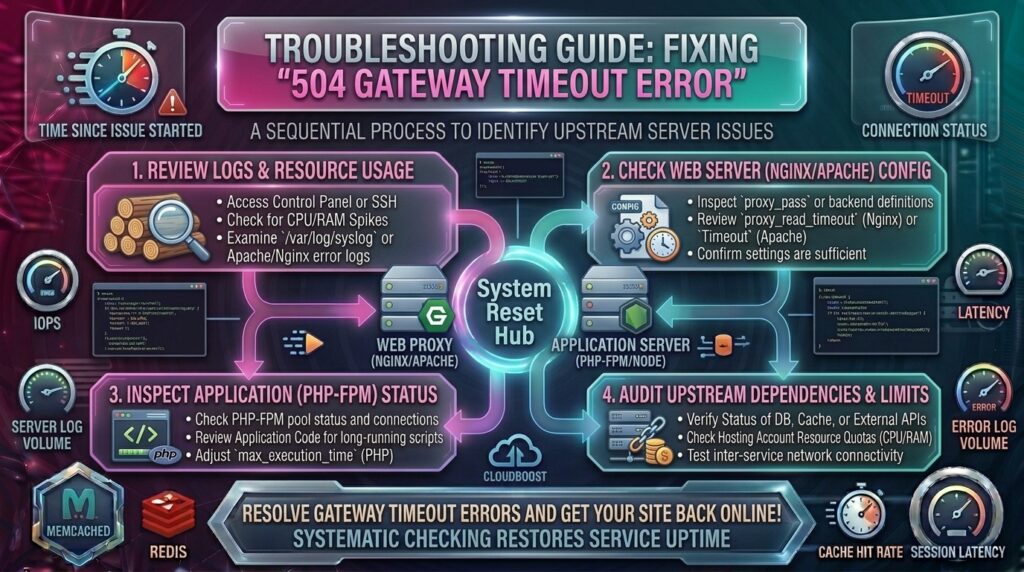
3. Step-by-Step Troubleshooting and Resolution Workflow
Follow this systematic diagnostic workflow to isolate the bottleneck and restore your website’s performance.
Step 1: Check Server Error Logs (The Diagnostic Starting Point)
Never guess at a server error—let the logs tell you exactly where the timeout occurred.
- Log into your hosting control panel (cPanel, Plesk) or connect via SSH to your cloud server.
- Locate your web server error logs:
- Nginx Error Log: Typically located at
/var/log/nginx/error.log - Apache Error Log: Typically located at
/var/log/apache2/error.log - PHP-FPM Error Log: Typically located at
/var/log/php-fpm/www-error.log
- Nginx Error Log: Typically located at
- Look for entries matching timestamps when the 504 error occurred. Search for terms like
upstream timed out,max_execution_time exceeded, orgateway timeout.
Step 2: Increase Nginx Proxy Timeout Directives
If your server runs Nginx as a reverse proxy in front of Apache or PHP-FPM, default timeout limits are often restricted to 60 seconds. If a complex database query or backup script takes 65 seconds, Nginx throws a 504 error prematurely.
How to Fix It:
- Open your Nginx configuration file (
/etc/nginx/nginx.confor your specific domain virtual host configuration file). - Inside your
http,server, orlocationblocks, add or increase the timeout directives:Nginxproxy_connect_timeout 300s; proxy_send_timeout 300s; proxy_read_timeout 300s; fastcgi_read_timeout 300s; - Save the file and test your syntax for errors:Bash
sudo nginx -t - Restart Nginx to apply changes:Bash
sudo systemctl restart nginx
Step 3: Optimize PHP Execution and Worker Limits (php.ini)
If your backend application relies on PHP (such as WordPress, WooCommerce, or Magento), default PHP execution limits are often too low, causing long scripts to abort with timeout errors.
How to Fix It:
- Locate your active
php.inifile on your server. - Modify or increase the following execution parameters:Ini, TOML
max_execution_time = 300 max_input_time = 300 memory_limit = 512M - If you run PHP-FPM, ensure your pool configuration (
/etc/php/8.3/fpm/pool.d/www.conf) has enough worker processes allocated to handle concurrent traffic spikes:Plaintextpm = dynamic pm.max_children = 50 pm.start_servers = 10 pm.min_spare_servers = 5 pm.max_spare_servers = 35 - Restart the PHP-FPM service:Bash
sudo systemctl restart php8.3-fpm
Step 4: Identify and Kill Stuck Database Queries
A slow or locked database is the single most frequent cause of PHP scripts hanging and triggering 504 timeouts.
How to Diagnose It:
- Log into your hosting control panel, open phpMyAdmin, and click on the SQL tab. Alternatively, connect to your MySQL command line via SSH:Bash
mysql -u root -p - Run the process list command to view all currently running database queries:SQL
SHOW FULL PROCESSLIST; - Look for queries with high
Timevalues that are stuck in states likeSending data,Locked, orCopying to tmp table. - If you identify a runaway query or stuck script, you can terminate it immediately using its process ID:SQL
KILL [process_id];
Step 5: Isolate Faulty Plugins, Themes, or Cron Jobs
If 504 errors occur randomly or during specific admin tasks, a misbehaving plugin or looping cron job may be choking your server resources.
How to Fix It:
- Access your site files via FTP or File Manager.
- Temporarily rename your
wp-content/pluginsdirectory toplugins_backup. - Check if your site loads normally. If the 504 error disappears, a plugin was causing heavy backend loops.
- Restore the folder name, enter the directory, and reactivate plugins one by one to isolate the culprit.
4. Proactive Tips to Prevent Future 504 Gateway Timeouts
Resolving an active timeout error is only half the battle. Implement these architectural best practices to ensure your hosting environment remains stable under heavy load:
- Implement Full-Page and Object Caching: Use server-level caching (like Nginx FastCGI cache or LiteSpeed Cache) and in-memory object caching (Redis) so your server serves pre-rendered pages instantly without forcing PHP to compile scripts or query databases from scratch.
- Upgrade Inadequate Hosting Infrastructure: If your server consistently runs out of RAM or CPU cycles during normal peak hours, shared hosting is no longer sufficient. Migrate to a scalable Cloud Server or VPS.
- Optimize Database Tables Regularly: Clean up database bloat, expired transients, and post revisions using database optimization tools to maintain lightning-fast query response times.
- Use a Content Delivery Network (CDN): Route global visitor requests through edge networks like Cloudflare to absorb DDoS traffic, block malicious scrapers, and reduce direct load on your origin hosting server.
5. How 504 Timeouts Impact Google SEO and Core Web Vitals
Search engines evaluate your website reliability through continuous automated crawling. Frequent 504 Gateway Timeout errors trigger severe SEO penalties:
- HTTP 5xx Server Error Flags: Search engine crawlers interpret 504 errors as fatal server instability. If Googlebot repeatedly encounters 504 codes, it drops indexing priority.
- Crawl Budget Wastage: When a server times out during indexing, Googlebot wastes its limited crawling window waiting on dead requests instead of discovering new content or product pages.
- Core Web Vitals Degradation: Timeouts severely inflate Time to First Byte (TTFB) and ruin Largest Contentful Paint (LCP) metrics, dragging down your overall user experience score in Google Search Console.
6. Frequently Asked Questions (FAQ)
1. What exactly is a 504 Gateway Timeout error?
It means that a server acting as a gateway or proxy (like Nginx) did not receive a timely response from an upstream backend server (like PHP-FPM or database) while trying to fulfill a request.
2. Is a 504 error caused by my web browser or my hosting server?
It is strictly a server-side error. It has nothing to do with your local web browser, computer cache, or internet connection.
3. Why does my site show 504 errors only during peak traffic hours?
Traffic spikes cause concurrency bottlenecks. When too many users flood your site simultaneously, your PHP worker processes max out and database queries lock up, causing incoming requests to time out.
4. How do I fix a 504 error if I use shared web hosting?
On shared hosting, you lack root access to modify Nginx or PHP configuration files. You must contact your hosting provider’s support team immediately and request that they check server error logs and increase upstream timeout limits.
5. Can a caching plugin fix a 504 Gateway Timeout?
Yes and no. Full-page caching helps because it bypasses slow PHP execution entirely for cached visitors. However, if un-cached dynamic actions (like checkout or admin actions) trigger backend timeouts, server-level adjustments are required.
6. What is the difference between a 502 Bad Gateway and a 504 Gateway Timeout?
A 502 error means the proxy server received an invalid or empty response from the backend. A 504 error means the backend server took too long to respond before the connection dropped.
7. How do Nginx proxy timeouts affect file uploads or backups?
Default Nginx timeout settings are often 60 seconds. If you upload a large media file or run a heavy site backup that takes longer than 60 seconds, Nginx cuts the connection, triggering a 504 error.
8. Does a 504 error hurt my Google SEO rankings?
Yes. Frequent 504 server errors cause Googlebot to drop pages from its active index, lower your crawl efficiency, and penalize your site for poor uptime reliability.
9. How do I check if my database is causing the timeout?
You can run the SHOW FULL PROCESSLIST; command in phpMyAdmin or MySQL terminal to check for locked database tables or runaway queries taking too long to execute.
10. When should I upgrade my web hosting plan?
If you have optimized your PHP timeouts, cleaned your database, and enabled caching, but your server still throws 504 errors during moderate traffic spikes, your hosting hardware has outgrown its resource limits and requires an upgrade to a VPS or cloud instance.
7. Conclusion
Encountering a 504 Gateway Timeout Error on your web hosting server can be stressful, but with a structured diagnostic approach, it is entirely solvable. By examining your error logs, tuning your Nginx and PHP-FPM timeout thresholds, killing stuck database queries, and upgrading your infrastructure when resource limits are reached, you can eliminate server bottlenecks permanently.