How to Fix “Error Establishing a Database Connection” on Hosting: The Ultimate Troubleshooting Masterclass for 2026
When operating a digital platform, e-commerce store, or agency network targeted at high-demand digital markets like Texas, New York, California, Washington, and San Francisco, maximizing uptime is everything. Yet, few errors strike as much sudden terror into the heart of a website owner as the dreaded white screen displaying five chilling words:
“Error establishing a database connection”
Unlike a normal 404 page or a temporary gateway timeout, this message means your entire application—whether it is WordPress, Drupal, or a custom PHP framework—is completely offline. Visitors see an empty shell, potential customers bounce away to competitors, and search engine crawlers register fatal HTTP status codes that can quickly damage your Google SEO rankings.
The good news? This error is rarely permanent or catastrophic. It is simply a communication breakdown between your website’s application code and its database server (MySQL or MariaDB).
This comprehensive, expert-level troubleshooting guide breaks down the root causes of database connection errors, provides step-by-step resolution workflows, and outlines preventative optimization strategies designed to restore your site instantly and secure your spot at the top of Google search.
1. Understanding the Anatomy of the Database Connection Error
To fix the error efficiently, you must first understand what happens when a web page loads under normal conditions.
The Standard Connection Handshake:
- The Request: A user enters
thehostreviews.comin their browser. - The Code Execution: Your web server (Nginx, Apache, or LiteSpeed) reads your PHP application files.
- The Credentials Check: The application looks for configuration files containing specific access keys: database name, database username, database password, and database host server address.
- The Database Handshake: The application attempts to log into the MySQL/MariaDB database server using those credentials.
- The Query: If the credentials match and the database server is running, the database accepts the connection and returns the necessary data.
The Breakdown: When the “Error establishing a database connection” message appears, it means step #4 or #5 failed. Either your credentials are wrong, your database server has crashed, or your database files are corrupted.
2. The 5 Primary Causes of Database Connection Errors
Before diving into terminal commands or control panel fixes, recognize the primary culprits:
- Incorrect Database Credentials: A password mismatch inside your configuration file (e.g.,
wp-config.php). - Corrupted Database Tables: Sudden server reboots, disk space exhaustion, or interrupted queries corrupting MySQL tables.
- MySQL/MariaDB Server Failure: The database service itself has crashed or stopped running on your hosting backend.
- Incorrect Database Host Address: Pointing your application to
localhostwhen your host requires a specific remote IP or socket. - Resource Exhaustion or Server Limits: Your hosting account hitting its maximum concurrent database connections or disk inode limits.
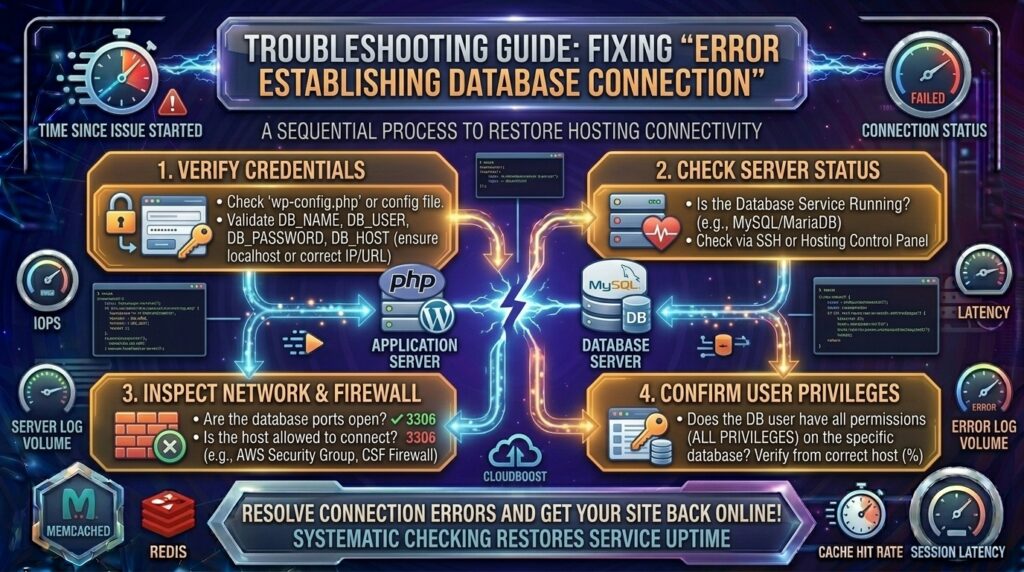
3. Step-by-Step Troubleshooting and Resolution Guide
Follow this systematic, step-by-step diagnostic workflow to pinpoint the root cause and restore your website safely.
Step 1: Verify if the Database Itself is Corrupted (The Diagnostic Test)
Before changing any configuration files, check if your application can talk to the database at all, or if the database tables are physically broken.
- Log into your hosting control panel (cPanel, Plesk, or your cloud server dashboard).
- Open phpMyAdmin and select your website’s database from the left-hand sidebar.
- Scroll to the bottom of the table list, check the Check All box, and from the dropdown menu select Repair table.
- If phpMyAdmin throws an error or refuses to load your tables, your database files are corrupted or the MySQL service is offline. Proceed to Step 2.
Step 2: Check and Update Database Credentials in wp-config.php
The most common cause of database connection errors is a mismatch between your database password and the login credentials stored in your application configuration file.
How to Fix It:
- Open your hosting File Manager (or connect via SFTP/FileZilla) and navigate to your website’s root directory (
public_html). - Locate the configuration file (e.g.,
wp-config.phpfor WordPress). - Open the file for editing and locate these four core variables:PHP
define( 'DB_NAME', 'your_database_name' ); define( 'DB_USER', 'your_database_user' ); define( 'DB_PASSWORD', 'your_database_password' ); define( 'DB_HOST', 'localhost' ); - Double-check these credentials against your active hosting records:
- Go to your control panel, click on MySQL Databases, and verify that the database name, username, and user privileges match word-for-word.
- If you recently changed your database password in cPanel, you must update the
DB_PASSWORDvariable in your configuration file to match.
- Save the file and refresh your website.
Step 3: Verify the Database Host Address (DB_HOST)
Many site owners assume DB_HOST should always be set to localhost. However, certain cloud hosting configurations, managed VPS providers, or specialized architectures require specific socket paths or external IP addresses.
- Standard Shared Hosting: Usually
localhost. - Advanced Cloud / VPS Setups: May require a specific loopback IP (
127.0.0.1:3306) or a UNIX socket path (e.g.,/var/run/mysqld/mysqld.sock). - Consult your web hosting provider’s documentation to ensure your
DB_HOSTvariable matches their exact network topology.
Step 4: Restart the MySQL / MariaDB Server Service
If your database credentials are correct and phpMyAdmin won’t load, the database server daemon itself has likely crashed or stopped running in the background of your server.
- If you use a Managed Host: Submit an urgent support ticket immediately. Their system administrators will restart the MySQL service.
- If you have a VPS or Cloud Server (Root Access): Connect via SSH and restart the database service manually:Bash
sudo systemctl restart mysql # Or on certain distributions: sudo systemctl restart mariadb - Check the service status to ensure it runs without errors:Bash
sudo systemctl status mysql
Step 5: Check for Disk Space and Inode Exhaustion
If your server runs out of physical disk space or hits its maximum inode limit (total number of files), MySQL cannot write temporary tables or logs, resulting in sudden connection failures.
- Log into your SSH terminal or check your hosting control panel dashboard statistics.
- Run the disk space check command:Bash
df -h - If your disk usage is at 100%, your database cannot function. Clean up old log files, purge temporary cache directories, or upgrade your hosting storage tier immediately.
4. Advanced Scenario: Fixing the “Plugins and Themes” Database Crash
Sometimes, a poorly coded plugin, a faulty theme update, or a corrupted database table causes a database error only when specific functions execute.
The Troubleshooting Test:
- Access your site files via FTP or File Manager.
- Navigate to
public_html/wp-content/. - Temporarily rename the
pluginsfolder toplugins_backup. - Refresh your website:
- If the database error disappears, one of your plugins crashed your database.
- Restore the folder name to
plugins, go into the directory, and rename plugins one by one until you isolate the offender.
5. How Database Outages Impact Google SEO
Search engine optimization is fragile. When Googlebot crawls your website and encounters a persistent “Error establishing a database connection,” severe consequences follow:
- 5xx Server Error Penalties: Search engine crawlers interpret database connection errors as critical server failures (
500 Internal Server Erroror503 Service Unavailable). - De-indexation Risks: If your site remains offline for days during a database outage, Googlebot will drop your URLs from active search indexes, causing your organic traffic to plummet.
- Loss of Crawl Budget: A slow or unstable database wastes Google’s limited crawling time on error pages rather than indexing new content or product pages.
6. Frequently Asked Questions (FAQ)
1. What does “Error establishing a database connection” mean?
It means your website application code is running, but it cannot communicate with your MySQL or MariaDB database server due to incorrect credentials, corrupted tables, or a crashed database service.
2. Is this error caused by my web hosting provider?
It can be. If your hosting provider’s MySQL server crashes, experiences hardware failure, or hits resource limits, your site will display this error even if your code is flawless.
3. How do I check if my database password is correct?
You can verify and reset your database user password inside your hosting control panel under MySQL Databases, then update the corresponding password in your application’s configuration file.
4. Can a corrupted database cause this error?
Yes. If database tables become corrupted due to a sudden server reboot or disk failure, MySQL refuses connections until the tables are repaired via phpMyAdmin or command-line tools.
5. Why does my site show this error only during traffic spikes?
Traffic spikes can exhaust your hosting account’s maximum allowed concurrent database connections. When the limit is reached, new visitors receive a database connection error.
6. Where is the database configuration file located in WordPress?
In WordPress, the database connection parameters are stored in the wp-config.php file located in the root directory (public_html) of your website.
7. Should my DB_HOST always be set to localhost?
Not always. While localhost is standard for shared hosting, some cloud or VPS environments require specific IP addresses or local UNIX socket paths provided by your host.
8. Will clearing my cache fix a database connection error?
No. Caching plugins store static HTML snapshots, but a database connection error happens at the core application layer before caching can even render.
9. How do I fix the error if I cannot access my hosting control panel?
If your control panel is locked or inaccessible, you must contact your web hosting provider’s support team immediately so their system administrators can check server logs and restart the database service.
10. How can I prevent database connection errors in the future?
Choose a reliable, high-performance web host with strong uptime guarantees, implement regular automated database backups, monitor disk space, and optimize heavy database queries using object caching.
7. Conclusion
Encountering the “Error establishing a database connection” message can be stressful, but by following a methodical troubleshooting process, you can diagnose and resolve the issue quickly. Whether it involves updating mismatched credentials in your configuration file, repairing corrupted tables in phpMyAdmin, restarting a crashed MySQL daemon, or clearing server disk space, taking swift action protects your data integrity.