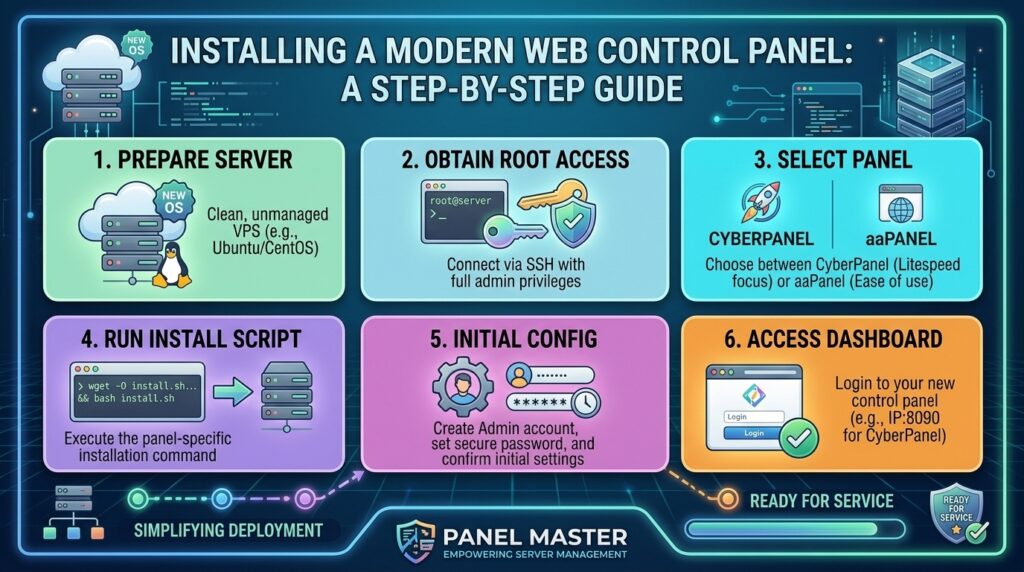
Installing a Web Control Panel Like CyberPanel or aaPanel on Your Linux VPS: The Ultimate Administrative Guide
Welcome to thehostreviews.com—your premier authoritative destination for web hosting evaluations, infrastructure management tutorials, and modern server administration guides spanning tech hubs from New York and San Francisco to Texas, California, and Washington.
Introduction: Bridging the Gap Between Root Access and Ease of Use
When you upgrade your website infrastructure from restrictive shared hosting to a high-performance Virtual Private Server (VPS), you unlock absolute root-level control. Suddenly, you have dedicated RAM, guaranteed vCPU cores, and the freedom to configure your Linux environment down to the bare metal.
However, managing a bare-metal server strictly via command-line SSH terminals can feel daunting. Remembering complex Linux commands, manually configuring Nginx reverse proxies, writing firewall rules, and setting up databases by hand introduces a steep learning curve and a high risk of configuration errors.
This is where a modern, lightweight web control panel enters the picture.
By installing a next-generation control panel like CyberPanel (powered by OpenLiteSpeed) or aaPanel (powered by a modular, container-like app store), you get the best of both worlds: the elite speed and raw power of an unmanaged VPS combined with the graphical, user-friendly dashboard convenience of traditional cPanel.
This comprehensive, expert-level guide will walk you through the technical advantages of control panels, compare CyberPanel and aaPanel, and provide exact, step-by-step installation instructions to set up your new server environment.
Part 1: Why Use a Web Control Panel on a VPS?
Before choosing a specific panel, it is important to understand how a control panel transforms your VPS workflow:
- Graphical User Interface (GUI): Manage domains, create databases, issue SSL certificates, and set up email accounts through an intuitive point-and-click browser interface.
- Automated Stack Deployment: Instead of manually installing Apache/Nginx, PHP, MySQL, and FTP services individually, control panels compile and deploy a fully optimized web stack in a single automated installation command.
- Built-In Security & Firewall Management: Easily configure firewalls, block malicious IPs, and manage file permissions without writing complex
iptablesorufwrules. - Simplified Backup and Restoration: Create snapshot archives, schedule automated backups, and restore data effortlessly via the dashboard.
Part 2: CyberPanel vs. aaPanel — Detailed Technical Comparison
Choosing the right control panel depends entirely on your performance requirements, hosting stack preferences, and technical familiarity. Let’s compare two of the most popular modern control panels.
1. CyberPanel (The OpenLiteSpeed Speed Demon)
CyberPanel is built from the ground up to integrate natively with OpenLiteSpeed (OLS), a high-performance, open-source web server designed to handle massive traffic spikes with minimal memory consumption.
- Core Advantage: Out-of-the-box support for LiteSpeed Cache (LSCache), making it the absolute gold standard for WordPress performance, speeding up database queries and delivering elite Core Web Vitals scores.
- Key Features: Native Git integration, Docker manager, automatic SSL issuance via Let’s Encrypt, phpMyAdmin integration, and robust WordPress staging tools.
- Ideal User: WordPress site owners, e-commerce stores (WooCommerce/Magento), and performance-obsessed developers seeking maximum speed.
2. aaPanel (The Modular Powerhouse)
aaPanel features a unique, lightweight containerized app store architecture. Instead of installing a massive monolithic software suite, aaPanel lets you install only the exact software components you need (LNMP or LAMP stacks) with a single click.
- Core Advantage: Unmatched modular flexibility and an exceptionally clean, responsive graphical user interface. You can switch between PHP versions (e.g., PHP 7.4 through PHP 8.3) instantly for individual websites.
- Key Features: Visual file manager, robust security firewall management, cron job visual scheduler, Python/Node.js environment management, and real-time resource monitoring graphs.
- Ideal User: Developers managing diverse web applications (PHP, Python, Node.js) who want granular, visual control over their server environment.
Part 3: Prerequisites Before Installing a Control Panel
Before executing installation scripts on your VPS, you must meet several mandatory infrastructure requirements:
- A Clean Operating System: Control panel installation scripts are highly sensitive to pre-installed software. You must start with a fresh, blank VPS installation (recommended OS: AlmaLinux 9, Ubuntu 22.04 LTS, or Ubuntu 24.04 LTS). Do not install Apache, Nginx, or MySQL beforehand.
- Sudo or Root Privileges: You must have root access to execute system-level installation commands.
- Open Network Ports: Ensure your VPS firewall or cloud provider security group allows incoming traffic on ports required by your chosen control panel (such as ports
80,443,22, and the panel’s custom administrative port). - Valid Hostname: Set a fully qualified domain name (FQDN) or valid hostname for your server.
Part 4: Step-by-Step Guide — Installing CyberPanel
Follow this procedure to install CyberPanel with OpenLiteSpeed on an AlmaLinux 9 or Ubuntu VPS.
Step 1: Connect to Your VPS via SSH
Open your terminal (Mac/Linux) or PuTTY (Windows) and log into your server as root:
Bash
ssh root@your_vps_ip_address
Step 2: Run the CyberPanel Installer Script
CyberPanel provides a streamlined, interactive installation script. Paste the following command into your terminal and press Enter:
Bash
sh <(curl https://cyberpanel.net/install.sh || wget -O - https://cyberpanel.net/install.sh)
Step 3: Configure Installation Preferences
The interactive installer will guide you through a series of prompts:
- Select CyberPanel: Choose option
1(Install CyberPanel). - Select Web Server: Choose between OpenLiteSpeed (Recommended for WordPress/speed) or LiteSpeed Enterprise.
- Full Installation: Choose whether to install PowerDNS, Postfix (Mail Server), and Pure-FTPd. For most setups, selecting
Y(Yes) for full features is recommended. - Database Selection: Choose your preferred MariaDB version (e.g., MariaDB 10.11 or latest).
- Remote MySQL: Select
N(No) unless you are running a multi-server cluster. - Press Enter to let the installer automatically configure the admin password or set your own custom password.
Step 4: Complete Installation and Access Dashboard
The installation process will compile packages and configure your system, taking approximately 5 to 10 minutes. Once complete, the terminal will display your administrative login credentials:
- CyberPanel URL:
https://your_vps_ip_address:8090 - Username:
admin - Password: (Generated during installation)
Open your web browser, navigate to your CyberPanel URL (accept the self-signed SSL security warning), and log in to begin managing your websites!
Part 5: Step-by-Step Guide — Installing aaPanel
Follow this procedure to deploy aaPanel on a fresh Linux VPS instance.
Step 1: Connect to Your VPS via SSH
Log into your fresh VPS instance as root:
Bash
ssh root@your_vps_ip_address
Step 2: Run the Appropriate aaPanel Installer Script
aaPanel provides tailored installation scripts depending on your Linux distribution.
- For AlmaLinux / Rocky Linux / RHEL:Bash
yum install -y wget && wget -O install.sh http://www.aapanel.com/script/install_6.0_en.sh && bash install.sh aapanel - For Ubuntu / Debian:Bash
wget -O install.sh http://www.aapanel.com/script/install-ubuntu_6.0_en.sh && sudo bash install.sh aapanel
Step 3: Confirm and Execute
The script will prompt you to confirm the installation directory (/www). Type y and press Enter to proceed.
Step 4: Access Your aaPanel Dashboard
Once the installation script completes (typically taking 3 to 5 minutes), your terminal will output your secure administrative login details, including:
- Custom URL / Panel Path: (e.g.,
http://your_vps_ip_address:8888/aixyz123) - Username:
- Password:
Copy the secure URL provided in your terminal, paste it into your web browser, and log in. Upon your first login, aaPanel will prompt you to select your preferred web software stack (Recommended: LNMP with Nginx, MySQL, and PHP, or LAMP with Apache). Select your stack and click One-click to install your environment modules.
Part 6: Essential Post-Installation Security Tips
Once your control panel is installed and operational, complete these crucial hardening steps to protect your server from unauthorized intrusion:
- Change Default Ports: Both CyberPanel and aaPanel run on default management ports (
8090and8888). Consider modifying these ports in your panel settings to reduce automated bot scanning. - Enforce SSL Certificates: Generate and bind an SSL certificate to your control panel domain/subdomain so your administrative login credentials are encrypted in transit.
- Configure Panel Security Access: Restrict control panel access to your specific home or office IP address if you have a static IP, or ensure strong passwords and multi-factor authentication are enabled.
- Set Up Automated Backups: Use the control panel’s built-in backup module to schedule automated daily snapshots of your databases and website files, storing copies off-site.
Part 7: Frequently Asked Questions (FAQ)
1. What is a web control panel on a VPS?
A web control panel is a graphical interface installed on a server that simplifies website management, database creation, file editing, and server configuration, eliminating the need to use command-line terminal commands for daily tasks.
2. Should I choose CyberPanel or aaPanel?
Choose CyberPanel if you run WordPress sites and want elite performance powered by OpenLiteSpeed and LiteSpeed Cache. Choose aaPanel if you want modular application flexibility, a clean UI, and support for diverse programming languages like Python and Node.js.
3. Can I install CyberPanel on a server that already has websites hosted?
No. Control panel installation scripts require a clean, fresh operating system. Installing them on a server with existing software configurations, web files, or databases will cause script conflicts and break dependencies.
4. Is CyberPanel free to use?
Yes! CyberPanel offers a fully functional, open-source free tier that includes OpenLiteSpeed, automated SSL issuance, and core management features, with paid enterprise upgrades available for advanced enterprise clustering.
5. What operating system works best for aaPanel and CyberPanel?
AlmaLinux 9 or Ubuntu 22.04 LTS / 24.04 LTS are the industry-standard, fully supported Linux distributions recommended by both control panel developers for long-term stability and security updates.
6. How do I access my control panel if my browser blocks the port?
If your browser fails to load your control panel URL (e.g., port 8090 or 8888), it is usually because your VPS firewall or cloud provider security group is blocking incoming traffic on those ports. You must open those ports in your firewall settings.
7. Does CyberPanel support WordPress caching out of the box?
Yes. Because CyberPanel runs on OpenLiteSpeed, it features native integration with the LiteSpeed Cache (LSCache) plugin for WordPress, delivering lightning-fast page loading speeds and superior caching performance.
8. Can I manage multiple websites on a single CyberPanel or aaPanel instance?
Yes! Both panels allow you to host, manage, and isolate dozens or even hundreds of independent websites and domains on a single VPS, limited only by your server’s RAM and disk storage capacity.
9. Are control panels resource-heavy on a VPS?
Modern panels like CyberPanel and aaPanel are designed to be lightweight. However, we recommend provisioning a VPS with at least 2GB of RAM to ensure smooth performance when running the control panel alongside database and web server daemons.
10. Can I uninstall a control panel if I don’t like it?
Control panels deeply integrate into your Linux operating system packages, making clean uninstallation difficult. If you want to switch panels, the cleanest and most reliable method is to wipe your VPS and reinstall a fresh operating system image.
Conclusion
Installing a modern web control panel like CyberPanel or aaPanel transforms an intimidating unmanaged Linux VPS into an efficient, user-friendly hosting environment. By combining the raw speed of OpenLiteSpeed or the modular flexibility of aaPanel with a powerful graphical dashboard, you gain absolute control over your digital infrastructure without getting bogged down by complex terminal commands.