Building an Automated Cron Job Backup Script for cPanel Web Hosting: The Ultimate Engineering Guide
Welcome to thehostreviews.com—your premier authoritative source for web hosting evaluations, workflow automation engineering, and server administration tutorials spanning technology hubs from New York and San Francisco to Texas, California, and Washington.
Introduction: Why Automated Backups Are Non-Negotiable
Whether you manage an e-commerce platform in Texas, a SaaS application in San Francisco, or a high-volume digital publication in New York, data loss remains an existential threat. Hardware failures, corrupted database tables, malicious malware injections, or simple human error can wipe out years of digital assets in seconds.
While most modern cPanel hosting providers offer native backup routines, relying solely on host-level backups can leave you vulnerable. Host backups can fail silently, run on rigid schedules outside your control, or become unavailable if your hosting account experiences strict quota suspensions.
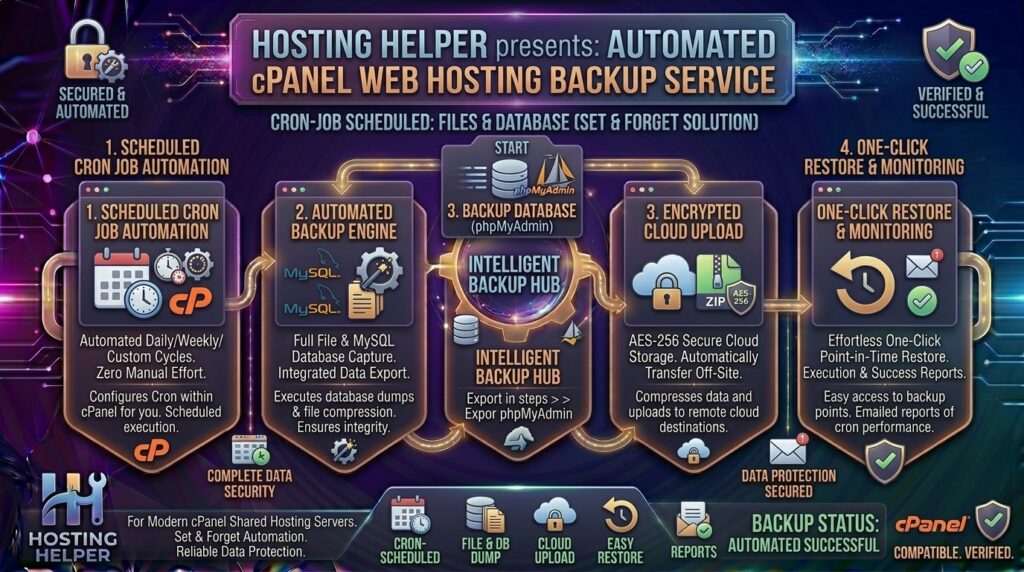
The gold standard for reliable disaster recovery is implementing an automated cron job backup script. By configuring custom shell or PHP scripts triggered by cPanel’s time-based scheduler (Cron), you maintain total control over when, how, and where your database dumps and web files are archived.
This comprehensive, expert-level guide will walk you through the architecture, writing, deployment, and scheduling of custom automated backup scripts inside cPanel web hosting environments.
Part 1: Understanding cPanel Cron Jobs and Automation Mechanics
Before writing code, it is critical to understand how automated scheduling works within Linux-based cPanel servers.
What is a Cron Job?
A cron job is a time-based task scheduler built into Unix/Linux operating systems. It executes designated scripts, shell commands, or programs automatically at fixed intervals (e.g., every night at 2:00 AM) without requiring manual intervention.
The Structure of a Cron Schedule
Cron schedules are defined by five time-and-date parameters followed by the command to execute:
Plaintext
* * * * * /path/to/command/to/execute
│ │ │ │ │
│ │ │ │ └───── Day of the week (0 - 7) (Sunday = 0 or 7)
│ │ │ └─────── Month (1 - 12)
│ │ ───────── Day of the month (1 - 31)
│ ─────────── Hour (0 - 23)
───────────── Minute (0 - 59)
For instance, a schedule set to 0 2 * * * executes precisely at 2:00 AM every single day.
Part 2: Writing the Automated Bash Backup Script
While you can execute basic commands directly in cPanel, building a dedicated shell script (.sh) provides clean encapsulation, allowing you to back up your MySQL databases, compress your website files, name archives dynamically with timestamps, and purge old backups to save disk space.
Step 1: Create the Backup Directory Structure
Log into your cPanel account, open the File Manager, and create a secure folder outside your public web root (e.g., create a folder named /home/username/backup_vault/). This prevents your backup archives from being downloaded publicly via a web browser.
Step 2: Write the Bash Script
Create a new file inside your backup vault named run_backup.sh and populate it with the following robust production script:
Bash
#!/bin/bash

# ==========================================
# CONFIGURATION SETTINGS
# ==========================================
DB_USER="your_db_username"
DB_PASS="your_secure_db_password"
DB_NAME="your_db_name"
DB_HOST="localhost"

# Paths
BACKUP_DIR="/home/yourusername/backup_vault"
TIMESTAMP=$(date +"%Y%m%d_%H%M%S")
BACKUP_FILE="$BACKUP_DIR/db_backup_$TIMESTAMP.sql.gz"

# Retention Policy (Days to keep old backups)
RETENTION_DAYS=7

# ==========================================
# EXECUTION: DATABASE DUMP & COMPRESSION
# ==========================================
echo "Starting database backup for $DB_NAME..."

mysqldump --user="$DB_USER" --password="$DB_PASS" --host="$DB_HOST" "$DB_NAME" | gzip > "$BACKUP_FILE"

if [ $? -eq 0 ]; then
    echo "Database backup successfully created: $BACKUP_FILE"
else
    echo "Error: Database backup failed!" >&2
    exit 1
fi

# ==========================================
# CLEANUP: PURGE OLD BACKUPS
# ==========================================
echo "Cleaning up backups older than $RETENTION_DAYS days..."
find "$BACKUP_DIR" -name "db_backup_*.sql.gz" -type f -mtime +$RETENTION_DAYS -exec rm -f {} \;

echo "Backup routine completed successfully."
Make sure to replace your_db_username, your_db_password, your_db_name, and yourusername with your actual cPanel hosting credentials, then save the file.
Step 3: Set File Permissions
Via your cPanel File Manager or via SSH terminal, ensure your script file is executable:
Bash
chmod 755 /home/yourusername/backup_vault/run_backup.sh
Part 3: Scheduling the Script via cPanel Cron Jobs
With your script written and saved, you can now configure cPanel to run it automatically on a regular schedule.
- Log into your cPanel Dashboard.
- Scroll down to the Advanced section and click on Cron Jobs.
- Under the Cron Email configuration block at the top, enter your administrative email address so the system can alert you if a script throws an error.
- Scroll down to Common Settings and select a preset frequency (e.g., *Once a day (0 2 * * ) to run daily at 2:00 AM).
- In the Command text box, enter the full absolute path to execute your bash script using the bash interpreter:Plaintext
/bin/bash /home/yourusername/backup_vault/run_backup.sh >/dev/null 2>&1(Note: The trailing>/dev/null 2>&1suppresses unnecessary empty cron output emails once you have confirmed your script runs successfully). - Click Add New Cron Job.
Part 4: Alternative Approach — Automated PHP Backup Script
If your shared hosting environment restricts shell script execution (.sh), you can achieve the exact same automation using a standard PHP script triggered by cPanel via HTTP/CLI.
Create a file named backup.php inside your private vault directory:
PHP
<?php
// Secure PHP Automated Backup Script
$db_host = 'localhost';
$db_user = 'your_db_username';
$db_pass = 'your_secure_db_password';
$db_name = 'your_db_name';

$backup_dir = '/home/yourusername/backup_vault/';
$date = date('Y-m-d_H-i-s');
$backup_file = $backup_dir . 'db_backup_' . $date . '.sql';

// Construct mysqldump command
$command = "mysqldump --user={$db_user} --password={$db_pass} --host={$db_host} {$db_name} > {$backup_file}";

system($command, $output);

// Compress the file
if (file_exists($backup_file)) {
    $gz_file = $backup_file . '.gz';
    $fp = gzopen($gz_file, 'w9');
    gzwrite($fp, file_get_contents($backup_file));
    gzclose($fp);
    unlink($backup_file); // Remove uncompressed raw SQL
    echo "Backup successfully generated: " . $gz_file;
} else {
    echo "Backup generation failed.";
}
?>
Setting up the PHP Cron Command
In cPanel’s Cron Jobs interface, configure your schedule and point the command to your server’s PHP binary:
Plaintext
/usr/local/bin/php /home/yourusername/backup_vault/backup.php >/dev/null 2>&1
(If your site runs a specific PHP version, such as PHP 8.2, ensure you reference the correct EA-PHP binary path, e.g., /usr/local/bin/ea-php82).
Part 5: Best Practices for Shared Hosting Cron Automation
Automating tasks on shared hosting environments requires careful management to prevent resource exhaustion or account suspension:
- Avoid the Frequency Trap: Never set heavy backup or data-processing scripts to run every minute (
* * * * *). This will quickly spike your CPU usage and trigger resource limits enforced by CloudLinux containers. Schedule resource-heavy backups during off-peak hours (e.g., between 2:00 AM and 4:00 AM). - Implement Retention Policies: Unchecked automated backups will continuously consume disk space until your hosting account hits 100% capacity and crashes. Always build an automated cleanup routine (like the
find ... -mtime +7 -deletecommand shown in Part 2) to purge archives older than 7 or 14 days. - Test Scripts Manually First: Before saving a cron job, test your script execution manually via SSH terminal or by triggering your PHP file to ensure it completes successfully without syntax errors.
- Store Backups Off-Site: Never rely solely on storing backups on the same physical server. Download your backups periodically or script an automated transfer to an external cloud storage provider via FTP/SFTP.
Part 6: Frequently Asked Questions (FAQ)
1. What is a cron job in cPanel?
A cron job is a built-in time-based task scheduler that allows you to automate repetitive server administrative tasks, scripts, or database backups at designated intervals automatically.
2. Why is my cron job backup script failing to execute?
The most common reason is using relative file paths instead of absolute file paths. Cron jobs do not run in your home directory context, so paths must always be explicit (e.g., /home/username/backup_vault/script.sh).
3. Will running a backup script cause my website to go down?
No. Running a standard database dump (mysqldump) and file compression script consumes minimal server overhead, especially when scheduled during low-traffic off-peak hours.
4. How do I stop cPanel from emailing me every time my cron job runs?
You can suppress notification emails by appending >/dev/null 2>&1 to the end of your cron command string in the cPanel interface.
5. Can I back up my entire cPanel account using a cron job?
While individual user scripts can back up databases and files, full native cPanel account backups (including email configurations and SSL certificates) require root WHM access or specific API tokens. Most users handle database and file backups via custom scripts.
6. What permissions are required for a shell backup script to run?
Your .sh script file must have execution permissions enabled. You can set this by running chmod 755 script.sh via your file manager or SSH terminal.
7. How do I check if my automated backup script actually ran?
Check the destination folder (backup_vault) via your cPanel File Manager to see if a fresh .sql.gz archive with the current timestamp has been generated.
8. What is the best time of day to schedule an automated backup?
It is best to schedule backups during low-traffic hours—typically between 2:00 AM and 4:00 AM local server time—to minimize performance impacts on your live visitors.
9. How do I restore my database from a gzipped SQL backup?
You can restore your database easily by logging into cPanel, opening phpMyAdmin, selecting your database, navigating to the Import tab, uploading your .sql.gz file, and clicking Go.
10. Can I send my automated cPanel backups directly to Google Drive or Dropbox?
Yes. Advanced scripts can integrate cURL commands or third-party CLI tools (like rclone) to push generated backup archives directly to external cloud storage containers immediately after creation.
Conclusion
Setting up an automated cron job backup script for cPanel web hosting gives you absolute autonomy over your website’s data security. By combining robust bash or PHP scripts with cPanel’s precise task scheduler, you ensure that your databases and files are safely archived and purged automatically without manual intervention.