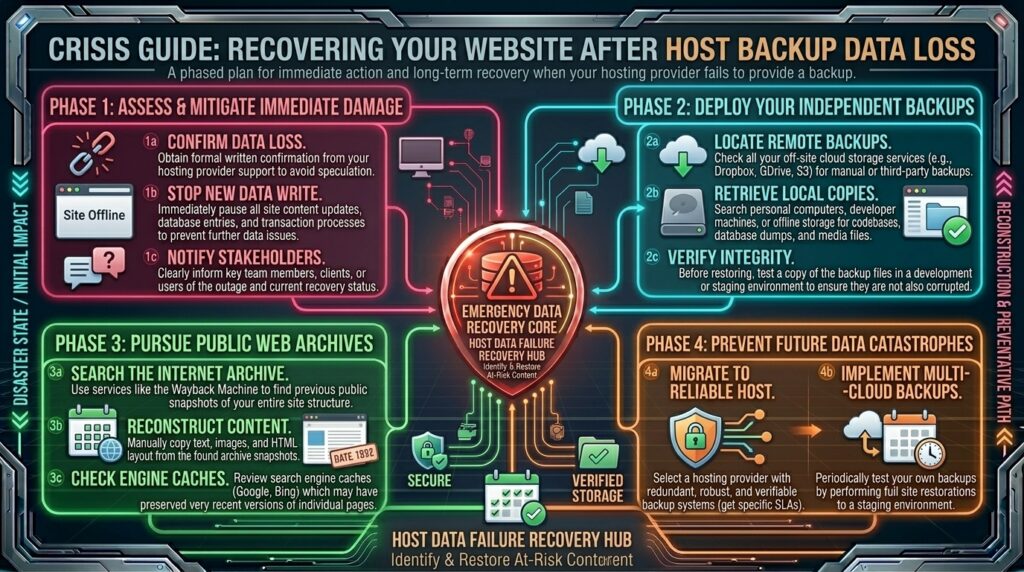
What to do if your web host loses your website backup data? Welcome to thehostreviews.com—your premier authoritative destination for server administration tutorials, data recovery protocols, and web hosting reliability reviews spanning major technology hubs from New York and San Francisco to Texas, California, and Washington.
Introduction: The Nightmare Scenario of a Missing Backup
Imagine this scenario: You wake up to an alert that your e-commerce platform or client website has crashed due to a botched plugin update or a server kernel failure. You calmly log into your web hosting control panel, navigate to your backup manager (such as JetBackup or cPanel Backup Wizard), and prepare to restore yesterday’s clean snapshot.
Then, you see the chilling reality: The backup list is completely empty. Or worse, your web hosting support team informs you that due to a hardware array failure, a data center synchronization error, or a routine maintenance glitch, your historical backup archives have been permanently lost.
For business owners, digital agencies, and enterprise webmasters managing high-stakes infrastructure across tech epicenters from New York to Silicon Valley, losing your web host’s backup data feels like standing on the edge of a cliff. Shared and cloud hosting providers frequently state in their terms of service (ToS) that website backups are provided as a courtesy, not a guaranteed liability, leaving you holding the bag when data goes missing.
This comprehensive, step-by-step masterclass dives deep into how to navigate this worst-case scenario, outlines an emergency multi-vector data recovery playbook to salvage your website without your host’s help, and establishes robust strategies to ensure it never happens to you again.
Part 1: Why Do Web Hosts Lose Backup Data?
Before panicking, it is helpful to understand how and why hosting companies occasionally suffer catastrophic backup failures. Understanding the root cause helps determine where your data might still be hiding:
- Secondary Storage Array Corruption: Many budget and mid-tier shared hosting providers store backups on secondary local hard disk drives (HDDs) attached to the same server rack. If that secondary drive suffers a mechanical failure or filesystem corruption, live data and local backup sets vanish simultaneously.
- Failed Remote Replication Sync: Enterprise-grade hosts replicate backups to off-site cloud storage buckets (like Amazon S3). If an automated cron job or synchronization script fails silently for weeks, the remote backup repository becomes outdated or empty.
- Control Panel Migration Errors: If your hosting provider recently migrated your account to a new server cluster or upgraded their data center infrastructure, old snapshot indices can get orphaned or dropped during the data transfer process.
- The “Courtesy” Clause Trap: Legally, almost all shared hosting agreements contain clauses stating that users are ultimately responsible for maintaining their own independent backups. When a host loses data, their liability is often limited to refunding your hosting fee, not compensating for lost business revenue.
Part 2: Step-by-Step Emergency Recovery Playbook (When Your Host Has No Backups)
If your host tells you your backups are gone, you must pivot immediately to external retrieval mechanisms. Follow this rigorous 5-step engineering recovery protocol:
Step 1: Check Local Developer and Workstation Copies
Before scouring the internet, look closer to home.
- Local Staging Environments: Did you or a freelance developer test a copy of the website recently on a local machine using software like LocalWP, XAMPP, MAMP, or Docker? If so, your local workstation holds a complete, up-to-date snapshot of your site files and database.
- Local Download Archives: Check your computer’s Downloads folder or local external hard drives. Do you have an old manual
.zipor.tar.gzexport archive generated months ago? Even an older backup is infinitely better than starting from a blank slate.
Step 2: Leverage the Internet Archive (Wayback Machine)
If you have zero local copies of your files, you can extract frontend text, layouts, and CSS code directly from the public web archives.
- Go to the Wayback Machine (
archive.org). - Type in your website’s URL and search for the most recent historical crawl snapshot.
- While the Wayback Machine cannot recover dynamic PHP scripts, database records, or binary images directly in bulk, it captures rendered HTML text, blog posts, static pages, and stylesheets.
- You can manually copy and paste core text content, article text, and CSS styles from archived pages into your new website build.
Step 3: Audit Browser Caching and Local Storage
If visitors or administrators have visited your site recently, browser caches may still hold critical assets:
- Check if your team members have local browser caches containing cached images, static scripts, or form templates.
- If you utilize a Content Delivery Network (CDN) like Cloudflare, check your CDN cache analytics or edge logs. While CDNs do not store master source code backups, they often cache static media assets (
.jpg,.png,.css,.js) long after they have been deleted from the origin server, allowing you to scrape and redownload your media library.
Step 4: Check Third-Party SaaS and Plugin Backups
Even if your web host lost their backup data, check whether you installed independent third-party backup solutions in the past:
- WordPress Backup Plugins: Did you previously install plugins like UpdraftPlus, BackupBuddy, or BlogVault? Log into your external cloud storage accounts (such as Amazon S3, Google Drive, Dropbox, or OneDrive) linked to those plugins. You may find automated weekly backups sitting safely in your private cloud storage bucket, completely independent of your web host.
- Google Search Console & Analytics: While not code backups, your analytics accounts hold your high-performing meta titles, descriptions, keyword ranking data, and traffic structures, helping you rebuild your content marketing strategy seamlessly.
Step 5: Rebuild the Core Infrastructure Cleanly
If all external recovery efforts yield partial results, you must execute a clean rebuild:
- Install a fresh, secure instance of your CMS (such as WordPress) on your hosting account.
- Reconstruct your missing database tables or import whatever data you managed to salvage from text logs and local archives.
- Secure your new installation immediately to prevent secondary vulnerabilities.
Part 3: How to Hold Your Web Host Accountable
Once your website is safely restored or rebuilt, you must address the failure with your hosting provider. Do not let data loss go unaddressed.
- Request an Escalated Post-Mortem Report: Open an administrative support ticket and demand a formal explanation from a senior systems administrator detailing why the backup failure occurred and whether other accounts on your server node were compromised.
- Evaluate Your Host’s Reliability: If your web host dismisses data loss casually or refuses to offer compensation, it is a glaring red flag. High-performance hosting providers in regions like Texas, New York, and California maintain redundant, off-site enterprise backups by default.
- Migrate to a Reliable Host: Use the incident as a catalyst to migrate your digital assets to a reputable, enterprise-grade web hosting provider that guarantees redundant automated backups (such as Daily Off-Site Snapshots with 30-day retention).
Part 4: Proactive Disaster Prevention—Never Rely Solely on Your Host
The most important lesson from a lost backup incident is simple: Never trust a single backup source. Adopt the 3-2-1 Backup Rule used by enterprise data centers worldwide:
- 3 total copies of your data (your live production site plus 2 backups).
- 2 different storage media types (local server storage and cloud storage).
- 1 off-site backup stored completely independent of your web hosting provider.
Essential Tools for Independent Backups:
- Automated Cloud Backup Plugins: Configure plugins like UpdraftPlus or All-in-One WP Migration to dispatch daily incremental backups directly to an independent Amazon S3 bucket or encrypted remote server.
- Version Control (Git): For custom-coded applications, maintain your source code repository on GitHub, GitLab, or Bitbucket, ensuring your code history is version-controlled and immune to server crashes.
Part 5: Frequently Asked Questions (FAQ)
1. Can my web host legally delete or lose my backup data without liability?
Yes. Most web hosting Terms of Service (ToS) state that backups are provided as a courtesy service only, and users are ultimately responsible for maintaining their own independent backup copies.
2. What should I do first if my web host loses my backup data?
First, check your local workstations, developer staging copies, and personal computer downloads folder for any previous manual backup archives.
3. Can the Internet Archive (Wayback Machine) restore my entire website?
The Wayback Machine can recover static HTML text, blog content, and CSS layouts, but it cannot restore dynamic PHP files, database records, or complete media directories automatically.
4. How can I recover my website if I used a third-party backup plugin?
Check the external cloud storage accounts (like Google Drive or Amazon S3) linked to plugins like UpdraftPlus or BackupBuddy; your independent backups may still be stored safely there.
5. Does a CDN like Cloudflare store website backups?
No. CDNs cache static files and accelerate traffic delivery, but they do not act as master backup repositories for server source code or databases.
6. How can I prevent my web host from losing my data in the future?
You can prevent this by implementing the 3-2-1 backup rule, scheduling automated backups to external cloud storage, and never relying solely on your host’s internal backup tools.
7. Should I switch web hosts if they lose my backup data?
If your host loses backup data and fails to provide adequate technical explanations or compensation, it is a strong signal to migrate to a more reliable, enterprise-grade hosting provider.
8. What is the difference between local backups and off-site backups?
Local backups are stored on the same physical server hardware as your website, while off-site backups are replicated to independent remote data centers located elsewhere.
9. Can I sue a web host for losing my website data?
While you can consult a legal professional, most hosting contracts feature strict limitation-of-liability clauses restricting recovery to the cost of your hosting subscription.
10. How often should I manually download a copy of my website files?
For high-traffic or frequently updated e-commerce sites, you should download a manual full backup archive to your local workstation at least once a week.
Conclusion
Discovering that your web host has lost your website backup data is a terrifying ordeal, but proactive emergency workflows can salvage your digital presence. By leveraging local developer copies, searching cloud storage buckets, utilizing web archives, and migrating to enterprise-grade hosting infrastructure with genuine off-site backup redundancy, you bulletproof your business against future disasters.