How to Fix Bluehost Internal Server Error After Plugin Update: The Ultimate Troubleshooting Guide
Welcome to thehostreviews.com—your premier authoritative destination for objective hosting support analyses, web infrastructure troubleshooting guides, and CMS recovery walkthroughs spanning major technology hubs from New York and San Francisco to Texas, California, and Washington.
Introduction: The Dreaded Post-Update 500 Error
Few things cause more instant anxiety for a website owner than clicking “Update Now” on a WordPress plugin inside your Bluehost dashboard, watching the progress bar complete, and then refreshing your site to find a stark, generic message: “500 Internal Server Error” or “There has been a critical error on this website.”
Because Bluehost powers millions of websites globally, it serves as a massive ecosystem for WordPress users. While Bluehost provides robust infrastructure, automated staging options, and simplified control panels, updates can occasionally collide with server-side constraints, outdated PHP versions, or conflicting code blocks.
An HTTP 500 Internal Server Error is a generic notification meaning something went wrong behind the scenes, but the web server cannot pinpoint the exact cause on its own. When this happens immediately following a plugin update, however, you have a clear starting point.
This comprehensive, step-by-step masterclass outlines why plugin updates trigger internal server errors on Bluehost, how to regain access to your locked dashboard, and how to safely troubleshoot and permanently resolve the conflict.
Part 1: Why Do Plugin Updates Trigger Internal Server Errors?
Before diving into the fix, it helps to understand what happened under the hood when your server crashed:
- PHP Code Fatal Errors: A newly updated plugin may contain a syntax error, use deprecated functions incompatible with your current PHP version, or call functions that collide with another plugin or your active theme. When PHP encounters a fatal execution halt mid-process, the server drops execution and throws a 500 error.
- PHP Memory Limit Exhaustion: Updating plugins often requires unpacking files, running database migrations, or executing heavy background setup scripts. If your WordPress site exhausts its allocated PHP memory limit during this process, the server halts execution, resulting in a crash.
- Corrupted
.htaccessRules: Certain plugins (especially security, caching, or SEO plugins) attempt to automatically modify your server’s root.htaccessrouting file during updates. A mistyped rewrite rule will immediately break site access.
Part 2: Step-by-Step Emergency Recovery Playbook
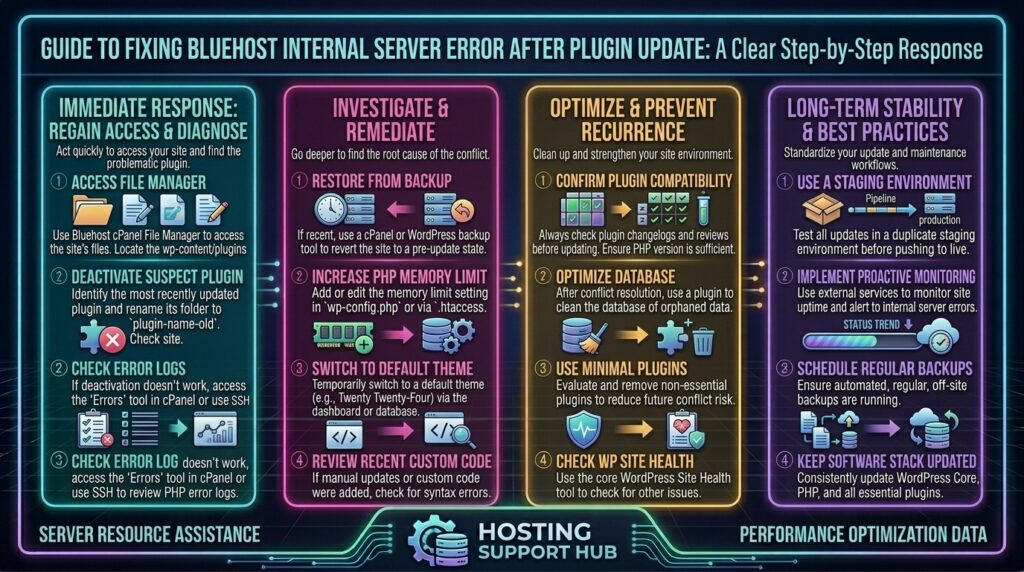
If your website frontend and backend (/wp-admin/) are completely locked down by the error, you cannot update or disable plugins through the standard WordPress dashboard. Instead, you must use backend file management tools available through your hosting environment.
Step 1: Check Your Email for WordPress Recovery Mode
Modern versions of WordPress feature a built-in safety net:
- Check the administrator email inbox associated with your website.
- WordPress automatically runs a background error check and often sends a “Your Site is Experiencing a Technical Issue” email containing a secure Recovery Mode Link.
- Clicking this special link bypasses the fatal error, allows you to log safely into your dashboard, and automatically deactivates the broken plugin causing the crash. If you find this email, your problem is solved in 30 seconds. If not, proceed to Step 2.
Step 2: Access Your Files via Bluehost File Manager or FTP
If you cannot access your dashboard, you need to manage your server files directly:
- Log into your Bluehost Account Manager.
- Navigate to the Websites tab and click Settings or Manage next to your domain.
- Open the File Manager (or connect via your preferred FTP/SFTP client using credentials found in your hosting account details).
- Navigate to your website’s root directory (typically
public_html/or nested inside a folder bearing your domain name). - Locate the folder named
wp-content/.
Step 3: Isolate and Deactivate the Problematic Plugin
Because you update a specific plugin right before the crash, you likely know which one caused it. If you updated multiple plugins at once, follow this isolation process:
- Inside
public_html/wp-content/, find thepluginsfolder. - Right-click the
pluginsfolder and select Rename. Change its name temporarily toplugins-deactivated. Note: Renaming this folder instantly deactivates every single plugin on your site without deleting any data or settings. - Open a new browser tab and try to visit your website or your
/wp-admin/login page. - If the 500 Internal Server Error disappears and you can log in, you have confirmed 100% that a plugin update caused the crash.
Step 4: Identify the Culprit and Restore Normal Operations
Now that your backend is reachable:
- Go back to your Bluehost File Manager and rename
plugins-deactivatedback to its original name:plugins. - Log into your WordPress dashboard and navigate to the Plugins page. Because they were globally reset, they will all be listed as inactive.
- Reactivate your plugins one by one, refreshing your site after each activation.
- The moment you click “Activate” on the offending updated plugin, your site will throw the 500 error again. You have successfully isolated the culprit.
- Leave that specific plugin deactivated. Contact its developer to report the bug, roll back to a previous stable version using a plugin rollback utility, or look for an alternative tool.
Part 3: Advanced Fixes If the Error Persists
If deactivating all plugins did not clear the internal server error, the plugin update likely triggered a secondary server-level failure. Try these advanced remediation steps:
1. Reset Your .htaccess File
A corrupted configuration file in your root directory frequently triggers 500 errors:
- In your Bluehost File Manager (
public_html/), look for a file named.htaccess. (Make sure “Show Hidden Files” is enabled in your file manager settings if you cannot see files starting with a dot). - Rename the file to
.htaccess-old. - Refresh your website. If the site loads successfully, your
.htaccessfile was corrupted by the plugin update. - Log into your WordPress dashboard, navigate to Settings > Permalinks, and click Save Changes at the bottom without altering anything. This automatically generates a fresh, clean, uncorrupted
.htaccessfile for your site.
2. Increase the PHP Memory Limit
Plugin updates often demand more server random-access memory than your default configuration allows, resulting in an Out Of Memory (OOM) fatal crash.
- Locate your
wp-config.phpfile in the root directory (public_html/). - Right-click and choose Edit.
- Scroll down and paste the following line just above the line that says
/* That's all, stop editing! Happy publishing. */:PHPdefine('WP_MEMORY_LIMIT', '512M'); - Save the file and refresh your website.
3. Change or Upgrade Your PHP Version
If the updated plugin relies on modern programming functions that require a newer environment, running an outdated PHP version will crash the script.
- Log into your Bluehost Control Panel.
- Navigate to Advanced > MultiPHP Manager (or PHP Selector depending on your dashboard version).
- Select your domain and check your active PHP version. If you are running PHP 7.4 or 8.0, upgrade securely to a stable modern release like PHP 8.2 or 8.3.
- Save changes and test your site.
Part 4: How to Enable Debug Mode to Read Exact Error Logs
If you want to view the precise line of code or file causing the crash rather than guessing:
- Open your
wp-config.phpfile via File Manager. - Find the line reading
define('WP_DEBUG', false);(if it saysfalse, change it totrue. If it isn’t there, add it):PHPdefine('WP_DEBUG', true); define('WP_DEBUG_DISPLAY', true); - Save the file and reload your broken web page. Instead of a blank 500 error screen, WordPress will output the exact PHP error message, naming the specific plugin file and line number causing the breakdown. (Remember to switch
WP_DEBUGback tofalseonce troubleshooting is complete for security reasons).
Part 5: Proactive Prevention Tips for Bluehost Users
Preventing future update crashes saves you valuable downtime and emergency stress:
- Always Back Up Before Updating: Before clicking update on any major plugin or theme, run an immediate manual backup via Bluehost’s built-in backup tool or your preferred backup plugin.
- Use a Staging Environment: Bluehost offers convenient staging site features. Test major plugin and theme updates on a cloned staging copy of your site before pushing those updates live.
- Avoid Bulk Updates: Update plugins one by one rather than clicking “Update All.” If a crash occurs, you will instantly know which tool caused it.
Part 6: Frequently Asked Questions (FAQ)
1. What does a 500 Internal Server Error mean on Bluehost?
An HTTP 500 Internal Server Error is a generic notification indicating that the server encountered an unexpected condition that prevented it from fulfilling your website request, commonly triggered by faulty plugin code or memory limits.
2. Why did my site break right after updating a plugin?
An update can introduce syntax errors, cause conflicts with other active plugins or your theme, or demand more PHP memory than your hosting account permits, resulting in a fatal script crash.
3. How do I fix the error if I cannot access my WordPress dashboard?
You can bypass the locked dashboard by logging into your Bluehost File Manager or an FTP client, navigating to wp-content/, and temporarily renaming the plugins folder to disable all plugins at once.
4. Will renaming my plugins folder delete my plugin settings?
No. Renaming the plugins folder simply deactivates them. Your database settings, configurations, and plugin data remain completely safe and intact.
5. What should I do after isolating the broken plugin?
Leave the faulty plugin deactivated, clear your site cache, and check for a developer patch. You can roll back to a previous stable version or find an alternative plugin with similar functionality.
6. Can a corrupted .htaccess file cause a post-update 500 error?
Yes. Certain plugins modify rewrite rules during updates. If a rule is malformed, renaming the .htaccess file and regenerating it via WordPress permalink settings will fix the problem.
7. How do I increase my PHP memory limit on Bluehost?
You can increase your memory limit by adding define('WP_MEMORY_LIMIT', '512M'); into your wp-config.php file or by adjusting PHP directives within your Bluehost control panel options.
8. Does Bluehost keep automated backups I can restore?
Yes. Bluehost includes automated backup solutions on most plans. If an update crashes your site beyond quick repair, you can restore a clean backup point from hours before the update occurred.
9. How do I read exact error logs on Bluehost?
You can enable debugging mode by changing define('WP_DEBUG', true); in your wp-config.php file, which forces the server to display exact error messages on the screen or log them to a /wp-content/debug.log file.
10. Who should I contact if I cannot fix the error myself?
If you have exhausted all troubleshooting steps and your site remains offline, reach out to Bluehost’s 24/7 technical support via live chat or phone, providing them with your error log details for rapid expert restoration.
Conclusion
Encountering a 500 Internal Server Error immediately after a plugin update on Bluehost is an alarming hurdle, but it is rarely permanent or fatal. By systematically utilizing your Bluehost File Manager to isolate conflicting plugin directories, resetting configuration files like .htaccess, expanding PHP memory limits, and reviewing debug logs, you can restore full access to your website quickly and efficiently.