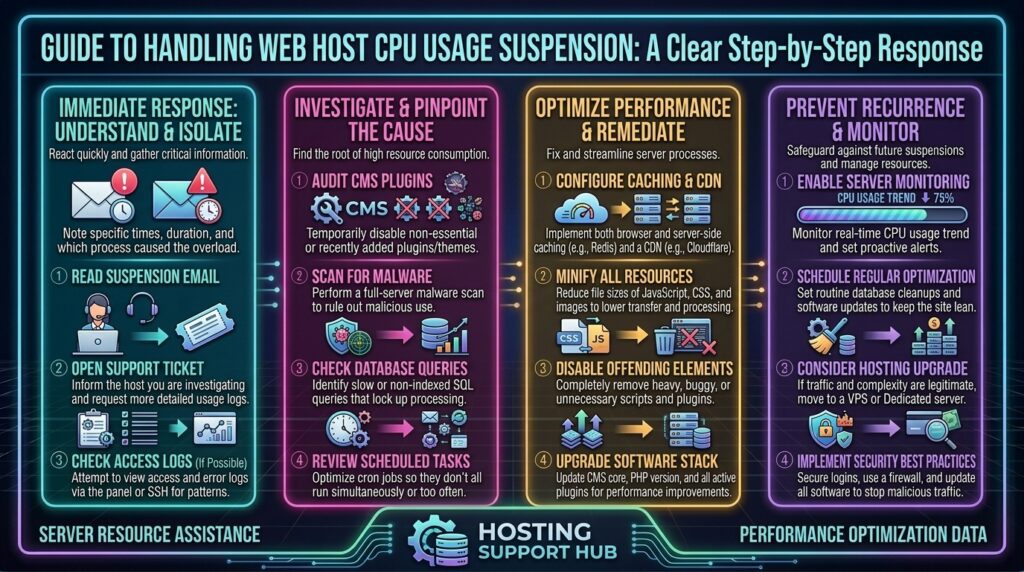
What to Do When Your Web Host Suspends Your Account for CPU Usage: The Ultimate Recovery and Prevention Masterclass
Welcome to thehostreviews.com—your premier authoritative destination for web hosting resource management tutorials, server restriction troubleshooting, and cloud architecture reviews spanning major tech hubs from New York and San Francisco to Texas, California, and Washington.
Introduction: The Shock of the “Account Suspended” Notice
You check your website dashboard or try to load your primary domain, only to be met with a jarring warning: “Account Suspended”, an HTTP 508 Resource Limit Reached error, or a formal email from your hosting provider stating that your service has been taken offline due to Excessive CPU Resource Usage.
For business owners, digital publishers, and web developers, this notification induces immediate panic. Your website is offline, customers cannot complete checkouts, clients are complaining, and search engine crawlers are encountering fatal server blocks.
Why did this happen? Most website owners assume that if they pay for a shared hosting or cloud plan, they can use its resources freely until they run out of disk space. However, web hosts enforce rigid boundaries on computing power—specifically CPU, RAM, and Entry Processes—to prevent a single misbehaving website from crashing an entire physical server shared by hundreds of other accounts.
This comprehensive, expert-level guide breaks down why hosts suspend accounts for CPU abuse, provides a step-by-step emergency recovery playbook, reveals the root causes behind sudden processor spikes, and details long-term architectural strategies to keep your site fast, scalable, and online.
Part 1: Why Do Web Hosts Suspend Accounts for High CPU Usage?
To understand how to fix the problem, you must first understand how modern multi-tenant hosting environments operate under the hood.
1. The Shared Hosting Reality and CloudLinux LVE
The vast majority of cPanel and budget web hosting providers rely on CloudLinux and its LVE (Lightweight Virtual Environment) architecture.
- LVE assigns every hosting account a strictly capped share of server resources (e.g., 100% of one CPU core, 1GB of physical RAM, and 20 concurrent entry processes).
- When your website stays within its allocated boundary, everything runs smoothly.
- If a script, traffic surge, or background task pushes your CPU usage past its maximum limit repeatedly or continuously, CloudLinux first throttles your processing speeds (triggering 508 or 503 errors). If the abuse continues or overwhelms the node, the host’s automated abuse-monitoring scripts suspend the account entirely to protect cluster stability.
2. CPU Usage vs. Disk Space
It is vital to distinguish between storage and processing power:
- Disk Space: How many gigabytes your files occupy on the drive (e.g., 50GB SSD).
- CPU Usage: How much active computing power your application demands from the server’s processor chips to execute PHP scripts, query databases, and render dynamic pages. A tiny 5-megabyte PHP script with an infinite loop can consume 100% of a CPU core faster than a 50-gigabyte video file sitting idly on a hard drive.
Part 2: Immediate Emergency Action Plan—How to Restore Your Suspended Account
If your hosting provider has just pulled the plug on your website due to CPU overage, follow this step-by-step emergency recovery protocol to get back online safely:
Step 1: Read the Suspension Notice and Contact Support
Do not guess why your account was suspended. Open the formal notification email or support ticket issued by your web host.
- The notice typically specifies the exact timestamp of the violation, the peak CPU percentage recorded, and the specific script or domain that triggered the alert.
- Reply directly to the support ticket informing them that you are actively investigating the root cause and implementing corrective optimizations. Hosts are far more likely to unsuspend your account quickly if you show technical competence and proactive intent.
Step 2: Request a Temporary Unsuspension
Most web hosts will temporarily lift a CPU suspension for 30 to 60 minutes if you explicitly request a “temporary unsuspension window” to log into your dashboard, disable the culprit plugin, or clear server caches.
- Send a polite message via live chat or ticket: “My account was suspended for CPU usage. Could you please temporarily unsuspend the account for 30 minutes so I can log in, clean up the error logs, and optimize my caching configuration?”
Step 3: Access Your Control Panel and Review Resource Metrics
Once your account is temporarily restored, do not waste time—move immediately to diagnose the bottleneck:
- Log into your control panel (cPanel/Plesk) and locate the Resource Usage (or CPU and Concurrent Connection Usage) tool.
- Adjust the time range graph to look at the exact hour leading up to the suspension.
- Check which metric hit 100%: Was it CPU, Physical Memory (RAM), or Entry Processes (EP)?
- Click on the Details or Snapshots tab to view the exact script names (e.g.,
index.php,wp-cron.php,admin-ajax.php, or a specific plugin path) that consumed the most processor cycles.
Part 3: The 5 Most Common Culprits Behind CPU Suspensions
High CPU usage rarely happens by accident. In 95% of web hosting suspensions, the root cause traces back to one of these five common scenarios:
1. Uncached Dynamic Requests & Heavy Database Queries
If your website is built on a Content Management System (CMS) like WordPress, Magento, or Drupal, every page view normally requires the server to execute PHP code and query a MySQL database.
- The Problem: If page caching is disabled, every single visitor forces your server to rebuild pages from scratch. When traffic spikes even moderately, CPU consumption skyrockets.
- The Fix: Implement aggressive full-page server caching and object caching (Redis or Memcached).
2. Unmanaged or Runaway WordPress Cron Jobs (wp-cron.php)
WordPress uses a virtual cron system (wp-cron.php) to handle scheduled tasks like publishing scheduled posts, checking for updates, sending email notifications, and running backup plugins.
- The Problem: By default, WordPress triggers
wp-cron.phpevery single time a visitor lands on your site. On high-traffic sites, this creates overlapping, concurrent background processing storms that lock up CPU cores. - The Fix: Disable virtual cron execution in your
wp-config.phpfile and set up a true server-side cron job that runs once every 15 to 30 minutes via your control panel.
3. Malicious Brute-Force Attacks, Botnets, and Web Scrapers
- The Problem: Automated botnets frequently target login portals (
xmlrpc.phpor/wp-login.php), run vulnerability scans, or scrape your content aggressively. Thousands of rapid, unauthenticated requests per minute will max out your CPU and entry processes instantly. - The Fix: Install a Web Application Firewall (WAF) like Cloudflare, limit login attempts, and disable XML-RPC if it is not required for your mobile apps.
4. Heavy Backup Plugins Running on Shared Servers
- The Problem: Many users install automated backup plugins (like All-in-One WP Migration or UpdraftPlus) and configure them to zip up their entire 20GB website and database directly on the shared server every night. Zipping massive archives consumes intensive CPU and Disk I/O operations.
- The Fix: Run backups during off-peak hours, or better yet, offload backup generation to external cloud services or your hosting provider’s native, server-level backup utility.
5. Badly Coded Plugins, Themes, or Infinite PHP Loops
- The Problem: A poorly coded plugin update or a broken custom function can get trapped in an infinite loop, continuously consuming 100% of an allocated CPU core until the server kills the process or suspends the account.
- The Fix: Use the debugging steps below to isolate and deactivate the offending plugin.
Part 4: Step-by-Step Guide — Fixing and Optimizing Your Code
To ensure your account is never suspended again, execute these essential optimization procedures:
Step 1: Audit and Purge Unused Plugins
- Log into your CMS admin dashboard.
- Navigate to your plugins page and permanently delete any plugins you are not actively using.
- Replace heavy, multi-purpose plugins with lightweight, highly optimized alternatives.
Step 2: Fix and Optimize the WordPress Cron System
To stop wp-cron.php from firing on every visitor hit:
- Open your website’s root directory via File Manager or FTP.
- Edit your
wp-config.phpfile and add this line just above the/* That's all, stop editing! */comment:PHPdefine('DISABLE_WP_CRON', true); - Log into your hosting control panel, navigate to Cron Jobs, and set up a new system cron command:Bash
wget -q -O - https://thehostreviews.com/wp-cron.php?doing_wp_cron >/dev/null 2>&1(Set the schedule to run every 30 minutes).
Step 3: Enable Server-Side Caching and OPcache
- Ensure your PHP version is up to date (PHP 8.1, 8.2, or 8.3).
- Enable OPcache in your control panel’s PHP selector tool. OPcache stores precompiled script bytecode in memory, eliminating the need for PHP to load and parse scripts on every single request.
- Install a robust caching plugin (such as WP Rocket or LiteSpeed Cache) to serve static HTML files instantly without taxing the CPU.
Step 4: Optimize Your MySQL Database
Bloated database tables slow down query speeds and spike CPU cycles.
- Access phpMyAdmin via your control panel.
- Select your website database, scroll to the bottom, and click Check All tables.
- From the dropdown menu, select Optimize table to defument tables and reclaim overhead space.
- Clean up expired transients, auto-drafts, and old post revisions.
Part 5: Long-Term Architecture Strategies—When Is It Time to Upgrade?
If you have optimized your database, enabled advanced caching, blocked malicious bot traffic, and cleaned up rogue cron jobs, but your growing website still hits CPU limits during normal peak hours, it means you have simply outgrown your current hosting tier.
- Shared Hosting Limits: Shared hosting is designed for low-to-medium traffic brochure sites, portfolio pages, and starting blogs.
- The Transition to VPS or Cloud Hosting: If your business generates revenue, attracts thousands of daily visitors, or runs resource-intensive e-commerce operations (WooCommerce), you need dedicated computing resources. Transitioning to a Virtual Private Server (VPS) or a Cloud Hosting Instance (such as a managed cloud node in New York, San Francisco, or Texas) provides you with dedicated vCPU cores and isolated RAM, eliminating shared resource suspensions permanently.
Part 6: Frequently Asked Questions (FAQ)
1. Why did my web host suspend my account for CPU usage?
Web hosts suspend accounts when continuous high processor usage threatens the stability of shared physical server hardware shared by hundreds of other users.
2. What does an HTTP 508 error mean?
An HTTP 508 Resource Limit Reached error indicates that your account has exceeded its allocated CPU, memory, or entry process limits enforced by the server’s resource governor.
3. How can I get my suspended hosting account back online?
Contact your web host via support ticket or live chat, explain that you are investigating the resource spike, and request a temporary unsuspension window so you can optimize your site files.
4. Where can I check what caused the high CPU usage?
You can log into your cPanel hosting account and check the Resource Usage or CPU and Concurrent Connection Usage metrics tool to view historical process snapshots.
5. Can a WordPress plugin cause a CPU suspension?
Yes. Poorly coded plugins, broken automated background tasks, or plugins trapped in infinite PHP loops are among the most frequent causes of sudden CPU spikes.
6. How do I stop wp-cron.php from consuming my server CPU?
You can disable default virtual cron execution by adding define('DISABLE_WP_CRON', true); to your wp-config.php file and configuring a scheduled system cron job in your control panel.
7. Does traffic spikes always trigger CPU suspensions?
Not always. Legitimate human traffic spikes only trigger suspensions if your site is unoptimized, lacks page caching, or is hosted on an entry-level plan with tight resource caps.
8. Will upgrading my hosting plan prevent future CPU suspensions?
Yes. Upgrading from budget shared hosting to a higher-tier cloud VPS or dedicated server provides dedicated vCPU cores and greater RAM allocations that accommodate heavier workloads.
9. How does Cloudflare help protect against CPU resource abuse?
Cloudflare acts as a reverse proxy and firewall at the network edge, absorbing malicious bot traffic, blocking brute-force attacks, and caching static assets before they ever reach your origin server.
10. Are website backups responsible for high CPU usage?
Yes. Running heavy automated backup plugins directly on shared hosting can spike CPU and Disk I/O limits. It is recommended to use server-level backups or schedule them during off-peak hours.
Conclusion
Having your web hosting account suspended for high CPU usage is stressful, but it serves as an invaluable diagnostic wake-up call. By understanding how resource governance works, requesting a temporary emergency unsuspension, analyzing your control panel logs, optimizing caching and database queries, and upgrading your infrastructure when growth demands it, you transform a disruptive outage into a more resilient, high-performance web platform.