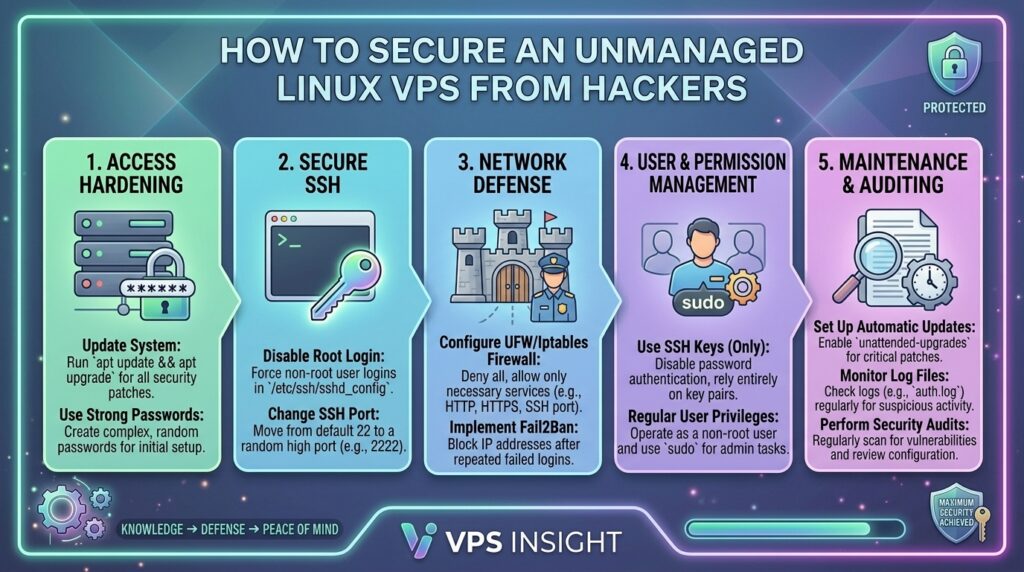
How to Secure an Unmanaged Linux VPS from Hackers: The Ultimate Hardening Guide
Welcome to thehostreviews.com—your premier authoritative destination for web hosting evaluations, infrastructure security architecture, and advanced server hardening guides spanning tech hubs from New York and San Francisco to Texas, California, and Washington.
Introduction: The Wild West of Unmanaged Servers
When you spin up an unmanaged Linux Virtual Private Server (VPS), you unlock absolute administrative freedom. You get root access, guaranteed RAM, dedicated CPU cores, and zero artificial software restrictions. It is the ultimate playground for developers, sysadmins, and growing online businesses.
However, absolute freedom comes with absolute responsibility.
The exact moment your VPS receives a public IP address and connects to the internet, automated botnets, script kiddies, and malicious IP scanners begin hammering your server ports. Within minutes—sometimes seconds—unauthorized connection attempts will flood your Secure Shell (SSH) port. If your server is running on default factory settings, it is an easy target for brute-force attacks, credential stuffing, and malware injection.
Unlike managed hosting where an engineering team watches your back, on an unmanaged VPS, you are the Chief Information Security Officer (CISO).
This comprehensive, expert-level guide will walk you through a rigorous, step-by-step security hardening framework designed to transform your Linux VPS into an impenetrable fortress against modern cyber threats.
Part 1: The Anatomy of VPS Vulnerabilities
Before deploying defenses, you must understand how hackers compromise Linux servers. Automated threat actors typically exploit five primary vectors:
- Default SSH Configurations: Leaving port 22 open and allowing direct password-based root logins enables bots to run dictionary attacks until they guess your password.
- Exposed Network Ports: Running unnecessary background services or daemons with known vulnerabilities provides entry points for attackers.
- Outdated Software Packages: Failing to apply timely operating system patches leaves known Common Vulnerabilities and Exposures (CVEs) unmitigated.
- Weak File and Directory Permissions: Misconfigured permissions allow unauthorized local users or compromised web apps to read sensitive configuration files (like database passwords).
- Lack of Intrusion Monitoring: Operating blind without logs or intrusion detection systems means an attacker can compromise your system and linger undetected for months.
Part 2: Phase 1 — Initial Post-Provisioning Hardening
The moment your VPS boots up for the first time, execute these foundational security protocols before deploying any production website code.
Step 1: Update Your Operating System Packages
Freshly provisioned server images frequently contain outdated system libraries and kernel patches. Update your package repository immediately:
Bash
# For Ubuntu / Debian Systems
apt update && apt upgrade -y

# For AlmaLinux / Rocky Linux Systems
dnf update -y
Step 2: Create a Non-Root Sudo User
Never perform daily administrative tasks or run web applications logged in as the root user. If an application or script is compromised while running as root, the attacker instantly gains complete control of the machine.
- Create a new administrative user:Bash
adduser sysadmin - Grant the user
sudoprivileges:Bash# Ubuntu / Debian usermod -aG sudo sysadmin # AlmaLinux / Rocky Linux usermod -aG wheel sysadmin - Log out and log back in using your new user credentials before proceeding.
Part 3: Phase 2 — Securing Secure Shell (SSH) Access
SSH is the primary gateway to your server. Hardening SSH is the single most effective step you can take to block automated brute-force attacks.
Step 1: Implement SSH Key-Based Authentication
Passwords can be guessed, intercepted, or brute-forced. SSH key pairs use advanced asymmetric cryptography, making unauthorized entry virtually impossible.
- On your local computer (Mac/Linux/Windows Terminal), generate an SSH key pair:Bash
ssh-keygen -t ed25s -C "your_email@domain.com" - Copy your public key to your VPS:Bash
ssh-copy-id sysadmin@your_vps_ip_address - Test logging into your server using your key before disabling passwords.
Step 2: Harden the SSH Daemon Configuration
Open the SSH configuration file using a text editor with sudo privileges:
Bash
sudo nano /etc/ssh/sshd_config
Locate, modify, and ensure the following directives are strictly enforced:
Plaintext
# Disable direct root login completely
PermitRootLogin no

# Enforce public key authentication only (disable plain text passwords)
PasswordAuthentication no
PubkeyAuthentication yes

# Change default SSH port (Optional, but deters automated port scans)
Port 2222

# Limit maximum authentication retries
MaxAuthTries 3
Save the file, test the configuration for syntax errors (sshd -t), and restart the SSH service:
Bash
# Ubuntu / Debian
sudo systemctl restart ssh

# AlmaLinux / Rocky Linux
sudo systemctl restart sshd
(Warning: Keep your current terminal session open and test logging in via a new terminal window on your custom port before closing your session to avoid locking yourself out!)
Part 4: Phase 3 — Configuring Firewalls and Intrusion Prevention
A firewall acts as the bouncer at the entrance of your data center, dropping unauthorized traffic before it ever interacts with your applications.
Step 1: Setting Up UFW (Uncomplicated Firewall) on Ubuntu/Debian
By default, block all incoming traffic and allow only essential communication ports (SSH, HTTP, HTTPS):
Bash
# Enable UFW and set default policies
sudo ufw default deny incoming
sudo ufw default allow outgoing

# Allow your custom SSH port (e.g., 2222)
sudo ufw allow 2222/tcp

# Allow web traffic
sudo ufw allow 80/tcp
sudo ufw allow 443/tcp

# Enable the firewall
sudo ufw enable
Step 2: Deploying Fail2ban to Block Brute-Force Attacks
Even with SSH keys enabled, malicious bots will constantly hammer your server ports, consuming system CPU. Fail2ban monitors system log files for failed authentication patterns and automatically bans offending IP addresses via firewall rules.
- Install Fail2ban:Bash
# Ubuntu / Debian sudo apt install fail2ban -y # AlmaLinux / Rocky Linux (requires EPEL repository) sudo dnf install epel-release -y sudo dnf install fail2ban -y - Create a local configuration override file:Bash
sudo cp /etc/fail2ban/jail.conf /etc/fail2ban/jail.local sudo nano /etc/fail2ban/jail.local - Configure your rules (e.g., ban an IP for 1 hour if they trigger 3 failed login attempts), then start and enable the service:Bash
sudo systemctl enable --now fail2ban
Part 5: Phase 4 — Automated System Updates and Malware Defense
Security is not a one-time setup; it is an ongoing operational discipline.
Step 1: Enable Unattended Security Upgrades
Ensure critical operating system security patches install automatically without manual intervention:
Bash
# Ubuntu / Debian
sudo apt install unattended-upgrades -y
sudo dpkg-reconfigure -plow unattended-upgrades
Step 2: Install Rootkit and Malware Scanners
Deploy auditing tools like Rkhunter (Rootkit Hunter) and ClamAV to scan your file system periodically for unauthorized modifications, trojans, or malicious scripts.
Bash
# Install Rkhunter
sudo apt install rkhunter -y

# Run an initial file system check
sudo rkhunter --check
Part 6: Best Practices for Ongoing VPS Hygiene
- Never Use Reuse Passwords: Utilize an enterprise password manager to generate unique, complex credentials for every database, control panel, and FTP account.
- Monitor Server Logs Regularly: Routinely inspect authentication logs (
/var/log/auth.log) for suspicious login anomalies or unauthorized privilege escalations. - Maintain Off-Site Backups: No security posture is 100% foolproof. Always maintain automated, encrypted off-site backups so you can recover instantly in the event of a sophisticated zero-day breach.
Part 7: Frequently Asked Questions (FAQ)
1. Why is an unmanaged VPS more vulnerable than shared hosting?
On shared hosting, the provider manages server security, firewalls, and patching. On an unmanaged VPS, you are given a blank operating system, meaning any security misconfigurations or unpatched vulnerabilities are entirely your responsibility.
2. Can I get hacked immediately after launching a VPS?
Yes. Automated botnets continuously scan public IP address ranges looking for open ports (like port 22). If you leave default passwords enabled, your server can be compromised within minutes of deployment.
3. What is the single most important security step for a Linux VPS?
Disabling password-based logins and enforcing SSH key-based authentication alongside disabling direct root login is the single most effective defense against automated brute-force attacks.
4. What happens if I get locked out of my VPS after changing SSH settings?
If you misconfigure your SSH settings or firewall and get locked out, you can log into your VPS hosting provider’s client portal (such as VNC Console, Rescue Mode, or Serial Console) to access the server directly and fix your configuration files.
5. Does changing the default SSH port stop all hackers?
No. Changing the SSH port from 22 to a custom port (e.g., 2222) stops basic automated script kiddies and reduces system log spam, but sophisticated attackers can still discover custom ports using advanced port scanners like Nmap.
6. What does Fail2ban actually do?
Fail2ban monitors system logs (like SSH or web server logs) for repeated authentication failures and dynamically creates temporary firewall rules to ban the offending IP addresses after a specified threshold.
7. How often should I update my Linux VPS packages?
You should review and apply security updates weekly. For critical vulnerabilities, updates should be applied immediately, or you should configure automated unattended security upgrades.
8. Is UFW enough, or do I need an advanced firewall?
For most single-server web hosting environments, UFW (Uncomplicated Firewall) combined with Fail2ban provides robust, enterprise-grade packet filtering and intrusion prevention.
9. How do I check if my server has been compromised?
You can monitor unusual CPU spikes, inspect authentication logs (/var/log/auth.log) for unauthorized logins, check active listening ports via netstat or ss, and run file integrity scanners like Rkhunter.
10. Do I need an antivirus on a Linux VPS?
While Linux servers are far less prone to traditional desktop viruses, running file integrity scanners and malware checkers (like ClamAV or Rkhunter) is recommended, especially if you host user-uploaded files or content management systems like WordPress.
Conclusion
Securing an unmanaged Linux VPS may seem daunting at first, but following a structured hardening methodology—updating packages, creating sudo users, enforcing SSH key authentication, configuring firewalls, and deploying Fail2ban—transforms your server into a hardened, enterprise-grade digital asset.