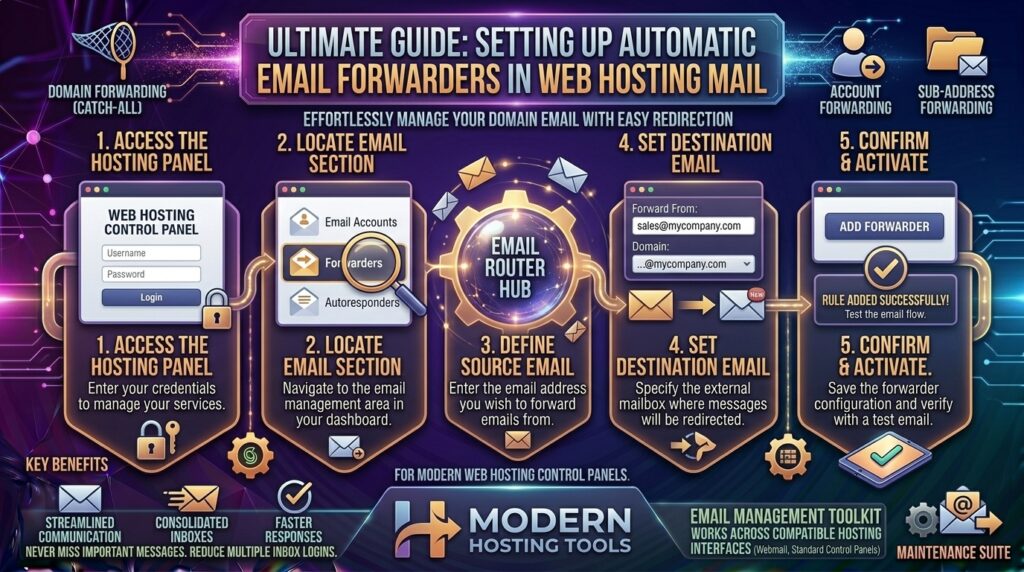
Setting Up Automatic Email Forwarders in Web Hosting Mail: The Ultimate Master Guide
Welcome to thehostreviews.com—your premier authoritative destination for web hosting evaluations, infrastructure management, and administrative tutorials serving tech hubs across New York, San Francisco, Texas, California, and Washington.
Introduction: Why Professional Email Forwarding is Essential for Modern Business
In the modern digital business landscape, effective communication is the lifeblood of any enterprise. Whether you are operating a fast-growing startup in San Francisco, an e-commerce brand in Texas, or a consulting agency in New York, managing your professional domain-based email addresses (you@yourdomain.com) efficiently can make or break your workflow.
As your business scales, you often find yourself managing multiple departments, client accounts, or staff roles. You might have general inquiries streaming into info@yourdomain.com, sales leads heading to sales@yourdomain.com, and technical support tickets directed to support@yourdomain.com. However, logging into five or ten different webmail inboxes every single day is an administrative nightmare.
This is where Email Forwarders come in.
An email forwarder is a server-level rule that automatically routes a copy of any incoming message sent to one email address straight to another destination inbox. When combined with a reliable web hosting control panel like cPanel, setting up and managing automatic email forwarders takes less than a minute.
This comprehensive, expert-level guide will walk you through everything you need to know to set up, configure, optimize, and troubleshoot email forwarders on your web hosting account.
Part 1: Understanding How Email Forwarding Works
Before diving into the technical setup steps, it helps to understand what happens under the hood when an email forwarder is triggered.
The Mechanism of an Email Forwarder
When an external sender sends an email to sales@yourdomain.com:
- The message hits your web hosting mail server (typically managed via Exim on cPanel servers).
- The mail server checks its configuration routing table and spots an active forwarder rule attached to
sales@yourdomain.com. - Instead of (or in addition to) saving the message to a local mailbox, the server instantly duplicates the message packet and forwards a clean copy to your destination email address (e.g., your personal Gmail, Outlook, or primary corporate inbox).
Forwarder vs. Alias vs. Catch-All
- Email Forwarder: Directs incoming mail from Address A to Address B. Can be configured to keep a local copy or discard local storage.
- Email Alias: Essentially creates an alternate name for an existing mailbox on the same domain without needing a separate storage bucket.
- Catch-All (Default Address): Captures any email sent to an incorrect or non-existent email address on your domain and funnels it into a single designated inbox. (Pro tip: Be cautious with catch-alls, as they attract massive volumes of spam).
Part 2: Step-by-Step Guide to Setting Up Email Forwarders in cPanel
For the vast majority of web hosting accounts utilizing cPanel, managing email routing is handled through a streamlined graphical interface.
Step 1: Log Into Your cPanel Dashboard
- Navigate to your web hosting provider’s login portal, enter your username and password, and open your primary cPanel dashboard.
Step 2: Locate the Email Section and Open “Forwarders”
- Scroll down the cPanel home screen until you find the Email module section.
- Click on the icon labeled Forwarders.
Step 3: Add a New Email Forwarder
- On the Forwarders management screen, click the prominent blue button labeled + Add Forwarder.
- You will be presented with a simple configuration form:
- Address to Forward: Type in the username prefix of your domain email (e.g., type
supportif your email issupport@yourdomain.com). Select your specific domain name from the dropdown menu if you host multiple domains on your account. - Destination Options: Choose between two primary routing paths:
- Forward to Email Address: Type in your external destination inbox (e.g.,
yourname@gmail.comoradmin@corporate.com). - Advanced Options: Allows you to pipe incoming mail directly into a custom system program or discard it with an error failure notice.
- Forward to Email Address: Type in your external destination inbox (e.g.,
- Address to Forward: Type in the username prefix of your domain email (e.g., type
- Click the Add Forwarder button at the bottom of the form.
Your forwarder is now live! Any message sent to that address will instantly be duplicated and delivered to your specified destination inbox.
Part 3: Setting Up Domain-Level Forwarders
What happens if you purchase a brand-new secondary domain name (yournewbrand.com) and want every single incoming email sent to any address on that domain to forward directly to your primary inbox (maindomain.com) without having to create individual forwarders one by one?
cPanel makes this effortless with Domain Forwarders:
- On the cPanel Forwarders page, scroll down to the Domain Forwarders section.
- Click the + Add Domain Forwarder button.
- Select the domain you wish to forward from the dropdown list.
- Enter your destination domain name in the text box (e.g.,
yourprimarydomain.com). - Click Add Domain Forwarder.
Now, if a user emails anything@yournewbrand.com, the server automatically redirects it to anything@yourprimarydomain.com.
Part 4: Advanced Best Practices and Optimization Tips
While setting up forwarders is simple, improper configuration can lead to delivery failures, security warnings, or spam blacklisting. Implement these professional administration strategies:
1. Watch Out for DSPF and SPF/DKIM Failures (The Forwarding Trap)
This is the #1 technical issue website owners face when forwarding professional business emails to external providers like Gmail or Yahoo.
- The Problem: When you forward an email from
client@external.comtoyourname@gmail.comvia your hosting server, Gmail receives an email fromclient@external.combut arriving via your web hosting server’s IP address. If the sender’s domain has a strict DMARC/SPF policy, Gmail’s spam filters may flag the email as spoofing and reject or spam-bin it. - The Fix: Modern cPanel mail servers utilize SRsend / SRS (Sender Rewriting Scheme) automatically, which rewrites the envelope sender address during forwarding to pass SPF checks. Ensure your host has SRS enabled, or better yet, log directly into your external inbox (Gmail/Outlook) and set up “Send mail as” via SMTP to read and reply to your domain emails cleanly.
2. Prevent Mailbox Storage Bloat on Shared Hosting
By default, some control panels store a local copy of forwarded mail in the server mailbox and send a copy forward. If you receive thousands of emails, your cPanel hosting account can quickly run out of disk space.
- Periodically check your webmail accounts via Webmail (Roundcube) or configure your forwarder settings to delete local copies if you only want messages processed externally.
Part 5: Troubleshooting Common Forwarder Errors
- Error: Emails are not arriving at the destination inbox
- The Cause: Typos in the destination email address, or the destination provider’s spam filter blocking the forwarded message due to missing SPF/DKIM records.
- The Fix: Send a test email from a completely separate external email account, check your destination spam/junk folder, and review your cPanel Track Delivery tool to trace the exact server routing log.
- Error: “Mail delivery failed: returning message to sender”
- The Cause: The destination email address you entered into the forwarder does not exist or has a full storage quota, causing the mail server to bounce the message back.
- The Fix: Double-check the spelling of the destination address and ensure the receiving inbox is active and able to accept new mail.
Part 6: Frequently Asked Questions (FAQ)
1. Do I need to create an actual email account before setting up a forwarder?
No! You do not need to create a physical mailbox or allocate disk storage quota for an email address to set up a forwarder. You can create a forwarder for billing@yourdomain.com straight away, saving server disk space.
2. Can I forward multiple domain emails to a single Gmail inbox?
Yes. You can create as many forwarders as you need (info@, sales@, support@) and point them all to your single personal or corporate destination email address.
3. Will senders know their email was forwarded?
To standard senders, no. The email lands in your destination inbox seamlessly. However, if they inspect the raw email internet headers, they can see the routing path through your web hosting server.
4. Can I reply to forwarded emails directly from Gmail using my domain address?
By default, hitting “Reply” will reply to the original sender, but the “From” address might default to your Gmail account unless you configure Gmail’s “Send mail as” SMTP settings using your web hosting mail credentials.
5. Will setting up a forwarder affect my email delivery speed?
Not noticeably. Server-level email forwarding occurs instantaneously, adding mere milliseconds to message delivery times.
6. What is a Domain Forwarder and how is it different?
A standard forwarder handles a single specific prefix (e.g., sales@yourdomain.com). A domain forwarder redirects every email sent to any address @yournewdomain.com over to another complete domain name.
7. Why are my forwarded emails landing in the Gmail Spam folder?
This happens due to strict DMARC and SPF authentication checks enforced by major mail providers. Ensuring your web hosting server has valid SPF, DKIM, and SRS (Sender Rewriting Scheme) records configured resolves this issue.
8. How do I delete or modify an existing email forwarder?
Log into your cPanel dashboard, open the Forwarders tool, locate your active forwarder in the summary table at the bottom of the page, and click the Delete button next to it.
9. Is there a limit to how many email forwarders I can create?
Most web hosting providers place no strict numerical limit on email forwarders, though limits may be tied to your overall cPanel account resource limits or package tier.
10. Can I forward emails to multiple destination addresses at the same time?
Yes. In cPanel’s advanced forwarder options, you can pipe a single incoming email out to multiple different destination email addresses simultaneously by separating them with commas or newlines.
Conclusion
Setting up automatic email forwarders in your web hosting mail control panel is a powerful, efficient way to streamline business communications without juggling multiple webmail inboxes. By leveraging cPanel’s built-in forwarding tools and following professional administration best practices, you ensure reliable, secure message routing for your brand.