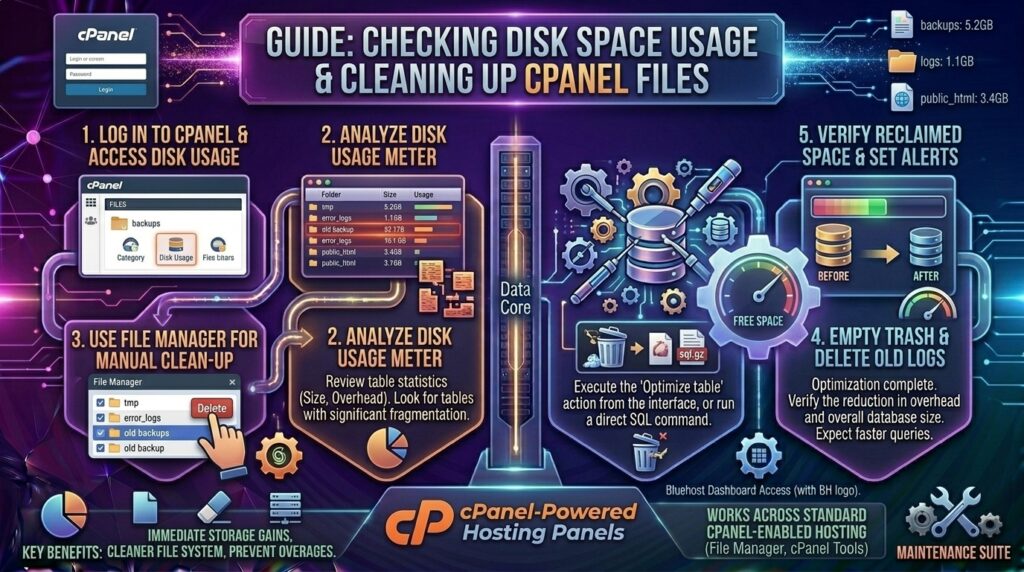
How to Check Disk Space Usage and Clean Up cPanel Files: The Definitive Storage Management Guide
Welcome to thehostreviews.com—your premier authoritative source for web hosting evaluations, disk space management strategies, and server optimization workflows spanning tech hubs from New York and San Francisco to Texas, California, and Washington.
Introduction: Why Disk Space Management is Vital for Web Hosting Health
When managing a website or a portfolio of web applications on a cPanel-based hosting account, disk space is one of your most valuable and strictly limited resources. Whether you are running a budget shared hosting plan in Texas, an enterprise cloud VPS in New York, or a scalable server instance in California, hitting your account’s storage limit can instantly break your website.
When your disk space reaches 100% capacity:
- Databases Crash: MySQL and MariaDB servers cannot write temporary query tables, leading to catastrophic database failure.
- Forms and Checkouts Fail: Users can no longer submit contact forms, upload profile images, or complete e-commerce purchases because sessions cannot be written to disk.
- Email Bounce Back: Incoming emails are rejected by the mail server because there is no physical space left to store message queues.
- Total Site Outage: Your entire website may throw a 500 Internal Server Error, locking you out of both your front end and your cPanel dashboard.
Knowing how to audit your disk space usage, track down bloated directories, and safely purge unnecessary garbage files is an essential administrative skill. This comprehensive, expert-level guide will walk you through everything you need to know to monitor and clean up your cPanel files efficiently.
Part 1: How to Check Disk Space Usage in cPanel
Before deleting anything, you need a clear breakdown of where your storage is being consumed. cPanel provides a powerful, visual diagnostic tool specifically designed for this purpose.
Step 1: Log Into Your cPanel Dashboard
Navigate to your web hosting provider’s login portal, enter your credentials, and open your primary cPanel dashboard.
Step 2: Locate the Files Section and Open “Disk Space Usage”
Scroll down through the cPanel dashboard until you find the Files module section. Click on the icon labeled Disk Space Usage.
Step 3: Analyze the Storage Breakdown
The Disk Space Usage interface provides a comprehensive, color-coded directory tree mapping out every byte of storage allocated to your account:
- The Master Overview Bar: Shows your total disk space quota limit versus how much space you are currently consuming.
- The Directory Tree Table: Lists every root directory, subdomain folder, and hidden system folder on your account, sorted by size.
- Interactive Folder Expansion: Clicking on a folder name (like
public_htmlor mail directories) expands the tree to reveal subfolders and individual files, allowing you to pinpoint exactly where storage is bloated.
Part 2: Top Culprits of Bloated cPanel Disk Space
In over a decade of web hosting management, we have found that bloated cPanel accounts are almost always caused by a few recurring culprits. Knowing what to look for makes cleanup fast and safe.
1. Forgotten Full Backups (.tar.gz archives)
One of the single most common reasons websites hit their disk space limits is leftover backup archives. If you or your developer generated a full cPanel backup (backup-date_username.tar.gz) or a migration zip file directly inside your account and forgot to download and delete it, it sits quietly in your home directory, consuming gigabytes of space.
2. Bloated Error and Access Logs
Every time a script throws an error, or a bot crawls your site, your server records it in raw log files. Over months or years, error logs (error_log) can swell to massive sizes, especially if a poorly written plugin or theme is triggering recurring PHP warnings.
3. Abandoned Staging Sites and Old Subdomains
Developers often create staging environments (staging.yourdomain.com, test.yourdomain.com) to test updates. Once the live site is updated, the staging folders are frequently forgotten, doubling your file storage footprint.
4. Oversized Email Inboxes and Mail Queues
If you use cPanel to manage email accounts (info@yourdomain.com, sales@yourdomain.com) and leave messages set to Leave a copy of messages on the server, old emails, attachments, and spam folders accumulate massive amounts of data over time.
5. Media Uploads and Unoptimized Images
High-resolution photos, raw product mockups, and uncompressed media galleries uploaded directly to your WordPress wp-content/uploads/ directory can easily devour tens of gigabytes of disk space.
Part 3: Step-by-Step Guide to Cleaning Up cPanel Files Safely
Now that you have identified where your storage is being wasted, follow these structured steps to clean up your account without breaking your live website.
Step 1: Delete Forgotten Backup Archives
- Open your cPanel File Manager.
- Navigate to your master home directory (the folder above
public_html, usually/home/username/). - Scan the root list for any files ending in
.tar.gz,.zip, or.bak. - Right-click and delete any backup archives that you have already successfully downloaded to your local computer or cloud storage.
Step 2: Clear and Truncate PHP Error Logs
- Inside your File Manager, navigate back to your website’s root public directory (
public_html) or specific subfolders. - Look for files named
error_log. - Right-click the file to check its size. If it is tens or hundreds of megabytes, right-click and Delete it (or open it, clear the text, and save). The server will automatically generate a fresh, empty error log when new events occur.
Step 3: Purge Trash and Cache Folders
- If you use WordPress or modern CMS platforms, check your caching directories inside
wp-content/cache/. - Delete accumulated temporary files, minified CSS/JS caches, and upgrade backup directories.
- Open your website’s trash bin or media library trash and empty permanently deleted items.
Step 4: Clean Up Old Email Accounts and Spam Folders
- Return to the main cPanel dashboard and click on Email Accounts under the Email section.
- Review the storage quota bar next to each email address.
- If an old employee account or a spam-heavy info box is consuming gigabytes, click Manage to adjust storage quotas or delete the mailbox entirely if it is no longer needed. Alternatively, log into Webmail (Roundcube) and empty the Trash and Spam folders.
Part 4: Advanced Tips for Long-Term Storage Optimization
Keeping your cPanel disk space optimized requires ongoing maintenance habits. Implement these professional best practices:
- Download Backups Off-Site: Never store your cPanel backup archives on the same server where your website lives. Always download them to your local workstation, Google Drive, Dropbox, or AWS S3, and delete them immediately from the hosting server.
- Compress Images Before Uploading: Use image optimization plugins (like Imagify, ShortPixel, or Smush) or run images through compression tools (like TinyPNG) before uploading them to your media library.
- Set Up Automated Log Rotation: Ensure your server administrator configures log rotation via WHM/cPanel so that error logs do not grow indefinitely.
Part 5: Troubleshooting Common Disk Space Issues
- File Deleted, But Disk Space Has Not Decreased:
- The Cause: If a process or open application handle is still locking a deleted log file, the Linux file system will not free up the disk space until the process is restarted.
- The Fix: Restarting your web server services or restarting your hosting account session usually flushes the inode reference and reclaims the space.
- Hit Disk Limit But File Manager Shows Empty Folders:
- The Cause: Hidden system files (like
.trashfolders, hidden cache directories, or server mail delivery queues in/var/spool/) are often invisible unless hidden files are enabled. - The Fix: In your File Manager settings, ensure “Show Hidden Files (dotfiles)” is checked so you can inspect hidden storage consumers.
- The Cause: Hidden system files (like
Part 6: Frequently Asked Questions (FAQ)
1. How do I know if my website is running out of disk space?
You can check your account’s storage utilization at any time by logging into your cPanel dashboard and opening the Disk Space Usage tool, or by checking the storage meter widget displayed on the right-hand sidebar of your main cPanel home screen.
2. Will deleting files from cPanel File Manager permanently remove them?
Yes. Unlike desktop operating systems where deleted files go to a recycle bin first, deleting files directly via the cPanel File Manager (unless moved to a specific temporary trash folder if enabled) purges them from the server permanently. Always double-check before clicking delete!
3. What is the difference between Inodes and Disk Space?
- Disk Space: Measures the physical volume of data storage consumed (measured in Megabytes or Gigabytes).
- Inodes: Measures the total number of individual files and folders on your account. Even a tiny 1-kilobyte text file consumes 1 inode. If you have millions of tiny cached files, you can hit your inode limit even if you have plenty of gigabytes of disk space left.
4. Can I safely delete the error_log file in cPanel?
Yes. The error_log file is simply a text ledger recording historical script notices and warnings. Deleting it is completely safe and will not harm your website; the server will automatically create a fresh log file when needed.
5. Why is my email storage taking up so much disk space?
If you store years of heavy PDF attachments, high-resolution photos, and un-emptied spam folders across multiple email accounts, mail storage can easily eclipse your website file size. Clean out your Webmail trash bins or adjust mailbox quotas in cPanel.
6. Do backups created by plugins consume my hosting disk space?
Yes! Backup plugins (like UpdraftPlus or All-in-One WP Migration) often save zip archives directly inside your website’s directories (e.g., wp-content/updraft/). Always download these backups externally and delete them from the server directory immediately.
7. What happens if my hosting account hits 100% disk capacity?
Your website will likely experience severe errors: databases will fail to write temporary data, contact forms will break, inbound emails will bounce, and your site may crash with a 500 Internal Server Error until you free up storage space.
8. How can I find out which specific folder is eating up my space?
Open the cPanel Disk Space Usage tool. It lists every directory and subfolder ranked by size, allowing you to expand folders interactively to spot bloated directories instantly.
9. Should I upgrade my hosting plan if I run out of space?
If you have thoroughly cleaned out old backups, deleted error logs, optimized images, and purged trash bins, but your website’s core database and media assets genuinely require more storage, it is time to upgrade your hosting plan (e.g., moving from entry-level shared hosting to an expanded VPS or cloud plan).
10. Can I set up email alerts when my disk space gets low?
Yes. In cPanel, you can navigate to Preferences > Contact Information and enter your email address to receive automated warning notifications from the server whenever your hosting account approaches its disk storage limit.
Conclusion
Regularly auditing your disk space usage and cleaning up unnecessary cPanel files is a vital operational routine for maintaining a healthy, high-performing website. By systematically tracking down forgotten backups, purging bloated logs, and managing mail quotas, you prevent unexpected server outages and ensure seamless operations for your visitors.