

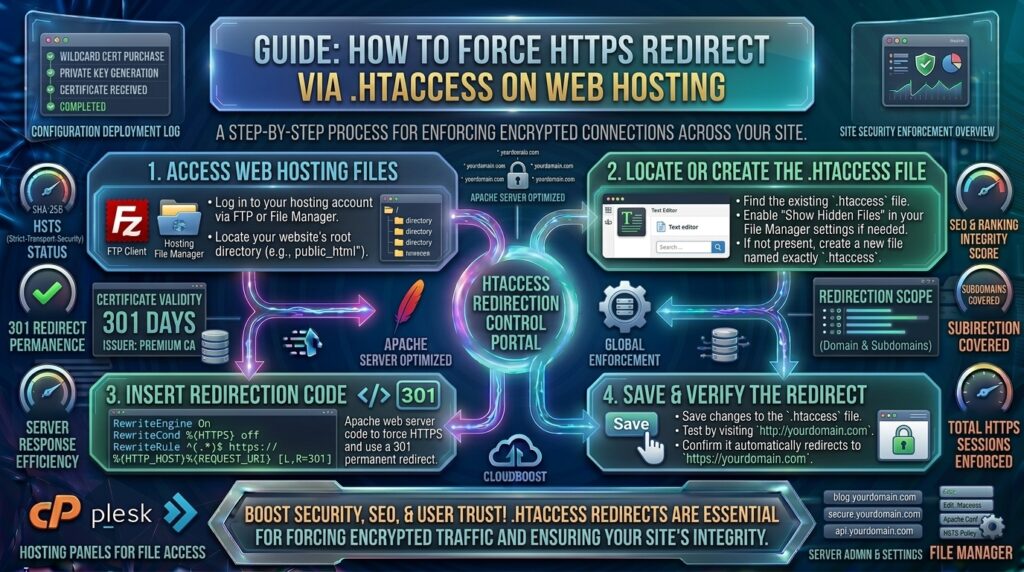
How to Force HTTPS Redirect via .htaccess on Web Hosting
Welcome to thehostreviews.com—your premier digital destination for web hosting insights, performance optimization, and server administration guides serving tech communities from New York and San Francisco to Texas, California, and Washington.
Introduction: Why Forcing HTTPS is Mandatory for Your Website
Securing your website with an SSL certificate is a vital first step, but it is only half the battle. Simply installing a certificate enables the secure HTTPS protocol, but it does not automatically stop visitors from accessing your site via the old, unencrypted HTTP protocol.
If a user or search engine crawler types [http://yourdomain.com](http://yourdomain.com), they may land on an unsecured version of your site. This creates severe vulnerabilities:
- Mixed Content Errors: Browsers flag static resources or scripts loaded over unsecured HTTP.
- SEO Cannibalization: Search engines like Google may index both the HTTP and HTTPS versions of your URLs, splitting your ranking authority (link juice) and leading to duplicate content penalties.
- Loss of User Trust: Modern browsers prominently display a glaring “Not Secure” warning when users visit HTTP pages, instantly tanking conversion rates.
To fix this permanently, you must force HTTPS redirection. For millions of websites running on Apache-based web servers, the cleanest, fastest, and most robust way to achieve this is by editing the .htaccess file.
This comprehensive, expert-level guide will teach you everything you need to know about forcing HTTPS redirect via .htaccess on your web hosting account, complete with advanced configurations, troubleshooting tips, and performance best practices.
Part 1: Understanding the .htaccess File and Server Environment
Before editing critical server configuration files, it is essential to understand what .htaccess is and how it functions.
What is .htaccess?
The .htaccess (Hypertext Access) file is a distributed configuration file used by Apache-based web servers. It allows webmasters to make decentralized configuration changes on a directory-by-directory basis. Common uses include custom error pages, password protection, URL rewrites, and—most importantly—traffic redirection.
Where is the .htaccess File Located?
- On most shared hosting, VPS, or dedicated servers running cPanel or DirectAdmin, the
.htaccessfile resides inside your website’s root public directory (typically namedpublic_htmlorwww). - Because filenames starting with a dot (
.) are hidden by default in Linux file systems, you must ensure your FTP client or hosting file manager is set to “Show Hidden Files”.
Part 2: Step-by-Step Guide to Forcing HTTPS via .htaccess
Follow this step-by-step workflow to securely redirect all incoming HTTP traffic to HTTPS using your web hosting control panel or FTP.
Step 1: Log Into Your Web Hosting Control Panel or File Manager
- Log into your web hosting account (such as cPanel, Plesk, or a custom control panel).
- Open the File Manager tool.
- Navigate to your website’s root directory (
public_html).
Step 2: Locate or Create the .htaccess File
- Look for a file named
.htaccess. - If you cannot find one, right-click and create a new file named
.htaccess(make sure there is no file extension like.txtat the end).
Step 3: Backup Your Existing .htaccess File
Before making any code modifications, always download a backup copy of your current .htaccess file to your local computer. A single syntax error in this file can instantly trigger a 500 Internal Server Error across your entire website. Having a backup ensures you can restore functionality instantly if anything goes wrong.
Step 4: Add the HTTPS Redirection Snippet
Right-click your .htaccess file, click Edit (or Code Editor), and paste the following standard rewrite rules at the very top of the file:
Apache
RewriteEngine On
RewriteCond %{HTTPS} off
RewriteRule ^(.*)$ https://%{HTTP_HOST}%{REQUEST_URI} [L,R=301]
Step 5: Save and Test
Click Save Changes in your file manager. Open a new incognito/private browsing window in your web browser and type [http://yourdomain.com](http://yourdomain.com). If the configuration is correct, your browser will instantly and seamlessly redirect to [https://yourdomain.com](https://yourdomain.com) with a secure green padlock.
Part 3: Advanced .htaccess Redirect Configurations
Depending on your specific hosting setup, content management system (CMS), or subdomain structure, you may need customized rewrite conditions. Here are the most effective advanced .htaccess rules used by professional web administrators.
1. Forcing HTTPS and WWW (or Non-WWW) Simultaneously
Maintaining a canonical domain structure is critical for SEO. You want all traffic pointing to one definitive version (e.g., always [https://www.yourdomain.com](https://www.yourdomain.com) or always [https://yourdomain.com](https://yourdomain.com)).
Force HTTPS + WWW:
Apache
RewriteEngine On
RewriteCond %{HTTPS} off [OR]
RewriteCond %{HTTP_HOST} !^www\. [NC]
RewriteRule ^(.*)$ https://www.yourdomain.com/$1 [L,R=301]
Force HTTPS + Non-WWW (Bare Domain):
Apache
RewriteEngine On
RewriteCond %{HTTPS} off [OR]
RewriteCond %{HTTP_HOST} ^www\.(.)$ [NC]
RewriteRule ^(.*)$ https://%1/$1 [L,R=301]
(Replace yourdomain.com with your actual domain name where required).
2. Forcing HTTPS on a Specific Subfolder Only
If you only want to secure a specific directory (such as an e-commerce checkout folder or a member portal like /secure/), place a separate .htaccess file inside that specific subdirectory with this rule:
Apache
RewriteEngine On
RewriteCond %{HTTPS} off
RewriteRule ^(.*)$ https://%{HTTP_HOST}/secure/$1 [L,R=301]
3. Handling Cloudflare and Reverse Proxies (HTTP_X_FORWARDED_PROTO)
If your web hosting sits behind a Content Delivery Network (CDN) like Cloudflare, standard RewriteCond %{HTTPS} off checks can sometimes trigger an infinite redirect loop (ERR_TOO_MANY_REDIRECTS). This occurs because Cloudflare handles the SSL handshake at the edge, while communicating with your origin server via HTTP.
To fix this, check the proxy header instead:
Apache
RewriteEngine On
RewriteCond %{HTTP:X-Forwarded-Proto} !https
RewriteRule ^(.*)$ https://%{HTTP_HOST}%{REQUEST_URI} [L,R=301]
Part 4: Troubleshooting Common Errors and Redirect Issues
When modifying server-level rewrite rules, minor mistakes can break site accessibility. Here is how to diagnose and fix the most common errors:
1. The dreaded “500 Internal Server Error”
- The Cause: Apache failed to parse the syntax in your
.htaccessfile. This usually happens ifRewriteEngine Onis missing, or if Apache server modules (mod_rewrite) are disabled on your hosting plan. - The Fix: Delete your changes or restore your backup
.htaccessfile immediately. Verify with your web host thatmod_rewriteis active on your server environment.
2. “ERR_TOO_MANY_REDIRECTS” (Redirect Loop)
- The Cause: Your website is caught in an infinite loop bouncing back and forth between HTTP and HTTPS. This frequently happens if your WordPress general settings (WordPress Address / Site Address) are set to HTTP while your
.htaccessforces HTTPS, or if your CDN proxy settings conflict. - The Fix: Ensure your CMS application settings match the secure protocol (
https://). If using Cloudflare, change your SSL/TLS encryption mode from Flexible to Full or Full (Strict).
3. CSS Styles and Images Disappearing (Mixed Content)
- The Cause: Your site redirects to HTTPS, but your database or theme files still reference static assets (images, stylesheets, scripts) via hardcoded
http://URLs. - The Fix: Use a search-and-replace tool or a security plugin (like Really Simple SSL for WordPress) to update all internal database links to
https://.
Part 5: Frequently Asked Questions (FAQ)
1. What does [L,R=301] mean in an .htaccess redirect rule?
These are flags telling the Apache server how to handle the rule:
R=301: Instructs the browser and search engines that this is a Permanent Redirect. This passes nearly 99% of your link equity (SEO ranking power) from the old HTTP URL to the new HTTPS URL.L: Stands for Last. It tells Apache to stop processing further rewrite rules if this rule matches, optimizing server performance.
2. Do I need an SSL certificate installed before adding this code?
Yes, absolutely. If you add HTTPS redirect rules to your .htaccess file before a valid SSL certificate is fully installed and active on your web server, your visitors will encounter immediate connection timeout errors (ERR_SSL_PROTOCOL_ERROR).
3. Can I use cPanel instead of editing .htaccess manually?
Yes. Many modern web hosting control panels feature a simple toggle switch (such as cPanel’s Force HTTPS Redirect toggle under the Domains section). When enabled, the control panel automatically writes the proper rules to your .htaccess file behind the scenes, eliminating manual editing risks.
4. Why is my .htaccess file missing from my hosting account?
By default, files starting with a dot are treated as hidden configuration files by Unix/Linux operating systems. If you don’t see it in your File Manager, look for a settings menu or gear icon in your file manager panel and check the box labeled “Show Hidden Files (dotfiles)”.
5. Will forcing HTTPS via .htaccess negatively impact my SEO?
Quite the opposite! Forcing HTTPS via a 301 permanent redirect is the industry gold standard recommended by Google. It securely consolidates your web traffic, eliminates duplicate content indexing, and fulfills Google’s HTTPS ranking signal requirement.
6. What should I do if my site breaks immediately after editing .htaccess?
Do not panic. Log back into your hosting File Manager, open the .htaccess file, delete the new redirect lines you added, and save the file. Your site will instantly return to its previous operational state.
7. Does this method work on Nginx servers instead of Apache?
No. Nginx servers do not read or process .htaccess files. If your web host runs on Nginx, you must configure your HTTPS redirection rules directly inside your server block configuration file (nginx.conf).
8. Will this redirect affect my email or FTP services?
No. The .htaccess file is strictly an Apache web server configuration tool designed to handle incoming HTTP/HTTPS web browser traffic. It has zero impact on mail servers, database connections, or FTP file transfers.
9. How can I test if my 301 redirect is working correctly?
You can use online HTTP header checking tools (like Redirect Path browser extensions or KeyCDN HTTP Header Checker). When you input your http:// URL, the tool should explicitly return an HTTP/1.1 301 Moved Permanently status code pointing to the secure https:// destination.
10. Can I force HTTPS for a single specific file?
Yes. If you only want to force encryption on a specific file (such as a login script like login.php), you can scope the rule like this:
Apache
RewriteEngine On
RewriteCond %{HTTPS} off
RewriteCond %{REQUEST_URI} /login\.php$
RewriteRule ^(.*)$ https://%{HTTP_HOST}%{REQUEST_URI} [L,R=301]
Conclusion
Forcing an HTTPS redirect via your .htaccess file is one of the most effective, lightweight, and SEO-friendly administrative tasks you can perform for your website. By ensuring that 100% of your incoming web traffic is funneled through an encrypted connection, you protect user data, eliminate browser security warnings, and preserve your search engine ranking authority.



Pingback: How to fix mixed content warnings after moving to https hosting - The host reviews