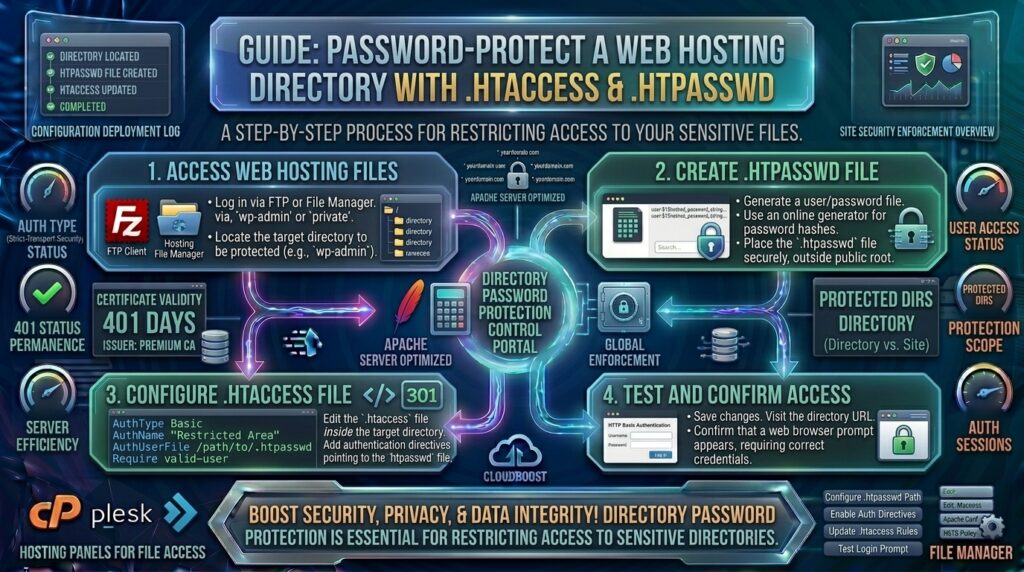
Protecting Web Hosting Directory with Password Protection: The Ultimate Step-by-Step Security Guide
Welcome to thehostreviews.com—your premier authoritative source for web hosting analysis, server management strategies, and advanced technical tutorials spanning tech epicenters from New York, San Francisco, and Washington to Texas and California.
Introduction: Why Directory Password Protection is Essential for Website Security
When website owners think about security, their minds usually jump to complex firewalls, enterprise DDoS mitigation, SSL certificates, and robust malware scanners. While perimeter defense is critical, internal directory security is often dangerously overlooked.
Imagine running a high-traffic web application or a growing corporate platform and needing to restrict access to sensitive backend folders. These might include staging directories (/staging/), administrative panels (/admin/), private client delivery portals (/downloads/), or raw configuration backups. If left open to the public internet, malicious actors, automated bots, and curious onlookers can easily stumble upon these assets through directory traversal or brute-force enumeration.
Implementing native Directory Password Protection (commonly powered by HTTP Basic Authentication via .htpasswd and .htaccess) creates an impenetrable secondary security checkpoint at the server level. Before any user or script can even view the files inside a protected folder, the web server prompts them for a valid username and password.
This comprehensive, expert-level guide will walk you through everything you need to know to lock down your web hosting directories securely, efficiently, and without needing advanced programming skills.
Part 1: How Directory Password Protection Works Under the Hood
Before jumping into the administrative walkthroughs, it helps to understand the underlying mechanisms that make web directory authentication work.
The Role of .htaccess and .htpasswd
On standard Apache-based web servers (which power a vast majority of shared, VPS, and dedicated hosting accounts worldwide), directory security relies on two core configuration files:
- The
.htaccessfile: Placed inside the specific folder you wish to protect, this file instructs the Apache web server to intercept requests and demand authentication credentials. - The
.htpasswdfile: A flat-text file containing an encrypted list of authorized usernames and secure password hashes.
When a user tries to access a protected URL (e.g., [yourdomain.com/staging/](https://yourdomain.com/staging/)), the web server intercepts the request, pops up a secure browser login box, checks the submitted credentials against the encrypted hashes inside the .htpasswd file, and grants access only upon a successful match.
Why Server-Level Protection Beats Application-Level Logins
While platforms like WordPress have built-in login pages, protecting a directory at the server level (via cPanel or Apache) provides superior security:
- Pre-Execution Shielding: The authentication check occurs before the server even loads your CMS scripts, preventing potential vulnerabilities or exploits within your application code from being accessed.
- Universal Application: It works on any type of file—whether it is a PHP script, a zip archive, a PDF document, or raw HTML files.
- Bot Deflection: Automated brute-force scrapers are instantly turned away by the server’s basic authentication challenge before they can waste your server resources.
Part 2: Step-by-Step Guide to Password Protecting Directories in cPanel
For most web hosting users operating in shared or managed environments, cPanel offers a streamlined, point-and-click graphical interface that automates the creation of .htaccess and .htpasswd files instantly.
Step 1: Log Into Your Hosting cPanel Dashboard
Navigate to your web hosting provider’s login portal, enter your credentials, and open your primary cPanel dashboard.
Step 2: Locate the Files or Security Section
Scroll down through the cPanel interface until you find the Files or Security section. Look for the icon labeled Directory Privacy (sometimes called Password Protect Directories). Click on it.
Step 3: Browse to the Target Directory
A file manager directory tree will appear, displaying your website’s public directories.
- Click on the folder icon next to public_html to expand your root tree.
- Navigate to and click specifically on the folder you wish to lock down (for example,
/public_html/stagingor/public_html/client-files).
Step 4: Enable Password Protection
Once you click on the folder name, you will be taken to a configuration screen:
- Check the box labeled “Password protect this directory”.
- Enter a descriptive name for the protected zone in the “Enter a name for the protected directory” field (this title will appear inside the browser login popup window).
- Click the Save button.
Step 5: Create Your Authorized User
Now that the directory is locked, you must create at least one authorized user account who is allowed to enter.
- Scroll down to the Create User section on the same page.
- Type in a secure Username.
- Enter a strong Password (use cPanel’s built-in password generator for maximum cryptographic complexity) and confirm it.
- Click the Save (or Add/Modify Authorized User) button.
Your directory is now fully protected! Open a fresh incognito browser tab and navigate to your protected folder URL. A secure authentication box will immediately pop up demanding your credentials.
Part 3: Manual Implementation via .htaccess and .htpasswd
If your web hosting control panel does not feature a directory privacy tool, or if you are managing a VPS/Dedicated server running Apache or Nginx directly via command-line SSH, you can set up password protection manually.
Step 1: Generate an Encrypted Password Hash
You cannot store plain-text passwords in your server files for security reasons. You must generate an encrypted MD5, bcrypt, or SHA hash. You can use online .htpasswd generators or run a terminal command if you have SSH access:
Bash
htpasswd -c /home/username/secure/.htpasswd admin_user
(The system will prompt you to type and confirm your secure password, saving it into the designated .htpasswd file path).
Step 2: Create the .htpasswd File
Place your generated .htpasswd file outside of your public web root (for example, in /home/username/secure/.htpasswd) to ensure it can never be downloaded directly via a web browser.
Inside your .htpasswd file, the entry will look similar to this:
Plaintext
admin_user:$apr1$H9...encryptedhashstring...
Step 3: Configure the .htaccess File in the Target Directory
Navigate to the specific directory you want to protect (e.g., /public_html/private/), create or open an .htaccess file, and insert the following code blocks:
Apache
AuthType Basic
AuthName "Restricted Access Area"
AuthUserFile /home/username/secure/.htpasswd
Require valid-user
AuthName: The prompt text displayed to users in their browser login box.AuthUserFile: The absolute server file path pointing directly to your.htpasswdfile.Require valid-user: Tells the server to grant access to any user whose username and password successfully match an entry inside the.htpasswdfile.
Part 4: Advanced Tips and Best Practices for Maximum Directory Security
Locking down directories is a great defensive measure, but maintaining long-term security requires adherence to professional administration standards.
1. Protect Your .htaccess and .htpasswd Files
Never leave your password credential files exposed inside public web directories. Always store .htpasswd files above your public_html root folder. Furthermore, add a rule to your main server configuration to block external access to any file starting with .ht or configuration backups:
Apache
<FilesMatch "^\.ht">
    Order allow,deny
    Deny from all
</FilesMatch>
2. Implement IP Whitelisting Alongside Passwords
If you are protecting an internal development staging server or an administrative tool that only your internal team accesses, combine password protection with IP address restriction. This ensures that even if someone figures out your password, they cannot log in unless they are connecting from an approved office or home IP address:
Apache
AuthType Basic
AuthName "Restricted Area"
AuthUserFile /home/username/secure/.htpasswd
Require valid-user

Order deny,allow
Deny from all
Allow from 192.0.2.1
Allow from 203.0.113.45
3. Enforce SSL Encryption (HTTPS)
Basic HTTP authentication transmits passwords over the network. If your website does not have an active SSL certificate forcing HTTPS, anyone sniffing network traffic on public Wi-Fi can intercept your clear-text or weakly hashed credentials. Always ensure HTTPS redirection is active on any directory utilizing password protection.
Part 5: Troubleshooting Common Authentication Errors
When configuring manual or automated directory protection, minor configuration mistakes can block legitimate traffic or cause server errors. Here is how to troubleshoot them:
- Error: “500 Internal Server Error” when visiting the protected folder
- The Cause: Usually caused by an incorrect absolute path specified in the
AuthUserFiledirective inside your.htaccessfile, or syntax errors. - The Fix: Double-check your absolute server path using your cPanel file manager home directory path and correct the file pointer.
- The Cause: Usually caused by an incorrect absolute path specified in the
- Error: Authentication popup keeps looping even with correct credentials
- The Cause: CGI/FastCGI configurations on certain shared hosting environments strip out authorization headers, preventing Apache from reading the submitted username and password.
- The Fix: Add this workaround snippet to your
.htaccessfile:CGIPassAuth On.
- Forgetting your
.htpasswdpassword- The Fix: Simply return to your cPanel Directory Privacy tool, select the user, and type in a brand-new password to overwrite the old hash instantly.
Part 6: Frequently Asked Questions (FAQ)
1. Can I password-protect individual files instead of an entire directory?
Yes. While directory protection is standard, you can lock down a single specific file (such as config.php or deploy.sh) by wrapping your authentication directives inside a <Files> block within your .htaccess file:
Apache
<Files "secret-file.php">
    AuthType Basic
    AuthName "Restricted File"
    AuthUserFile /home/username/secure/.htpasswd
    Require valid-user
</Files>
2. Is Basic HTTP Authentication secure against modern hackers?
Basic Authentication sends credentials encoded in Base64 during every request. While it is safe when transmitted strictly over an encrypted HTTPS connection, it is vulnerable if used over unencrypted HTTP. For high-security enterprise systems, administrators often pair basic auth with VPNs or multi-factor authentication (MFA) application layers.
3. Can I create multiple user accounts with different permission levels?
Yes. You can add multiple users into your .htpasswd file. Anyone whose username and password match an entry in the file will gain entry. However, basic HTTP authentication does not natively support granular role-based access control (e.g., Admin vs. Viewer)—anyone who logs in gets full access to everything inside that folder.
4. Will password protecting a directory stop search engine crawlers from indexing it?
Yes. When a search engine bot (like Googlebot) encounters an HTTP 401 Unauthorized challenge page, it cannot parse or crawl the content inside that directory. To ensure complete privacy, it is also wise to include a Disallow: /directory-name/ rule in your robots.txt file.
5. Where is the best place to store the .htpasswd file?
The safest practice is to store your .htpasswd file completely outside of your public document root (public_html). Placing it one level higher in your primary home account directory ensures it is physically impossible for web browsers to download it.
6. Do I need a dedicated IP address to use directory password protection?
No. Directory privacy relies entirely on Apache software modules (mod_authn_file, mod_auth_basic) and configuration files. It works seamlessly on shared hosting, VPS, and cloud servers regardless of your IP configuration.
7. Why am I not seeing the username/password popup box in my browser?
If you recently visited the protected directory and entered valid credentials, modern web browsers aggressively cache authentication sessions. Try opening an Incognito / Private Browsing window, or clear your browser cache to trigger the fresh login prompt.
8. Can I use this method to protect a WordPress admin login page?
While you can password-protect the /wp-admin/ directory using this method, it can sometimes interfere with AJAX calls, cron jobs, and plugins that rely on accessing admin-ajax.php publicly. For WordPress, it is usually better to protect specific sensitive files (like wp-login.php) or use a dedicated security plugin.
9. What happens if someone enters the wrong password too many times?
Standard Apache basic authentication does not feature built-in brute-force IP locking by default. To protect your login prompt from automated bot cracking scripts, you should ensure your web hosting account utilizes server-level security tools like CSF (ConfigServer Security & Firewall) or Fail2Ban to block IPs after multiple failed login attempts.
10. Can I remove password protection later if I change my mind?
Yes, the process is completely reversible. Simply open cPanel’s Directory Privacy tool, uncheck the box for password protection and save, or delete the .htaccess authentication rules and the .htpasswd file manually via your file manager.
Conclusion
Securing sensitive folders with directory password protection is a foundational, highly effective server-level defense strategy. Whether you are safeguarding client deliverables, staging environments, or internal operational tools, implementing HTTP basic authentication adds an impenetrable wall against unauthorized access and automated bots.