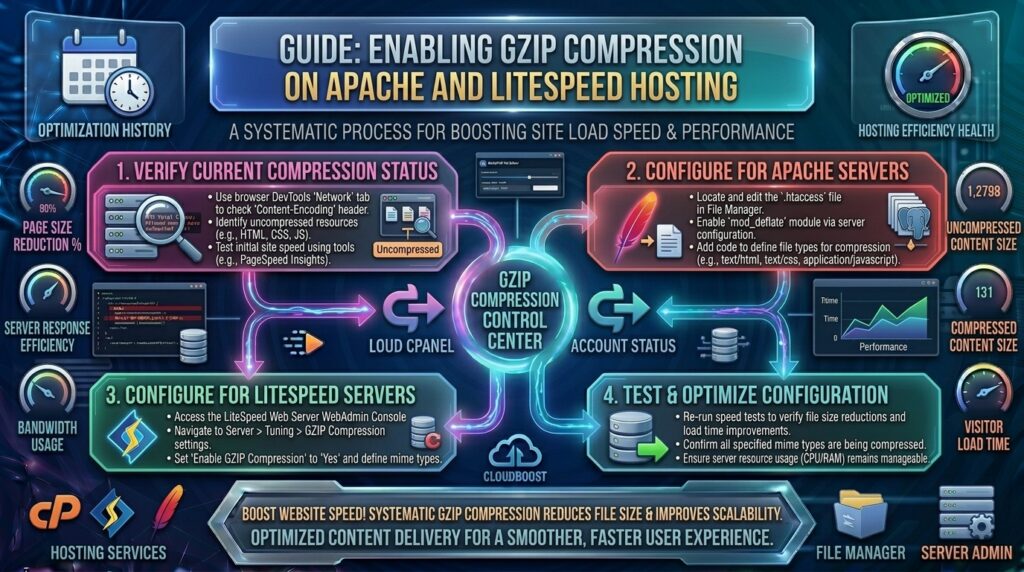
How to Enable GZIP Compression on Apache and LiteSpeed Hosting: The Ultimate Page Speed Optimization Guide for 2026
When building, optimizing, or scaling a digital platform for target audiences across high-demand economic hubs like Texas, New York, California, Washington, and San Francisco, maximizing web performance is your ultimate competitive advantage. Users browsing from mobile devices or high-speed fiber connections expect web pages to render in milliseconds, and search engine algorithms aggressively penalize sluggish, unoptimized architectures.
Among the foundational page speed optimizations every webmaster must master, enabling GZIP compression stands as a non-negotiable priority.
When a user’s web browser requests a web page from your server, the server transmits the raw HTML, CSS, JavaScript, and SVG files. Without compression, these text-based assets travel across the internet in their bloated, uncompressed states, consuming excessive bandwidth and drastically inflating your page load times. GZIP compression compresses these assets on the fly before sending them to the browser, where they are instantly decompressed and rendered.
This comprehensive, expert-level guide explores the inner workings of GZIP compression, explains how your choice of web server (Apache vs. LiteSpeed) affects configuration, and provides step-by-step implementation workflows designed to skyrocket your site speed and secure top-tier visibility in Google search results.
1. What Is GZIP Compression and How Does It Work?
To appreciate the impact of GZIP, it helps to understand what happens during a standard HTTP request.
The Problem: Bloated Text Assets
Web pages are primarily constructed using text-based programming languages—specifically HTML, CSS, and JavaScript. Unlike compressed binary files (like JPEG images or MP4 videos), raw source code contains massive amounts of repetitive syntax, indentation, long variable names, and whitespace.
- Transferring raw, uncompressed source files across network lines wastes valuable bandwidth.
- Larger file sizes directly inflate Time to First Byte (TTFB) and delay document download completion, tanking your Core Web Vitals scores.
The GZIP Solution: On-The-Fly Data Compression
GZIP (GNU Zip) is a lossless data compression algorithm specifically designed for web assets.
- The Request: A visitor’s browser sends an HTTP request to your server (
thehostreviews.com) accompanied by anAccept-Encoding: gzipheader, signaling that the browser understands compressed files. - The Compression Phase: Your web server intercepts the outgoing text files (HTML, CSS, JS, XML, JSON), passes them through the GZIP compression algorithm, and shrinks their file weight by 70% to 90%.
- The Transfer: The lightweight compressed archive (.gz) is transmitted rapidly across the network.
- The Browser Rendering: The user’s browser receives the compressed file, decompresses it locally in microseconds, and renders the page.
[ User Browser ] --(Requests Page + Accept-Encoding: gzip)--> [ Apache / LiteSpeed Server ]
                                                                        |
                                                             (Compresses Files via GZIP)
                                                                        |
[ Browser Instantly Decompresses ] <--(Transfers 80% Smaller Payload)--+
2. Why GZIP Compression Is Essential for Google SEO
Page speed is an explicit ranking factor in Google’s search algorithms. Implementing GZIP compression impacts your search engine optimization strategy in several direct ways:
- Massive Reduction in Page Weight: Shrinking your CSS and JavaScript files by up to 80% means your pages download faster over cellular networks, directly improving your Largest Contentful Paint (LCP) scores.
- Optimized Crawl Budget: Search engine crawlers have a finite time window to crawl your website. When your server transmits compressed files instantly, Googlebot can crawl twice as many pages per session without hitting timeouts, speeding up the indexation of new content.
- Lower Bounce Rates: Users abandon slow-loading sites. Blazing-fast asset delivery keeps visitors engaged, reducing bounce rates and signaling positive user experience metrics to Google.
3. How to Verify If GZIP Compression Is Already Active
Before modifying server configuration files, check whether GZIP compression is already enabled on your website (thehostreviews.com).
Method 1: Using Online Testing Tools
You can use reputable web performance diagnostic tools such as GTmetrix, WebPageTest, or online GZIP checkers (like Check GZIP Compression). Simply enter your domain URL, run the audit, and check the waterfall or response headers for confirmation that content is being served with Content-Encoding: gzip.
Method 2: Inspecting Headers via Browser Developer Tools
- Open your website in Google Chrome or Microsoft Edge.
- Press
F12or right-click anywhere and select Inspect to open Developer Tools. - Navigate to the Network tab.
- Refresh the page (
Ctrl + RorCmd + R) and click on the primary document request (your domain name) in the request list. - In the Headers panel, look under Response Headers for:Plaintext
Content-Encoding: gzip
If that header is present, GZIP compression is active and working correctly. If it is missing, you must enable it manually based on your web server software.
4. Enabling GZIP Compression on Apache Web Servers
Apache is the most widely deployed web server software in the hosting industry, frequently managed via cPanel. Apache handles GZIP compression using specific core modules: mod_deflate (for compressing standard text output) and mod_filter.
Step 1: Check if mod_deflate is Enabled
Ensure your hosting environment supports Apache compression modules. If you have root access to your VPS or cloud server, you can enable the module via terminal:
Bash
sudo a2enmod deflate
sudo a2enmod filter
sudo systemctl restart apache2
(If you use shared cPanel hosting, module management is usually handled natively by your host).
Step 2: Add GZIP Rules to Your .htaccess File
The easiest way to enable and configure GZIP compression on Apache-based hosting accounts is by adding compression directives directly into your website’s root .htaccess file.
- Log into your hosting control panel (cPanel) and open the File Manager.
- Navigate to your website’s root directory (
public_html). - Locate your
.htaccessfile (ensure hidden files are visible in settings). Right-click and select Edit. - Paste the following industry-standard GZIP compression ruleset at the top of the file:
Apache
<IfModule mod_deflate.c>
    # Compress HTML, CSS, JavaScript, Text, XML and fonts
    AddOutputFilterByType DEFLATE application/javascript
    AddOutputFilterByType DEFLATE application/rss+xml
    AddOutputFilterByType DEFLATE application/vnd.ms-fontobject
    AddOutputFilterByType DEFLATE application/x-font
    AddOutputFilterByType DEFLATE application/x-font-opentype
    AddOutputFilterByType DEFLATE application/x-font-otf
    AddOutputFilterByType DEFLATE application/x-font-truetype
    AddOutputFilterByType DEFLATE application/x-font-ttf
    AddOutputFilterByType DEFLATE application/x-javascript
    AddOutputFilterByType DEFLATE application/xhtml+xml
    AddOutputFilterByType DEFLATE application/xml
    AddOutputFilterByType DEFLATE font/opentype
    AddOutputFilterByType DEFLATE font/otf
    AddOutputFilterByType DEFLATE font/ttf
    AddOutputFilterByType DEFLATE image/svg+xml
    AddOutputFilterByType DEFLATE image/x-icon
    AddOutputFilterByType DEFLATE text/css
    AddOutputFilterByType DEFLATE text/html
    AddOutputFilterByType DEFLATE text/javascript
    AddOutputFilterByType DEFLATE text/plain
    AddOutputFilterByType DEFLATE text/xml

    # Remove browser bugs for old uncompliant browsers
    BrowserMatch ^Mozilla/4 gzip-only-text/html
    BrowserMatch ^Mozilla/4\.0[678] no-gzip
    BrowserMatch \bMSIE !no-gzip !gzip-only-text/html
    Header append Vary User-Agent
</IfModule>
- Click Save Changes. Test your site immediately in an incognito window to verify that the compression headers are active.
5. Enabling GZIP and Brotli Compression on LiteSpeed Web Servers
LiteSpeed Web Server (LSWS) is an enterprise-grade, high-performance web server known for its native compatibility with Apache .htaccess rules and its superior handling of concurrent connections.
If your website runs on a LiteSpeed-powered host (or utilizes OpenLiteSpeed), you have two distinct advantages:
- LiteSpeed processes Apache
.htaccesscompression rules natively. - LiteSpeed supports both standard GZIP and the advanced Brotli compression algorithm (developed by Google), which compresses text files up to 20% smaller than GZIP.
Method 1: Via LiteSpeed WebAdmin Console (VPS / Dedicated Servers)
If you manage a cloud server or VPS running LiteSpeed Web Server, you can enable compression globally:
- Log into your LiteSpeed WebAdmin Console (usually port
7080). - Navigate to Server Configuration > Tuning tab.
- Locate the Enable Compression setting and toggle it to Yes.
- You can also define specific compression buffer sizes and MIME types to ensure HTML, CSS, and JS assets compress efficiently.
- Perform a graceful restart of the LiteSpeed service to apply changes.
Method 2: Via LiteSpeed Cache Plugins (WordPress)
If you manage a WordPress website hosted on a LiteSpeed server, the easiest way to optimize compression and caching is by installing the official LiteSpeed Cache (LSCache) plugin.
- Log into your WordPress dashboard.
- Navigate to Plugins > Add New, search for LiteSpeed Cache, and install/activate it.
- Go to LiteSpeed Cache > Page Settings or Optimization settings.
- LSCache handles server-level compression automatically in tandem with LiteSpeed’s internal caching architecture, ensuring optimal delivery of both GZIP and Brotli compression formats to modern web browsers.
6. Best Practices and Tips for Advanced Compression Management
Implementing GZIP compression is straightforward, but following these expert practices ensures maximum performance efficiency:
1. Do Not Compress Already Compressed Assets
Never attempt to compress binary files that are already compressed—such as JPEG images, PNGs, WebP files, MP4 videos, or ZIP archives. Forcing GZIP to process compressed files wastes server CPU cycles, adds latency, and actually increases file sizes. Stick strictly to text-based assets (HTML, CSS, JS, SVG, XML, JSON).
2. Leverage Browser Caching Alongside GZIP
Compression reduces file transfer size, but browser caching prevents files from being downloaded repeatedly across repeat visits. Combine your GZIP .htaccess rules with proper browser caching expiration headers (ExpiresActive On and Cache-Control) to maximize overall site speed.
3. Test for Compatibility Issues
While 99.9% of modern web browsers support GZIP compression natively, ensure that custom proxy configurations or legacy corporate firewalls do not strip out compression headers. Always test your site across multiple devices and browsers after updating server configurations.
7. Frequently Asked Questions (FAQ)
1. What is GZIP compression?
GZIP is a lossless data compression algorithm that shrinks text-based web assets (HTML, CSS, JavaScript) on the server side before transferring them to a browser, where they are instantly decompressed and rendered.
2. Why is GZIP compression important for Google SEO?
By reducing file transfer sizes by up to 80%, GZIP speeds up page rendering times, improves Core Web Vitals (specifically Largest Contentful Paint), and allows search engine crawlers to index pages more efficiently.
3. How do I check if GZIP compression is enabled on my website?
You can verify GZIP compression by using online testing tools (like GTmetrix or WebPageTest) or by inspecting the Response Headers in your browser’s Developer Network tab for Content-Encoding: gzip.
4. How do I enable GZIP compression on an Apache cPanel hosting server?
You can enable GZIP on Apache servers by pasting standard mod_deflate configuration rules directly into your website’s root .htaccess file using the cPanel File Manager.
5. Does LiteSpeed hosting support GZIP compression?
Yes. LiteSpeed web servers support standard GZIP compression natively via Apache .htaccess compatibility rules, and they also support Google’s advanced Brotli compression algorithm.
6. What is the difference between GZIP and Brotli compression?
Brotli is a newer compression algorithm developed by Google that generally provides 15% to 20% higher compression ratios than GZIP, resulting in smaller file payloads and faster load times.
7. Should I compress image files using GZIP?
No. Image formats like JPEG, PNG, and MP4 are already compressed binary files. Forcing GZIP to process them wastes CPU cycles and can inadvertently increase file sizes. Compress only text assets.
8. Will enabling GZIP compression cause a 500 Internal Server Error?
It can if your server does not have the mod_deflate module enabled or if there is a syntax error in your .htaccess rules. If a 500 error occurs, simply remove the added lines to restore the site.
9. Do I need a plugin to enable GZIP compression on WordPress?
Not necessarily. You can enable GZIP directly via your .htaccess file. However, caching plugins like LiteSpeed Cache or WP Rocket can also manage compression rules automatically.
10. How much bandwidth does GZIP compression actually save?
GZIP typically reduces the file size of HTML, CSS, and JavaScript files by 70% to 90%, drastically cutting bandwidth consumption and speeding up delivery for mobile users.
8. Conclusion
Enabling GZIP compression on Apache and LiteSpeed web hosting is one of the highest-impact, lowest-effort technical optimizations you can execute for your website. By compressing text-based assets on the fly, you slash your page weight, accelerate browser rendering times, and satisfy Google’s strict Core Web Vitals performance benchmarks.