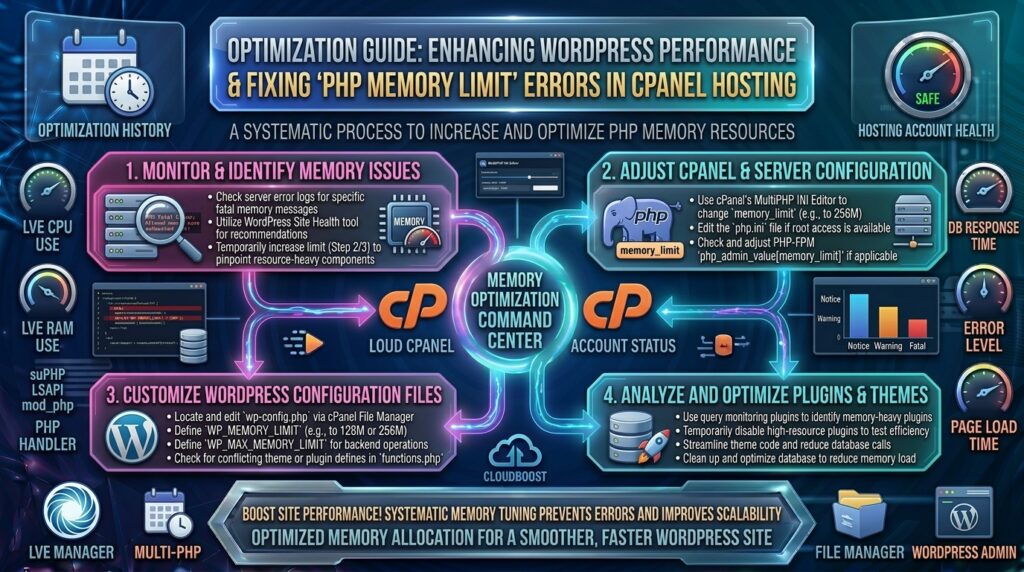
When operating or expanding a digital platform, e-commerce storefront, or agency network targeted at high-demand digital markets like Texas, New York, California, Washington, and San Francisco, website performance is everything. Users expect instantaneous page loads, and search engine crawlers penalize sluggish, resource-starved architectures.
For WordPress website owners utilizing industry-standard cPanel hosting, one of the most frequent performance roadblocks is running into memory constraints. When a script consumes more random access memory than your server permits, your site throws fatal errors, slow downs occur, and checkout processes fail.
Mastering how to accurately check, configure, and optimize your PHP memory limit within cPanel is a mandatory technical skill for anyone managing a professional WordPress website.
This comprehensive, expert-level guide walks you through the exact technical mechanisms of PHP memory allocation, provides step-by-step optimization workflows inside cPanel, shares expert tuning tips, and outlines strategies designed to rank at the top of Google search results.
1. What Is PHP Memory Limit and Why Does WordPress Need It?
To understand optimization, you must first understand how PHP interacts with your hosting environment.
The WordPress Memory Architecture
WordPress is built on PHP—a dynamic server-side scripting language. When a visitor requests a page on your website (thehostreviews.com), your web server executes PHP code, queries your MySQL database, compiles the layout, and serves the rendered HTML back to the browser.
- The Execution Workspace: Every time a script runs, it requires temporary workspace in the server’s Random Access Memory (RAM). The PHP memory limit defines the maximum amount of RAM a single PHP script or process is allowed to consume before the server forcefully halts execution to prevent resource starvation.
- Why WordPress is Memory-Hungry: A basic WordPress core installation requires very little memory (typically 32MB to 64MB). However, modern professional websites run bloated theme frameworks, advanced page builders (like Elementor or Divi), extensive plugin suites, and heavy e-commerce frameworks (WooCommerce). When multiple plugins execute simultaneously during a single request, default low memory limits are instantly breached.
2. The Dangers of Low PHP Memory Limits
Out of the box, many budget cPanel hosting providers set default PHP memory limits to conservative values like 128MB or even 64MB to conserve server resources across shared hosting nodes. When your site exceeds this limit, you will encounter distinct operational failures:
- The White Screen of Death (WSOD): A completely blank web page or admin dashboard caused by a script hitting its memory ceiling mid-execution.
- Fatal PHP Errors: Critical log entries reading:
Fatal error: Allowed memory size of X bytes exhausted (tried to allocate Y bytes). - Broken Plugin & Theme Updates: Failing background updates that leave database tables half-migrated, leading to site-wide crashes.
- Checkout Failures on WooCommerce: E-commerce carts freezing during payment processing because calculating taxes, shipping rates, and stock inventories exceeded available memory.
3. What Is the Ideal PHP Memory Limit for WordPress in 2026?
Recommended memory thresholds vary based on your website’s complexity and traffic volume:
- Basic Blog / Portfolio: Minimum 256MB
- Standard Business Website / Agency Site: 256MB to 512MB
- High-Traffic WooCommerce Store / Membership Site: 512MB to 1024MB
Expert Tip: While setting your memory limit to an excessively high value (like 2GB) on a shared hosting account is counterproductive—and often blocked by your hosting provider—allocating 512MB provides the optimal balance for modern, plugin-heavy WordPress stacks.
4. Step-by-Step: How to Check Your Current WordPress Memory Limit
Before modifying server settings, check how much memory your WordPress installation is currently permitted to use.
Method 1: The WordPress Site Health Tool
- Log into your WordPress Admin Dashboard.
- Navigate to Tools > Site Health.
- Click on the Info tab and expand the Server section.
- Look for PHP memory limit. This shows your active configuration.
Method 2: Creating a PHP Info File
- Log into your cPanel dashboard and open the File Manager.
- Navigate to your website’s root directory (
public_html). - Create a new file named
info.php. - Add the following code snippet to the file and save it:PHP
<?php phpinfo(); ?> - Open your browser and navigate to
[thehostreviews.com/info.php](https://thehostreviews.com/info.php). Search formemory_limitto see both the local and master server values. (Delete this file immediately afterward for security purposes).
5. Step-by-Step: How to Optimize PHP Memory Limit in cPanel
Depending on your cPanel hosting configuration, you have three primary methods to safely increase your PHP memory limit.
Method 1: Using cPanel’s Built-In MultiPHP INI Editor (Recommended)
This is the safest, most user-friendly method because it modifies your server configuration without touching raw code files.
- Log into your cPanel dashboard.
- Scroll down to the Software section and click on MultiPHP INI Editor.
- Select your domain name from the dropdown menu.
- Scroll through the configuration directives and locate
memory_limit. - Change the value from its default setting (e.g.,
128Mor256M) to512M. - Click Apply or Save.
Method 2: Modifying the wp-config.php File
If your cPanel hosting provider restricts global INI file modifications, you can define the memory limit directly inside your WordPress configuration file.
- Log into cPanel and open the File Manager.
- Navigate to your website’s root directory (
public_html). - Locate the
wp-config.phpfile, right-click, and select Edit. - Scroll down until you find the line that says:PHP
/* That's all, stop editing! Happy publishing. */ - Just above that line, paste the following PHP memory definition code:PHP
define( 'WP_MEMORY_LIMIT', '512M' ); define( 'WP_MAX_MEMORY_LIMIT', '512M' ); - Click Save Changes.
Note:
WP_MEMORY_LIMITcontrols the front-end memory allocation, whileWP_MAX_MEMORY_LIMITcontrols memory limits for heavy administrative backend processes like image generation, plugin updates, and bulk imports.
Method 3: Editing or Creating a .htaccess File
If your server runs Apache and permits local directive overrides, you can declare memory limits inside your .htaccess file.
- Open cPanel File Manager and navigate to
public_html. - Locate your
.htaccessfile (enable show hidden files if you don’t see it). - Right-click and edit the file, adding this directive at the very top:Apache
php_value memory_limit 512M - Save the file. (Warning: If your server runs PHP as a CGI/FastCGI handler rather than an Apache module, adding
php_valueto.htaccesswill trigger a 500 Internal Server Error. If that happens, simply delete the line).
6. Advanced Tips to Prevent Memory Leaks in WordPress
Increasing your PHP memory limit acts as a band-aid, but true performance optimization requires addressing the underlying causes of excessive memory consumption.
1. Audit and Purge Unused Plugins
Every active plugin loads its own scripts and styles into your WordPress memory pool. Audit your installed plugins quarterly, deactivate abandoned software, and replace multi-purpose plugins with lightweight alternatives.
2. Control WooCommerce Background Jobs and Cron
Heavy e-commerce sites often experience memory exhaustion during automated background tasks, database cleanups, or scheduled order syncs. Use advanced cron management plugins to stagger background tasks during off-peak traffic hours.
3. Optimize Media Image Sizes
Uploading raw, uncompressed 5MB digital camera photos into your media library will exhaust PHP memory instantly when WordPress attempts to generate thumbnail sizes upon upload. Always compress and resize images prior to uploading.
7. How PHP Memory Optimization Directly Drives Google SEO
Website performance is directly correlated with search engine visibility. Optimizing your PHP memory limit impacts Google’s ranking algorithms in several ways:
- Eliminating Fatal Errors and Downtime: Ensuring your site never crashes due to memory exhaustion protects your uptime score, preventing Googlebot from encountering fatal 500 server errors during crawling.
- Improving Time to First Byte (TTFB): When scripts execute smoothly without memory bottlenecks, server response times drop, helping your pages pass Google Core Web Vitals thresholds.
- Protecting Crawl Budget: A stable server allows search engine crawlers to index e-commerce product catalogs and blog archives efficiently without timing out or failing mid-crawl.
8. Frequently Asked Questions (FAQ)
1. What is the standard PHP memory limit for a new WordPress site?
Most budget cPanel hosts set default memory limits between 128M and 256M. However, modern professional sites running WooCommerce or page builders generally require 512M.
2. Will increasing the PHP memory limit slow down my server?
No. Setting an appropriate memory limit (like 512MB) simply gives your application enough workspace to run complex scripts without crashing. It does not consume RAM unless a script explicitly requests it.
3. Why did my site show a 500 Internal Server Error after editing .htaccess?
If your server runs PHP via FastCGI or PHP-FPM instead of an Apache module, adding php_value directives inside .htaccess will cause a syntax conflict and trigger a 500 error. Simply remove the line to restore the site.
4. What is the difference between WP_MEMORY_LIMIT and WP_MAX_MEMORY_LIMIT?
WP_MEMORY_LIMIT governs standard front-end visitor requests, whereas WP_MAX_MEMORY_LIMIT sets a higher RAM ceiling for resource-heavy administrative backend tasks like image processing and bulk updates.
5. Can I set my WordPress memory limit higher than my hosting account allows?
No. Your WordPress configuration cannot override hard server-level caps. If your hosting provider’s master php.ini file restricts memory to 256MB, setting wp-config.php to 1024MB will be ignored by the server.
6. How do I know if my memory limit increase was successful?
You can verify your updated configuration by checking your WordPress Tools > Site Health > Info > Server tab, or by reviewing your phpinfo diagnostic page.
7. Why do WooCommerce stores require higher PHP memory limits?
WooCommerce executes complex database calculations for cart totals, tax rules, shipping gateways, and dynamic product variations simultaneously, requiring a minimum of 512MB to run smoothly.
8. What causes unexpected memory leaks in WordPress?
Memory leaks are usually caused by poorly coded plugins, infinite loops in custom functions, outdated theme frameworks, or failing external API requests that hang open and consume server RAM.
9. Does increasing PHP memory improve Core Web Vitals?
Indirectly, yes. By preventing script throttling and backend lag, adequate memory allocation ensures fast server response times (TTFB), which supports strong Largest Contentful Paint (LCP) scores.
10. When should I contact my cPanel hosting support team about memory limits?
If cPanel’s MultiPHP INI Editor grays out your memory limit settings or prevents you from upgrading beyond an inadequate threshold (like 128MB), contact your hosting support team and request a higher resource allocation for your account.
9. Conclusion
Optimizing your PHP memory limit within cPanel hosting is a vital operational procedure for maintaining a fast, stable, and error-free WordPress website. By understanding how PHP memory allocation works, checking your active configuration, and utilizing cPanel’s MultiPHP INI Editor or wp-config.php overrides, you can eliminate memory exhaustion errors permanently.
Whether you are scaling an e-commerce platform in New York, managing a digital agency in San Francisco, or expanding a high-traffic web publication across Texas, Washington, and California, ensuring your WordPress infrastructure has adequate memory guarantees superior uptime, seamless user experiences, and dominant positioning in Google search results.