How to Fix 500 Internal Server Error in cPanel Hosting: The Ultimate 2026 Troubleshooting Manual
When operating or expanding a digital platform, e-commerce storefront, or agency network targeted at high-demand digital markets like Texas, New York, California, Washington, and San Francisco, maximizing website uptime is paramount. Yet, few technical notifications evoke as much immediate dread as the notorious 500 Internal Server Error.
Unlike specific warning codes (such as a 404 Not Found or a 403 Forbidden), the HTTP 500 Internal Server Error is a generic “catch-all” message. It tells you one thing: your server encountered an unexpected condition that prevented it from fulfilling a request, but it has no idea what the exact problem is. When this error strikes your website (thehostreviews.com), human visitors see a blank screen or a generic error page, potential customers abandon their shopping carts, and Googlebot registers fatal server failure statuses that can quickly harm your SEO rankings.
The good news? Because cPanel is a structured and highly organized hosting control panel, you have direct access to tools, error logs, and file management directories that allow you to diagnose and fix the root cause quickly.
This comprehensive, expert-level troubleshooting guide provides a thorough, step-by-step framework for diagnosing, resolving, and preventing 500 Internal Server Errors on cPanel-powered hosting environments, optimized to help your site secure top-tier visibility in Google search results.
1. Understanding the Anatomy of a 500 Internal Server Error
Before jumping into terminal commands or file editors, it is essential to understand what happens behind the scenes when a server throws a 500 error.
The Standard Server Request Pipeline:
- The Client Request: A browser or search engine crawler requests a page URL on your domain.
- The cPanel Web Server: The server software (typically Apache or Apache coupled with an Nginx reverse proxy) receives the request.
- Script Execution: The server attempts to run backend code (such as PHP scripts, WordPress plugins, or configuration files).
- The Failure Point: If the script hits a fatal syntax error, a corrupted configuration file, a memory exhaustion limit, or bad file permissions, the server aborts processing. Instead of sending a normal web page, it throws a generic HTTP 500 Internal Server Error.
Because cPanel abstracts many server configurations behind friendly interfaces, identifying the underlying trigger requires looking past the generic browser message and examining your server’s raw error logs.
2. The 5 Most Common Causes of 500 Errors in cPanel
In cPanel hosting environments, 95% of all 500 Internal Server Errors trace back to one of five common culprits:
- Corrupted or Misconfigured
.htaccessFiles: A malformed rewrite rule or invalid syntax inside the directory-level configuration file. - Exhausted PHP Memory Limits: A script, plugin, or theme consuming more RAM than allowed by your cPanel hosting account tier.
- Incompatible PHP Versions or Missing Extensions: Running outdated or mismatched PHP versions that break modern plugin code.
- Faulty Plugins, Themes, or Corrupted CMS Files: A buggy WordPress plugin or an incomplete core software update.
- Incorrect File and Directory Permissions: Files set with overly permissive or restrictive permissions (e.g.,
777or755mismatches), preventing Apache from reading them.
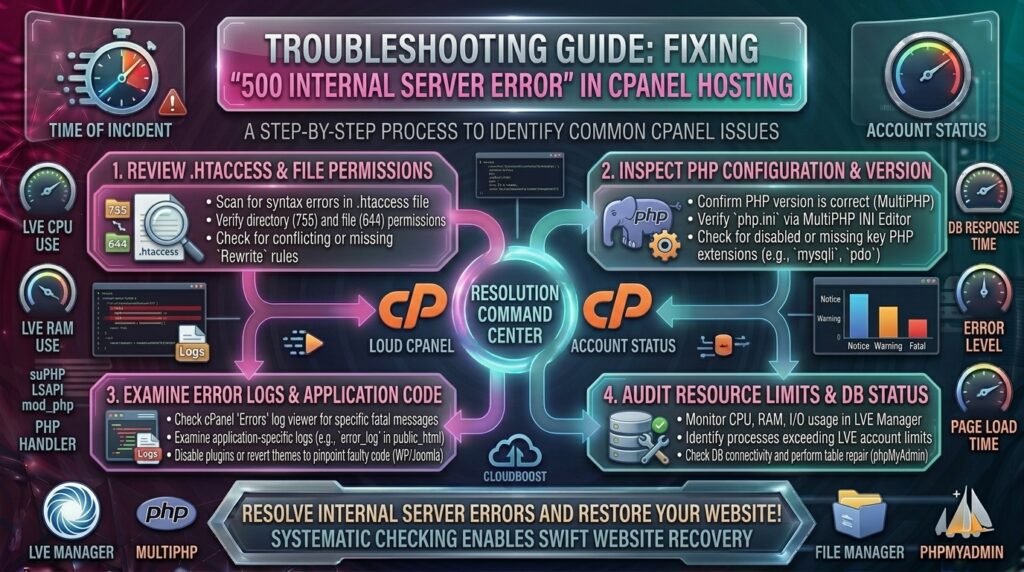
3. Step-by-Step Troubleshooting Workflow in cPanel
Follow this systematic, expert-level diagnostic workflow to isolate the exact cause of the 500 error on your cPanel server and restore your website safely.
Step 1: Check the cPanel Error Log (The Golden Diagnostic Tool)
Never guess why a server is throwing a 500 error. Your cPanel hosting environment records every single fatal script execution, memory fault, and syntax error in a dedicated log file.
How to Find It:
- Log into your cPanel dashboard.
- Scroll down to the Metrics section and click on Errors (or Latest Errors in older cPanel versions).
- This interface displays the last 300 server error messages associated with your domain.
- Scroll through the entries and look for timestamps matching when you encountered the 500 error. You will likely see specific clues, such as:
AH00529: /home/username/public_html/.htaccess: Invalid command...Fatal error: Allowed memory size of 67108864 bytes exhausted...Call to undefined function...
Pinpointing this exact error message tells you immediately which step below to execute.
Step 2: Test and Regenerate the .htaccess File
A corrupted .htaccess file is the single most frequent cause of 500 Internal Server Errors in cPanel web hosting. This file controls URL rewrites, permalinks, and security redirects. If a plugin writes a malformed rule, the entire site collapses.
How to Fix It:
- Log into cPanel and open the File Manager.
- Navigate to your website’s root directory (usually
public_html). - Ensure hidden files are visible by clicking Settings in the top right corner and checking Show Hidden Files (dotfiles).
- Locate the
.htaccessfile, right-click it, and rename it to something like.htaccess_old(this deactivates it temporarily). - Open your website in an incognito browser window:
- If the site loads: Your
.htaccessfile was the culprit. - To fix permalinks (WordPress): Log into your WordPress admin dashboard, navigate to Settings > Permalinks, and click Save Changes without altering anything. This automatically generates a fresh, clean
.htaccessfile.
- If the site loads: Your
Step 3: Increase the PHP Memory Limit in cPanel
If your error log indicates a memory exhaustion error (e.g., Allowed memory size exhausted), your PHP application is trying to process more data than your current memory allocation permits.
How to Fix It:
- In cPanel, navigate to the Software section and click on MultiPHP INI Editor.
- Select your domain name from the dropdown menu.
- Scroll down and locate the
memory_limitdirective. - Increase the value to a higher tier, such as
512Mor1024M. - Click Apply / Save.
- Alternatively, if your host uses the Select PHP Version tool, click on it, navigate to the Options tab, and adjust
memory_limitandmax_execution_time(set execution time to300).
Step 4: Isolate Faulty Plugins or Themes (The Conflict Test)
If a recent plugin update, theme installation, or core software upgrade triggered the 500 error, you need to deactivate the offending software directory.
How to Fix It:
- Open cPanel File Manager and navigate to
public_html/wp-content/(or your CMS equivalent). - Right-click the
pluginsfolder and select Rename. Rename it toplugins_backup. - Check your website in your browser:
- If the 500 error is gone, a plugin caused the crash.
- Go back into File Manager, rename
plugins_backupback toplugins, enter the directory, and rename plugin folders one by one (e.g.,plugin-name_bak) to isolate the exact plugin breaking your site.
Step 5: Verify Correct File and Directory Permissions
File permissions dictate who can read, write, or execute files on your server. If permissions are misconfigured, Apache cannot execute scripts, resulting in a 500 error.
Standard Recommended cPanel Permissions:
- Files (e.g.,
.php,.html,.htaccess):644(Owner can read/write; group/public can read only). - Folders & Directories (e.g.,
public_html,wp-content):755(Owner can read/write/execute; group/public can read/execute).
How to Fix It in cPanel:
- Open cPanel File Manager.
- Select your main folders or files, right-click, and select Change Permissions.
- Ensure folders are set to
755and files are set to644. Check the recursive box only if you are certain all inner files require a uniform reset.
4. Advanced Scenario: PHP Version Conflicts and Missing Handlers
If you recently migrated your website to a new cPanel hosting provider or upgraded your server infrastructure, your application code may clash with the new server’s default PHP environment.
Checking PHP Handlers in cPanel:
- In cPanel, navigate to MultiPHP Manager.
- Check which PHP version your domain is running. If your website code requires PHP 8.1 or 8.2, but the server defaulted to PHP 8.3 (or legacy PHP 7.4), certain functions will break and trigger 500 errors.
- Switch your domain’s PHP version to match your application’s tested requirements, and ensure required PHP extensions (such as
mbstring,imagick,curl, andmysqli) are enabled via the Select PHP Version module.
5. How 500 Errors Impact Google SEO and Search Rankings
Search engine optimization is fragile, and search engine crawlers rely on consistent server stability. When Googlebot encounters persistent 500 Internal Server Errors, severe SEO consequences follow:
- Fatal 5xx Server Error Penalties: Search engine algorithms interpret 500-level status codes as critical server unreliability. If Googlebot repeatedly crawls your site and finds a 500 error, it will immediately lower your crawl priority.
- Rapid De-indexation: If your website remains offline due to an unresolved server error for several days, Google will drop your URLs from active search indexes, causing your organic search traffic to plummet to zero.
- Wasted Crawl Budget: When a server throws a 500 error during indexing, Googlebot wastes its limited crawling window on broken pages instead of indexing fresh content or new e-commerce product arrivals.
6. Frequently Asked Questions (FAQ)
1. What exactly does a 500 Internal Server Error mean in cPanel?
It is a generic server-side error indicating that something unexpected went wrong on the server while processing a request, but the server cannot specify the exact underlying cause without checking error logs.
2. Is a 500 error caused by my web browser?
No. It is strictly a server-side issue. Clearing your browser cache or restarting your computer will not fix an internal server error.
3. How do I find the real cause of a 500 error in cPanel?
You can find the exact cause by logging into your cPanel dashboard, navigating to the Metrics section, opening the Errors log, and reviewing the most recent fatal script exceptions.
4. Why does a corrupted .htaccess file cause a 500 error?
The .htaccess file contains raw server configuration rules. If a plugin writes invalid syntax or broken rewrite rules into this file, Apache fails to parse it and instantly crashes with a 500 error.
5. How do I fix a memory exhaustion 500 error in cPanel?
You can resolve memory exhaustion errors by logging into cPanel, opening the MultiPHP INI Editor, and increasing your memory_limit parameter to 512M or higher.
6. Can a faulty plugin cause an internal server error?
Yes. A poorly coded, outdated, or conflicting plugin can trigger a fatal PHP execution crash during runtime, resulting in a 500 error on your website pages or admin dashboard.
7. What are the correct file permissions for cPanel hosting?
In standard cPanel environments, directories should be set to permission 755 and individual files should be set to permission 644 to ensure secure and functional script execution.
8. Will clearing my caching plugin fix a 500 error?
Usually not. While caching plugins store static HTML, a 500 error occurs during dynamic backend script execution before caching can render. However, clearing your server cache after fixing the root cause is recommended.
9. Does an internal server error hurt my Google SEO rankings?
Yes. Frequent or prolonged 500 errors cause search engine crawlers to penalize your site reliability, drop pages from search indexes, and tank your organic search visibility.
10. When should I contact my cPanel hosting support team?
If you have checked your error logs, tested renaming your .htaccess file, increased your PHP memory limits, isolated plugins, and still cannot resolve the 500 error, contact your web hosting support team immediately for advanced system administration assistance.
7. Conclusion
Encountering a 500 Internal Server Error in cPanel hosting can be alarming, but because cPanel provides structured diagnostic tools, error logs, and file management utilities, you have everything you need to resolve it. By systematically checking your cPanel error logs, regenerating corrupted .htaccess files, increasing PHP memory limits, isolating conflicting plugins, and verifying file permissions, you can restore your application quickly.