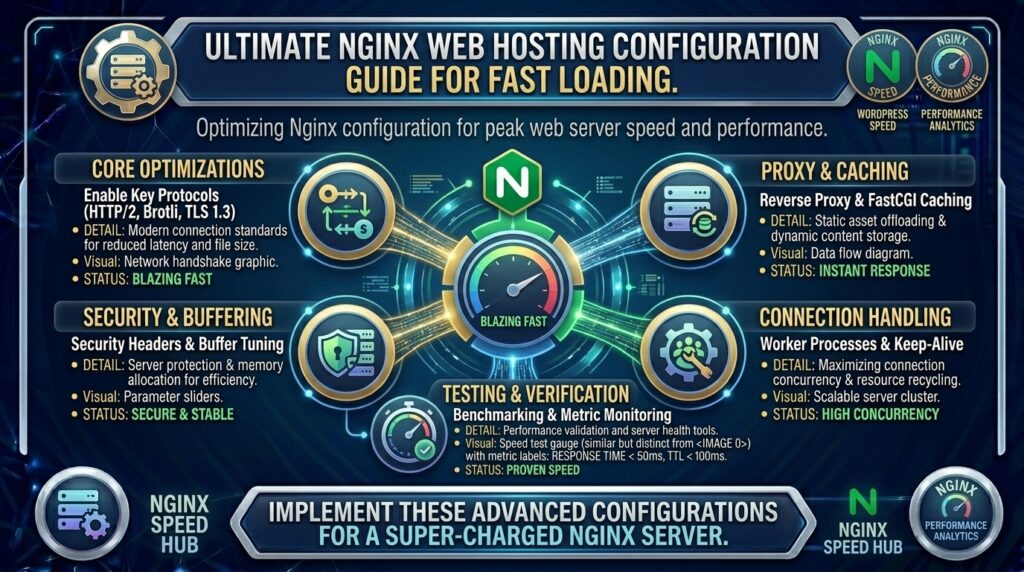
Nginx Web Hosting Configuration Guide for Fast Loading: The Ultimate 2026 Optimization Blueprint
In today’s digital landscape, web performance is no longer just a technical metric—it is a core business requirement. For startups, digital agencies, and e-commerce enterprises across major economic and technology hubs like Texas, New York, California, Washington, and San Francisco, site speed dictates customer retention, conversion rates, and search visibility.
When configuring a web hosting environment for maximum speed, Nginx (pronounced “engine-X”) stands out as an industry-leading high-performance web server, reverse proxy, and HTTP cache. Unlike traditional process-based servers like Apache, Nginx uses an asynchronous, event-driven architecture designed to handle tens of thousands of concurrent connections with minimal memory footprint and near-zero CPU overhead.
This comprehensive guide serves as an authoritative operational blueprint for optimizing Nginx on your hosting server. Whether you are running an unmanaged VPS, a cloud instance, or tuning a dedicated server, this step-by-step configuration guide will help you achieve sub-second page loads, pass Google’s Core Web Vitals, and dominate search engine results pages (SERPs).
1. Why Choose Nginx for High-Speed Web Hosting?
Before diving into configuration files, it is essential to understand the architectural design that makes Nginx the gold standard for high-concurrency web hosting.
The Architectural Advantage: Event-Driven vs. Process-Driven
- Process/Thread-Based Model (Legacy Apache): Traditional web servers spin up a separate worker thread or process for every incoming HTTP request. When your site experiences a traffic surge—such as a viral press push in San Francisco or a flash sale in New York—memory consumption scales linearly, leading to server swapping, high Time to First Byte (TTFB), and eventually “502 Bad Gateway” or “504 Gateway Timeout” crashes.
- Event-Driven Non-Blocking Model (Nginx): Nginx operates using a master process that manages worker processes capable of handling thousands of requests per worker using a single thread. It uses event loops (
epollon Linux) to process incoming requests without blocking, drastically lowering RAM and CPU overhead.
[ Client Request ] ---> [ Nginx Master Process ]
                             |
         +-------------------+-------------------+
         |                                       |
  [ Worker Process 1 ]                  [ Worker Process 2 ]
  (Handles 10,000+ Connections via Non-Blocking Event Loops)
2. Core Global Nginx Settings (nginx.conf) for Maximum Speed
The primary Nginx configuration file is typically located at /etc/nginx/nginx.conf. Tuning these global parameters ensures your server hardware operates at peak hardware efficiency.
Setting Worker Processes and Connections
Edit your /etc/nginx/nginx.conf and configure the worker settings based on your available CPU cores:
Nginx
user www-data;
# Set worker_processes automatically based on available physical CPU cores
worker_processes auto;

# Maximum number of open files per worker process (prevents "too many open files" errors under load)
worker_rlimit_nofile 65535;

events {
    # Determines how many concurrent connections each worker process can handle
    worker_connections 8192;

    # Allows a worker process to accept all new connections at once instead of one by one
    multi_accept on;

    # Uses Linux epoll for high-performance I/O multiplexing
    use epoll;
}
Optimizing Network I/O and Socket Buffers
Below the events block, inside the http context, enable kernel-level socket optimizations to accelerate file transfer speeds:
Nginx
http {
    # Enables zero-copy data transfer directly from disk to network socket (bypasses user space buffers)
    sendfile on;

    # Works alongside sendfile to send HTTP response headers in one single TCP packet
    tcp_nopush on;

    # Disables Nagle's algorithm, sending data packets immediately without delay (crucial for small assets)
    tcp_nodelay on;

    # Keepalive timeout controls how long a keep-alive client connection stays open on the server
    keepalive_timeout 35;
    keepalive_requests 1000;

    # Hide Nginx version number from HTTP response headers for enhanced security
    server_tokens off;

    # Maximum allowed size of client request body (adjust for file uploads)
    client_max_body_size 64M;
}
3. High-Performance Server-Side Caching Architectures
Dynamic content management systems (like WordPress, Drupal, or Magento) process heavy PHP execution loops and database queries on every un-cached hit. To achieve lightning-fast response times, you must implement server-side caching directly within Nginx.
Configuring Nginx FastCGI Cache for Dynamic Applications
FastCGI caching allows Nginx to cache full dynamic HTML responses generated by PHP-FPM directly on the local file system. This allows Nginx to serve subsequent visits instantly without touching PHP or database layers.
Step 1: Define the Cache Zone in /etc/nginx/nginx.conf
Inside the http block of your main configuration file, define your fastcgi_cache_path:
Nginx
http {
    # Defines cache path, keys zone name/size (10m = 10MB index holding ~80,000 keys), and maximum disk size (2GB)
    fastcgi_cache_path /var/run/nginx-cache levels=1:2 keys_zone=FASTCGICACHE:100m max_size=2g inactive=60m use_temp_path=off;

    fastcgi_cache_key "$scheme$request_method$host$request_uri";
    fastcgi_cache_use_stale error timeout updating invalid_header http_500 http_503;
    fastcgi_ignore_headers Cache-Control Expires Set-Cookie;
}
Step 2: Implement FastCGI Cache Rules in Your Virtual Host File
Edit your domain’s configuration file (e.g., /etc/nginx/sites-available/yourdomain.com):
Nginx
server {
    listen 443 ssl http2;
    server_name yourdomain.com www.yourdomain.com;
    root /var/www/yourdomain.com/public_html;
    index index.php index.html;

    # Global bypass flags for logged-in users, WooCommerce carts, and admin areas
    set $skip_cache 0;

    if ($request_method = POST) { set $skip_cache 1; }
    if ($query_string != "") { set $skip_cache 1; }
    if ($request_uri ~* "/wp-admin/|/xmlrpc.php|/wp-.*.php|/cart/|/checkout/|/my-account/") { set $skip_cache 1; }
    if ($http_cookie ~* "comment_author|wordpress_logged_in|wp-postpass|woocommerce_items_in_cart") { set $skip_cache 1; }

    location ~ \.php$ {
        try_files $uri =404;
        fastcgi_split_path_info ^(.+\.php)(/.+)$;

        # Connect to PHP-FPM UNIX socket
        fastcgi_pass unix:/run/php/php8.3-fpm.sock;
        fastcgi_index index.php;
        include fastcgi_params;
        fastcgi_param SCRIPT_FILENAME $document_root$fastcgi_script_name;

        # FastCGI Cache Configuration
        fastcgi_cache FASTCGICACHE;
        fastcgi_cache_valid 200 301 302 60m;
        fastcgi_cache_bypass $skip_cache;
        fastcgi_no_cache $skip_cache;

        # Add debugging header to verify cache status (HIT, MISS, BYPASS)
        add_header X-FastCGI-Cache $upstream_cache_status;
    }
}
4. Advanced Compression: Gzip vs. Brotli
Delivering compressed assets reduces the total bytes transferred over the network, dramatically improving page load speeds on mobile connections in fast-paced hubs from San Francisco to New York.
Enabling Brotli Compression
Brotli, developed by Google, offers up to 20% better compression ratios for text assets (HTML, CSS, JS) compared to traditional Gzip.
Add the following Brotli configuration to your http block in /etc/nginx/nginx.conf:
Nginx
http {
    # Enable Brotli Compression
    brotli on;
    brotli_comp_level 6; # Recommended balance between CPU load and compression ratio
    brotli_static on;    # Serve pre-compressed .br files automatically if available
    brotli_types
        text/plain
        text/css
        text/javascript
        text/xml
        application/javascript
        application/x-javascript
        application/json
        application/xml
        application/xml+rss
        image/svg+xml;

    # Fallback to Gzip for older clients
    gzip on;
    gzip_vary on;
    gzip_proxied any;
    gzip_comp_level 5;
    gzip_min_length 256;
    gzip_types
        text/plain
        text/css
        text/javascript
        application/javascript
        application/json
        application/xml
        image/svg+xml;
}
5. Static Asset Caching and Browser Expiration Headers
Instructing client browsers to store static media files locally slashes server bandwidth consumption and delivers instant loading on repeat visits.
Add long-term caching rules inside your server block:
Nginx
server {
    # Leverage Browser Caching for Images and Fonts (1 Year Expiration)
    location ~* \.(jpg|jpeg|png|gif|ico|svg|webp|avif|woff|woff2|ttf|otf)$ {
        expires 365d;
        add_header Cache-Control "public, no-transform, immutable";
        access_log off;
        log_not_found off;
    }

    # Leverage Browser Caching for CSS and JavaScript (1 Month Expiration)
    location ~* \.(css|js)$ {
        expires 30d;
        add_header Cache-Control "public, no-transform";
        access_log off;
        log_not_found off;
    }
}
6. HTTP/2, HTTP/3 (QUIC), and TLS Optimization
Modern transport protocols eliminate head-of-line blocking, allowing browsers to download multiple assets simultaneously over a single multiplexed TCP or UDP connection.
Secure, Fast SSL Configuration File
Ensure your SSL setup utilizes modern TLS protocols and session caching:
Nginx
server {
    listen 443 ssl http2;
    # Modern Nginx versions support HTTP/3 over QUIC:
    # listen 443 quic reuseport;

    server_name yourdomain.com;

    ssl_certificate /etc/letsencrypt/live/yourdomain.com/fullchain.pem;
    ssl_certificate_key /etc/letsencrypt/live/yourdomain.com/privkey.pem;

    # TLS Protocols & Cipher Suite Optimizations
    ssl_protocols TLSv1.2 TLSv1.3;
    ssl_ciphers ECDHE-ECDSA-AES128-GCM-SHA256:ECDHE-RSA-AES128-GCM-SHA256:ECDHE-ECDSA-AES256-GCM-SHA384:ECDHE-RSA-AES256-GCM-SHA384;
    ssl_prefer_server_ciphers off;

    # SSL Session Caching (Saves CPU cycles on SSL handshakes)
    ssl_session_cache shared:SSL:50m;
    ssl_session_timeout 1d;
    ssl_session_tickets off;

    # OCSP Stapling (Allows Nginx to attach SSL certificate revocation proof directly)
    ssl_stapling on;
    ssl_stapling_verify on;
    resolver 1.1.1.1 8.8.8.8 valid=300s;
    resolver_timeout 5s;

    # HTTP Strict Transport Security (HSTS)
    add_header Strict-Transport-Security "max-age=63072000; includeSubDomains; preload" always;
}
7. Security Hardening and Rate Limiting for Fast Response Times
Malicious scrapers, brute-force bots, and DDoS attacks consume critical server resources, raising TTFB for real human visitors. Hardening Nginx ensures resources remain available for actual customers.
Setting Up Rate Limiting Zones
Prevent denial-of-service attempts by restricting aggressive request rates:
Nginx
http {
    # Limit requests per IP address (10 requests per second)
    limit_req_zone $binary_remote_addr zone=req_limit_per_ip:10m rate=10r/s;
    limit_conn_zone $binary_remote_addr zone=conn_limit_per_ip:10m;

    server {
        # Apply rate limiting to login paths or WordPress wp-login.php
        location = /wp-login.php {
            limit_req zone=req_limit_per_ip burst=5 nodelay;
            include fastcgi_params;
            fastcgi_pass unix:/run/php/php8.3-fpm.sock;
        }
    }
}
8. How Nginx Optimization Directly Drives Google SEO
Search engines like Google utilize Core Web Vitals as explicit ranking factors. An optimized Nginx configuration directly targets these technical metrics:
- Time to First Byte (TTFB): Implementing Nginx FastCGI caching drops raw server processing time from 800ms+ down to under 50ms, ensuring you easily pass Google’s TTFB benchmarks.
- Largest Contentful Paint (LCP): Enabling Brotli compression, browser caching headers, and HTTP/2 multiplexing allows the browser to download and render key hero images and stylesheets significantly faster.
- Crawl Budget Efficiency: When Nginx processes requests quickly without dropping connections, Googlebot can index thousands of additional product pages or articles per crawl session.
9. Frequently Asked Questions (FAQ)
1. What is Nginx and why is it preferred over Apache for high-speed web hosting?
Nginx is an event-driven, non-blocking web server designed to handle thousands of concurrent requests with minimal memory and CPU usage, making it far faster than Apache under high traffic conditions.
2. Can I run Nginx alongside Apache?
Yes. A popular architecture involves using Nginx as a reverse proxy in front of Apache. Nginx handles static file requests, SSL termination, and caching, while passing dynamic requests to Apache behind the scenes.
3. How does FastCGI Caching work in Nginx?
FastCGI caching allows Nginx to cache full dynamic HTML responses generated by backend scripts (like PHP) in memory or on disk. Subsequent requests are served directly by Nginx, bypassing PHP and MySQL entirely.
4. What is the ideal setting for worker_processes in Nginx?
The general best practice is setting worker_processes auto;, which instructs Nginx to automatically match the number of physical or virtual CPU cores available on your server.
5. Is Brotli compression better than Gzip for Nginx?
Yes. Brotli generally yields 15% to 20% smaller file sizes for text assets (HTML, CSS, JS) compared to Gzip, resulting in faster download times for visitors.
6. How do I test if my Nginx configuration changes are error-free before restarting?
Always run the command sudo nginx -t in your terminal. This validates your syntax and checks for errors without bringing down your live web server.
7. How does Nginx impact Google’s Time to First Byte (TTFB)?
By serving pre-rendered cached pages directly from disk or RAM, Nginx eliminates database lookups and PHP execution delays, dropping TTFB down to under 50 milliseconds.
8. What is sendfile in Nginx configuration?
The sendfile directive enables direct zero-copy file transfers from the operating system’s kernel buffer directly to the network socket, saving memory and speeding up static asset delivery.
9. What should I do if Nginx throws a “502 Bad Gateway” error?
A 502 error usually indicates that Nginx is running properly, but the backend process (such as PHP-FPM or a Node.js application) crashed or timed out. Check your PHP-FPM logs and Nginx error logs at /var/log/nginx/error.log.
10. Can Nginx handle SSL certificates automatically?
Yes. You can pair Nginx with free tools like Let’s Encrypt and Certbot (certbot --nginx), which automatically issue, configure, and renew SSL/TLS certificates directly in your Nginx configuration.
10. Conclusion
Optimizing Nginx for high-speed web hosting is one of the most effective technical upgrades you can make for your digital infrastructure. By replacing unoptimized legacy defaults with tuned event loops, FastCGI server-side caching, Brotli compression, HTTP/2 or HTTP/3 transport protocols, and browser expiration headers, you transform your web host into a lightning-fast content delivery machine.