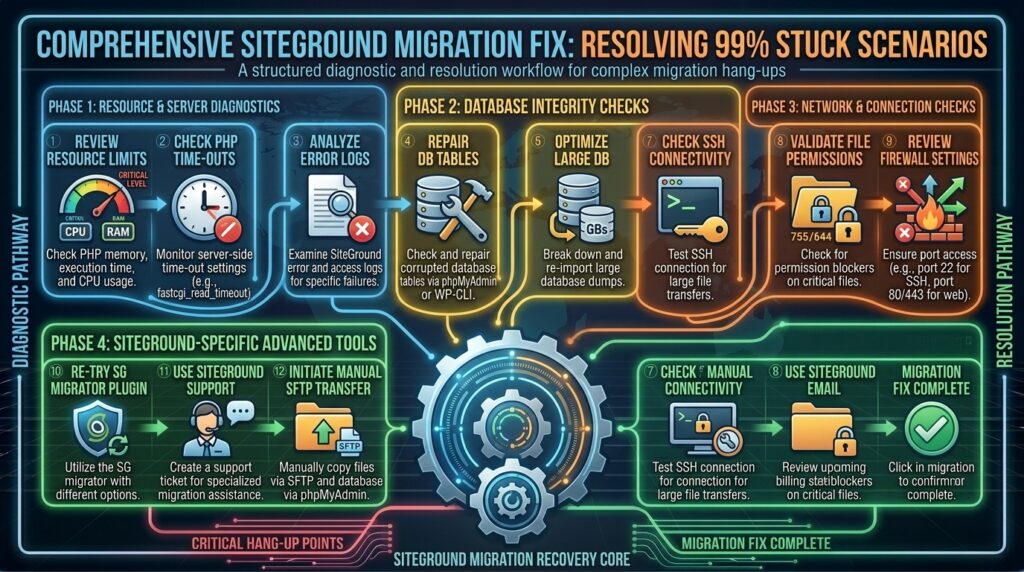
How to resolve siteground site migration stuck at 99 percent? Welcome to thehostreviews.com—your premier authoritative destination for website migration guides, web hosting performance evaluations, and CMS troubleshooting workflows spanning major technology hubs from New York and San Francisco to Texas, California, and Washington.
Introduction: The Anxiety of the 99% Migration Stall
Moving a WordPress website to a new host should ideally be an exciting milestone. Whether you are migrating a high-traffic e-commerce store in New York, a digital media agency portfolio in San Francisco, or a growing blog based in Texas, choosing SiteGround is a popular path forward due to their powerful Site Tools platform and high-speed infrastructure.
To simplify this transition, SiteGround provides the free SiteGround Migrator plugin, designed to make transferring files, databases, and media from an old host as simple as pasting a migration token. For small sites, the process takes minutes.
However, thousands of webmasters experience a frustrating technical roadblock: the migration progress bar creeps smoothly up to 99 percent and then freezes indefinitely. The page stops moving, no error message appears, and you are left wondering whether to close the browser or wait it out.
When a migration freezes at 99%, it means the bulk data transfer (the heavy lifting) is completely done, but the finalization steps—such as database adjustments, permalink rewrites, file permission verifications, or SSL generation—have stalled due to server limitations.
This comprehensive, step-by-step masterclass breaks down the precise architectural causes of this freezing phenomenon and provides a definitive troubleshooting playbook to push your migration across the finish line successfully.
Part 1: Why Does the Migration Freeze at 99%?
Before applying fixes, it helps to understand what is happening under the hood during the final phase of a SiteGround migration:
- PHP Execution Time Limits Exceeded: The server script has hit its maximum allowed running time (
max_execution_time) right as it tries to write final configuration rules or clear caches. - PHP Memory Limit Exhaustion: The migration script runs out of allocated RAM when attempting to parse large database tables or rebuild index structures.
- Target Server Conflicts: If residual files or an old default installation exist in the destination directory, the final configuration script fails to overwrite them.
- ModSecurity or Server Firewall Blocks: Aggressive web application firewalls on either the source or destination server mistake final administrative write requests for malicious behavior and drop the connection silently.
Part 2: Step-by-Step Troubleshooting and Resolution Playbook
If your SiteGround migration is frozen at 99%, do not panic or close your browser abruptly. Follow this systematic restoration workflow to unblock the process.
Step 1: Wait Patiently (The 30-Minute Rule)
- The Reality: Sometimes 99% is not actually frozen; it is simply processing heavy database queries, serializing extensive options tables, or compressing large media registries in the background.
- The Action: If your website is large (over 5GB to 10GB), leave the migration tab open for at least 30 to 45 minutes. If no error code appears and the progress bar hasn’t moved after a full hour, proceed to the next technical steps.
Step 2: Check the Source Site’s PHP Memory Limit
During a SiteGround Migrator transfer, the heavy processing load is heavily dependent on the source server. If the source host restricts PHP memory too tightly, the final packaging script crashes right before completion.
- Log into your source hosting account and open your file manager or connect via SFTP.
- Locate your WordPress root directory and open the
wp-config.phpfile. - Look for the memory limit line. If it doesn’t exist, add the following line right above the final happy publishing comment: PHP
define( 'WP_MEMORY_LIMIT', '512M' ); - Save the file and restart the migration process from your SiteGround dashboard.
Step 3: Clean Out Unnecessary Bloat and Backup Archives
Large, redundant files hidden deep inside your source directories can choke the final import routine.
- On your source WordPress installation, navigate to
wp-content/uploads/or look inside your plugin and theme directories (wp-content/plugins/andwp-content/themes/). - Look for old backup zip archives, error logs, or massive unused media files that may have been bundled into the export stream.
- Delete these redundant files to trim the overall package size, which drastically reduces memory consumption and prevents 99% freezes.
Step 4: Clear the Destination Directory on SiteGround
If you attempted a previous migration that failed or if SiteGround pre-installed a default WordPress skeleton file, conflicting root files can block the final installation script at 99%.
- Log into your SiteGround Site Tools dashboard.
- Navigate to Site > File Manager and open your domain’s root folder (
public_html/). - Check if there are leftover files or conflicting folders from a previous installation.
- Clean the directory completely (making sure to back up anything critical first) so that the destination is a pristine, empty slate.
- Regenerate a fresh migration token in SiteGround and restart the transfer.
Step 5: Temporarily Disable Heavy Security Plugins
Security plugins running on your source site (such as Wordfence, Solid Security, or custom firewalls) often intercept automated XML-RPC or REST API calls made by the SiteGround Migrator plugin during final file verification steps.
- Log into your source website dashboard.
- Temporarily deactivate active security plugins, CAPTCHA tools, and maintenance mode plugins.
- Restart the migration. Once the transfer completes successfully, you can reactivate your security tools on your new SiteGround host.
Part 3: Alternative Migration Options if the Plugin Fails
If the SiteGround Migrator plugin continues to stall out at 99% due to deeply embedded server constraints at your old host, you have access to robust alternative methods to get your site moved over seamlessly:
Alternative A: Use the Free SiteGround Professional Migration Service
SiteGround offers expert human-assisted migrations for many hosting accounts.
- Log into your SiteGround Client Area.
- Go to the Support section and look for professional migration services.
- Submit your old host credentials, and SiteGround’s internal migration engineers will manually transfer your website completely free of charge or error-free.
Alternative B: Manual Migration via Duplicator or All-in-One WP Migration
If automated tokens fail, use a trusted backup plugin:
- Install a backup plugin like Duplicator or All-in-One WP Migration on your source site.
- Export your package archive.
- Create a fresh, blank WordPress installation on SiteGround using Site Tools.
- Upload and restore your backup package directly into the new SiteGround environment.
Part 4: Frequently Asked Questions (FAQ)
1. Why does my SiteGround migration always stop at 99 percent?
A freeze at 99% typically indicates that the data transfer is complete, but the final configuration steps have hit a server PHP time limit, memory exhaustion, or a file permission conflict.
2. Should I close the browser tab if my migration is stuck at 99%?
You should wait at least 30 to 45 minutes first. If no changes occur and no error code appears after an hour, it is safe to close the tab and investigate server memory or file conflicts.
3. Does a freeze at 99% mean my website data is lost?
No. Your original website files and database on your source host remain completely untouched and safe.
4. How can I increase my PHP memory limit to fix migration stalls?
You can increase your memory limit by editing the wp-config.php file on your source server and adding the line: define( 'WP_MEMORY_LIMIT', '512M' );
5. Can security plugins cause a SiteGround migration to fail?
Yes. Aggressive firewalls, CAPTCHA utilities, and security plugins on your source site can block the final API requests made by the SiteGround Migrator plugin.
6. What should I do if the SiteGround Migrator plugin keeps failing?
You can request a free professional migration directly through your SiteGround client area support desk, letting SiteGround’s technical team handle the transfer manually.
7. Do I need technical coding skills to fix a 99% migration freeze?
Basic familiarity with editing files via an FTP client or cPanel File Manager is helpful, but SiteGround’s 24/7 support team can also troubleshoot and resolve the blockage for you.
8. How long should a standard website migration take?
Most standard WordPress websites migrate in under 10 to 15 minutes, depending on the total size of your media library and database tables.
9. Should I delete old backup files before migrating?
Yes. Deleting redundant backup zips and large cache files from your source site reduces overall memory overhead and prevents timeout failures.
10. Who should I contact if my migration is completely unresolvable?
If basic troubleshooting steps fail, open a priority support ticket with SiteGround’s 24/7 expert technical support team for immediate backend assistance.
Conclusion
Getting stuck at 99 percent during a SiteGround site migration can be an unnerving experience, but it is an entirely solvable technical hurdle. By understanding server resource constraints, increasing PHP memory limits, clearing out unnecessary source files, disabling restrictive security plugins, or utilizing SiteGround’s free professional migration service, you can bring your website safely to its new high-performance home.