How to Fix Error Updating WordPress Core on Managed Hosting
For digital entrepreneurs, developers, and agency owners scaling web properties across major hubs like Texas, New York, California, Washington, and San Francisco, keeping your content management system secure and up-to-date is vital. When WordPress rolls out a new security patch or major version release, clicking the “Update Now” button should be a routine maintenance task.
However, hitting a brick wall with an Error Updating WordPress Core message—or encountering frozen maintenance loops, permission denials, or white screens of death—can induce sudden panic. When running on managed WordPress hosting platforms (such as WP Engine, Kinsta, SiteGround, or specialized cPanel managed environments), core update failures are uniquely frustrating because you often lack root server access, forcing you to rely on specific panel troubleshooting workflows.
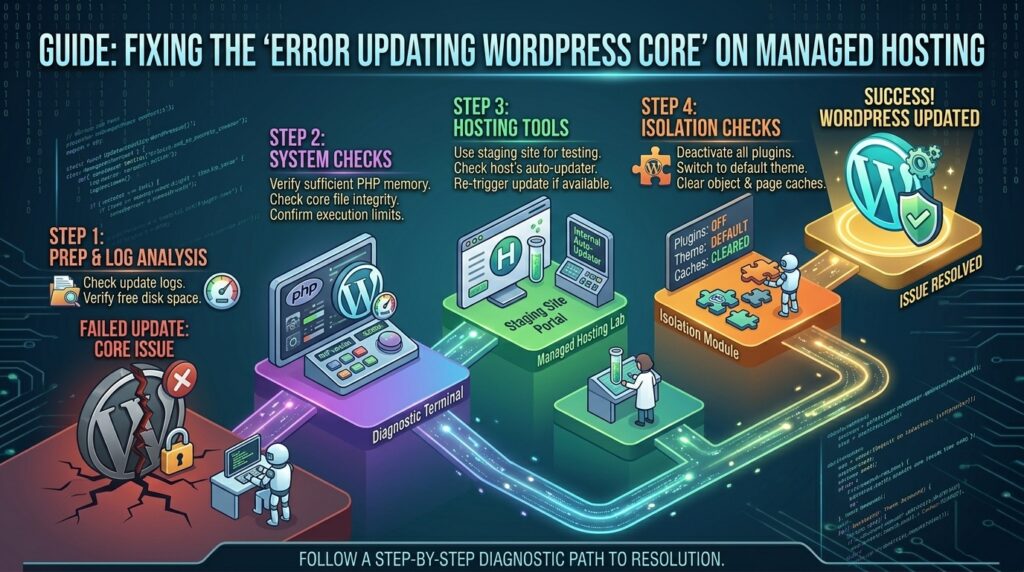
This definitive, highly comprehensive guide will walk you through diagnosing, troubleshooting, and permanently fixing WordPress core update errors on managed hosting environments.
Understanding How WordPress Core Updates Work
To effectively troubleshoot an update failure, it helps to understand what WordPress does under the hood when you initiate a core update:
- Version Check & Download: WordPress contacts the official repository (
api.wordpress.org), downloads the latest.ziparchive of the core files, and verifies its cryptographic integrity. - Maintenance Mode Activation: WordPress creates a temporary file named
.maintenancein your website’s root directory (public_html), displaying the “Briefly unavailable for scheduled maintenance. Check back in a minute.” message to visitors. - File Replacement & Database Upgrade: WordPress extracts the new archive, overwrites outdated core files (excluding your
wp-contentfolder andwp-config.php), and executes database schema updates viawp_upgrade(). - Maintenance Mode Removal: The
.maintenancefile is deleted, and your site returns to normal operations.
If any step in this sequence breaks—whether due to file permission locks, disk space limits, PHP memory exhaustion, or database connection drops—the update fails, often leaving your site trapped in maintenance mode.
Phase 1: Immediate Triage (Fixing Stuck Maintenance Mode)
If your core update failed halfway through, your visitors are likely seeing the dreaded maintenance notification, and your admin dashboard may be locked out.
1. Removing the Stuck .maintenance File
When a background update process times out, WordPress frequently forgets to delete the .maintenance lock file.
- How to Fix via File Manager or SFTP:
- Log into your hosting cPanel File Manager or connect via an SFTP client (like FileZilla).
- Navigate to your website’s root directory (
public_htmlor your domain folder). - Look for a hidden file named
.maintenance(make sure your file manager is set to show hidden files starting with a dot). - Select and Delete the
.maintenancefile. - Refresh your website and admin dashboard. The error screen will disappear immediately.
Phase 2: Diagnosing Root Causes of Core Update Failures
Managed hosting environments optimize server speed and security, but strict resource limitations or environment configurations can interfere with WordPress core file execution.
| Error Symptom / Message | Primary Root Cause | Recommended Action |
| Download Failed: A valid URL was not provided | Outbound firewall blocks connection to WordPress.org API | Whitelist API IPs or contact managed host support |
| Could not create directory / File creation failed | Incorrect file permissions or ownership on server | Reset file ownership via hosting tools or support |
| Installation Failed | Corrupted download cache or partial file extraction | Perform a manual core update via SFTP |
| Fatal Error: Allowed memory size exhausted | PHP memory limit hit during unzipping process | Increase memory_limit in MultiPHP INI editor |
1. Fixing PHP Memory Limit Exhaustion
WordPress core updates require significant server memory to download, unpack, and write hundreds of core files simultaneously. If your PHP memory limit is set too low (e.g., 128MB or lower), the process will crash mid-way.
- How to Fix:
- Log into your cPanel dashboard.
- Search for MultiPHP INI Editor.
- Select your domain and locate the
memory_limitdirective. - Increase it to at least 512M.
- Save changes and retry the core update.
2. Resolving File Permission and Ownership Conflicts
Managed hosts enforce strict security policies regarding file ownership. If your WordPress files are owned by the wrong system user, PHP cannot overwrite core files during an update.
- How to Fix on Managed cPanel:Many managed hosting providers include tools in WHM or user dashboards to “Fix File Permissions.” If you have root access or a supportive managed host, ensure your files are owned by your specific cPanel username and set to standard permissions (
755for directories,644for files).
Phase 3: The Ultimate Solution – Performing a Manual Core Update
If the automatic updater continues to fail due to stubborn server-side restrictions, performing a manual core update via SFTP is 100% reliable, fast, and safe.
Step-by-Step Manual Update Guide:
- Back Up Your Website: Always generate a full backup of your website files and database before making core modifications.
- Download Clean WordPress Files: Go to
wordpress.org/downloadand download the latest.ziparchive of WordPress to your local computer. - Extract and Prepare: Extract the ZIP file on your computer. Inside, you will see a folder named
wordpress. Open it. - Delete Dangerous Files: Inside the extracted folder, delete the
wp-contentfolder and thewp-config-sample.phpfile. Crucial: Never upload a freshwp-contentfolder or overwrite your existingwp-config.php, as this will wipe out your themes, plugins, uploads, and database connection settings! - Connect via SFTP / File Manager: Log into your hosting account using File Manager or an SFTP client.
- Upload Core Files: Upload all the remaining files and folders from your local
wordpressdirectory directly into your website’s root directory (public_html), choosing the Overwrite option when prompted. - Run Database Upgrades: Once uploaded, navigate to
[yourdomain.com/wp-admin/](https://yourdomain.com/wp-admin/)and log in. If a database update is required, WordPress will prompt you to click “Update WordPress Database.” Click it to finalize the process.
Phase 4: Advanced Managed Host Troubleshooting
If you are using an enterprise-managed WordPress host (like WP Engine or Kinsta) that locks down file editing, core updates are typically managed through their native dashboards or automated systems.
1. Handling Git / Version Control Conflicts
Many managed developer workflows use Git repositories or staging environments to push updates. If your core files have been modified manually or diverge from the master repository version, automated updates will block execution to prevent overwriting custom core code.
- Resolution: Revert any manual modifications made to core system files and use your host’s staging-to-production deployment tool to push clean core files safely.
2. Investigating Server Error Logs
If your update results in a 500 Internal Server Error, check your server error logs:
Bash
# If you have shell access, tail your error log
tail -f /home/username/public_html/error_log
Look for memory leaks, timeout exceptions, or permission denied entries that point to the exact blocking file.
Preventative Best Practices for Seamless WordPress Updates
- Test on Staging First: Always run core updates on a staging clone provided by your managed host before clicking update on your live production site.
- Keep Plugins and Themes Compatible: Outdated plugins can hook into core update routines and crash the process. Update your plugins before updating WordPress core.
- Use Staging Backups: Verify that your managed host runs automated daily backups so you can instantly roll back if an update goes sideways.
Frequently Asked Questions (FAQ)
1. Why does my WordPress site stay stuck in “Briefly unavailable for scheduled maintenance”?
This happens when the temporary .maintenance file fails to delete after a crashed update. Log into your File Manager, locate the .maintenance file in your root directory, and delete it manually.
2. Is it safe to perform a manual WordPress core update?
Yes, manual updates via SFTP are extremely safe as long as you carefully exclude the wp-content folder and your wp-config.php file from being overwritten.
3. What causes the “Download Failed: A valid URL was not provided” error?
This error occurs when your server’s firewall or network configuration blocks outgoing HTTP requests to WordPress.org’s API servers. Contact your managed host to check their outbound firewall rules.
4. Can an exhausted PHP memory limit break my WordPress updates?
Yes. Unzipping and writing core files requires substantial RAM. If your server hits its PHP memory ceiling, the update script terminates abruptly, leaving your site partially updated and broken.
5. Why do managed hosts restrict file edits in the WordPress dashboard?
Managed hosts restrict core file editing and plugin installations via dashboard file editors to protect your site from malware injection and unauthorized tampering.
6. Do I need to back up my database before updating WordPress core?
Absolutely. While core updates rarely corrupt databases, a sudden server timeout during a database schema upgrade can cause data corruption. Always back up both files and database first.
7. What should I do if my admin dashboard is inaccessible after a failed update?
If you cannot access /wp-admin/, log into your server via File Manager or SFTP, delete the .maintenance file, and check if replacing core files manually restores access.
8. Why does my managed host handle updates automatically sometimes?
Many managed WordPress hosts feature automatic background core updates for minor security releases. If a major release fails, it often requires manual administrative intervention.
9. Can caching plugins interfere with WordPress core updates?
Server-level caches or aggressive object caches (like Redis/Memcached) can sometimes serve cached versions of admin scripts during an update. Clear all server and object caches before updating.
10. When should I contact my managed hosting support team?
If you have cleared the .maintenance file, increased your PHP memory limit, verified file permissions, and still cannot complete a core update due to server-side firewall or path restrictions, open a support ticket immediately.
Conclusion
Encountering an error while updating WordPress core on managed hosting can disrupt your workflow, but it is entirely fixable with a systematic approach. Whether it is clearing a stuck maintenance lock file, increasing your PHP memory ceiling, or executing a clean manual core update via SFTP, following these expert guidelines will restore your dashboard, protect your site security, and ensure smooth website management.