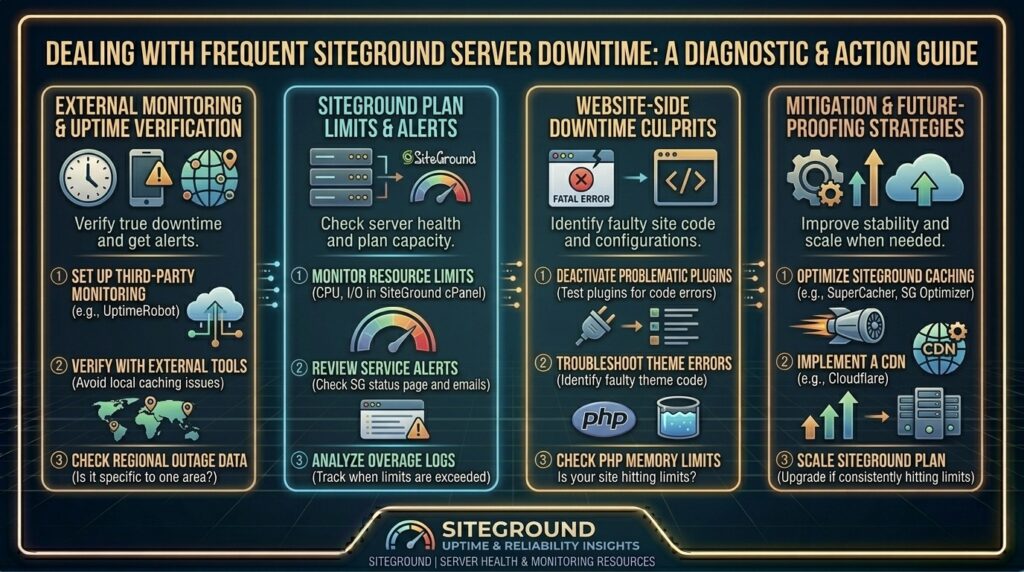
How to Deal with Frequent SiteGround Server Downtime: The Ultimate Reliability and Disaster Recovery Guide
Welcome to thehostreviews.com—your premier authoritative destination for web hosting uptime monitoring, server reliability analysis, and cloud infrastructure disaster recovery reviews spanning major tech hubs from New York and San Francisco to Texas, California, and Washington.
Introduction: The Agony of Unscheduled Downtime
As a website owner, digital agency director, or e-commerce entrepreneur, few experiences induce as much immediate panic as checking your monitoring dashboard and seeing a stark, unblinking red alert: Site Offline.
SiteGround has long enjoyed a stellar reputation in the WordPress hosting ecosystem for its stellar customer support, proprietary speed optimization tools, and robust Google Cloud-powered infrastructure. However, no hosting provider on earth maintains 100% flawless, uninterrupted uptime. When a reliable host like SiteGround begins experiencing frequent, unexpected server downtime, micro-outages, 504 Gateway Timeouts, or erratic availability fluctuations, the consequences are severe:
- Lost Revenue: E-commerce carts abandon instantly when a checkout page fails to load.
- SEO Penalties: If Google’s web crawlers repeatedly encounter 503 Service Unavailable errors when indexing your pages, your search rankings plummet.
- Brand Erosion: Visitors lose trust in a professional brand whose platform is perpetually unstable.
When downtime strikes, blaming your host is only the first step. You need a rigorous engineering framework to diagnose the root cause, communicate transparently with your audience, pressure-test your hosting provider, and implement bulletproof failover architectures.
This comprehensive, expert-level guide will walk you through the anatomy of server outages, step-by-step diagnostic procedures, tactical troubleshooting steps, and advanced redundancy strategies to protect your web business from future interruptions.
Part 1: Deconstructing the Anatomy of Website Downtime
Before opening a support ticket or migrating your files, you must understand why websites go down. Not all downtime is created equal. Outages typically stem from one of four primary vectors:
1. Infrastructure-Level Outages (The Host’s Responsibility)
These are failures originating directly inside the hosting provider’s data center or network backbone:
- Physical hardware failures (e.g., a blown power supply unit, failing storage array controller, or overheating server rack).
- Upstream network backbone cuts or Border Gateway Protocol (BGP) routing anomalies.
- Cloud infrastructure scaling bottlenecks (e.g., Google Cloud regional network partitions affecting GCP-hosted accounts).
2. Application-Level Crashes (The Developer’s Responsibility)
Often, a website appears “down” to visitors, but the server hardware itself is running fine:
- PHP Memory Exhaustion: A rogue script or plugin update triggers a fatal out-of-memory error, causing the PHP-FPM worker pool to crash and throw a 500 Internal Server Error.
- Database Deadlocks: Corrupted MySQL tables or unindexed database queries cause infinite waiting loops, locking up connection pools and generating 504 Gateway Timeouts.
- Infinite Loops & Cron Storms: A misconfigured WordPress cron job or background script fires repeatedly, consuming 100% of available CPU cores and stalling incoming visitor requests.
3. Traffic Surges and DDoS Attacks
- Malicious Botnets: Aggressive credential stuffing attacks, automated vulnerability scanners, or distributed denial-of-service (DDoS) traffic flood your server with millions of invalid requests, exhausting your available connection queues and starving legitimate human visitors.
- Viral Traffic Spikes: Legitimate traffic surges that exceed your hosting account’s allocated CPU and RAM resource caps.
4. DNS and SSL Configuration Failures
- DNS Propagation Errors: Misconfigured A records, corrupted nameservers, or sudden TTL drops can render your domain unreachable even if your server is healthy.
- Expired SSL Certificates: Expired or broken Let’s Encrypt certificates trigger browser security blocks that look identical to server downtime to casual visitors.
Part 2: Step-by-Step Troubleshooting Checklist When SiteGround Goes Down
When your monitoring alerts indicate that your SiteGround-hosted website is throwing errors or timing out, do not panic. Execute this systematic diagnostic checklist immediately:
Step 1: Verify Outage Scope (Is It Just You or Everyone?)
Never rely on a single browser tab to determine if your site is down. Local DNS caching or browser extensions can create false impressions.
- Use independent global testing tools like Down for Everyone or Just Me, UptimeRobot, or KeyCDN Tools.
- Test your URL from multiple independent geographic nodes (e.g., checking response status from New York, London, and Tokyo simultaneously).
- If global tools report a 503 or 504 error across all regions, the issue is server-side. If external tools can reach your site fine while you cannot, clear your local browser cache and flush your local computer’s DNS resolver (
ipconfig /flushdnson Windows orsudo dscacheutil -flushcacheon macOS).
Step 2: Identify the Exact HTTP Error Code
The specific error code your site displays provides a roadmap to the underlying problem:
- HTTP 500 Internal Server Error: A generic application crash. Usually caused by a broken
.htaccessfile, corrupted plugin, or fatal PHP syntax error. - HTTP 502 Bad Gateway / 504 Gateway Timeouts: The upstream web server (Nginx/Apache) took too long to communicate with the application backend (PHP-FPM or MySQL). This points directly to database locks, high server load, or slow queries.
- HTTP 503 Service Unavailable: The server is temporarily unable to handle the request due to temporary overloading or maintenance. This is the classic signature of a resource quota exhaustion or traffic spike on shared hosting.
Step 3: Check SiteGround System Status and Server Notices
- Log into your SiteGround User Area.
- Check the Help Center and system status banners for active maintenance alerts, server migrations, or data center incidents affecting your specific server node. SiteGround transparently reports regional infrastructure updates and unscheduled hardware maintenance.
Step 4: Access SiteGround Site Tools Recovery Mode
If your WordPress dashboard is locked out due to an application crash, you can still access and manage your files without logging into WordPress:
- Log into SiteGround, navigate to Site Tools > Site > File Manager.
- Navigate to your root directory (
/public_html/wp-content/plugins/). - If a recent plugin update crashed your site, rename the
pluginsfolder toplugins_backup. This instantly disables all plugins, allowing you to regain access to your WordPress dashboard, troubleshoot the culprit, and restore normal operations.
Part 3: Advanced Action Plan — How to Deal with Persistent Outages
If your SiteGround server is experiencing recurring, daily downtime or micro-outages that impact your business operations, escalate your approach using this strategic action plan:
Step 1: Leverage SiteGround Support with Precise Engineering Data
Generic support tickets saying “My site is down, please help” often result in boilerplate responses. To get immediate attention from SiteGround’s senior sysadmins, provide exact technical documentation in your support ticket:
- Exact Timestamps: Note the precise minute the outage occurred (e.g., “Site experienced a 504 Gateway Timeout between 14:12 and 14:28 EST on August 18”).
- Error Log Snippets: Access your SiteTools Error Log (
Site Tools > Devs > Error Log) and copy the exact fatal PHP error strings or server timeout traces. - Traceroute or MTR Reports: If network connectivity is failing, provide an MTR report from your terminal pointing to your server IP.
Step 2: Investigate “Noisy Neighbor” Resource Quota Limits
SiteGround allocates specific CPU and memory quotas to hosting accounts. If your account repeatedly triggers CPU usage limits or memory caps, SiteGround’s automated security and resource guardians may throttle your site or return 503 errors.
- In SiteTools, navigate to Statistics > Audits > CPU Usage.
- Review historical graphs to see if your site is spiking resource limits during peak hours. If resource caps are consistently maxed out, it is time to optimize your database queries, implement persistent object caching (Redis), or upgrade your hosting plan tier.
Step 3: Implement Enterprise-Grade Uptime Monitoring
Do not rely on your host to tell you when they are down. Set up independent, aggressive third-party monitoring:
- Configure tools like UptimeRobot, Datadog, or Pingdom to ping your website every 1 minute.
- Set up multi-channel notification alerts (SMS, Slack, email, and webhook triggers) so your engineering team is alerted the second an outage is detected.
Part 4: Future-Proofing — Building Redundancy Against Hosting Outages
If recurring outages threaten your bottom line and SiteGround cannot resolve underlying infrastructure bottlenecks on your shared or cloud node, you must architect a resilient disaster recovery strategy:
- Deploy Cloudflare Enterprise or Pro with “Always Online”: Route your DNS through Cloudflare. If your origin server at SiteGround goes down unexpectedly, Cloudflare’s Always Online technology serves cached static snapshots of your web pages to visitors, keeping your brand visible even during total server blackouts.
- Automate Real-Time Off-Site Backups: While SiteGround offers built-in daily backups, always maintain independent, encrypted off-site backups stored on external cloud storage (such as Amazon S3, Wasabi, or Google Cloud) using plugins like UpdraftPlus or BlogVault. If a catastrophic server failure occurs, you can redeploy your entire site to a new host within minutes.
- Establish a Staging Migration Plan: Keep your deployment documentation and server configuration checklists up to date. If persistent downtime forces you to migrate away from SiteGround, having a clean, standardized migration playbook ensures you can transition your infrastructure to a high-performance alternative (like a dedicated cloud VPS or enterprise managed host) with zero structural friction.
Part 5: Frequently Asked Questions (FAQ)
1. Why does my SiteGround website keep going down intermittently?
Intermittent downtime is typically caused by temporary resource quota exhaustion (CPU/RAM spikes), database deadlocks, heavy background cron tasks, or micro-outages on your assigned server node.
2. What does a 503 Service Unavailable error mean on SiteGround?
An HTTP 503 error means the server is currently unable to handle your request, usually because the server is overloaded, undergoing maintenance, or your account has hit its shared CPU resource limits.
3. How can I check if SiteGround is experiencing a wider network outage?
You can check active infrastructure alerts in your SiteGround User Area, monitor community status boards, or test your site’s global availability using external tools like UptimeRobot or KeyCDN Tools.
4. Does SiteGround offer an uptime guarantee?
Yes, SiteGround maintains a standard network and server uptime SLA (Service Level Agreement) in their terms of service, though compensation for minor outages typically requires proving extended, unmitigated downtime.
5. How do I access my SiteGround files if my WordPress dashboard is locked out?
You can bypass a locked WordPress dashboard entirely by logging into SiteGround, opening Site Tools > File Manager, and managing your files or disabling broken plugins manually.
6. What information should I include when opening a SiteGround support ticket?
To get fast assistance, provide exact timestamps of the outage, copy error log messages from your SiteTools panel, and include performance audit results or traceroute reports.
7. Can a plugin update cause my site to go down?
Yes. Installing an incompatible, poorly coded, or conflicting plugin update can trigger fatal PHP errors, causing a white screen of death or 500 internal server errors.
8. How does Cloudflare help mitigate downtime?
Cloudflare acts as a protective shield and reverse proxy. Its Always Online feature can serve static cached copies of your web pages to visitors even if your origin server at SiteGround crashes completely.
9. Should I upgrade my SiteGround plan to prevent downtime?
If your site audit graphs show that you are frequently maxing out your account’s CPU seconds or memory limits, upgrading from Startup to GrowBig or GoGeek (or a cloud plan) provides dedicated resources that prevent resource-related downtime.
10. When is it time to migrate away from SiteGround to another host?
If you experience frequent, unaddressed infrastructure outages, slow support response times during critical incidents, or persistent server instability that harms your business revenue, it is time to migrate your site to a more reliable cloud hosting provider.
Conclusion
Dealing with frequent server downtime on any hosting platform is frustrating, but approaching outages with a structured, engineering-minded strategy empowers you to diagnose problems rapidly, communicate effectively with support, and bulletproof your infrastructure against future failures. Whether troubleshooting database locks, optimizing PHP worker allocations, or deploying Cloudflare redundancy, proactive preparation ensures your web platform remains resilient and online.