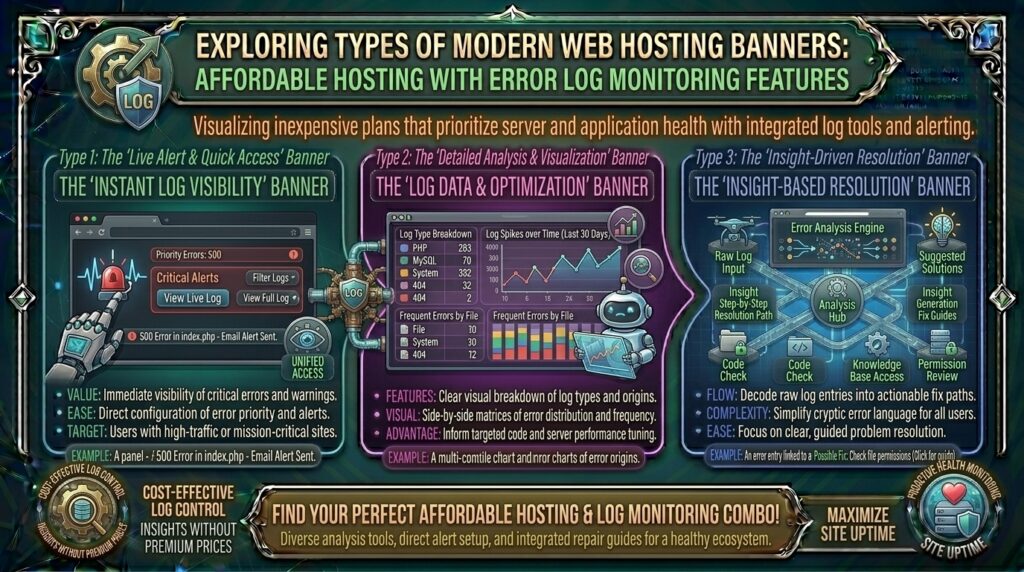
When launching or scaling a web project for audiences across high-tech hubs like Texas, New York, California, Washington, and San Francisco, keeping operational costs low is an ongoing priority. Budget-conscious site owners, developers, and startups frequently turn to affordable web hosting plans ranging from $2 to $5 per month. However, cutting costs should never mean flying blind when things break.
One of the most critical, yet frequently overlooked features of budget hosting environments is error log monitoring access. When your website throws a dreaded “500 Internal Server Error”, encounters a broken PHP script, or suffers a silent database timeout, having immediate, real-time access to your server and application error logs is the single greatest asset for swift debugging.
This comprehensive guide breaks down why error log monitoring features are non-negotiable for cheap web hosting, how to leverage them for maximum uptime, and how they indirectly supercharge your Google SEO performance.
Why Error Log Monitoring Matters for Budget Web Hosting
When you purchase low-cost shared or cloud hosting, you share server resources with other websites. While infrastructure costs stay low, the risk of software conflicts, plugin clashes, or faulty code updates remains high.
Without built-in error log monitoring tools, troubleshooting a broken website turns into a guessing game.
Core Benefits of Built-in Error Logs:
- Pinpoint Root Causes Instantly: Instead of staring at a blank “White Screen of Death” (WSoD) in WordPress, your error logs tell you precisely which file, line number, and function triggered the crash.
- Protect Google SEO Rankings: Search engine crawlers (like Googlebot) penalize sites that frequently return server errors (
5xxstatus codes) or take too long to resolve crawl-blocking glitches. Quick log monitoring minimizes downtime. - Identify Security Vulnerabilities: Error logs often capture failed login attempts, unauthorized path-traversal scans, and suspicious script injections, alerting you to malicious activities targeting your site.
Essential Types of Logs to Look for in Cheap Web Hosting
When evaluating low-cost hosting plans, ensure your control panel gives you visibility into multiple tiers of logs:
- Apache / LiteSpeed Error Logs: Capture server-side events, missing files (
404errors), permission blocks (403errors), and redirection loops. - PHP Error Logs: Essential for content management systems like WordPress, Magento, or custom PHP applications. These logs track syntax errors, deprecated function warnings, and memory limit exhaustion.
- Access Logs: Record every single visitor, bot, and crawler hitting your server IP, detailing their timestamps, requested URIs, and HTTP response codes.
Top Affordable Web Hosting Providers with Robust Error Log Tools
Several top-tier budget hosts make tracking and downloading system logs seamless, even on their entry-level tiers:
1. Hostinger
- Starting Price: ~$2.49 – $3.00 / month
- Log Features: Custom-built hPanel includes advanced file management configurations, PHP error reporting toggles, and direct access to raw
.logsdirectories (error_log_[domain]). - Why it fits: Hostinger couples high-performance LiteSpeed servers with straightforward diagnostic features, allowing you to turn on
displayErrorsor review log text files in just a few clicks.
2. Namecheap Shared Hosting
- Starting Price: ~$2.28 – $2.98 / month
- Log Features: Traditional cPanel interface featuring the dedicated “Errors” tool, which displays the last 300 browser and server errors categorized by timestamp and visitor IP.
- Why it fits: Namecheap provides industry-standard cPanel utilities, making it ideal for developers accustomed to legacy text-based log review tools.
3. Bluehost
- Starting Price: ~$2.95 – $4.99 / month
- Log Features: Direct cPanel access alongside customized WordPress management dashboards that surface core server and script logs.
- Why it fits: Backed by reliable uptime, Bluehost allows beginners to easily track down malfunctioning plugins or theme code via structured metrics pages.
Pro-Tips: How to Use Error Logs to Improve Site Speed and SEO
Monitoring error logs isn’t just about fixing crashes; it’s an advanced optimization strategy for technical SEO.
1. Track and Fix Phantom 404 Errors
Crawl your error logs periodically to identify popular inbound links or internal URLs throwing 404 Not Found errors. Implement clean 301 redirects via your .htaccess file to recapture lost link equity and guide human users smoothly to active pages.
2. Monitor PHP Memory Limit Exhaustion
If your logs frequently report messages like “Allowed memory size of X bytes exhausted”, your CMS or plugins are consuming too much RAM. Catching this early allows you to optimize heavy scripts or upgrade your PHP memory limit before users experience severe site slowdowns.
3. Spot Bot Crawl Waste
Review your raw access logs to see how search engine bots spend their crawl budget. If aggressive spam bots or malicious scrapers are hammering your server and generating hundreds of database queries, you can block their user agents or IP addresses directly in your hosting firewall.
Frequently Asked Questions (FAQ)
1. What is a web hosting error log?
An error log is a text file generated by your web server or scripting language (like PHP) that records every fault, warning, or crash that occurs on your website, complete with timestamps and file paths.
2. Can I view error logs on cheap shared hosting?
Yes. Most reputable budget hosts running on cPanel, DirectAdmin, or custom control panels (like Hostinger’s hPanel) provide built-in error log monitoring features on their entry-level plans.
3. Where can I find error logs in cPanel?
Log into your cPanel account, navigate to the Metrics section, and click on the Errors icon to view the latest server-side error entries.
4. What does a “500 Internal Server Error” mean in my logs?
A 500 error is a generic server-side failure. Checking your hosting error log will reveal the precise line of code or syntax mistake (often inside an .htaccess file or a WordPress plugin) that triggered the crash.
5. Why are my PHP error logs blank?
On many budget hosting platforms, PHP error logging is disabled by default to save storage space. You can easily enable it through your control panel’s PHP configuration settings.
6. Do error logs impact my Google search rankings?
Indirectly, yes. Unresolved server errors, frequent downtime, and broken scripts hurt user experience and cause Googlebot to drop pages from its index, lowering your search visibility.
7. How long are error logs stored on cheap hosting plans?
Storage duration varies by provider. Many shared hosts automatically prune or overwrite old error logs after a few days or weeks to conserve disk space. It is wise to download critical archives locally if needed.
8. What is the difference between an access log and an error log?
An access log records every visitor and bot that accesses your website (including successful page views), whereas an error log strictly records faults, warnings, and system failures.
9. Can error logs help detect website hacks?
Yes. Error logs often display unauthorized file inclusion attempts, unusual script executions, or brute-force login loops, giving you an early warning of a potential security breach.
10. Which cheap web hosting provider has the most intuitive error log interface?
Hosts utilizing streamlined custom dashboards—such as Hostinger (hPanel)—or classic cPanel architectures—such as Namecheap—offer some of the most user-friendly error log monitoring environments for budget users.
Conclusion
Securing budget-friendly web hosting doesn’t mean you have to work in the dark when technical problems arise. By selecting a low-cost web host that prioritizes accessible error log monitoring tools, you retain complete diagnostic transparency over your website. Whether you are troubleshooting a rogue plugin script, recovering from a bad code push, or protecting your site’s technical SEO health, having instant access to your server logs ensures your digital assets remain stable, secure, and fully optimized for top-tier Google search rankings.