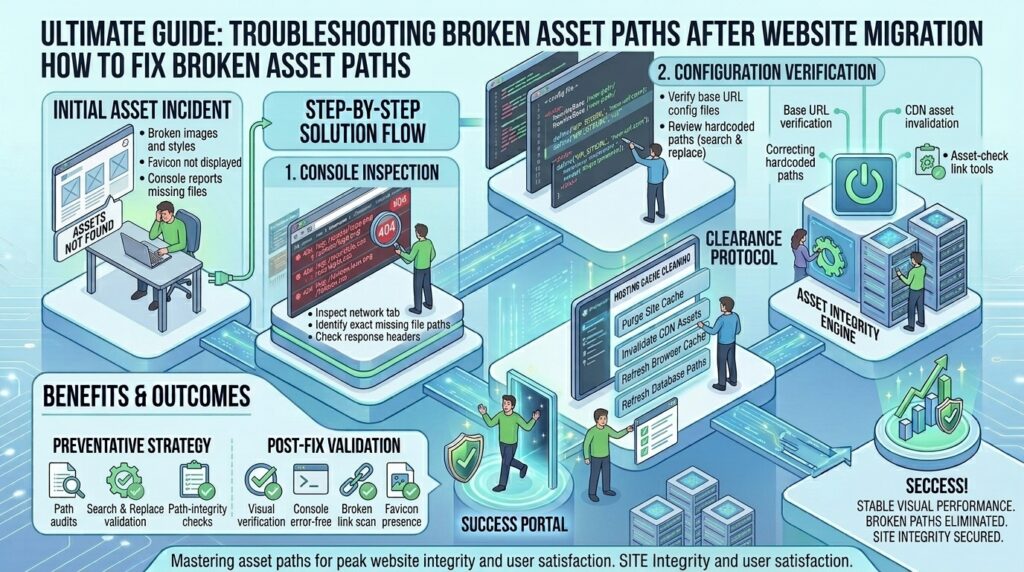
Troubleshooting Missing Favicon or Broken Asset Paths After Migration
For digital agency owners, web developers, and modern entrepreneurs launching and scaling web applications across major tech hubs like Texas, New York, California, Washington, and San Francisco, migrating a website to a new web host or domain environment is a routine operational task. Whether you are moving a massive e-commerce portal from an old provider to a high-performance VPS or shifting a client portfolio between cPanel accounts, the actual file transfer is usually straightforward.
However, the post-migration phase often reveals frustrating visual bugs. You open your newly migrated website, and while the core text content loads fine, the visual presentation is shattered: stylesheets fail to apply, images render as broken placeholders, and browser tabs display a generic default icon instead of your custom brand favicon.
These symptoms point to a classic migration hurdle: broken asset paths and missing favicons caused by hardcoded URLs, mismatched document roots, or incorrect rewrite rules.
This comprehensive, step-by-step masterclass guide will teach you how to diagnose, troubleshoot, and permanently fix missing favicons and broken asset paths after a web hosting migration.
Understanding Why Asset Paths Break After Migration
To fix broken assets efficiently, you first need to understand why shifting servers alters how browsers locate your files.
1. Hardcoded URLs vs. Relative Paths
During web development or CMS setup (such as WordPress, Magento, or custom PHP structures), URLs can be defined in two ways:
- Relative Paths (
/images/logo.pngorassets/css/style.css): These look for files relative to the current domain root. They survive migrations seamlessly. - Absolute Hardcoded URLs (
[https://old-domain.com/wp-content/uploads/](https://old-domain.com/wp-content/uploads/)...): These explicitly point to a specific domain name or directory structure. When you migrate your site to a new domain or a new temporary server URL ([http://192.0.2.1/~username/](http://192.0.2.1/~username/)), your web application continues trying to load stylesheets, scripts, and favicons from the old server location, resulting in404 Not Founderrors.
2. Document Root and Directory Path Mismatches
Different hosting control panels structure user home directories differently. For example, moving from a host where your root was /home/user/public_html/ to a cloud server using /var/www/html/ or changing a subdomain structure can misalign asset reference parameters, causing the web server to fail file lookups.
Phase 1: Triage — Identifying Broken Assets Using Developer Tools
Never guess why an asset is missing. Use browser diagnostic tools to pinpoint the exact failure mechanism.
1. Inspecting the Network and Console Tabs
Open your migrated website in Google Chrome or Microsoft Edge, right-click anywhere on the page, and select Inspect (or press F12).
- Navigate to the Console tab. You will likely see a cascade of red error messages:
GET [https://old-domain.com/favicon.ico](https://old-domain.com/favicon.ico) 404 (Not Found)orFailed to load resource: net::ERR_NAME_NOT_RESOLVEDfor stylesheets and images. - Navigate to the Network tab, check Disable cache, and reload the page. Filter by Img, Stylesheet, or Other to see precisely which asset paths are returning
404or500status codes and where the browser is trying to fetch them from.
Phase 2: Fixing Missing Favicons After Migration
A favicon (favorite icon) is the small 16×16 or 32×32 pixel icon displayed in browser tabs. Because it is often hardcoded in theme headers or managed via CMS customizer tables, it frequently breaks during migration.
| Favicon Integration Method | Common Migration Failure Point | Corrective Action |
| CMS Customizer (WordPress) | Database still references old domain image attachment URL | Update site URLs in database via Search & Replace tool |
Hardcoded HTML <link> Tag | Header file points explicitly to old domain URL | Edit header.php or template layout to use relative or updated paths |
| Root Directory Placement | favicon.ico missing from the new server’s root folder | Upload a fresh copy of favicon.ico to public_html via File Manager |
1. Re-uploading the Favicon to the Root Directory
Many legacy websites and custom applications look for a default favicon.ico file automatically at the root of the domain ([https://yourdomain.com/favicon.ico](https://yourdomain.com/favicon.ico)).
- Log into your new hosting control panel (cPanel, Plesk, or cloud file manager) and open the File Manager.
- Navigate to your website’s public root folder (
public_html). - Verify whether
favicon.icoexists. If it is missing due to an incomplete file transfer, upload your favicon file directly into this directory.
2. Updating CMS-Managed Favicons
If you manage your site via WordPress or another CMS where the favicon is uploaded through the theme customizer:
- Log into your admin dashboard.
- Navigate to Appearance > Customize > Site Identity (or your theme’s branding options).
- Remove the broken favicon image and re-upload your brand icon from your local computer. This forces the CMS to write the new asset URL directly into the active database tables.
Phase 3: Repairing Broken Stylesheets, Scripts, and Images
If your entire site looks unstyled (like plain black text on a white background), your CSS stylesheets and JavaScript files are trapped behind broken paths.
Method 1: Performing a Safe Database URL Search and Replace
If your migrated site was moved to a new domain name or a temporary development URL, every hardcoded image and asset path in your database still points to the old address.
- For WordPress: Use a reputable, trusted migration plugin or command-line tool like WP-CLI to execute a database search-and-replace safely.
- Using WP-CLI via your server terminal:Bash
wp search-replace 'https://old-domain.com' 'https://new-domain.com' --all-tables
- Using WP-CLI via your server terminal:Bash
- For Custom PHP / MySQL Apps: Open phpMyAdmin from your hosting dashboard, select your database, click the Search tab, and query for strings containing your old domain to update configuration and post tables safely. Always back up your database before running manual SQL updates.
Method 2: Correcting File Permissions and Ownership Issues
Sometimes assets aren’t missing; rather, the web server lacks permission to read them, resulting in 403 Forbidden errors disguised as broken paths.
- Connect to your VPS via SSH or use your hosting File Manager to verify file permissions:
- Directories should be set to 755.
- Files should be set to 644.
- Ensure file ownership matches your web server user (e.g.,
www-data,nginx, or your cPanel username):Bashsudo chown -R www-data:www-data /var/www/html/ sudo find /var/www/html/ -type d -exec chmod 755 {} \; sudo find /var/www/html/ -type f -exec chmod 644 {} \;
Phase 4: Fixing .htaccess and Server Rewrite Rules
If your assets return 404 errors even though the files physically exist in your file manager, your server rewrite rules or routing configurations are likely intercepting asset requests.
1. Restoring Default WordPress Rewrite Rules
- Log into your hosting File Manager and locate your
.htaccessfile in the root directory. - Temporarily rename it to
.htaccess_oldto check if custom rules were blocking asset requests. - Log into your WordPress dashboard, navigate to Settings > Permalinks, and click Save Changes. This generates a fresh, clean
.htaccessfile with correct rewrite rules for your new environment.
2. Checking Nginx Static Asset Handling
If your cloud VPS runs an Nginx web server without Apache, custom Apache .htaccess rewrite rules are ignored. You must ensure your Nginx server block configuration properly handles static media files and caching headers:
Nginx
location ~* \.(jpg|jpeg|png|gif|ico|css|js|webp|svg)$ {
    expires max;
    log_not_found off;
}
Test your Nginx syntax (sudo nginx -t) and restart the service (sudo systemctl restart nginx) to apply corrections.
Frequently Asked Questions (FAQ)
1. Why do images and favicons break after migrating a website?
They break because hardcoded absolute URLs in your database or theme files still reference your old domain name or old server file directory path, or because files were skipped during the transfer process.
2. How do I fix a missing favicon quickly?
You can re-upload your favicon.ico file directly to the root public directory (public_html) of your new host using your hosting file manager, or re-select your site icon inside your CMS customizer settings.
3. What does a 404 Not Found error on a CSS file mean after migration?
It means the browser is requesting a stylesheet from a URL path that does not exist on your new server, usually because domain URLs need to be updated via a database search-and-replace operation.
4. Do relative paths break during website migration?
No. Relative paths (e.g., src="/images/banner.jpg") reference files based on the current domain root, making them completely immune to domain name changes during migration.
5. How do I update hardcoded URLs in a WordPress database safely?
You can use specialized migration plugins (like All-in-One WP Migration or Duplicator) or use WP-CLI (wp search-replace) via SSH to replace old domain strings with your new domain across all database tables safely.
6. Why are my images visible in the media library but broken on the frontend?
This happens when your database attachment URLs still point to the old domain or old staging URL structure. The database knows the image exists, but the frontend outputs an invalid image source link.
7. Can caching plugins cause broken assets after migration?
Yes. If your caching plugin or CDN (like Cloudflare) stored static versions of your pages prior to migration, they will continue serving cached pages with old asset links. Always purge all caches immediately after migration.
8. What file permissions should my website directories be set to?
Standard secure file permissions on Linux web servers are 755 for folders and directories, and 644 for individual files and scripts.
9. Why does my favicon show up on desktop browsers but not on mobile?
Mobile browsers cache favicons aggressively and often require specific apple-touch-icon meta tags in your website header (<link rel="apple-touch-icon" href="/path/to/icon.png">) to render correctly on iOS and Android devices.
10. When should I contact my hosting support team regarding broken assets?
If you have verified that files exist in your file manager, updated database URLs, checked file permissions, and purged all caches, but assets still throw server errors, contact your host. They can investigate server block configurations, mod_security rules, or Nginx routing blocks.
Conclusion
Encountering missing favicons and broken asset paths after a web hosting migration can make a newly moved site look unprofessional, but it is entirely fixable with a systematic troubleshooting approach. By auditing browser developer consoles, re-uploading root assets, executing safe database search-and-replace operations, and verifying server rewrite rules, you can restore full visual presentation and performance. Maintain clean configuration protocols to ensure your digital properties launch smoothly on your new infrastructure.