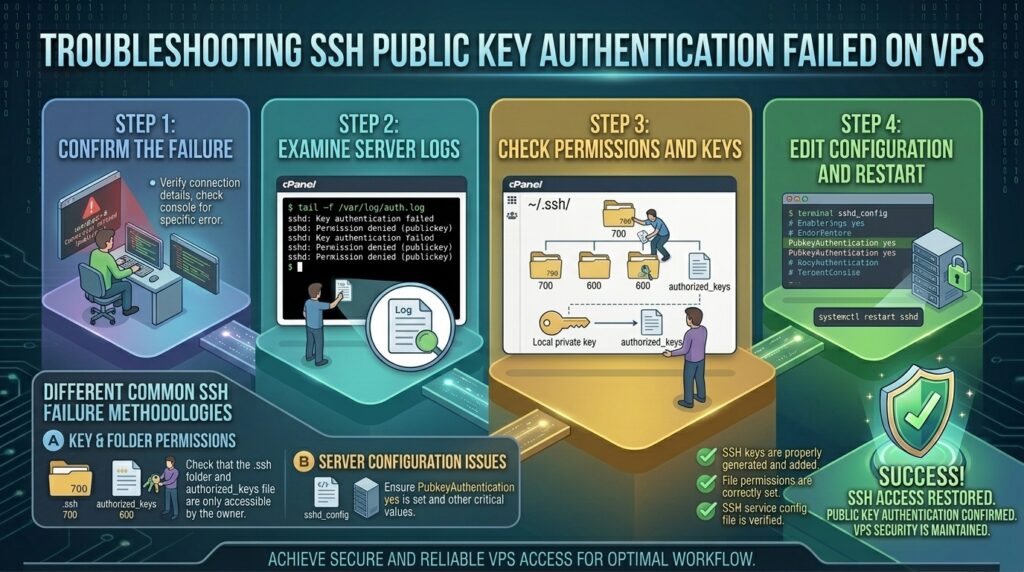
For system administrators, DevOps engineers, and web developers managing virtual private servers (VPS) across major tech hubs like Texas, New York, California, Washington, and San Francisco, passwordless SSH key authentication is the gold standard of server security. Replacing traditional password logins with cryptographic public-key pairs eliminates the threat of brute-force botnets and secures your digital infrastructure.
However, there are few technical roadblocks more maddening than attempting to log into your VPS via terminal, only to be abruptly met with the dreaded Permission denied (publickey) error. You double-check your terminal command, verify your key name, and yet the server slams the door shut.
When SSH public key authentication fails, it is usually due to a precise mismatch in file permissions, incorrect key placement, missing agent configurations, or strict SSH daemon (sshd) policy restrictions.
This definitive, highly comprehensive troubleshooting guide will walk you through diagnosing and permanently fixing SSH public key authentication failures on your VPS.
Understanding How SSH Public Key Authentication Works
Before running terminal commands or modifying server files, it helps to understand the cryptographic handshake that occurs during an SSH connection:
- The Key Pair: You generate a cryptographic pair on your local machine—a Private Key (kept strictly secret on your computer, e.g.,
id_rsaorid_ed25519) and a Public Key (uploaded to your server, e.g.,id_rsa.pub). - The Challenge: When you initiate an SSH connection (
ssh user@vps-ip), your local client tells the server which public key it intends to use. - The Cryptographic Test: The VPS server generates a random mathematical challenge, encrypts it using your public key, and sends it back to your computer.
- The Response: Only your local machine, possessing the matching private key, can decrypt the challenge and sign the response correctly. If successful, access is granted without ever transmitting a password across the network.
If any link in this chain breaks—such as insecure folder permissions on the server or a missing key in your local SSH agent—the authentication handshake fails instantly.
Phase 1: Local Client-Side Troubleshooting (Check Your Machine First)
Before you touch your server configurations, verify that your local machine is correctly presenting your keys to the VPS.
1. Verify Your Local SSH Keys Exist
Open your local terminal (macOS/Linux) or PowerShell (Windows) and check if your key files exist in your user profile’s .ssh directory:
Bash
ls -la ~/.ssh
You should see your private key (e.g., id_rsa or id_ed25519) and your public key (id_rsa.pub). If the directory is empty, you need to generate a new key pair using:
Bash
ssh-keygen -t ed25519 -C "your_email@domain.com"
2. Check If Your SSH Agent is Running and Loaded
If you use custom-named keys or multiple keys, your local SSH agent must be active and holding your private key identity.
- Start the Agent:Bash
eval "$(ssh-agent -s)" - Add Your Private Key:Bash
ssh-add ~/.ssh/id_ed25519 - Verify Loaded Keys:Bash
ssh-add -lIf your key is not listed here, your client will fail to send the correct credentials during connection requests.
3. Run SSH in Verbose Mode for Diagnostic Output
To see exactly why the server is rejecting your login, add the -v (verbose) flag to your connection command. Use -vvv for maximum debugging output:
Bash
ssh -vvv root@your_vps_ip
Scroll through the terminal output and look for lines containing Offering public key followed by Server accepts key or Permission denied. This tells you whether the server recognized your key before rejecting it.
Phase 2: Server-Side Permission & Configuration Errors
If your local client is configured correctly, the issue is almost always located on the VPS itself. Due to strict Linux security policies, if your server’s .ssh directory or authorized_keys file has overly open permissions, SSH will reject them outright.
| Error Symptom / Log Entry | Primary Root Cause | Recommended Action |
| Permission denied (publickey) | Incorrect file/folder permissions on VPS | Fix ownership and chmod permissions |
| Authentication refused: bad ownership | Home directory or .ssh owned by wrong user | Run chown to correct user ownership |
| Key refused by server | Public key missing from authorized_keys | Append public key via emergency console |
| Connection closed by remote host | PubkeyAuthentication no in sshd_config | Enable public key auth in SSH daemon settings |
1. Fixing Server-Side File and Folder Permissions
Linux SSH daemons are notoriously strict. If your remote .ssh folder or authorized_keys file is readable by group or world users, SSH will block access for security reasons.
If you still have password access (or can log in via your hosting provider’s web-based VNC/Emergency Console), log into your VPS and run these exact permission fixes:
Bash
# Set strict permissions on the user home directory
chmod 700 ~

# Set strict permissions on the .ssh directory
chmod 700 ~/.ssh

# Set strict permissions on the authorized_keys file
chmod 600 ~/.ssh/authorized_keys
2. Correcting User and Group Ownership Conflicts
If you created the .ssh folder while logged in as root for a standard user account, or if ownership is misconfigured, authentication will fail.
- Fix Ownership: Ensure the user account owns its own
.sshdirectory (replaceusernamewith your actual Linux user):Bashchown -R username:username /home/username/.ssh
Phase 3: Inspecting and Editing the SSH Daemon (sshd_config)
If your keys and permissions are completely correct, your server’s master SSH configuration file (/etc/ssh/sshd_config) may have key authentication disabled or restricted.
1. Key Settings to Verify in sshd_config
Open the SSH configuration file using a text editor with root privileges (such as nano):
Bash
sudo nano /etc/ssh/sshd_config
Look for and verify the following directives (ensure they are uncommented by removing any leading #):
PubkeyAuthentication yes(Must be enabled to allow key logins).AuthorizedKeysFile .ssh/authorized_keys(Defines where the server looks for public keys).PasswordAuthentication(Can be set tonoif you want strict key-only access, but keep ityestemporarily during troubleshooting so you don’t lock yourself out).
2. Restarting the SSH Service
After making any modifications to sshd_config, you must restart the SSH daemon for changes to take effect.
- Warning: Never close your current active terminal session until you have tested your SSH key login in a brand-new terminal window. If there’s a syntax error in your config, restarting SSH can lock you out permanently.
Run the restart command depending on your Linux distribution:
Bash
# For Ubuntu / Debian
sudo systemctl restart ssh

# For CentOS / RHEL / AlmaLinux
sudo systemctl restart sshd
Phase 4: Emergency Access (When You Are Completely Locked Out)
If you made a configuration error and are locked out of your VPS with a Permission denied (publickey) error, do not panic. VPS providers (like DigitalOcean, AWS, Linode, Vultr, or cPanel WHM cloud servers) provide out-of-band management tools.
- Log into Your Hosting Control Panel: Access your provider’s web dashboard.
- Launch the Web Console / VNC / Serial Console: This opens a browser-based terminal window that connects directly to your server hardware, bypassing network SSH layers.
- Log In Using Emergency Credentials: Use the root password provided when you deployed the server.
- Fix the Issue: Once inside the web console, check your
/var/log/auth.logor/var/log/securefile to read the exact error:Bashtail -n 50 /var/log/auth.logCorrect yourauthorized_keysfile permissions or reset yoursshd_configsettings, restart the SSH service, and regain normal terminal access.
Preventative Best Practices for Secure SSH Management
- Always Test in a New Window: Whenever you modify SSH configurations or add new keys, open a separate terminal window and verify your login before closing your existing session.
- Use Modern Key Algorithms: Upgrade legacy RSA keys to modern, highly secure Ed25519 keys (
ssh-keygen -t ed25519), which offer superior cryptographic strength and shorter key lengths. - Disable Root Password Logins: Once your public key authentication is fully working and tested, set
PermitRootLogin prohibit-passwordornoin yoursshd_configto maximize server security against brute-force attacks.
Frequently Asked Questions (FAQ)
1. Why does SSH ask for a password even after I added my public key?
If SSH still prompts you for a password, it means the server rejected your public key during the handshake and fell back to password authentication. Check your server logs (/var/log/auth.log) to see if incorrect file permissions on ~/.ssh/authorized_keys caused the rejection.
2. What are the correct file permissions for SSH directories and files?
Your home directory (~) should be 755 or 700, the .ssh folder must be strictly 700 (rwx——), and the authorized_keys file inside must be strictly 600 (rw——-).
3. Can I use the same SSH key for multiple VPS servers?
Yes. You can append your single public (id_ed25519.pub) key to the authorized_keys file on as many different servers as you want. Each server will verify your local private key independently.
4. What does the error “Agent refused operation” mean?
This error occurs on your local machine when the ssh-agent is not running or your terminal environment cannot communicate with the agent socket. Run eval "$(ssh-agent -s)" and re-add your key.
5. How do I copy my public key to a remote server easily?
The safest and easiest way to install your public key onto a remote VPS without messing up file permissions is to use the ssh-copy-id utility:
Bash
ssh-copy-id -i ~/.ssh/id_ed25519.pub username@vps_ip_address
6. Why does verbose mode (-vvv) show “Server refused our key”?
This indicates that the server successfully established a connection, but your public key was not found inside the target user’s ~/.ssh/authorized_keys file, or the key format in the file is malformed.
7. What should I do if I lost my private SSH key?
If you lose your local private key, you cannot recover it. You must log into your hosting provider’s web console or emergency VNC recovery tool, access the server as root, and replace or add a new public key in the authorized_keys file.
8. Can SELinux or AppArmor block SSH key authentication?
Yes. On heavily hardened enterprise distributions (like RHEL or CentOS running SELinux), strict security contexts on home directories can block SSH access. Running restorecon -R -v /home/username/.ssh usually fixes SELinux context mismatches.
9. Why does my SSH connection timeout instead of giving a permission error?
A connection timeout means your traffic is not reaching the server at all. This is typically caused by a firewall (like UFW or firewalld), incorrect server IP addresses, or security groups blocking port 22, rather than an authentication key issue.
10. When should I contact my hosting support team regarding SSH failures?
If you are completely locked out of your VPS, have no root password, and your web provider’s console is inaccessible, open a support ticket. They can mount your virtual disk in rescue mode to restore your authorized_keys file.
Conclusion
Encountering an SSH public key authentication failure can halt your workflow instantly, but by breaking down the handshake process and methodically checking local agent settings, server file permissions, and sshd_config parameters, you can quickly diagnose and resolve the bottleneck. Maintain strict permission standards, back up your private cryptographic keys securely, and follow these expert guidelines to ensure smooth, secure administrative access to your VPS.