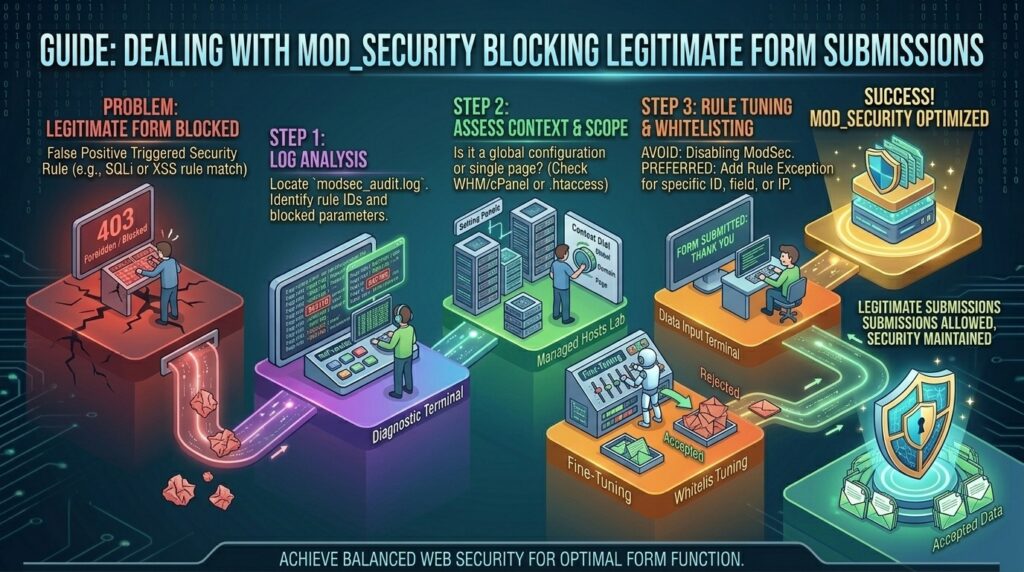
For businesses, agencies, and digital enterprises operating online across major tech hubs like Texas, New York, California, Washington, and San Francisco, conversion is everything. Whether it is a high-value lead capture form, a client onboarding questionnaire, a checkout registration form, or a simple contact page, every successful form submission represents potential revenue.
However, website owners frequently run into a baffling and frustrating scenario: a customer fills out a legitimate form, clicks “Submit,” and is instantly greeted by a harsh “403 Forbidden – Access Denied” error, a “406 Not Acceptable” notice, or a blank screen.
The culprit behind this breakdown is almost always Mod_Security (often called Modsec), a powerful web application firewall (WAF) running quietly on your server. While Mod_Security is crucial for blocking malicious hackers, SQL injections, and cross-site scripting (XSS), its aggressive pattern-matching rules often misidentify standard user inputs as cyber attacks.
This comprehensive, step-by-step guide will walk you through understanding why Mod_Security blocks legitimate form submissions, how to diagnose the exact rule triggering the failure, and how to whitelist or resolve the issue permanently without compromising your server security.
Understanding What Mod_Security Is and Why It Blocks Forms
To fix form blocking effectively, you first need to understand how Mod_Security operates.
Mod_Security is an open-source Web Application Firewall module that runs directly inside your web server software (such as Apache, Nginx, or LiteSpeed). It sits as a guard dog before your Content Management System (like WordPress, Magento, or custom PHP applications) even processes the request.
How the False Positive Trigger Happens:
- POST Request Interception: When a user hits “Submit” on a form, your browser packages the input data into an HTTP
POSTrequest and sends it to the server. - Rule Signature Matching: Mod_Security inspects the raw text inside that POST body, scanning it against thousands of predefined rules (such as the OWASP Core Rule Set).
- The False Positive: If a user types text that happens to resemble attack patterns—such as standard URLs (
http://), raw code tags, specific SQL keywords, or special characters like quotes and brackets—Mod_Security flags the benign input as a malicious injection attack. - The Block: The server abruptly terminates the request, returning a
403 Forbiddenerror long before your form plugin (like Contact Form 7, WPForms, or Gravity Forms) or database ever sees it.
Phase 1: Identifying the Mod_Security Block
Never guess why a form is failing. You must examine server error logs to pinpoint the exact Mod_Security rule ID triggering the block.
1. Checking cPanel Error Logs
If your hosting environment runs on standard cPanel:
- Log into your cPanel dashboard.
- Navigate to the Metrics or Errors section and click on Errors.
- Scroll through the recent entries. Look for terms like
ModSecurity,Access denied with code 403, or entries containing specific rule numbers (e.g.,[id "941100"]).
2. Checking via SSH / Terminal (For Advanced Users)
If you have root or shell access to your server, you can tail the live Apache error log or Mod_Security audit log in real-time:
Bash
# Tail the Apache error log to watch real-time blocks
tail -f /usr/local/apache/logs/error_log | grep ModSecurity
When you successfully reproduce the form submission error in your browser, the terminal will instantly output the exact line, IP address, and numeric Rule ID causing the rejection.
Phase 2: Troubleshooting and Fixing Form Blocks
Depending on your level of server access (shared hosting user vs. root system administrator), you have several pathways to resolve Mod_Security conflicts.
| Approach / Method | Access Level Required | Pros & Cons |
| Contact Hosting Support | Shared Hosting / cPanel User | Pros: Safest, done in minutes; Cons: Requires a support ticket. |
| Whitelisting Specific Rule IDs | WHM / Root Access | Pros: Highly targeted security fix; Cons: Requires server administration knowledge. |
| Modifying Form Fields / Text | WordPress Dashboard | Pros: Instant workaround; Cons: Limits what users can type into fields. |
| Using a Third-Party WAF | CMS Admin Level | Pros: Bypasses harsh server rules; Cons: Additional subscription tool. |
Solution 1: Contact Your Hosting Provider (The Easiest Route for Shared Hosts)
If you are on managed shared hosting (common across budget and mid-tier providers in New York, Texas, and California), modifying global firewall rules directly is often restricted.
- What to do: Open a support ticket with your host. Provide them with the exact timestamp of your test form submission, your IP address, and the error code. Ask them: “Can you check the server Mod_Security logs for false-positive blocks affecting my form and whitelist the triggered rule ID for my account?” Most quality hosts will resolve this within minutes.
Solution 2: Whitelisting Rule IDs via .htaccess (Apache Environments)
If your host permits custom .htaccess directives and you have identified the specific rule ID causing the block (for example, rule 941100), you can disable that specific rule for your directory.
- How to apply: Open your root
.htaccessfile via cPanel File Manager and add an exclusion rule (syntax varies based on your server’s security vendor, such as Comodo or OWASP):Apache<IfModule mod_security2.c> SecRuleRemoveById 941100 </IfModule>Note: Only disable the specific offending rule ID, never disable Mod_Security entirely for long periods, as it leaves your entire web application exposed to hackers.
Solution 3: Restructuring Form Input Fields
Sometimes, form submissions trigger Mod_Security because users are pasting rich text containing hidden HTML tags, stylized quotes (“ ”), or raw URLs into standard text-area fields.
- Tips to minimize triggers:
- Keep form labels, instructions, and text expectations clear and plain.
- Enable plain-text sanitization on your form builder plugins to strip out malicious-looking strings before they hit the server backend.
- Avoid letting users input raw code blocks unless your form is explicitly built for developer environments (e.g., ticket support systems).
Phase 3: Advanced Server Configuration (WHM / Root Level)
If you manage your own Virtual Private Server (VPS) or dedicated server in data centers across Washington or San Francisco, you have total control over your security rule sets.
1. Fine-Tuning Mod_Security via WHM
If you run WHM/cPanel on a dedicated server:
- Log into WHM as
root. - Navigate to Security Center > ModSecurity Tools.
- Review the Hit List to see which rules are firing most frequently against your domains.
- If a rule is causing consistent false positives on legitimate form POST requests, you can toggle that specific rule to Off or switch its action from
DenytoWarning.
2. Implementing Configurable Exclusions for Specific URIs
Instead of disabling a rule globally across your server, you can write an exclusion rule so Mod_Security ignores form validation paths (e.g., /wp-admin/admin-ajax.php or custom form submission endpoints):
Apache
# Example ModSecurity exception for specific URI paths
SecRule REQUEST_URI "@contains /wp-admin/admin-ajax.php" "id:10001,phase:1,pass,nolog,ctl:ruleRemoveById=941100"
Preventative Best Practices for Seamless Form Submissions
To ensure your users never experience form submission errors going forward, incorporate these routine operational habits:
- Test Forms After Major Plugin Updates: Whenever you update your form plugins or theme frameworks, run a test submission to ensure backend AJAX endpoints haven’t triggered new firewall rules.
- Monitor Error Logs Regularly: Set up log alerts or review your server error logs weekly to catch intermittent
403blocks before your clients report them. - Use Reputable Hosting Partners: Choose hosting providers that understand application-level firewalls and offer quick-response support teams capable of whitelisting false positives instantly.
Frequently Asked Questions (FAQ)
1. Why does my contact form work for some users but show a 403 error for others?
Mod_Security evaluates not just the form content, but also the user’s IP reputation, browser headers, and input patterns. A user typing a specific phrase or browsing behind a strict corporate VPN might trigger a rule that passes cleanly for other users.
2. Is it safe to completely disable Mod_Security on my server?
No. Disabling Mod_Security entirely removes your primary defense against automated SQL injections, brute-force attacks, and remote code execution. It should only be turned off temporarily for diagnostic purposes.
3. How do I know if a form error is caused by Mod_Security or a plugin bug?
If a form fails with a clean error message managed by the plugin (like “Please fill out this field”), it’s a plugin validation error. If the browser displays a generic server-level 403 Forbidden or Not Acceptable page instantly upon submission, it is a firewall block like Mod_Security.
4. Can caching plugins interfere with form submissions and trigger blocks?
Aggressive page caching can sometimes serve outdated nonces or security tokens to form pages, causing authentication mismatches that look like security blocks. Always exclude form pages from aggressive full-page caching.
5. Why do form fields containing URLs trigger Mod_Security?
Many web firewall rules flag inputs containing http://, www, or domain names in standard text boxes because hackers frequently use these patterns to inject malicious cross-site scripting links.
6. Can I fix Mod_Security errors directly from the WordPress dashboard?
No. Because Mod_Security runs at the web server layer before WordPress initializes, no WordPress plugin can directly intercept or rewrite Mod_Security server blocks.
7. What is the OWASP Core Rule Set?
The OWASP Core Rule Set (CRS) is a collection of generic attack-detection rules used by web application firewalls like Mod_Security to protect web applications from common vulnerabilities.
8. How long does it take for hosting support to fix a Mod_Security block?
If you provide your host with the exact error log details or rule ID, support technicians typically whitelist the rule or your IP address within 5 to 15 minutes.
9. Will switching from Apache to Nginx stop Mod_Security blocks?
Not necessarily. While Nginx handles requests differently, it can still run Mod_Security or equivalent WAF modules (like NAXSI or Cloudflare WAF) that perform similar pattern-matching checks on form inputs.
10. What should I do if my form files keep getting blocked after whitelisting a rule?
If clearing cache and whitelisting a rule fails, inspect your browser’s developer console (F12 -> Network Tab) to see if a JavaScript AJAX request or a security token (like a CSRF nonce) is being rejected by an entirely different security layer, such as a cloud firewall or a security plugin.
Conclusion
Encountering a Mod_Security block on legitimate form submissions can be frustrating, cutting off vital leads and frustrating your customers. However, by understanding how server firewalls evaluate POST data, learning how to track down specific rule IDs in your error logs, and collaborating with your hosting provider to whitelist false positives, you can permanently eliminate these roadblocks. Maintain balanced security configurations, test your forms regularly, and ensure your conversion channels remain open and error-free.