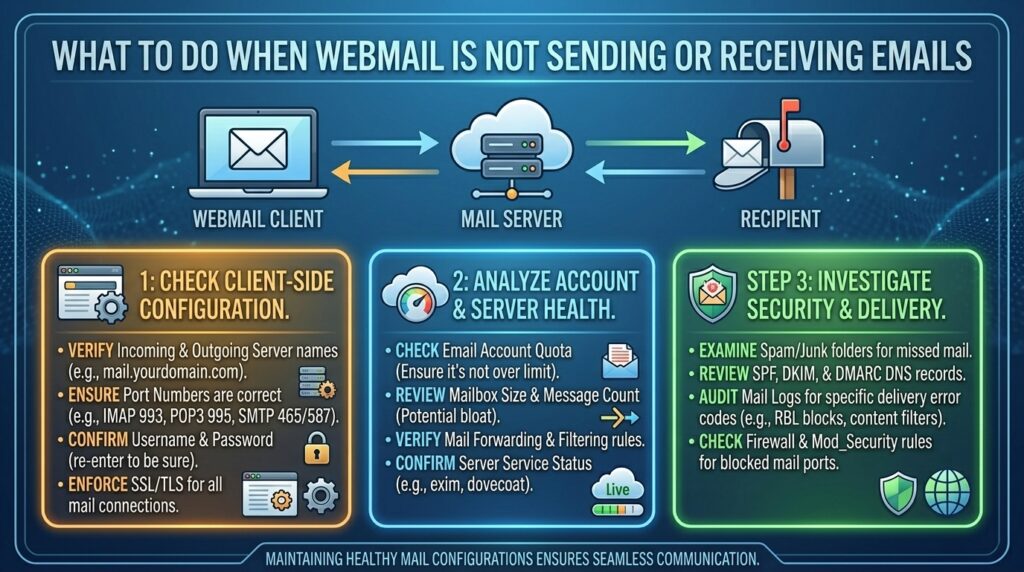
What to Do When Webmail Is Not Sending or Receiving Emails
For business owners, digital marketers, and web developers operating across major tech hubs like Texas, New York, California, Washington, and San Francisco, reliable email communication is the absolute lifeline of daily operations. Whether you are closing high-stakes client deals, sending invoice alerts, or managing customer support tickets, a broken email system can cause immediate financial loss and damage your brand reputation.
When your business email—accessed via webmail clients like Roundcube, Horde, or SquirrelMail—stops sending or receiving messages, it can feel like your digital doors are locked. Fortunately, email delivery failures are rarely permanent. They are usually caused by specific configuration errors, DNS record mismatches, server resource limits, or overflowing mailboxes.
This definitive, highly comprehensive troubleshooting guide will walk you through diagnosing, troubleshooting, and permanently fixing webmail delivery issues so you can get your inbox back up and running.
Understanding How Webmail Works Behind the Scenes
To effectively troubleshoot an email failure, it helps to understand what happens when you hit the “Send” button or when an external message arrives at your domain.
Unlike consumer email services (such as Gmail or Yahoo) which manage everything on a single ecosystem, custom business email hosted via cPanel relies on a complex chain of protocols and server daemons:
- MX Records (Mail Exchange): DNS records that tell the global internet where to deliver incoming emails addressed to your domain.
- Courier / Dovecot: The IMAP/POP3 mail delivery agents responsible for letting you log into webmail and fetch your stored messages.
- Exim: The Mail Transfer Agent (MTA) that processes outbound emails, checks for spam rules, and hands messages over to recipient mail servers across the globe.
- SpamAssassin / DKIM / SPF / DMARC: Security and authentication layers designed to verify that your outgoing emails are legitimate and not spoofed spam.
Phase 1: Immediate Triage (Is It Incoming or Outbound?)
Before digging into DNS configurations or server command lines, you must isolate the exact nature of the problem.
Step 1: Perform a Send-and-Receive Test
- Log into your webmail client (e.g., via
webmail.yourdomain.com). - Send a test email from your webmail account to an external personal email address (such as Gmail or Outlook).
- Send a test email from your personal Gmail or Outlook account back to your webmail address.
Step 2: Analyze the Results
- Scenario A: Can send, but cannot receive. Your outgoing mail server is functioning, but incoming mail is failing. This typically points to DNS MX record issues, domain expiration, or an over-quota mailbox.
- Scenario B: Can receive, but cannot send. Your inbound routing is fine, but your outbound mail server (
Exim) is blocking messages, or your domain’s SPF/DKIM authentication is failing. - Scenario C: Cannot send AND cannot receive. This usually indicates a global service failure, a completely suspended hosting account, or incorrect login/server routing parameters.
Phase 2: Fixing “Cannot Receive Emails” Errors
If external clients are sending emails to you, but nothing appears in your webmail inbox, check these common failure points in order of likelihood.
1. Check Your Domain Mailbox Storage Quota
When a cPanel email account hits 100% of its allocated storage limit, the mail server automatically rejects all incoming messages, often bouncing them back to the sender with a “Mailbox is full” (Quota Exceeded) error message.
- How to Fix:
- Log into your cPanel dashboard.
- Navigate to Email Accounts.
- Look at the storage bar next to your specific email address. If it is maxed out, click Manage and increase the storage quota.
- Alternatively, use webmail to log in, permanently delete old junk mail, and empty your trash/spam folders.
2. Verify Your DNS MX (Mail Exchange) Records
If you recently changed your domain registrar, updated your nameservers, or migrated web hosts, your MX records might be pointing to the wrong server or pointing to third-party services (like Google Workspace or Microsoft 365) while your cPanel inbox is empty.
- How to Fix:
- Go to cPanel > Zone Editor (or Advanced DNS Zone Editor).
- Verify that your primary MX record points correctly to
mail.yourdomain.comwith a priority of0or10. - Use online DNS propagation checkers (like
dnschecker.org) to ensure global DNS servers recognize your correct mail routing.
3. Check Remote vs. Local Mail Exchanger Routing
If your website is hosted on one server (e.g., a local cPanel server) but your emails are handled externally (like Microsoft 365), or vice versa, your mail routing setting will cause incoming emails to vanish.
- How to Fix:
- In cPanel, navigate to Email Routing.
- Select your domain.
- If your mail is hosted on this server, ensure Local Mail Exchanger is selected. If it is hosted elsewhere, select Remote Mail Exchanger. Incorrect settings here will immediately black-hole incoming mail.
Phase 3: Fixing “Cannot Send Emails” Errors
If your outbound messages are stuck in the Outbox, fail instantly, or get rejected by recipient servers, the bottleneck is usually authentication or spam filtering.
| Error Symptom / Bounce Message | Likely Root Cause | Immediate Solution |
| Relaying Denied / 550 Error | Authentication failure in SMTP settings | Verify username (full email) and password |
| Blocked by SpamAssassin / RBL | Your server IP is listed on a blacklist | Check IP reputation and request delisting |
| SPF / DKIM Check Failed | Missing or broken domain authentication records | Regenerate DNS security records in cPanel |
| Outbound Connection Timeout | Port 25 is blocked by your internet provider | Switch SMTP to secure SSL/TLS ports (465 or 587) |
1. Fix Outdated or Incorrect SMTP Port Configurations
If you are accessing your webmail via an external desktop mail client (like Outlook, Apple Mail, or Thunderbird) instead of the browser webmail interface, port settings are frequently the culprit.
- Outgoing SMTP Port: Should be set to 465 (with SSL) or 587 (with TLS).
- Many home or office internet service providers (ISPs) completely block port 25 to prevent spam abuse. Ensure your mail client uses encrypted ports.
2. Check Domain Authentication (SPF, DKIM, DMARC)
Major global providers like Gmail, Yahoo, and Microsoft aggressively block inbound emails that lack proper authentication signatures. If your domain lacks a valid Sender Policy Framework (SPF) record or DomainKeys Identified Mail (DKIM) key, your outgoing emails will land straight in spam folders or be rejected outright.
- How to Fix:
- Log into cPanel and search for Email Deliverability.
- Check if your domain shows issues with SPF or DKIM.
- Click Repair to automatically generate and install the correct DNS records.
3. Inspect Exim Mail Queue for Stuck Messages
If your email account was compromised or used to send automated script notifications, your outbound mail queue (Exim) might be flooded with spam, blocking legitimate messages from leaving the server.
- How to Fix (Requires Root/WHM Access):
- Log into WHM.
- Navigate to Mail > Mail Queue Manager.
- Review trapped messages. If you see hundreds of spam messages queued up, freeze or delete the queue, and secure your email account password immediately.
Phase 4: Advanced Server-Side Troubleshooting
When basic settings check out and emails still refuse to move, system administrators must look directly at server-level mail logs.
1. Tracking Mail Logs via SSH
If you have root access to your server, you can monitor live mail transactions in real-time to see precisely why a message failed:
Bash
# Tail the Exim main log to watch live mail traffic
tail -f /var/log/exim_mainlog
Look for error tags like == (delivery deferred), ** (delivery failed permanently), or <= (message received successfully). These error tags give you the exact technical reason why a recipient server refused your message.
2. Checking Disk Space and Inodes
If your entire server has run out of disk space or hit its maximum inode limit (file count limit), the mail daemon (Exim) will crash and refuse to write incoming spool files to disk. Run df -h via terminal to ensure your disk usage is below 90%.
Preventative Best Practices for Bulletproof Business Email
To keep your communication channels clear and prevent future email blackouts, adopt these routine maintenance habits:
- Monitor Sender Reputation: Regularly check tools like MXToolbox to ensure your server IP is not listed on global spam blacklists (RBLs).
- Enforce Strong Passwords: Compromised email accounts are frequently hijacked by spammers, which quickly ruins your domain’s sending reputation.
- Clean Outboxes Periodically: Prevent staff mailboxes from hitting storage caps by archiving old historical correspondence.
- Set Up DMARC Monitoring: Implement a DMARC policy (
p=noneinitially) to receive daily XML reports detailing who is sending emails on behalf of your domain.
Frequently Asked Questions (FAQ)
1. Why can I receive emails in webmail, but sending fails instantly?
This usually happens because your outgoing SMTP authentication is misconfigured, your mail client is using the wrong port (try switching from 25 to 465/587), or your server’s IP address has been flagged for sending spam.
2. What does a “550 Mailbox Unavailable” error mean?
A 550 error means the recipient’s mail server rejected your message. This can happen if the destination email address does not exist, their mailbox is full, or their spam filter flagged your content as malicious.
3. How do I fix emails going straight to clients’ spam folders?
To stop landing in spam folders, ensure your cPanel Email Deliverability tool shows valid green checks for SPF, DKIM, and DMARC records, and avoid using spam-trigger words in your subject lines.
4. Can an expired domain name stop webmail from working?
Yes. If your domain registration lapses, all associated DNS records—including your MX records and mail subdomains (mail.yourdomain.com)—stop resolving immediately, halting all inbound and outbound mail.
5. Why are my cPanel webmail attachments failing to upload?
Large attachments often exceed the maximum PHP upload or post size limits configured on the server. You can fix this by increasing upload_max_filesize and post_max_size via the MultiPHP INI Editor in cPanel.
6. What is the difference between Roundcube and Horde webmail?
Roundcube and Horde are simply different user interfaces (clients) used to view the exact same mailbox stored on your server. If webmail fails in Roundcube, switching to Horde will not fix the underlying server delivery issue.
7. How do I know if my server IP is blacklisted?
You can visit websites like MXToolbox or Spamhaus, enter your server’s public IP address, and run a blacklist check to see if your mail server has been restricted by major ISPs.
8. Will changing my webmail password fix delivery errors?
Changing your password will only fix delivery errors if your account was compromised and locked due to suspicious outgoing spam activity. Otherwise, password changes do not alter server routing rules.
9. Why is my mailbox showing as full even after deleting emails?
Many webmail clients move deleted messages into a Trash or Bin folder rather than purging them permanently. You must empty your Trash folder and clear your Spam folder to actually recover storage space.
10. When should I escalate an email issue to my web hosting provider?
If you have verified that your MX records are correct, your storage quota is clear, your SPF/DKIM records are active, and you still cannot send or receive mail, the issue is likely a server-side daemon crash or IP block. At this point, opening a support ticket with your host is the best solution.
Conclusion
Troubleshooting webmail failures can feel overwhelming, but by breaking down the issue systematically—testing inbound versus outbound routing, checking storage quotas, verifying DNS MX and SPF records, and inspecting mail client ports—you can quickly pinpoint the root cause. Keep your security credentials secure, monitor your server health, and follow these expert guidelines to ensure your business communication remains seamless and uninterrupted.