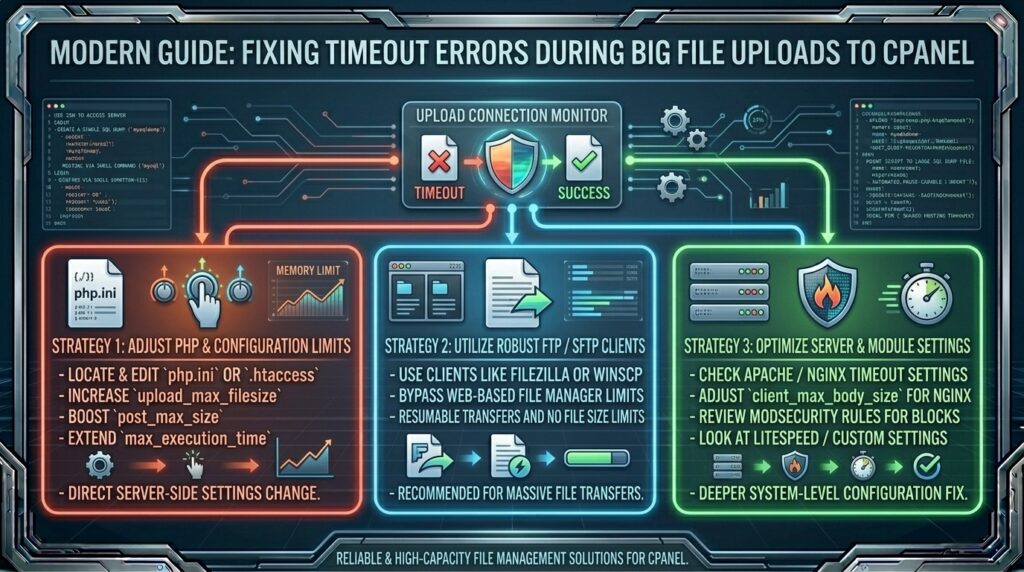
Fixing Timeout Errors During Big File Uploads to cPanel: The Ultimate Engineering Masterclass
Welcome to thehostreviews.com—your premier authoritative destination for server administration tutorials, cPanel performance optimization guides, and web hosting reliability reviews spanning major technology hubs from New York and San Francisco to Texas, California, and Washington.
Introduction: The Agony of the Frozen Progress Bar
You are preparing to launch a brand-new, media-rich website or migrate an enterprise-grade digital platform to your cPanel web hosting account. You open the cPanel File Manager, select a massive backup archive (.zip or .tar.gz) or a high-resolution video file spanning several gigabytes, click Upload, and watch the progress bar begin to crawl.
You step away for a cup of coffee, return to your desk, and find a crushing reality: the progress bar is completely frozen, or the browser has refreshed to a blank screen displaying a frustrating error message: “504 Gateway Time-out”, “413 Request Entity Too Large”, or “Maximum execution time of 300 seconds exceeded”.
For webmasters, digital agencies, and developers managing web infrastructure across competitive hubs from New York to San Francisco, file upload timeout errors are among the most common and disruptive bottlenecks encountered in shared, VPS, and cloud cPanel environments.
This comprehensive, step-by-step masterclass dives deep into the architecture of web server timeouts, explores why large file uploads break in standard browser sessions, and provides an actionable, foolproof engineering playbook to upload massive files smoothly and securely.
Part 1: Why Do cPanel File Uploads Time Out?
Before modifying configuration files or tweaking software settings, it is vital to understand the multi-layered security and performance constraints that govern web servers. When you upload a file via the browser-based cPanel File Manager, your data must pass through several distinct software and network barriers:
- PHP Execution Time Limits (
max_execution_time): PHP scripts are explicitly designed to terminate after a set number of seconds (typically 30 or 300 seconds) to prevent infinite loops from draining server resources. A large file upload takes longer than this allotment to stream from your local hard disk to the server temporary directory. - PHP Upload Size Restrictions (
upload_max_filesizeandpost_max_size): These core directives dictate the absolute maximum size a single uploaded file or HTTP POST request can be. Default shared hosting configurations often cap these at 256MB or 512MB. Attempting to upload a 2GB file directly violates these limits, resulting in instant rejections. - Web Server Gateway Timeouts (Apache, Nginx, LiteSpeed): Reverse proxies and web servers enforce strict proxy timeout thresholds (such as 60 seconds). If the backend application server takes too long to acknowledge a continuous data stream, the proxy gateway severs the connection abruptly, triggering a 504 Gateway Time-out.
- Local Network Instability: Browser-based uploads rely on a continuous HTTP connection. If your local internet service provider (ISP) suffers a micro-drop or packet loss during a 20-minute upload, the entire session crashes and must be restarted from zero.
Part 2: Step-by-Step Diagnostic Protocol—Locating Your Server Limits
Never guess what limits are active on your hosting account. Run this quick diagnostic checklist inside your cPanel dashboard to evaluate your current server configuration:
Step 1: Check Your Current PHP Parameters
- Log into your cPanel Account Dashboard.
- Scroll down to the Software section and click on MultiPHP INI Editor.
- Select your website domain name from the dropdown menu.
- Switch from the Basic Editor tab to the Editor (Raw) tab or review the parameters listed:
upload_max_filesizepost_max_sizemax_execution_timemax_input_timememory_limit
Step 2: Create a PHP Info Verification Script
If you want a comprehensive view of all active server limits:
- Open cPanel File Manager and navigate to your
public_html/root folder. - Create a new file named
info.php. - Add the following single line of code inside the file:PHP
<?php phpinfo(); ?> - Save the file and visit
[https://thehostreviews.com/info.php](https://thehostreviews.com/info.php)in your browser. Search forupload_max_filesizeandpost_max_sizeto see the exact real-time limits enforced by your web server software. - CRITICAL SECURITY WARNING: Delete the
info.phpfile immediately after reviewing it so that unauthorized bots cannot inspect your server configuration parameters.
Part 3: The Ultimate Resolution Playbook (Fixing Upload Timeouts)
Depending on your hosting tier (Shared, VPS, or Cloud cPanel), execute these technical solutions to permanently eliminate upload timeout restrictions.
Method 1: Adjusting PHP Limits via cPanel MultiPHP INI Editor
If you are running a standard cPanel hosting account, you can often raise your upload limits instantly using built-in administrative tools.
- In cPanel, navigate to the Software section and click on MultiPHP INI Editor.
- Select your domain from the dropdown menu.
- Modify the core parameters to values suitable for large file uploads (e.g., handling files up to 2GB):
upload_max_filesize: Set to2048M(2GB)post_max_size: Set to2048Mmax_execution_time: Set to3600(1 hour)max_input_time: Set to3600memory_limit: Set to2048M
- Click Apply / Save.
- Note: If your host restricts these modifications on shared servers, the editor will throw an error or fail to apply changes. If that occurs, proceed to Method 2 or 3.
Method 2: Bypassing cPanel File Manager Entirely via SFTP (The Pro Standard)
Trying to upload multi-gigabyte backup archives through a web browser using cPanel File Manager is inefficient and fragile. Professional developers and system administrators never use web upload forms for massive files. Instead, they use SFTP (Secure File Transfer Protocol).
SFTP transfers files directly over an encrypted SSH channel with built-in chunking, pause/resume support, and zero web browser timeout restrictions.
- Download a professional FTP/SFTP client such as FileZilla or Cyberduck.
- Retrieve your SFTP connection credentials from your cPanel dashboard (under FTP Accounts or SSH/Shell Access):
- Host: Your server IP address or domain name (
thehostreviews.com) - Username: Your cPanel username
- Password: Your cPanel account password
- Port: Typically
22for SFTP or21for FTP
- Host: Your server IP address or domain name (
- Connect to your server. Once connected, navigate to your target directory (e.g.,
/home/username/public_html/). - Drag and drop your massive file directly from your local desktop into the FileZilla transfer queue. FileZilla will handle the stream securely, displaying live transfer speeds and automatic error retries.
Method 3: Using cPanel Terminal and Wget for Direct Server-to-Server Downloads
If the large file you need to upload is already hosted on a remote cloud storage bucket, a GitHub repository, or a direct download link (e.g., a massive theme package or database dump), you don’t need to download it to your local computer just to upload it again to cPanel. You can download it directly from server to server using the cPanel Terminal.
- Log into cPanel and click on Terminal.
- Navigate to your target web directory:Bash
cd public_html - Use the
wgetutility followed by the direct download URL of your file:Bashwget https://example.com/massive-archive.zip - Press Enter. The server will download the file at blazing-fast data center speeds (often exceeding 1 Gbps), completely bypassing your local internet connection and browser timeouts.
Method 4: Configuring .htaccess Overrides (Apache Servers)
If your host permits .htaccess overrides and runs an Apache or LiteSpeed web server, you can force custom PHP upload limits directly within your website’s root configuration file.
- Open cPanel File Manager, navigate to
public_html/, and edit your.htaccessfile (ensure hidden dotfiles are visible). - Append the following directive block to the bottom of the file:Apache
php_value upload_max_filesize 2048M php_value post_max_size 2048M php_value max_execution_time 3600 php_value max_input_time 3600 - Click Save Changes.
- Test carefully: If your server throws a 500 Internal Server Error immediately after adding these lines, your hosting provider has locked down PHP directives at the master server level, and you must remove the lines and contact support.
Part 4: Advanced Server-Level Tuning (For VPS and Cloud cPanel Owners)
If you own a Virtual Private Server (VPS) or Cloud cPanel instance with root administrator access, web server proxy timeouts must be adjusted alongside PHP limits to prevent 504 Gateway Time-outs.
1. Adjusting Nginx Proxy Timeouts (If Running Nginx with Apache backend)
If Nginx sits in front of Apache as a reverse proxy, Nginx will cut off connections that take longer than 60 seconds.
- Open your Nginx configuration file (
/etc/nginx/nginx.confor user proxy templates). - Increase the timeout parameters inside the
httporserverblocks:Nginxproxy_connect_timeout 600s; proxy_send_timeout 600s; proxy_read_timeout 600s; client_max_body_size 2048M; - Restart Nginx to apply changes:
systemctl restart nginx.
Part 5: Proactive Tips for Smooth Large File Management
To avoid encountering upload bottlenecks in the future, adhere to these professional systems administration best practices:
- Always Compress Before Transfering: Never upload uncompressed directories containing tens of thousands of small files (like a raw WordPress
wp-includesornode_modulesfolder). Always compress them into a single.zipor.tar.gzarchive locally, upload the single archive via SFTP, and extract it directly on the server via cPanel File Manager. This reduces transfer time by 90%. - Leverage Split Archives for Extreme Sizes: If you are dealing with a database or file dump exceeding 10GB, use file-splitting tools to break the archive into sequential 1GB chunks, ensuring uninterrupted transmission over standard network protocols.
- Maintain Stable Local Connections: When conducting large SFTP transfers, use a wired Ethernet connection or stable enterprise Wi-Fi to prevent micro-drops from resetting active file streams.
Part 6: Frequently Asked Questions (FAQ)
1. Why do large file uploads fail in cPanel File Manager?
Large file uploads fail due to browser connection timeouts, strict PHP execution time limits (max_execution_time), upload size caps (upload_max_filesize), and web server proxy gateway limits.
2. How do I check my current upload limits in cPanel?
You can review active limits by opening cPanel, navigating to the MultiPHP INI Editor, or creating a temporary info.php script running phpinfo();.
3. What is the difference between upload_max_filesize and post_max_size?
upload_max_filesize controls the maximum allowable size for a single uploaded file, while post_max_size controls the maximum size of an entire HTTP POST request payload, which must always be larger than or equal to the upload size.
4. What is the absolute best way to upload a massive file to cPanel?
The absolute best and most reliable method is using an SFTP client like FileZilla, which bypasses web browsers entirely and provides secure, resumable file transfers.
5. Can I use cPanel Terminal to download a file directly to my server?
Yes. You can use the wget command inside the cPanel Terminal utility to pull files directly from remote URLs at high data center speeds without downloading them to your local computer first.
6. Why am I getting a 504 Gateway Time-out error during uploads?
A 504 Gateway Time-out error occurs when a reverse proxy server (like Nginx or an Apache proxy) terminates an HTTP connection because the backend server took too long to process the upload stream.
7. How do I fix a 413 Request Entity Too Large error?
This error is triggered when your file size exceeds the client_max_body_size directive on Nginx or the post_max_size directive in PHP. You must raise these limits in your server configurations.
8. Will adding PHP values to .htaccess fix upload timeouts on all hosts?
No. Many budget shared hosting providers lock down PHP configuration parameters at the master server level, meaning custom php_value declarations in .htaccess will trigger a 500 Internal Server Error.
9. Why should I compress folders into a .zip before uploading?
Uploading a single compressed archive prevents the browser or SFTP client from having to negotiate thousands of individual tiny file requests, reducing total transfer time significantly.
10. Who should I contact if my uploads continually time out despite all fixes?
If multiPHP settings, SFTP transfers, and server configurations fail due to strict host-level restrictions, open a support ticket with your web hosting provider and ask their sysadmin team to adjust master server parameters for your account.
Conclusion
Fixing timeout errors during big file uploads to cPanel requires understanding the underlying network, PHP, and web server constraints that govern data transfers. By mastering SFTP client workflows, adjusting MultiPHP INI parameters, leveraging direct server downloads via wget, and compressing archives before migration, you can eliminate upload bottlenecks and manage your web infrastructure like an expert.