

Welcome to thehostreviews.com—your premier authoritative destination for server administration tutorials, cPanel error resolution guides, and hosting environment reviews spanning major technology hubs from New York and San Francisco to Texas, California, and Washington.
Introduction: The Frustration of the 403 Forbidden Error
You type your domain name into your browser, excited to check your latest website updates, but instead of your dynamic homepage, you are greeted by a stark, unfriendly message: “Access Denied / Forbidden: You don’t have permission to access [directory/file] on this server.” Or simply: “403 Forbidden”.
For business owners, developers, and bloggers running websites on cPanel-powered web hosting infrastructure, the 403 Forbidden error is one of the most common yet jarring roadblocks. Unlike a 500 Internal Server Error (which usually points to a broken PHP script) or a 404 Not Found error (missing page), a 403 error means the web server (usually Apache or LiteSpeed) understands precisely what you are asking for, but deliberately refuses to let you view it.
On a cPanel shared or cloud hosting server, this refusal is typically triggered by incorrect file and directory permissions, a corrupted .htaccess configuration file, missing default index pages, or restrictive security blocks like ModSecurity.
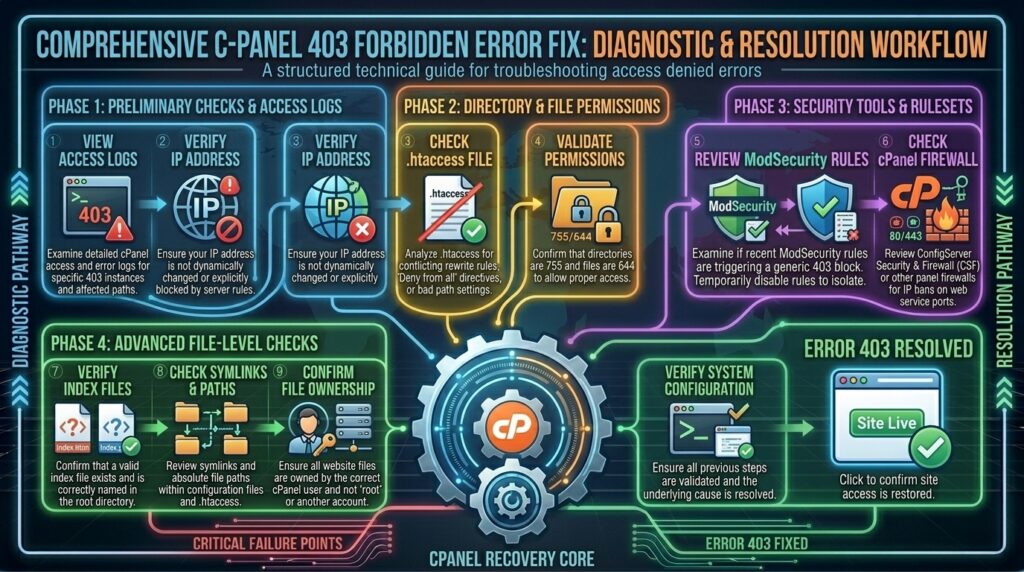
This comprehensive, step-by-step masterclass dives deep into the architecture of cPanel permissions, breaks down the core causes of 403 errors, and provides an actionable, technical troubleshooting playbook to restore full public access to your website.
Part 1: Anatomy of a cPanel 403 Error
Before jumping into solutions, it is vital to understand why Apache or LiteSpeed throws a 403 code on a Linux cPanel server:
- The Linux Permission Model: Linux hosting accounts enforce a strict security matrix across three distinct entities: User (owner), Group, and World (public visitors). Each group has assigned numeric values for Read ($4$), Write ($2$), and Execute ($1$). If a visitor’s browser lacks execute permissions on a directory or read permissions on a file, the server blocks access instantly.
- The Default Index Missing Factor: When a visitor loads your root URL (
[https://thehostreviews.com](https://thehostreviews.com)), the server scans yourpublic_html/directory looking for a valid entry file likeindex.php,index.html, orhome.php. If no valid index file is found and directory listing is disabled, the server automatically returns a 403 Forbidden status to protect file privacy.
Part 2: Step-by-Step Troubleshooting and Resolution Playbook
To systematically eliminate a 403 Forbidden error on your cPanel web hosting server, follow this rigorous 5-step engineering workflow:
Step 1: Rule Out .htaccess File Corruption (The Quick Test)
A corrupted, misconfigured, or syntactically broken .htaccess file is one of the most frequent drivers of unexpected 403 errors on cPanel hosting.
- Log into your cPanel dashboard and open the File Manager.
- Navigate to your website’s document root directory (usually
public_html/). - Locate the file named
.htaccess(remember to enable “Show Hidden Files” in File Manager settings if you don’t see it). - Right-click the
.htaccessfile and select Rename, changing it to something like.htaccess-bak. - Open your website in a fresh incognito browser tab and reload the page.
- If the 403 error disappears, your
.htaccessfile contained a bad rewrite rule or security restriction. Open the backup file, fix the syntax error, or regenerate a clean.htaccessfile from inside your WordPress dashboard (under Settings > Permalinks).
- If the 403 error disappears, your
Step 2: Verify and Correct File and Folder Permissions
Incorrect numeric permissions assigned to directories or files will cause Apache to immediately reject incoming web requests. On cPanel Linux shared hosting, permissions must follow a precise standard:
- The
public_htmlroot folder: Must be set to750or755. - All subfolders inside
public_html: Must be set to755(Owner can read/write/execute; group/world can read/execute). - All regular files (
.php,.html, images, stylesheets): Must be set to644(Owner can read/write; group/world are read-only). - Critical configuration files (
wp-config.php): Should be tightened to640or600.
How to Fix Permissions via cPanel File Manager:
- Inside cPanel File Manager, locate the folder or file throwing the error.
- Right-click the item and select Change Permissions (or click Permissions on the top menu bar).
- Adjust the checkboxes to match the correct numeric values (
755for folders,644for files). - Click Change Permissions. (Caution: Never use recursive permission changes blindly across your entire directory unless you are certain files won’t accidentally be set to 755 executable states).
Step 3: Check for a Missing Default Index File
If your directory permissions and .htaccess file check out, your server may simply be unable to locate your homepage entry point.
- Open your
public_html/folder in cPanel File Manager. - Scan the file list for a valid default document:
index.php,index.html, orindex.htm. - If the directory is entirely empty or lacks an index file, the server blocks access with a 403 error. Upload or restore a valid index file to resolve the issue immediately.
Step 4: Audit ModSecurity and Server Firewall Rules
Web hosting providers utilizing cPanel often run ModSecurity—a powerful web application firewall (WAF) designed to block malicious incoming requests. Occasionally, overactive ModSecurity rules misinterpret legitimate administrative actions or visitor inputs as cyberattacks, locking them out with a 403 page.
- Log into cPanel and search for the ModSecurity icon under the Security section.
- Toggle ModSecurity Off temporarily for your domain.
- Reload your website. If the 403 error vanishes, a specific ModSecurity rule is triggering a false positive.
- Check your cPanel Error Log to identify the rule ID, and contact your hosting provider’s support team to whitelist the affected rule while keeping your server secure.
Step 5: Check File and Directory Ownership (UID/GID Mismatch)
Even if your file permissions are perfectly set to 644 and folders to 755, you will still encounter persistent 403 errors if the files are owned by the wrong system user (often happening after an improper server migration, manual root FTP upload, or command-line extraction).
- If you have SSH access to your cPanel server, run the following command inside your document root to inspect ownership:Bash
ls -la public_html/ - The file owner username must match your exact cPanel account username, not
rootor a numeric system ID. If ownership is misaligned, contact your web hosting support team to run a recursive ownership fix (chown) across your account directory.
Part 3: Advanced Diagnostic Tools: Reading the Apache Error Log
When troubleshooting obscure 403 errors that refuse to clear, guessing solutions is inefficient. The cPanel server records every single access denial in real time inside the Apache error logs.
- Log into cPanel and locate the Errors tool under the Metrics section.
- Review the last 20 entries. Look for specific log lines containing
AH01630: client denied by server configurationorPcfg_openfile: unable to check htaccess file. - The error log will explicitly name the exact file path and trigger mechanism causing the restriction, allowing you to target your fix precisely.
Part 4: Frequently Asked Questions (FAQ)
1. What does a 403 Forbidden error mean on a cPanel server?
A 403 Forbidden error means the web server understands your request but refuses to authorize it, usually due to incorrect file permissions, a bad .htaccess rule, or missing index files.
2. How do I fix a 403 error using cPanel File Manager?
You can fix permission-based 403 errors by logging into cPanel File Manager, right-clicking the affected files or folders, selecting “Change Permissions,” and setting directories to 755 and files to 644.
3. Why does my .htaccess file cause a 403 Forbidden error?
An .htaccess file can trigger a 403 error if it contains syntax errors, conflicting rewrite rules, or explicit Deny from all directives that block incoming traffic.
4. What are the correct file permissions for WordPress on cPanel?
For WordPress hosted on cPanel, folders should be set to 755, standard files should be set to 644, and the wp-config.php file should be secured at 640 or 600.
5. Can a missing index file trigger a 403 error?
Yes. If your public_html/ folder lacks a valid entry file like index.php or index.html and directory browsing is disabled, the server throws a 403 error to protect directory contents.
6. How does ModSecurity cause 403 errors in cPanel?
Overactive ModSecurity firewall rules can misinterpret standard website queries or plugin requests as malicious attacks, blocking access and returning a 403 page.
7. What should I do if changing file permissions doesn’t fix the 403 error?
If permissions are correct, rename your .htaccess file to test for rule corruption, verify that an index file exists, and check your cPanel error logs for further clues.
8. Why do I get a 403 error only when trying to access /wp-admin/?
This specific admin-area 403 error is often caused by security plugins restricting access to your IP address, corrupted rewrite rules in .htaccess, or missing administrator role capabilities in your database.
9. Can I use cPanel’s terminal or SSH to fix permissions in bulk?
Yes. If you have SSH access, running find . -type d -exec chmod 755 {} \; and find . -type f -exec chmod 644 {} \; fixes permissions across all directories and files instantly.
10. When should I contact my web hosting support team about a 403 error?
If you have tested all .htaccess rules, corrected file permissions, verified file ownership, and disabled ModSecurity without success, reach out to your host’s 24/7 support team to check global server configurations.
Conclusion
Encountering an HTTP 403 Forbidden error on your cPanel web hosting server can disrupt your operations, but it is fundamentally a systematic configuration issue. By methodically isolating your .htaccess file, auditing directory and file permissions, ensuring index file availability, and reviewing server error logs, you can resolve the restriction quickly and secure your hosting environment.


Pingback: Recovering deleted files from cpanel trash or backup - The host reviews