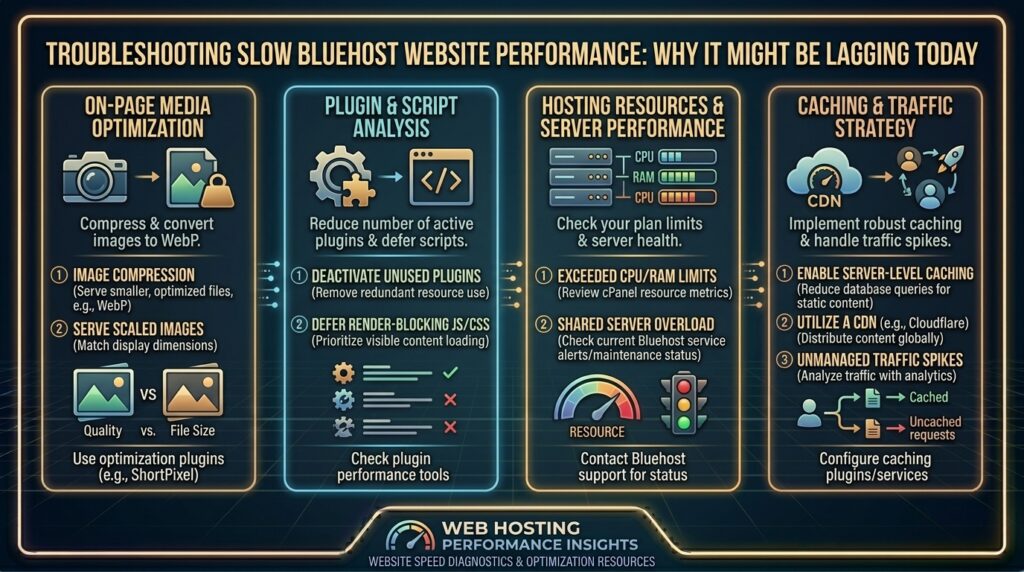
Why Is My Bluehost Website Loading So Slowly Today? The Ultimate Troubleshooting and Optimization Guide
Welcome to thehostreviews.com—your premier authoritative destination for web hosting performance analysis, platform troubleshooting tutorials, and speed optimization audits spanning major digital hubs from New York and San Francisco to Texas, California, and Washington.
Introduction: The Frustration of a Sluggish WordPress Site
You open up your browser, type in your domain name, and wait. And wait. Ten seconds pass, the browser tab spins endlessly, and your blood pressure starts to rise. If your website is hosted on Bluehost and you are experiencing painfully slow load times, sudden freezes, or frustrating Time-to-First-Byte (TTFB) delays, you are certainly not alone.
For millions of bloggers, small business owners, and digital entrepreneurs who launched their platforms using Bluehost’s affordable shared plans, encountering a sudden speed slump is a common rite of passage. But why is your site running like dial-up today specifically? Is it a temporary server hiccup, a background plugin collision, or a structural resource limitation on your hosting tier?
This comprehensive, expert-level troubleshooting guide dives deep into the root causes of Bluehost slowdowns, provides step-by-step diagnostic procedures, and delivers actionable optimization strategies to restore your website’s lightning-fast speed.
Part 1: Diagnosing the Immediate Cause—Is It Bluehost, Your Code, or Your Network?
Before tearing apart your WordPress configuration or blaming your hosting provider blindly, you must systematically isolate where the bottleneck is occurring.
Step 1: Rule Out Local Network and Browser Issues
Sometimes, the problem isn’t your server at all—it’s your local internet connection, your browser cache, or your local DNS resolver.
- Test on Cellular Data: Disconnect your phone from your office or home Wi-Fi and load your website using cellular data (LTE/5G). If the site loads instantly on mobile data, your local router or internet service provider (ISP) is caching bad DNS records.
- Clear Browser Cache: Clear your browser’s history, cookies, and cache, or open an Incognito/Private window to test fresh requests.
Step 2: Run an Independent Global Uptime & Speed Test
Use third-party monitoring tools like GTmetrix, Google PageSpeed Insights, or KeyCDN Tools to test your URL from multiple geographic regions (such as New York, London, or San Francisco).
- If external tools report a 502 Bad Gateway, 503 Service Unavailable, or a massive 10-second TTFB across all global nodes, the issue resides squarely on Bluehost’s server infrastructure or your application backend.
Part 2: The Top 5 Reasons Your Bluehost Website Is Slow Today
If your site is dragging today, it is typically driven by one of five common culprits inherent to shared and managed WordPress hosting environments:
1. “Noisy Neighbor” Resource Exhaustion on Shared Servers
Bluehost’s entry-level and standard shared hosting plans place hundreds of independent customer websites onto a single physical server machine.
- The Problem: All accounts share the same pool of CPU cores, RAM, and disk I/O channels. If a neighboring website on your server experiences a massive traffic spike, launches an unoptimized database query, or suffers a brute-force XML-RPC attack, it can hog all available server resources.
- The Result: Your website gets starved of CPU cycles, resulting in massive lag or temporary server timeouts.
2. Unoptimized or Misconfigured Caching
WordPress is dynamically generated on the fly. Every single time a visitor lands on your page, PHP executes scripts and queries your MySQL database to assemble the HTML code.
- The Problem: If server-side caching or plugin-level page caching is disabled or broken, your server has to rebuild every page from scratch for every single visitor.
- The Result: CPU utilization spikes instantly, crippling concurrent load handling.
3. Heavy, Bloated, or Rogue WordPress Plugins
Plugins are the lifeblood of WordPress, but they can easily become its execution anchor.
- The Problem: A plugin may have received an automatic update today containing a broken script, an infinite PHP loop, or an unoptimized database query. Alternatively, accumulation of security scanners, tracking pixels, and heavy page builders (like unoptimized Elementor or Divi setups) can crush server response times.
- The Result: Background cron jobs and heavy admin-ajax requests flood your server architecture with continuous processing loops.
4. Database Bloat and Uncleaned Transients
Over months and years of operation, your WordPress MySQL database accumulates massive amounts of digital clutter.
- The Problem: Post revisions, auto-drafts, spam comments, trashed items, and expired transient options pile up by the tens of thousands. When your site loads, WordPress has to sift through megabytes of junk data to find what it needs.
- The Result: Slow database read/write times directly inflate your server’s Time-to-First-Byte (TTFB).
5. Inadequate PHP Version or Memory Limits
- The Problem: If your Bluehost account is still running an outdated PHP version (such as PHP 7.4 or older), or if your PHP memory limit (
memory_limit) is capped too low (e.g., 64M or 128M), modern scripts will struggle to execute cleanly.
Part 3: Step-by-Step Guide—Fixing a Slow Bluehost Site
Execute these targeted troubleshooting and remediation steps to diagnose and repair your lagging Bluehost website today.
Step 1: Check Server Status and Resource Usage in cPanel
- Log into your Bluehost control panel or hosting dashboard.
- Navigate to Advanced > Server Information or look for your account resource metrics.
- Check your CPU Usage, Memory Usage, and Concurrent Processes. If these metrics are highlighted in red or warning states, your account is hitting its shared resource caps.
- Action: If resource limits are maxed out, contact Bluehost support to inquire if your account is stuck on an overloaded server node, or evaluate whether it’s time to transition to a higher resource tier (like a VPS or cloud plan).
Step 2: Enable Bluehost Server-Side Caching
Bluehost provides built-in server caching features designed to bypass PHP execution for static page views.
- Log into your WordPress admin dashboard.
- Click on the Bluehost menu item in the left sidebar, then navigate to the Settings or Performance tab.
- Locate the caching controls and toggle server caching to Medium or Advanced (depending on whether your site is a blog or an e-commerce store).
- Click Clear All Cache to flush old data and verify that speed improves immediately.
Step 3: Integrate Free Cloudflare CDN and Argo Routing
Bluehost includes integration options for Cloudflare Content Delivery Network (CDN) services.
- Inside your Bluehost dashboard, navigate to the Speed or Websites tab.
- Locate the Cloudflare integration module and toggle it On.
- This offloads your static media assets (images, CSS, JS) to Cloudflare’s global network of over 250 edge data centers, drastically reducing geographic latency for international visitors.
Step 4: Upgrade Your PHP Version to PHP 8.0 or 8.1
Running modern PHP versions provides dramatic performance and execution speed boosts (often 30% faster than legacy versions).
- In your Bluehost cPanel, locate the MultiPHP Manager tool.
- Select your domain name and check its assigned PHP version.
- Switch the version to PHP 8.0 or PHP 8.1 (ensure compatibility with your active theme and plugins) and save changes.
Step 5: Clean Up and Optimize Your Database
- Install a reputable database optimization plugin like WP-Optimize or WP-Sweep.
- Run a full clean sweep to eliminate post revisions, auto-drafts, spam comments, and expired transients.
- Optimize your database tables to shrink table sizes and accelerate query response times.
Part 4: Advanced Performance Best Practices for Bluehost Users
If standard fixes only provide minor relief, apply these advanced engineering optimizations to bulletproof your site against future slowdowns:
- Install a Premium Caching Plugin: While Bluehost’s native caching helps, pairing it with a robust caching plugin like WP Rocket gives you advanced features like CSS/JS minification, delayed JavaScript execution, and cache preloading.
- Disable the WordPress Heartbeat API: The WordPress Heartbeat API uses frequent AJAX calls (
admin-ajax.php) to manage autosaves and dashboard notifications, which continuously consumes server CPU cycles in the background. Use a lightweight control plugin to restrict or disable Heartbeat intervals. - Audit and Strip Unused Plugins: Scan your plugin directory and deactivate anything you aren’t actively using. Replace resource-heavy plugins with lightweight, optimized alternatives.
- Migrate to a Dedicated Cloud Host When Necessary: If your business has outgrown shared hosting limitations and you experience daily slowdowns despite rigorous optimization, consider transitioning to high-performance cloud providers or managed VPS infrastructure.
Part 5: Frequently Asked Questions (FAQ)
1. Why did my Bluehost website suddenly slow down today?
Sudden slowdowns are typically caused by temporary traffic spikes, a noisy neighbor hogging shared server resources, a misbehaving plugin update, or an unoptimized background cron job running on your account.
2. Does Bluehost throttle website speeds on shared plans?
Yes. Bluehost enforces strict CPU, memory, and process limitations on shared servers. If your account consumes more than its fair share of server resources, processes get delayed or throttled, leading to slow load times or 503 errors.
3. How do I check if my Bluehost server is overloaded?
You can log into your Bluehost cPanel, navigate to server resource metrics, and check your CPU and memory usage graphs to see if your account is hitting warning or red thresholds.
4. How can I improve my Bluehost server response time (TTFB)?
You can improve your Time-to-First-Byte by enabling Bluehost server-side caching, activating Cloudflare CDN, upgrading to PHP 8.0+, and cleaning up database bloat.
5. Does Bluehost offer free SSL, and does it affect speed?
Yes, Bluehost offers free Let’s Encrypt SSL certificates. Running via HTTPS also enables the modern HTTP/2 and HTTP/3 protocols, which significantly improve parallel asset loading speeds.
6. Will upgrading my Bluehost plan fix speed issues?
Upgrading from a basic shared hosting plan to a higher tier (like Bluehost’s Choice Plus, Online Store, or a VPS plan) provides dedicated resources and higher CPU allocations, which generally resolves resource-exhaustion slowdowns.
7. How do plugins affect my Bluehost loading speed?
Unoptimized or poorly coded plugins execute heavy database queries and load unnecessary scripts on every page view, draining your shared server’s available memory and increasing load times.
8. What is the best caching plugin for Bluehost?
While Bluehost has built-in caching, premium plugins like WP Rocket provide advanced optimization features such as lazy loading, file minification, and critical CSS generation.
9. Should I contact Bluehost support if my site is slow?
Yes. If your server metrics show normal usage on your end but your site remains crippled, Bluehost support can check if your specific server node is experiencing an underlying hardware issue or network degradation.
10. Is it easy to migrate away from Bluehost if speeds cannot be fixed?
Yes. Most modern web hosts offer free website migrations, and you can easily package your WordPress files and database using migration plugins like All-in-One WP Migration or Duplicator.
Conclusion
Experiencing a sudden slowdown on your Bluehost website can disrupt your business and frustrate your visitors, but it is rarely an unfixable problem. By methodically checking your server resource limits, enabling built-in caching and Cloudflare CDN integrations, upgrading your PHP environment, and purging database bloat, you can dramatically accelerate your load times.