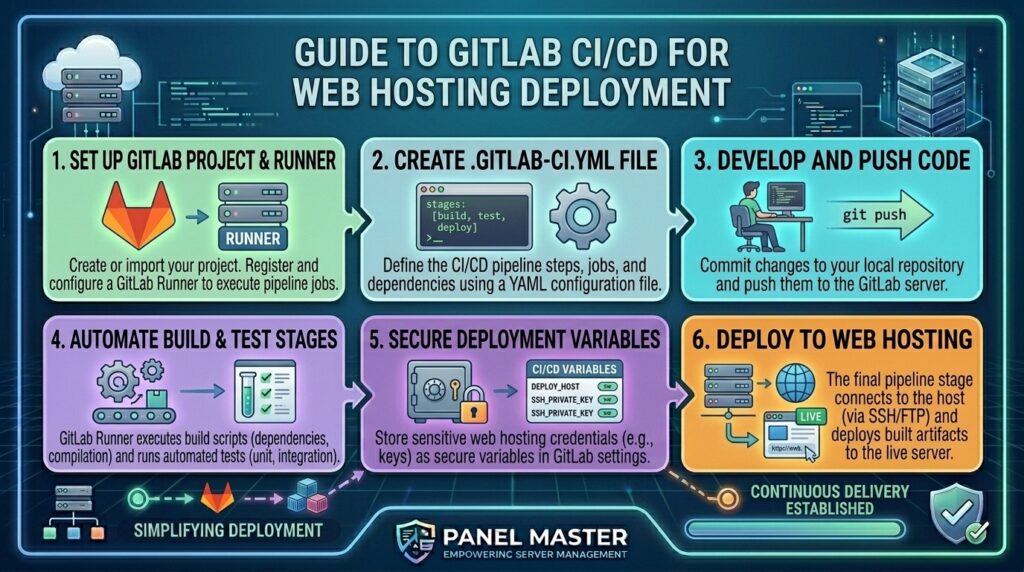
How to Use GitLab CI/CD with Web Hosting Deployment: The Ultimate Automation Guide
Welcome to thehostreviews.com—your premier authoritative destination for cloud infrastructure reviews, DevOps engineering workflows, and high-performance server management guides spanning major technical hubs from New York and San Francisco to Texas, California, and Washington.
Introduction: Moving Beyond Manual FTP and SSH Deploys
For years, deploying a website or web application to a remote Virtual Private Server (VPS) or cloud hosting environment involved manual grunt work. Developers would write code locally, compile assets, fire up an FTP client (like FileZilla), or manually open an SSH terminal, drag and drop files, run database migrations by hand, and pray that nothing broke in production.
This manual workflow is slow, highly prone to human error, and virtually impossible to scale when working in modern multi-developer teams.
Enter GitLab CI/CD (Continuous Integration and Continuous Deployment).
By defining your build, test, and release processes inside version-controlled configuration files, GitLab automates your entire release workflow. The moment you push code changes to your repository, GitLab automatically tests your application, packages it, and deploys it straight to your web hosting environment without you ever touching an FTP client.
Whether you are managing e-commerce nodes out of Texas data centers, SaaS platforms hosted in San Francisco, or digital agencies scaling infrastructure in New York, this comprehensive masterclass will teach you how to architect a bulletproof GitLab CI/CD pipeline for automated web hosting deployment.
Part 1: Core Concepts of GitLab CI/CD Architecture
Before writing your configuration script, it is essential to understand how GitLab CI/CD components interact with your web hosting target:
- GitLab Repository: The centralized Git storage where your application source code and pipeline instructions reside.
- The
.gitlab-ci.ymlFile: A declarative YAML script placed at the root of your repository that dictates the stages, jobs, and execution scripts of your pipeline. - GitLab Runners: The lightweight virtual worker agents that execute your pipeline jobs. You can use GitLab’s shared cloud runners or host your own custom runner directly on your target VPS.
- Environments & Target Hosting: The destination server (e.g., an Ubuntu VPS running Nginx, Apache, or Docker) where final application builds are published.
Part 2: Step 1 — Preparing Your Web Hosting Environment
To allow GitLab to deploy code automatically to your remote web server, you must establish secure, passwordless authentication. We will use SSH Key-Based Authentication.
Step 1: Generate an SSH Key Pair for Deployment
On your local machine or inside a secure terminal, generate a dedicated SSH key pair specifically for CI/CD deployments:
Bash
ssh-keygen -t rsa -b 4096 -C "gitlab-deploy-bot" -f ~/.ssh/gitlab_deploy_key
This generates two files: gitlab_deploy_key (private key) and gitlab_deploy_key.pub (public key).
Step 2: Authorize the Public Key on Your Web Server
Copy the contents of gitlab_deploy_key.pub and append them to the authorized_keys file of your deployment user on your remote VPS:
Bash
mkdir -p ~/.ssh
echo "YOUR_PUBLIC_KEY_STRING_HERE" >> ~/.ssh/authorized_keys
chmod 600 ~/.ssh/authorized_keys
Step 3: Add Private Key to GitLab CI/CD Secrets
To keep your server secure, never hardcode private keys into your code repository. Instead, store them securely in GitLab’s environment variables:
- Navigate to your project on GitLab.
- Go to Settings > CI/CD > Variables and click Add variable.
- Create a variable named
SSH_PRIVATE_KEYand paste the entire contents of yourgitlab_deploy_keyprivate key. Set the type to File or Variable. - Add additional variables for server connection parameters:
SSH_SERVER_IP: Your VPS public IP address (e.g.,192.0.2.1)SSH_USER: Your server deployment username (e.g.,deployer)
Part 3: Step 2 — Writing Your .gitlab-ci.yml File
Create a file named .gitlab-ci.yml at the root directory of your Git repository. This file dictates how GitLab processes your code.
Below is a robust, production-ready pipeline configuration optimized for a standard web hosting deployment (e.g., syncing files via rsync or deploying containerized apps):
YAML
stages:
  - test
  - build
  - deploy

variables:
  NODE_VERSION: "20"

cache:
  paths:
    - node_modules/

# Stage 1: Run automated tests
run_tests:
  stage: test
  image: node:${NODE_VERSION}-alpine
  script:
    - echo "Installing dependencies..."
    - npm ci
    - echo "Running test suite..."
    - npm test
  rules:
    - if: '$CI_COMMIT_BRANCH == "main" || $CI_COMMIT_BRANCH == "staging"'

# Stage 2: Build production static assets or bundles
build_assets:
  stage: build
  image: node:${NODE_VERSION}-alpine
  script:
    - echo "Building production bundle..."
    - npm ci
    - npm run build
  artifacts:
    expire_in: 1 days
    paths:
      - dist/
      - build/
  rules:
    - if: '$CI_COMMIT_BRANCH == "main" || $CI_COMMIT_BRANCH == "staging"'

# Stage 3: Deploy to remote web hosting server via SSH/Rsync
deploy_to_production:
  stage: deploy
  image: alpine:latest
  environment:
    name: production
    url: https://thehostreviews.com
  before_script:
    - apk add --no-cache openssh-client rsync
    - eval $(ssh-agent -s)
    - echo "$SSH_PRIVATE_KEY" | tr -d '\r' | ssh-add -
    - mkdir -p ~/.ssh
    - chmod 700 ~/.ssh
    - ssh-keyscan -H "$SSH_SERVER_IP" >> ~/.ssh/known_hosts
    - chmod 644 ~/.ssh/known_hosts
  script:
    - echo "Initiating secure file transfer to web server..."
    - rsync -avz --delete ./dist/ $SSH_USER@$SSH_SERVER_IP:/var/www/html/
    - echo "Deployment completed successfully!"
  rules:
    - if: '$CI_COMMIT_BRANCH == "main"'
      when: manual   # Requires manual click-to-deploy for production safety
Part 4: Step 3 — Understanding Pipeline Stages in Detail
Let’s dissect how this configuration automates your workflow from commit to production:
- The Test Stage (
run_tests): Pulls a lightweight Node.js container, installs package dependencies vianpm ci, and runs your automated test suites. If any test fails, the pipeline halts immediately, preventing broken code from ever reaching your web server. - The Build Stage (
build_assets): Compiles modern frontend assets (React, Vue, Vite, or Next.js static exports) into a clean output directory (dist/orbuild/). By saving these files as Artifacts, they are passed securely to subsequent deployment stages without needing to rebuild. - The Deploy Stage (
deploy_to_production): Installsrsyncandopensshinside an Alpine Linux runner, securely injects your private SSH key, and syncs your build folder straight to your web root directory (/var/www/html/). Notice thewhen: manualrule—this adds a safety gate requiring an authorized engineer to manually click “Play” in the GitLab dashboard before production releases go live.
Part 5: Advanced Deployment Strategy: Zero-Downtime Releases
If you run high-traffic websites, syncing files directly into an active web root (/var/www/html) can cause race conditions, missing asset errors, or broken site experiences while files are actively copying.
Implement a Release Folder Symlink Strategy for zero-downtime deployments:
- Structure your server directory like this:
/var/www/myapp/releases/(Holds timestamped folders of past builds)/var/www/myapp/current(A symbolic link pointing to the active release folder)
- Modify your GitLab CI/CD deploy script to run a remote SSH command after uploading:Bash
ssh $SSH_USER@$SSH_SERVER_IP " RELEASE_DIR=/var/www/myapp/releases/$(date +%Y%m%d%H%M%S) mkdir -p \$RELEASE_DIR # Move uploaded files into the new timestamped folder mv /tmp/upload_staging/* \$RELEASE_DIR/ # Atomically switch the symlink to point to the new release ln -sfn \$RELEASE_DIR /var/www/myapp/current # Prune old releases keeping only the latest 3 ls -dt /var/www/myapp/releases/* | tail -n +4 | xargs rm -rf "
Part 6: Best Practices for GitLab CI/CD Security and Optimization
- Protect Sensitive Branches: Restrict push and merge access on your
mainandproductionbranches inside GitLab repository settings so developers cannot push untested code directly. - Leverage Pipeline Caching: Use the
cache:keyword to persist heavy dependency folders (likenode_modules/or Composer vendor folders) across pipeline runs, drastically cutting down build times. - Scan for Security Vulnerabilities: Enable GitLab’s built-in SAST (Static Application Security Testing) and dependency scanning tools in your pipeline to catch vulnerable npm/composer packages before they hit your web hosting server.
Part 7: Frequently Asked Questions (FAQ)
1. What is GitLab CI/CD in the context of web hosting?
GitLab CI/CD is an automated pipeline tool that builds, tests, and pushes your website code updates directly to your web hosting server the moment you commit changes to your repository.
2. Do I need a dedicated server to run GitLab CI/CD pipelines?
No. GitLab provides free shared cloud runners on GitLab.com that execute your build and test jobs, meaning you only need a standard target VPS to receive the final deployment files.
3. How do I keep my hosting server credentials safe in GitLab?
You should store sensitive data—such as SSH private keys, database passwords, and API tokens—inside GitLab CI/CD Environment Variables (Settings > CI/CD > Variables) rather than hardcoding them into configuration files.
4. What is the difference between Continuous Delivery and Continuous Deployment?
Continuous Delivery means code changes are automatically tested and built into ready-to-release bundles, but require manual approval to push to production. Continuous Deployment fully automates the release step so code goes live instantly without human intervention.
5. Why is my deployment failing with a “Host key verification failed” error?
This error occurs because the GitLab runner does not recognize your web server’s SSH fingerprint. You can resolve this by adding ssh-keyscan -H "$SSH_SERVER_IP" >> ~/.ssh/known_hosts into your pipeline’s before_script block.
6. Can I use GitLab CI/CD with shared hosting accounts via FTP?
Yes. Although SSH/Rsync is preferred, you can install an FTP client utility (like lftp or curl) inside your CI/CD runner script to upload files securely using your shared hosting FTP credentials.
7. How do I implement a rollback if a deployment breaks my website?
You can configure a rollback job in your .gitlab-ci.yml file or maintain previous version directories on your server via symlinks, allowing you to instantly revert traffic back to the prior stable release folder.
8. What are GitLab Runners and how do they work?
GitLab Runners are background worker applications that poll your GitLab instance for pending pipeline jobs, execute the script instructions step-by-step, and report the success or failure status back to GitLab.
9. How can I speed up my GitLab CI/CD web deployment pipeline?
You can dramatically accelerate pipeline execution times by enabling dependency caching (cache: keyword), utilizing Docker image layers efficiently, and running independent test suites in parallel stages.
10. Is GitLab CI/CD free to use for personal and commercial websites?
Yes. GitLab offers a generous free tier on GitLab.com that includes 500 CI/CD compute minutes per month on shared runners, which is more than enough for small-to-medium web hosting deployment workflows.
Conclusion
Integrating GitLab CI/CD with your web hosting deployment workflow completely eliminates the headaches of manual FTP transfers and risky SSH file edits. By turning code releases into a streamlined, automated pipeline featuring rigorous testing, secure key management, and zero-downtime symlinks, you achieve professional DevOps efficiency on any web hosting environment.