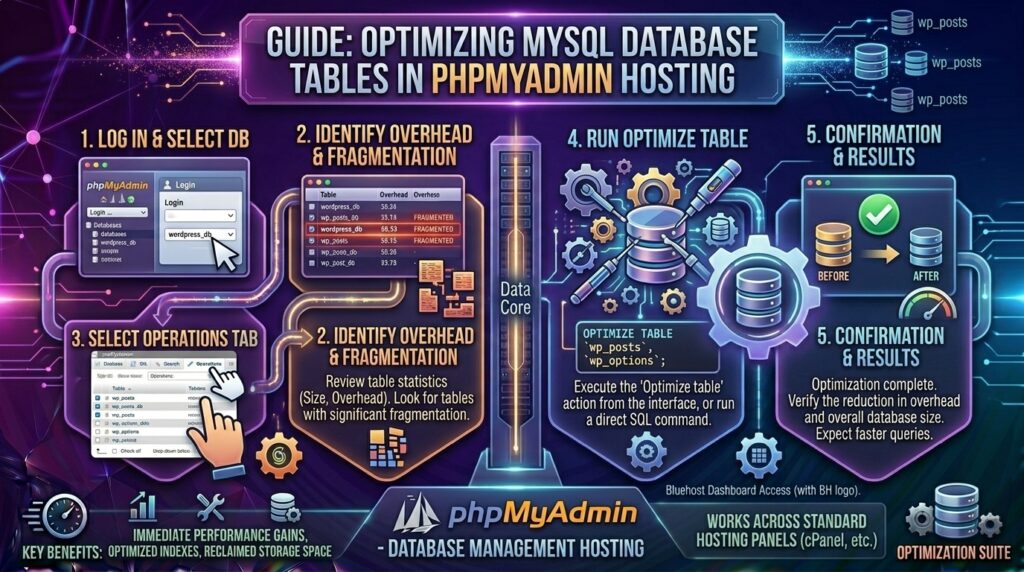
Optimizing MySQL Database Tables in phpMyAdmin Hosting: The Ultimate Performance Guide
Welcome to thehostreviews.com—your premier authoritative source for web hosting evaluations, database tuning strategies, and server performance engineering spanning tech hubs from New York and San Francisco to Texas, California, and Washington.
Introduction: Why Database Optimization Matters for Web Hosting Performance
When website owners evaluate web hosting performance, they obsess over server CPU cores, RAM allocations, and Content Delivery Networks (CDNs). However, the hidden bottleneck of nearly every dynamic web application—whether running WordPress, Magento, custom PHP scripts, or enterprise e-commerce platforms—lies beneath the surface in the MySQL database.
Every time a user visits your website, queries are fired to your database to fetch user accounts, comments, blog posts, e-commerce product listings, and configuration settings. Over time, as your website grows, users register, and data is continuously written, updated, and deleted, your database tables accumulate fragmentation, bloated indexes, and overhead. This data fragmentation forces your MySQL server to perform inefficient disk read operations, spiking your Time to First Byte (TTFB) and degrading user experience.
Fortunately, managing and optimizing your database tables is straightforward using phpMyAdmin, the world’s most popular web-based database management tool included with almost all cPanel and control panel web hosting accounts.
This comprehensive, expert-level guide will walk you through everything you need to know to safely optimize your MySQL database tables using phpMyAdmin, eliminate performance drag, and maximize server efficiency.
Part 1: Understanding How MySQL Databases Fragment and Bloat
Before jumping into phpMyAdmin, it is important to understand what happens to database storage over time.
What is Table Fragmentation?
When rows of data are dynamically inserted, updated, or deleted from a MySQL table (especially tables using the popular InnoDB storage engine), the physical storage space on your hosting server’s hard drive becomes fragmented.
- Imagine a physical filing cabinet: when you rip out old documents, empty gaps are left behind.
- If new documents are too large for those gaps, they get split up or placed elsewhere.
- In MySQL, this fragmentation means the server has to read across scattered disk sectors to retrieve a single query result, wasting precious CPU cycles and disk I/O operations.
The Role of Overhead
In older MyISAM tables (and certain log tables), deleted data leaves behind wasted space known as overhead. Optimizing or defragmenting tables reclaims this unused disk space and compacts the table files back to peak operational efficiency.
Part 2: Step-by-Step Guide to Optimizing Tables in phpMyAdmin
Follow this step-by-step framework to clean, repair, and optimize your database tables safely.
Step 1: Log Into Your Hosting Control Panel (cPanel / Plesk)
- Open your web hosting login portal and sign into your dashboard (e.g., cPanel).
- Scroll down to the Databases module section.
- Click on the icon labeled phpMyAdmin. This will open the phpMyAdmin interface in a new browser tab, automatically authenticating your database user session.
Step 2: Select Your Target Database
- In the left-hand sidebar of phpMyAdmin, you will see a list of databases hosted on your account.
- Click on the specific database name associated with your website (e.g.,
yourusername_wpdatabase). - phpMyAdmin will load the Structure tab, displaying a comprehensive list of all tables inside that database (such as
wp_posts,wp_options,wp_usermeta, etc.), along with their row counts, data sizes, and overhead totals.
Step 3: Review Table Status and Overhead
Scroll down to the bottom of the table list. You will see a summary table displaying:
- Total number of tables.
- Total disk space consumed by your database.
- A column labeled Overhead (highlighted in red or orange if fragmentation is present). Overhead represents wasted space that MySQL can reclaim.
Step 4: Run the Optimization Routine
You can optimize your database tables using two primary methods depending on whether you want to clean specific bloated tables or optimize the entire database at once.
Method A: Optimizing the Entire Database at Once (Fastest)
- Scroll down to the very bottom of the table list where the master action controls are located.
- Click the checkbox labeled Check all to select every single table in your database simultaneously.
- Locate the dropdown menu directly next to it labeled With selected:.
- Click the dropdown and select Optimize table.
- phpMyAdmin will execute the SQL query
OPTIMIZE TABLEacross all selected tables. A confirmation screen will appear displaying green checkmarks indicating success and reporting the exact amount of reclaimed storage space.
Method B: Optimizing Individual Tables (Targeted Approach)
If you want to target specific bloated tables (such as large log tables, transient options, or post meta tables):
- Check the boxes next to the individual tables you wish to tune.
- Click the With selected: dropdown menu.
- Select Optimize table (or choose Repair table if you suspect table corruption).
Part 3: Advanced Database Tuning and Performance Tips
Simply running an optimization command once is not enough for long-term site health. Implement these professional administration strategies to keep your MySQL database running at lightning speed:
1. Clean Up Autoloaded Data in wp_options
If you run a WordPress site, one of the most common causes of database bloat is the wp_options table containing excessive autoload = 'yes' data left behind by uninstalled plugins.
- Periodically audit your options table.
- Delete orphaned transient keys and stale configuration entries that unnecessarily swell memory usage during every page load.
2. Prune Post Revisions and Spam Comments
Websites that publish frequently accumulate thousands of historical post revisions and spam comments.
- Use database maintenance plugins (like WP-Optimize or Advanced Database Cleaner) to clean out old revisions, trashed comments, and pingbacks.
- Alternatively, run a targeted SQL query inside phpMyAdmin to limit revisions:SQL
DELETE FROM wp_posts WHERE post_type = 'revision';(Always backup your database before executing manual SQL queries!)
3. Switch to InnoDB Storage Engine
Ensure your database tables utilize the InnoDB storage engine rather than the legacy MyISAM engine. InnoDB supports row-level locking, foreign key constraints, and crash recovery, making it vastly superior for modern high-concurrency web hosting environments.
Part 4: Troubleshooting Common phpMyAdmin Database Errors
Even routine database management can occasionally encounter snags. Here is how to fix the most common errors:
- Error: “Table is marked as crashed and should be repaired”
- The Cause: Sudden server reboots, power failures, or abrupt script terminations can corrupt table index files.
- The Fix: Select the corrupted table in phpMyAdmin, go to the With selected: dropdown menu, and select Repair table. phpMyAdmin will rebuild the index tree instantly.
- Error: “The OPTIMIZE table feature is ignored for this table”
- The Cause: For certain InnoDB tables, MySQL handles optimization dynamically via internal defragmentation routines (
ALTER TABLE ... FORCEor table rebuilding). This message is simply an informational notice and does not mean your database is broken.
- The Cause: For certain InnoDB tables, MySQL handles optimization dynamically via internal defragmentation routines (
- Error: phpMyAdmin Session Timeout or “Max execution time exceeded”
- The Cause: If your database is exceptionally large (several gigabytes), optimizing all tables at once can exceed PHP’s maximum execution time limit.
- The Fix: Select tables in smaller batches (e.g., 20–30 tables at a time) rather than optimizing hundreds of tables simultaneously.
Part 5: Frequently Asked Questions (FAQ)
1. How often should I optimize my MySQL database tables?
For most standard websites, running an optimization routine once every month or quarter is more than sufficient. Over-optimizing high-traffic InnoDB tables too frequently can actually cause unnecessary disk write wear.
2. Will optimizing my database delete my website files or content?
No. Optimization commands (like OPTIMIZE TABLE) only reorganize data storage blocks, reclaim unused overhead space, and rebuild index statistics. Your posts, pages, user records, and media data remain 100% safe.
3. Should I create a backup before optimizing tables in phpMyAdmin?
Yes. It is an absolute golden rule of web administration: Always export a full backup of your database via phpMyAdmin’s Export tab before performing bulk structural modifications or optimizations.
4. Does optimizing database tables improve website loading speed?
Yes! By reducing table fragmentation and cleaning up overhead, MySQL executes queries faster, reduces disk read latency, and lowers server CPU usage, which directly improves your Time to First Byte (TTFB) and overall site performance.
5. What is the difference between “Optimize table” and “Repair table”?
- Optimize Table: Reorganizes physical storage, defragments table data, and reclaims unused overhead space.
- Repair Table: Used exclusively to fix corrupted or broken table files and index chains caused by server crashes or abrupt script halts.
6. Can I automate database optimization on shared hosting?
Many managed WordPress hosts (like SiteGround or WP Engine) handle database cleanup automatically via built-in server optimization tools. On standard cPanel hosting, you can set up cron jobs or utilize plugin-based automated optimization schedulers.
7. Why do some tables show 0 bytes of overhead?
Tables that show zero overhead are already fully compacted and efficiently organized, meaning MySQL has no fragmented space to reclaim at that moment.
8. Does phpMyAdmin optimization work on remote databases?
phpMyAdmin is designed to manage MySQL/MariaDB databases hosted on your server environment. If your web host provides phpMyAdmin access via cPanel, it connects directly to your local server database socket.
9. What is the best storage engine for MySQL databases?
InnoDB is the industry standard and default storage engine for modern MySQL and MariaDB databases. It offers superior concurrency, transaction safety, and reliability compared to the legacy MyISAM engine.
10. How do I access phpMyAdmin if my web host doesn’t use cPanel?
While cPanel is the most common environment, other hosting control panels like Plesk, DirectAdmin, or cyberPanel also feature direct one-click links to launch phpMyAdmin or equivalent database managers like Adminer.
Conclusion
Regularly maintaining and optimizing your MySQL database tables in phpMyAdmin is an essential operational task for any serious website owner. By eliminating data fragmentation, reclaiming server overhead, and keeping your database structures lean, you ensure peak application performance and lightning-fast response times for your visitors.