How to Clear Server-Side Cache on SiteGround and Bluehost: The Definitive Guide
Welcome to thehostreviews.com—your authoritative source for web hosting evaluations, infrastructure performance tuning, and technical engineering tutorials spanning major tech epicenters from New York and San Francisco to Texas, California, and Washington.
Introduction: Why Server-Side Caching Matters
If you have ever updated a piece of text, replaced an image, or published a brand-new blog post on your website only to find that your live pages still display the old layout, you have run into one of the most common friction points in web management: caching.
To deliver lightning-fast loading speeds to visitors across the United States and globally, modern web hosting providers implement multi-layered server-side caching. Platforms like SiteGround and Bluehost use server-level tools to store pre-rendered static HTML copies, database query responses, and object data. This reduces Time to First Byte (TTFB) and protects server CPU limits.
However, when you push updates to your site, these cached copies can become outdated. Knowing how to correctly clear and purge server-side cache on your specific hosting architecture is a critical skill.
This comprehensive, expert-level guide will walk you through the exact, step-by-step processes required to clear server-side cache on both SiteGround and Bluehost, complete with troubleshooting tips and performance optimization best practices.
Part 1: Understanding Server-Side Cache vs. Browser Cache
Before diving into host-specific instructions, it helps to distinguish between the different types of caches operating on your website:
- Server-Side Cache: Managed directly at the web host level. This includes full-page dynamic caching, opcode caching (OPcache), and object caching (like Memcached or Redis). It serves saved HTML files without triggering PHP or database requests.
- Plugin Cache: Application-level caching generated by plugins installed on your CMS (such as WP Rocket, W3 Total Cache, or SG Optimizer).
- Browser Cache: Local data stored directly inside your visitor’s web browser (Chrome, Safari, Firefox) to prevent re-downloading static assets on repeat visits.
When updates fail to show up live, clearing your server-side cache is almost always the required fix.
Part 2: How to Clear Server-Side Cache on SiteGround
SiteGround is widely renowned for its proprietary, high-performance speed technology stack anchored by the SuperCacher system (featuring Dynamic Caching, File-Based Caching, and Memcached).
If your WordPress site is hosted on SiteGround, you have two primary ways to clear your server-side cache: via the WordPress dashboard using their native plugin, or via your SiteGround User Area toolset.
Method A: Clearing Cache via the SiteGround Optimizer WordPress Plugin (Recommended)
The SG Optimizer (Speed Optimizer) plugin comes pre-installed on most SiteGround WordPress environments and provides direct control over your server cache.
- Log into your WordPress Admin Dashboard.
- Look at the left-hand navigation menu and click on Speed Optimizer (or SG Optimizer).
- Navigate to the Caching tab.
- Here, you will see options for Dynamic Caching, File-Based Caching, and Memcached.
- Click on the Purge Cache button (or click the dynamic cache purging option). A success notification will instantly confirm that all server-side static copies have been wiped and refreshed.
Pro Tip: The SG Optimizer plugin also features an Automatic Cache Purge function, which automatically flushes the server cache whenever you update a post, page, or plugin.
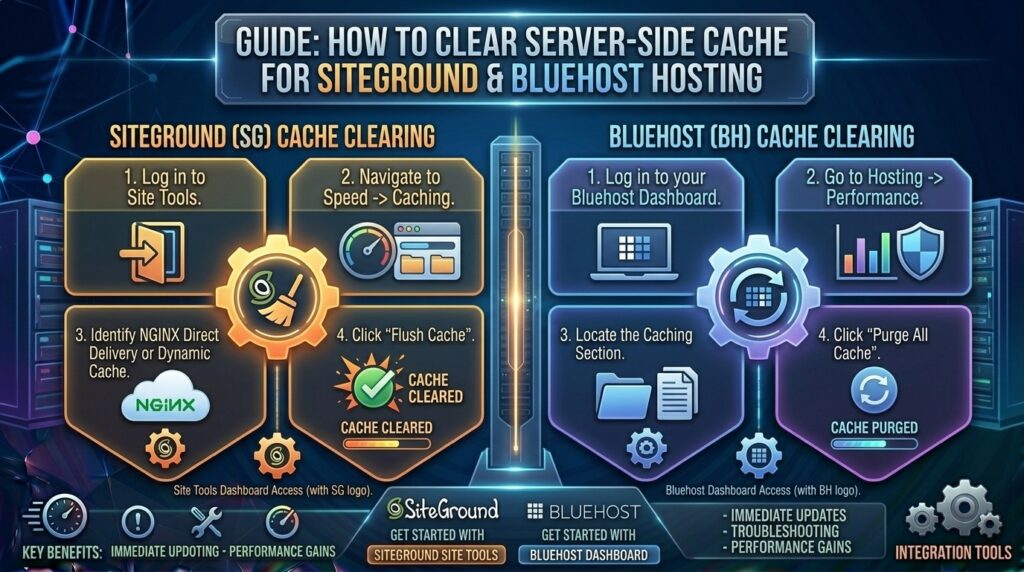
Method B: Clearing Cache via the SiteGround User Area (Site Tools)
If you cannot access your WordPress dashboard due to a plugin conflict or error, you can clear your server-side cache directly from your SiteGround control panel (Site Tools).
- Log into your SiteGround Client Area.
- Click on the Websites tab and click the Site Tools button next to your target domain.
- In the left-hand sidebar, navigate to Speed and click on Caching.
- Select the Dynamic Cache tab.
- Locate your domain name in the management list, click the Actions (three vertical dots) menu next to it, and select Flush Cache.
- If you have Memcached enabled, switch to the Memcached tab and click Flush there as well to clear your object cache database layers.
Part 3: How to Clear Server-Side Cache on Bluehost
Bluehost integrates powerful server-level page caching and object caching (utilizing Redis) natively into its hosting infrastructure. Whether you are managing your site through the new Bluehost Portal or your WordPress dashboard, clearing your server cache takes just a few clicks.
Method A: Clearing Cache via the Bluehost WordPress Plugin / Admin Bar
Bluehost automatically injects a caching handler into your WordPress installation toolbar.
- Log into your WordPress Admin Dashboard.
- Look at the top admin toolbar. You will see a menu item labeled Bluehost.
- Hover over Bluehost and click on Caching (or navigate to Bluehost > Settings > Performance in your sidebar).
- Locate the Clear Cache or Purge All tile.
- Click the button to clear the server-side cache instantly.
Method B: Clearing Cache via the Bluehost Portal
If your WordPress dashboard is locked or unresponsive, you can clear your server cache directly from your Bluehost account dashboard.
- Log into your main Bluehost Portal dashboard.
- In the left-hand navigation menu, click on Websites.
- Locate your website card and click the Manage Site button.
- Open the Performance tab.
- Locate the Clear cache tile and click the Clear all cache button. Bluehost will flush all server-level static files and object storage pools immediately.
Part 4: Advanced Troubleshooting: Clearing Cache via cPanel File Manager
If you manage a non-WordPress custom PHP site, or if standard panel buttons fail to clear lingering temporary files on your server, you can manually delete server cache directories using your hosting File Manager.
- Log into your hosting control panel (cPanel or Bluehost/SiteGround file interface) and open the File Manager.
- Navigate to your website’s root directory (
public_html). - Open the
wp-contentfolder (if using WordPress). - Look for folders named
cache,lscache, orupgrade. - Select and delete the contents inside the
cachefolder (Warning: Never delete the mainwp-contentfolder or core system directories—only delete temporary files inside the cache container). - This forces the server to stop serving outdated static wrappers and rebuild fresh responses on the next visitor hit.
Part 5: Best Practices for Managing Cache Effectively
To maintain a balance between peak server performance and seamless content updates, keep these professional web administration tips in mind:
- Always Clear Cache After Updates: Make it a habit to purge your server cache immediately after updating themes, editing CSS code, or publishing important landing pages.
- Exclude Dynamic Pages: If you run an e-commerce store (WooCommerce) or a membership portal, ensure that cart pages, checkout pages, and user account dashboards are automatically excluded from server-side full-page caching to prevent transaction errors.
- Don’t Forget CDN Caching: If you layer your SiteGround or Bluehost account with an external CDN like Cloudflare, remember to log into Cloudflare and click Purge Everything if server-side clearing doesn’t immediately reflect changes globally.
Part 6: Frequently Asked Questions (FAQ)
1. What is the difference between browser cache and server-side cache?
Server-side cache is stored on your hosting provider’s hardware (SiteGround/Bluehost) to serve web pages faster to all visitors. Browser cache is stored locally on an individual user’s device (like their laptop or smartphone browser) to save data on repeat visits.
2. Why aren’t my website updates showing even after I cleared my hosting cache?
If your hosting server cache is clear, the culprit is usually your local browser cache or an active CDN (like Cloudflare). Try opening your website in an Incognito / Private Browsing window or clear your browser’s cached images and files.
3. Does clearing my server-side cache delete my website files or database?
No. Clearing your cache only erases temporary, pre-rendered static HTML copies and object query data. Your original website files, media uploads, and database records remain 100% safe and untouched.
4. How often should I clear my SiteGround or Bluehost server cache?
You do not need to clear your server cache constantly. Modern caching systems feature automatic purging tools that clear out old files when you modify content. You only need to manually clear it if you make hardcoded CSS/JS adjustments or notice delayed update synchronization.
5. Can server-side caching cause website errors?
Rarely, but an aggressive cache can sometimes serve broken styling if a CSS file update didn’t propagate correctly. Purging the cache forces the server to compile a fresh, clean version of your site code.
6. Do I need a third-party caching plugin if I use SiteGround or Bluehost?
On SiteGround, you only need their native Speed Optimizer plugin. On Bluehost, server-level caching is managed natively through their control portal and built-in tools. Installing multiple conflicting caching plugins (like WP Rocket alongside SG Optimizer) can break your site layout.
7. How do I know if server-side caching is active on my site?
You can inspect your website’s HTTP response headers using browser developer tools (F12 > Network tab). Look at the headers for terms like x-cache: HIT (SiteGround SuperCacher) or check your page load speed metrics.
8. Will clearing my cache improve my Google SEO rankings?
Indirectly, yes! Ensuring your visitors and Googlebot crawlers always see the most up-to-date, error-free version of your content prevents indexing errors, while proper caching speeds up your Core Web Vitals performance score.
9. What should I do if my Bluehost “Clear All Cache” button is missing?
If the portal tile is temporarily unresponsive, you can always log into your WordPress admin dashboard, navigate to the Bluehost menu plugin settings, and trigger a manual cache purge from there.
10. Does SiteGround’s Dynamic Cache work on all hosting plans?
SiteGround’s advanced Dynamic Cache (SuperCacher) is available on their GrowBig, GoGeek, and Cloud hosting tiers, providing multi-layered performance acceleration for high-traffic sites.
Conclusion
Mastering how to clear server-side cache on SiteGround and Bluehost ensures that your website updates go live instantly without sacrificing the lightning-fast performance speeds your visitors expect. Whether you prefer a quick click inside your WordPress dashboard or a deep server-side flush via your hosting client area, keeping your cache clean guarantees optimal user experience.