

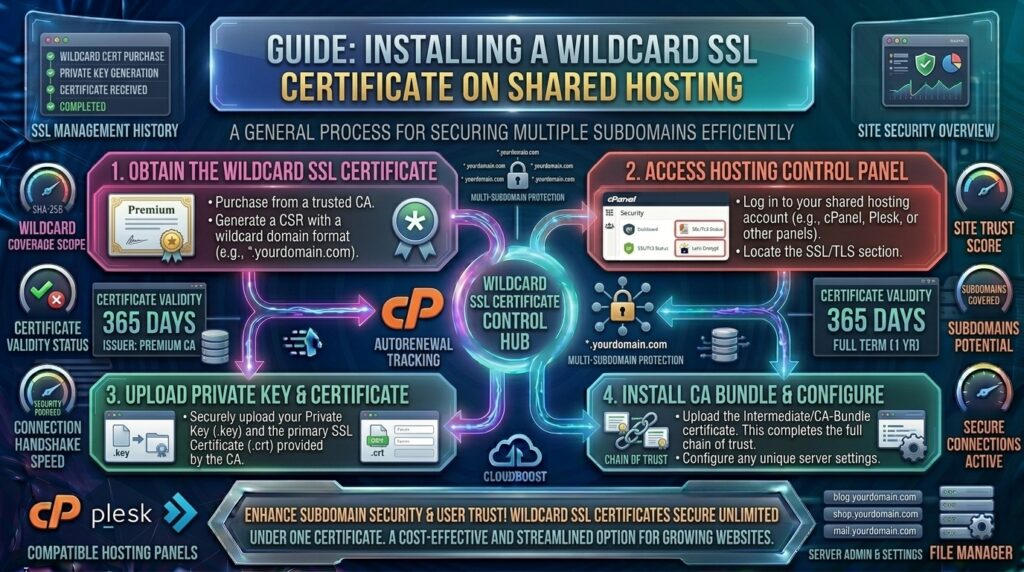
How to Install a Wildcard SSL Certificate on Shared Hosting
Welcome to thehostreviews.com—your trusted source for elite web hosting insights, performance optimizations, and infrastructure tutorials spanning tech sectors from New York and San Francisco to Texas, California, and Washington.
Introduction: What is a Wildcard SSL Certificate and Why Do You Need One?
Managing a growing website often means expanding into multiple subdomains. Whether you are running a main corporate portal (yourdomain.com), a blog (blog.yourdomain.com), an online store (shop.yourdomain.com), or dynamic client staging areas (*.yourdomain.com), securing every single corner of your web ecosystem is crucial.
Traditionally, website administrators had to generate or purchase a separate individual SSL certificate for every single subdomain. If you had 20 subdomains, managing 20 distinct certificate expiration dates and installation routines became an administrative headache.
Enter the Wildcard SSL Certificate.
A Wildcard SSL certificate is a special type of security certificate that secures your base domain and an unlimited number of its first-level subdomains using a single cryptographic file installation (e.g., *.yourdomain.com).
However, installing a wildcard certificate on shared hosting environments—where you do not have root command-line server access—comes with unique workflow quirks. This definitive, expert-level guide will walk you through everything you need to know to successfully acquire, install, and manage a Wildcard SSL certificate on a shared hosting account using cPanel.
Part 1: Standard SSL vs. Wildcard SSL on Shared Hosting
Before diving into the setup procedure, it is important to clarify how shared hosting handles security protocols.
- Standard / Multi-Domain (SAN) SSL: Standard certificates cover specific hostnames (e.g.,
yourdomain.comand[www.yourdomain.com](https://www.yourdomain.com)). While cPanel’s automated features (like AutoSSL) make securing individual subdomains easy, they technically issue discrete certificates per endpoint or require explicit SAN declarations. - Wildcard SSL: Uses an asterisk designation (
*.yourdomain.com). It matches any valid single-word subdomain created under your root domain.
Can You Get a Free Wildcard SSL on Shared Hosting?
Many popular free providers (like standard default configurations of Let’s Encrypt via cPanel AutoSSL) rely on HTTP-based validation, which natively struggles to issue true wildcard certificates because Let’s Encrypt requires a DNS TXT record (DNS-01 challenge) to verify ownership of a wildcard. However, many modern shared hosting providers now support Let’s Encrypt Wildcards natively through their custom cPanel plugins, or you can manually install a wildcard certificate (free or paid) via cPanel’s SSL management tools.
Part 2: Step-by-Step Guide to Installing a Wildcard SSL Certificate in cPanel
If you have purchased a commercial wildcard certificate (or generated one externally via a DNS-verified client), you will receive three core files:
- The Certificate File (.crt / .pem): Specific to your wildcard domain.
- The Private Key (.key): Generated during your initial Certificate Signing Request (CSR). Never share this file.
- The CA Bundle / Intermediate Certificates (.ca-bundle): Establishes the chain of trust with root authorities.
Follow these steps to deploy them on your shared hosting account:
Step 1: Log Into cPanel
Navigate to your hosting provider’s login portal, access your cPanel dashboard, and locate the Security module block.
Step 2: Open the “SSL/TLS” Manager
Click on the SSL/TLS icon. This opens the control center for managing private keys, certificate signing requests, and active site installations.
Step 3: Manage SSL Sites
Scroll down and click on Manage SSL Sites (sometimes labeled Install and Manage SSL for your site). This is where your active host configurations live.
Step 4: Select Your Domain
Under the Domain dropdown menu, carefully select your root domain name (e.g., yourdomain.com). Note: Do not type the asterisk into the domain dropdown unless specified by your host; select the core domain context where the virtual host resides.
Step 5: Paste Your Certificate Files
You will see three prominent text boxes:
- Certificate: (CRT): Paste the contents of your primary wildcard
.crtfile here. - Private Key (KEY): Paste the private key text generated when you created your CSR.
- Certificate Authority Bundle: (CABUNDLE): Paste your intermediate certificate chain block. (Pro tip: If your host auto-populates this or fetches it from public repositories, you can sometimes leave it blank, though supplying the vendor bundle ensures maximum browser compatibility).
Step 6: Click “Install Certificate”
Click the blue Install Certificate button at the bottom of the interface. cPanel will check the syntax, verify the key pairings, and bind the wildcard security profile to your shared hosting space. A success popup will confirm that the service is active.
Part 3: Verifying and Forcing HTTPS Across All Subdomains
Once your wildcard certificate is successfully installed, you must ensure that all incoming traffic across your root domain and subdomains redirects securely over HTTPS.
- Go back to the main cPanel dashboard and open the Domains tool.
- Locate your domain entries and toggle Force HTTPS Redirect to On.
- Alternatively, you can enforce global redirection by adding a rule to your root public
.htaccessfile:
Apache
RewriteEngine On
RewriteCond %{HTTPS} off
RewriteRule ^(.*)$ https://%{HTTP_HOST}%{REQUEST_URI} [L,R=301]
Test your configuration by visiting various subdomains (e.g., [https://test.yourdomain.com](https://test.yourdomain.com), [https://shop.yourdomain.com](https://shop.yourdomain.com)). They should all load instantly with a secure padlock icon.
Part 4: Troubleshooting Common Wildcard Installation Errors
Even experienced webmasters run into minor snags on shared servers. Here is how to fix the most frequent issues:
- Error: “The private key does not correspond to the certificate”
- The Fix: This happens if you accidentally mix up private keys from different generations. Always ensure the
.keyfile matches the exact CSR used to issue that specific certificate version.
- The Fix: This happens if you accidentally mix up private keys from different generations. Always ensure the
- Subdomains throwing security warnings after installation
- The Fix: On some shared hosting architectures, newly spun-up subdomains do not automatically inherit SSL bindings until the Apache virtual host configuration refreshes. Try running AutoSSL via cPanel or contact your host support to clear the server cache.
- Wildcard coverage limitations
- The Fix: Remember that a standard wildcard (
*.yourdomain.com) covers first-level subdomains only (likeblog.yourdomain.com). It does not cover multi-level subdomains likedeep.blog.yourdomain.comunless you specifically purchased a multi-level wildcard.
- The Fix: Remember that a standard wildcard (
Part 5: Frequently Asked Questions (FAQ)
1. Does a Wildcard SSL cover the main root domain (yourdomain.com)?
No. By default, a standard wildcard certificate (*.yourdomain.com) strictly covers subdomains. However, most certificate authorities issue the base domain (yourdomain.com) as a free alternative Subject Alternative Name (SAN) bundled with the wildcard. Always check your certificate details upon issuance to ensure both the apex domain and the wildcard are included.
2. Can I use a free Let’s Encrypt Wildcard on shared hosting?
It depends on your provider. Because Let’s Encrypt wildcard issuance requires DNS-based validation (TXT records), basic shared hosting setups using purely automated HTTP validation cannot generate them natively. However, if your shared host features a modern cPanel/WHM setup with DNS-API integrations or a built-in free SSL manager, you can provision them smoothly.
3. How many subdomains can I put under a Wildcard SSL?
There is no numerical limit. You can secure 5, 50, or 500 subdomains under a single wildcard certificate without paying extra fees or re-installing files for every new subdomain you create.
4. Do I need a dedicated IP address to run a Wildcard SSL on shared hosting?
No. Modern shared hosting servers utilize Server Name Indication (SNI) technology. SNI allows multiple SSL certificates to share a single server IP address seamlessly, meaning you do not need to pay extra for a dedicated IP.
5. What happens when my Wildcard SSL certificate expires?
Unlike automated 90-day DV certificates that renew instantly in the background, manually installed wildcard certificates (such as paid 1-year variants) require manual renewal. You must generate a new CRT file from your provider and re-upload it into cPanel’s Manage SSL Sites before the expiration date to prevent browser security warnings.
6. Will a Wildcard SSL slow down my website performance?
Not at all. SSL encryption overhead is handled during the initial handshake phase. Once the secure connection is established, data transmission speeds remain identical whether you use a standard SSL or a wildcard certificate.
7. Can I share one Wildcard SSL across completely different domain names?
No. A wildcard is strictly restricted to one domain extension and its subdomains (e.g., *.yourdomain.com cannot secure anotherexample.com). For multiple distinct domains, you would need a Multi-Domain (SAN) Certificate.
8. Why do some subdomains show “Not Secure” after I installed the wildcard?
This is usually caused by browser caching or “Mixed Content” issues, where an individual subdomain’s internal code or links are still explicitly pointing to http:// instead of https://. Double-check your application configuration files.
9. How do I know if my Wildcard SSL is installed correctly?
You can use online diagnostic tools like SSL Shopper’s SSL Checker or Qualys SSL Labs. Simply type in any of your subdomains, and the tool will audit your certificate chain, installation path, and expiration status.
10. Can I move my Wildcard SSL to a new web host if I switch providers?
Yes. Because you own the private key and certificate files, you can export them from your current cPanel account and re-install them on any new web hosting provider using the exact same steps outlined in this guide.
Conclusion
Installing a Wildcard SSL certificate on shared hosting is a game-changer for website owners managing multiple subdomains. It simplifies administration, cuts down certificate management overhead, and ensures robust enterprise-grade encryption across your entire digital presence.


Pingback: Top 10 cheapest web hosting services with high uptime in 2026 - The host reviews
Pingback: How to fix too many redirects error after installing ssl on hosting - The host reviews