Cheap Windows VPS Hosting with Remote Desktop Access: The Ultimate Guide
Introduction: Managing Windows Workloads Remotely Without High Costs
When deploying enterprise applications, managing remote developer desks, running Windows-only automation scripts, or hosting ASP.NET databases, standard Linux shared hosting falls short. You need a dedicated graphical environment equipped with a familiar desktop interface. However, proprietary Microsoft licensing fees have historically driven the price of Windows Virtual Private Servers (VPS) sky-high, often pricing out independent developers, remote teams, and growing small businesses.
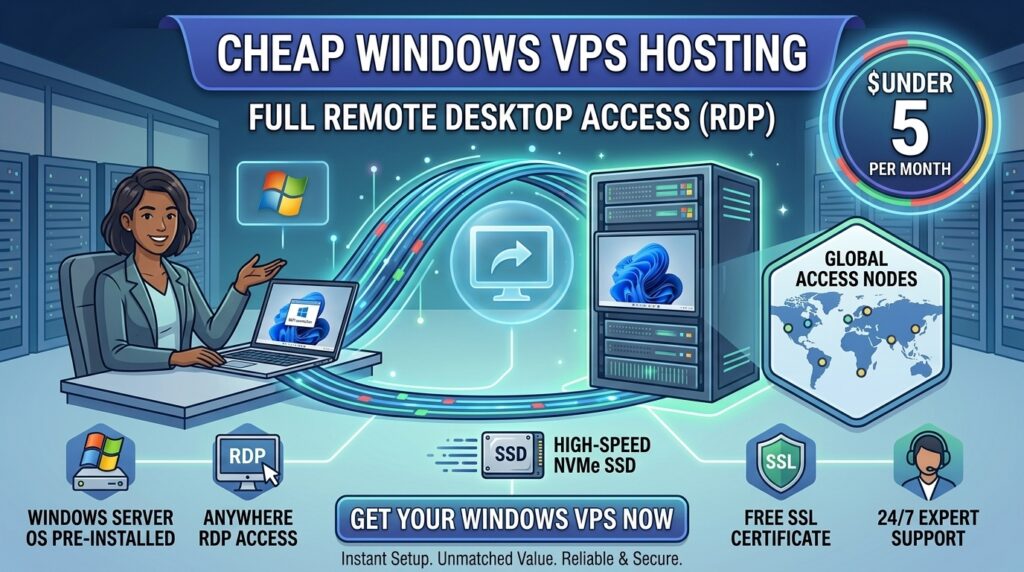
The marketplace has evolved. Today, efficient virtualization and provider-managed Microsoft licensing agreements make it possible to secure high-performance cheap Windows VPS hosting with Remote Desktop Protocol (RDP) access without compromising on stability.
In this exhaustive guide, we explore how budget Windows RDP servers function, evaluate top providers, analyze their impact on performance and search engine optimization (SEO) workflows, and provide a technical blueprint for securing your virtual desktop.
Understanding Windows VPS with RDP Architecture
Before choosing a provider, it helps to understand what makes a Windows VPS uniquely suited for remote desktop operations.
+-------------------------------------------------------------+
|               Anatomy of a Windows RDP VPS                  |
+-------------------------------------------------------------+
|  [Hypervisor Layer]   --> KVM / Hyper-V Resource Isolation  |
|  [Windows Server OS]  --> Server 2019 / 2022 / 2025 GUI     |
|  [RDP Client Bridge]  --> Low-latency graphical stream      |
+-------------------------------------------------------------+
1. The Power of Remote Desktop Protocol (RDP)
Unlike Linux VPS environments that rely almost exclusively on command-line Secure Shell (SSH) terminals, a Windows VPS boots directly into a graphical user interface (GUI). By connecting via the standard RDP client built into Windows (or Microsoft Remote Desktop apps for macOS and mobile), you interact with your remote server exactly as if it were a physical desktop sitting on your desk.
2. Dedicated Hardware vs. Licensing Costs
Because Windows Server is proprietary, hosting providers must factor Microsoft licensing fees into their pricing models. “Cheap” Windows VPS options generally utilize shared core licensing structures or SPLA (Subscriber Partner License Agreement) models to keep monthly entry costs affordable (frequently ranging from $7 to $15 per month for entry tiers).
Top Providers for Affordable Windows VPS with RDP Access
Several cloud infrastructure providers balance low entry costs with reliable Windows Server performance and low-latency RDP streaming.
1. Contabo (Best Raw Resource Value for Windows RDP)
- Approximate Pricing: Starting around $7.50 to $9.00 per month (plus optional Windows OS license fees).
- Specifications: Generous RAM allocations (frequently starting at 8GB RAM tiers), robust NVMe storage options, and full administrator access.
- Key Inclusions: High-speed data center network connections and easy selection of Windows Server images during checkout.
- Verdict: Unbeatable resource value per dollar, though users should account for how storage IOPS and licensing fees scale on base packages.
2. Kamatera (Best for Custom Hourly Windows Builds)
- Approximate Pricing: Custom configurations starting around $12.00 per month with flexible hourly billing.
- Specifications: Exact customization of vCPUs, RAM, and SSD storage blocks with native Windows Server pre-installations.
- Key Inclusions: Sub-second server provisioning, global deployment options, and scalable cloud architecture.
- Verdict: Ideal for power users who want precise control over their Windows server resources without locking into rigid pre-packaged tiers.
3. Hostwinds (Best Managed Support for Windows Beginners)
- Approximate Pricing: Managed and unmanaged Windows plans starting around $10.99 per month.
- Specifications: Full administrative control, instant RDP configuration, and solid SSD storage drives.
- Key Inclusions: Excellent 24/7 support availability to assist with basic Windows updates, firewall configurations, and service troubleshooting.
- Verdict: A strong choice for users who want reliable RDP performance combined with accessible customer support.
SEO and Web Hosting Implications: Can a Windows VPS Rank Sites?
While many users purchase a Windows VPS strictly for remote desktop tasks, trading terminals, or automation scripts, others use them to host native Microsoft web stacks (IIS, ASP.NET, MSSQL).
- Optimized Microsoft Stack Performance: Running ASP.NET applications on a native Windows Server environment yields faster compilation and response times than trying to run them through translation layers on Linux. This directly improves your server’s Time to First Byte (TTFB).
- Uptime and Core Web Vitals: Dedicated virtual RAM and isolated CPU cores ensure that your web apps maintain consistent response speeds under load, satisfying Google’s technical performance criteria.
- Geographical Edge Routing: Deploying your Windows VPS in data centers close to target markets ensures minimal network ping and smooth, lag-free RDP navigation.
Pricing Structures and Hardware Benchmarks
When shopping for budget Windows RDP hosting, look closely at how providers bundle their Windows licenses:
| Provider | Starting Monthly Cost | RAM Allocation | Storage Type | License Inclusion |
| Contabo | ~$7.50 / mo | 4GB to 8GB | NVMe / SSD | License add-on dependent |
| Kamatera | ~$12.00 / mo | Customizable | Cloud SSD | Hourly metered options |
| Hostwinds | ~$10.99 / mo | 1GB to 2GB+ | SSD Storage | Windows Server options available |
Pros and Cons of Budget Windows VPS RDP Hosting
The Pros 👍
- Familiar Desktop Experience: Interact with a full Windows graphical user interface from any device using standard RDP tools.
- Run Windows-Only Software: Seamlessly execute desktop automation tools, custom
.exebinaries, and MSSQL databases that fail on Linux. - Complete Administrative Control: Full administrator rights allow you to install custom software, configure firewalls, and manage user accounts.
- Cost-Efficient Remote Work: Act as a centralized virtual workstation for remote team members without buying expensive hardware.
The Cons 👎
- Higher Resource Overhead: The Windows GUI consumes more RAM and CPU baseline resources than a headless Linux server.
- Licensing Complexity: Promotional headline prices sometimes exclude the monthly Microsoft Windows Server license fee, leading to checkout surprises.
Step-by-Step Guide: Connecting to Your Windows VPS via RDP
Provisioning and logging into your cheap Windows VPS takes only a few minutes:
- Deploy Your Server: Purchase your Windows VPS plan from a provider like Contabo or Kamatera, ensuring you select Windows Server (e.g., 2022 or 2025) as your operating system image.
- Retrieve Access Credentials: Check your client dashboard or onboarding email for your server’s public IP address, administrator username (
Administrator), and temporary password. - Launch the RDP Client:
- On Windows, press
Win + R, typemstsc, and hit Enter to open Remote Connection. - On macOS, download the Microsoft Remote Desktop app from the Mac App Store.
- On Windows, press
- Enter Connection Details: Input your VPS IP address, click connect, and enter your administrator credentials when prompted.
- Accept the Certificate Warning: Because initial server certificates are self-signed, click “Yes” or “Continue” to bypass the security prompt and load your remote desktop environment.
10 Essential Tips to Optimize Windows RDP Performance and Security
- Change the Default RDP Port: Protect your server from brute-force scanning bots by changing the standard remote desktop port (
3389) to a custom port number in your Windows registry. - Enable Network Level Authentication (NLA): Enforce NLA in your system properties so that users must authenticate before establishing a desktop session, preventing resource exhaustion attacks.
- Select US-Based Data Centers: If your operational hub or audience is located in North American business centers (New York, Texas, California, Washington, or San Francisco), choose a local data center region to keep RDP latency to an absolute minimum.
- Disable Unnecessary Visual Effects: Optimize your remote desktop experience over slower network connections by disabling desktop background wallpapers, window animations, and font smoothing in your RDP client settings.
- Configure Automated Windows Updates: Set your server to install security patches during scheduled maintenance windows to prevent unexpected reboots during peak working hours.
- Monitor RAM and Page File Usage: Windows Server requires breathing room; ensure your plan has at least 2GB to 4GB of RAM to prevent sluggish graphical rendering.
- Implement Strong Administrator Passwords: Use complex alphanumeric passphrases combined with symbols to secure your main administrator account.
- Set Up Active Firewall Rules: Use Windows Defender Firewall to block all unnecessary inbound ports, leaving only essential services open.
- Take Regular Cloud Snapshots: Utilize provider-level snapshot tools to back up your entire system state before executing major software installations or updates.
- Log Out Properly: Always disconnect from your RDP session by logging off or closing apps rather than leaving idle graphical sessions running indefinitely, which consumes server memory.
Frequently Asked Questions (FAQ)
1. What is cheap Windows VPS hosting with RDP?
It is a virtual private server running a Windows Server operating system that provides full administrative rights and a graphical desktop interface accessed remotely via Remote Desktop Protocol (RDP).
2. Are Windows Server license fees included in cheap plans?
Not always. Some budget hosts advertise low base prices but charge a separate monthly fee for the Microsoft Windows Server license. Always check the final checkout total to confirm license inclusions.
3. How much RAM do I need for a smooth Windows RDP experience?
For basic tasks like a single remote app or lightweight script, 2GB RAM is a functional minimum. For smooth multitasking, multiple user sessions, or heavy software tools, 4GB to 8GB RAM is strongly recommended.
4. Can I connect to a Windows VPS from a Mac or smartphone?
Yes. Microsoft provides free official Microsoft Remote Desktop apps for macOS, iOS, and Android, allowing you to control your Windows VPS from virtually any device.
5. Will running a Windows VPS slow down due to high graphical overhead?
Windows Server uses more system resources than a command-line Linux server. However, choosing a host with NVMe SSD storage and adequate CPU allocation keeps desktop navigation snappy.
6. Can I host websites on a Windows VPS?
Yes. You can install Internet Information Services (IIS) to host ASP.NET websites, traditional HTML sites, or PHP applications via Windows-compatible server stacks.
7. How do I secure my Windows VPS against brute-force RDP attacks?
You can secure your server by changing the default RDP port, enforcing Network Level Authentication (NLA), using complex passwords, and setting up strict Windows Firewall rules.
8. What is the difference between shared hosting and a Windows VPS?
Shared hosting places hundreds of users on a single server with limited control. A Windows VPS provides isolated dedicated resources, root administrator access, and a private desktop interface.
9. Can I install my own custom software on a Windows VPS?
Yes. Because you have full administrator privileges, you can download, install, and execute any compatible Windows software, script, or database tool.
10. Which provider offers the best overall value for Windows RDP hosting?
Contabo stands out for raw resource value with high RAM tiers, while Kamatera offers excellent flexibility with custom hourly builds and seamless Windows deployment.
Conclusion
Securing cheap windows vps hosting with remote desktop access bridges the gap between high-performance cloud infrastructure and user-friendly graphical management. By leveraging affordable virtualization plans, users can bypass expensive hardware purchases and run Windows-only applications, automation workflows, and remote desks smoothly.