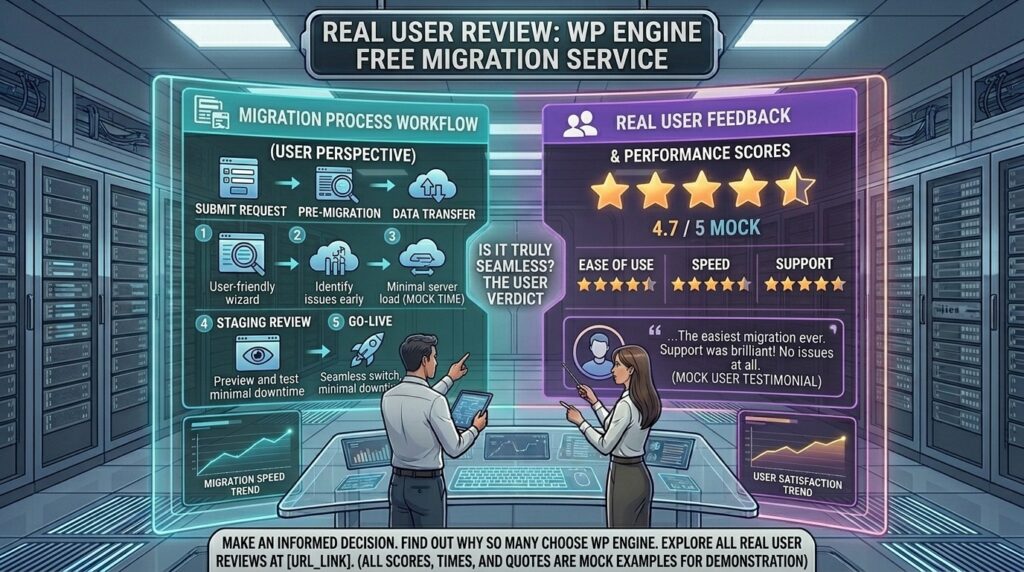
Wp engine free migration service real user review: Migrating a live, revenue-generating WordPress website from one hosting provider to another is an operation that strikes fear into the hearts of many business owners. Whether you are running a high-volume e-commerce storefront in New York, a tech publication in San Francisco, a corporate site in Austin (Texas), a media outlet in Seattle (Washington), or a creative agency in Los Angeles (California), moving a database, media uploads, SSL certificates, and custom code without triggering downtime or losing search engine rankings is a major stress test.
When evaluating elite, managed WordPress hosting providers like WP Engine, one of their greatest marketing promises is their free site migration service. Because WP Engine operates on a specialized enterprise architecture rather than standard cPanel, they provide specialized tools and hands-on migration teams to pull your site over smoothly.
This extensive, real-user review analyzes WP Engine’s free migration service from top to bottom—examining how the tool works, real-world user feedback, potential pitfalls, and whether it truly justifies the high-end managed hosting price tag.
1. Understanding WP Engine’s Migration Ecosystem
WP Engine approaches site migrations through two distinct pathways depending on your technical comfort level and the structural complexity of your current website:
- Path A: The WP Engine Automated Migration Plugin: A dedicated, free plugin built by WP Engine (with tens of thousands of active installs) designed for straightforward, single-site WordPress transfers.
- Path B: White-Glove / Manual Support Assistance: For complex configurations, multi-site networks, massive e-commerce product catalogs, or custom enterprise builds, WP Engine’s support engineering teams step in to assist with or manage the transition.
2. Step-by-Step: How the Automated Migration Plugin Works
For standard blogs, portfolios, and small business sites, the WP Engine Automated Migration plugin is the primary mechanism. Here is how the workflow functions in practice:
+-----------------------------------------------------------------------+
|                    WP ENGINE MIGRATION WORKFLOW                       |
+-----------------------------------------------------------------------+
| 1. Purchase a WP Engine plan and provision your destination environment|
| 2. Install the "WP Engine Automated Migration" plugin on your old site |
| 3. Input your WP Engine destination SFTP credentials into the plugin  |
| 4. Execute the transfer and let the script package and ship your files  |
+-----------------------------------------------------------------------+
- Set Up the Destination: First, you log into your new WP Engine user portal and create a fresh temporary environment (install name) where your site will land.
- Install the Plugin: Log into your old current web host’s WordPress dashboard, navigate to Plugins, search for WP Engine Automated Migration, and install it.
- Connect Credentials: Open the migration plugin menu. You will be prompted to enter your target WP Engine SFTP server address, username, password, and destination install name (all of which are cleanly displayed in your WP Engine user dashboard).
- Trigger the Transfer: Enter your email address to receive completion notifications, accept the terms, and click Migrate. The plugin automatically packages your database, media library, themes, and plugins, safely piping them over to your new WP Engine server while automatically executing database search-and-replace queries for your domain URLs.
3. Real User Experiences: What Actual Customers Say
Aggregating feedback from verified enterprise clients, digital agencies, and independent platform reviewers (such as G2, CNET, and Trustpilot), the consensus on WP Engine’s migration services leans heavily positive, though with distinct operational caveats:
The Positives (What Users Love)
- Seamless Automation for Standard Sites: Users migrating standard single-site WordPress installations report that the automated plugin is remarkably slick. Entering SFTP details and letting the background process finish without manual phpMyAdmin exports or SQL imports saves hours of technical headache.
- Professional White-Glove Support: For clients utilizing higher-tier plans who required engineering intervention, real user reviews consistently praise WP Engine’s support staff for handling complex serialization, SSL configurations, and DNS cutover schedules with minimal disruption.
- Zero Downtime Cutovers: Because WP Engine allows you to test your migrated site on a temporary domain URL before changing your live DNS records, users can verify that every plugin, form, and checkout link functions correctly prior to making the public switch.
The Friction Points (What Users Warn About)
- No cPanel Environment: A recurring note in technical reviews is that because WP Engine does not use traditional cPanel, standard cPanel-to-cPanel backup transfers don’t apply. If you are migrating a heavily customized site with custom server-level cron jobs or specific
.htaccessrewrite rules, those elements must be manually adapted to WP Engine’s Nginx ruleset. - Strict Plugin Restrictions: WP Engine blocks certain plugins that conflict with its aggressive caching architecture (such as alternative caching plugins or heavy backup plugins that drain server resources). Real users note that the migration tool won’t necessarily flag these automatically, requiring post-migration cleanups.
4. Pros and Cons of WP Engine’s Free Migration Service
+-----------------------------------+-----------------------------------+
|               PROS                |               CONS                |
+-----------------------------------+-----------------------------------+
| • Free plugin handles database    | • Incompatible with non-WordPress |
|   serialization & file transport  |   platforms (e.g., Wix, Shopify)  |
| • Ability to test on a staging/   | • Strict server-level plugin      |
|   temporary URL before DNS cutover|   blacklists require cleanup      |
| • Expert support backup for       | • Complex multi-sites may require |
|   complex or stalled transfers    |   manual engineering intervention |
+-----------------------------------+-----------------------------------+
5. Strategic Migration Tips for US Webmasters
If you are planning a migration to WP Engine for assets targeting competitive audiences in New York, San Francisco, Texas, or Washington, apply these expert tips to ensure absolute data integrity:
- Clear Existing Caches First: Before generating your migration package, purge all caching plugins, minified CSS/JS files, and object caches on your old host to ensure a clean data export.
- Freeze Content Updates: Put your old site into “Maintenance Mode” for the duration of the data transfer. If users leave comments, process orders, or publish posts during the migration, those database entries will be lost when the final cutover occurs.
- Test Thoroughly on Temporary URLs: Never switch your live DNS domain records immediately. Log into WP Engine’s provided temporary domain, test contact forms, check mobile responsiveness, and verify e-commerce cart checkouts.
- Schedule DNS TTL Down Low: 24 hours before your final cutover, lower your domain’s DNS Time-To-Live (TTL) to 300 seconds (5 minutes) with your domain registrar. This ensures global propagation happens in minutes rather than days when you point your A-record to WP Engine.
6. Frequently Asked Questions (FAQ)
1. Is WP Engine’s migration service truly 100% free?
Yes. WP Engine provides the automated migration plugin and standard migration support at no additional cost with all active hosting subscriptions.
2. Can I use the migration service if my site is not built on WordPress?
No. WP Engine specializes exclusively in managed WordPress hosting. The migration tools and infrastructure are built strictly for WordPress and WooCommerce architectures.
3. Will my website experience downtime during the migration?
No. Your live website remains fully online and accessible on your old host while the automated migration plugin copies your files and database over to your temporary WP Engine staging environment.
4. What happens to my emails during a WP Engine migration?
WP Engine does not host email accounts. If your business email is tied to your old web host (via cPanel webmail), you must migrate your email service separately to a provider like Google Workspace or Microsoft 365 before changing your domain’s MX records.
5. How long does an automated migration take?
For small-to-medium websites (under 5GB of media and standard database sizes), the automated migration plugin typically finishes transferring everything within 10 to 30 minutes. Large media archives or massive e-commerce databases may take longer.
6. What if the automated migration plugin fails or errors out?
If the automated plugin encounters a timeout or server restriction on your old host, you can reach out to WP Engine’s 24/7 support team, who can guide you through alternative options or assist directly.
7. Does WP Engine migrate my domain name as well?
No. Domain registration is separate from web hosting. Your domain remains registered with your current registrar (e.g., GoDaddy, Namecheap, Google Domains/Squarespace), and you will simply update your DNS A-records to point to WP Engine when you are ready.
8. Will my SSL certificate transfer over automatically?
WP Engine provides free, automated Let’s Encrypt SSL certificates out of the box. Once your domain is pointed to WP Engine, you can provision a new SSL certificate inside your user dashboard with a single click.
9. Can I migrate a WordPress Multisite network using this service?
Yes, but multi-site networks require careful handling. WP Engine supports multisite migrations, though users managing complex networks often coordinate directly with WP Engine support to ensure correct network mapping.
10. Is WP Engine worth the switch for small business websites?
If your small business relies heavily on flawless uptime, blazing-fast speed, automated security, and expert developer tools, WP Engine’s managed infrastructure is well worth the investment—and their smooth migration process removes the friction of moving.
7. Conclusion
Moving a vital digital asset to a new hosting provider is rarely trivial, but WP Engine’s free migration service successfully removes the technical friction of transitioning to an elite managed ecosystem.
Whether you utilize their automated plugin to safely port a portfolio over in minutes or lean on their expert engineering teams to handle a complex multi-site architecture, WP Engine ensures your data arrives intact. While WP Engine commands a premium price point compared to cheap shared hosting, a friction-free migration path combined with elite performance makes it an exceptional choice for scaling businesses across competitive search markets.