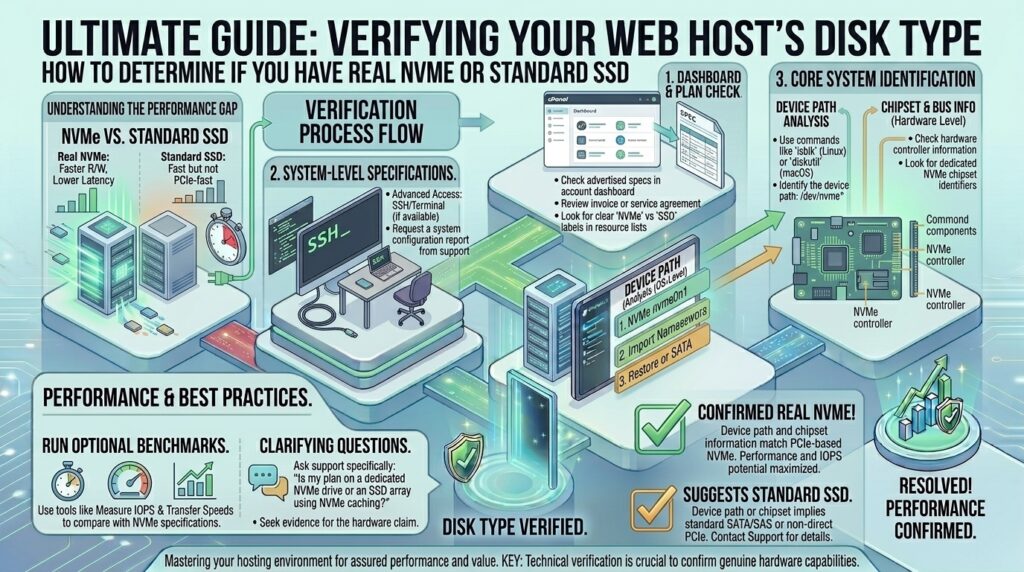
How to verify if your web host has real NVMe or standard SSD? For system administrators, enterprise architects, digital agency directors, and web developers launching high-traffic applications across primary tech hubs like Texas, New York, California, Washington, and San Francisco, marketing claims from web hosting companies can often blur technical realities.
Open almost any modern web hosting homepage, and you will see glowing badges proclaiming “100% NVMe Storage” or “Blazing Fast Turbo SSDs.” However, beneath the marketing gloss, some budget and legacy hosting providers cut corners. They may deploy older SATA-based Solid State Drives (SSDs), misconfigure virtualized storage controllers, or use standard NVMe hardware choked by restrictive hardware throttling and shared over-provisioned RAID arrays.
Because disk input/output (I/O) performance directly governs database query speeds, cache generation, and Core Web Vitals, verifying whether your web host is providing true, high-performance NVMe storage or repackaged legacy hardware is critical.
This masterclass guide provides a step-by-step framework on how to inspect, benchmark, and verify your web hosting storage layer using Linux terminal tools and storage analysis protocols.
Understanding the Fundamental Difference: NVMe vs. SATA SSD
To audit your web host accurately, you must understand the underlying hardware architectures separating standard SSDs from true Non-Volatile Memory Express (NVMe) drives.
1. The SATA SSD Bottleneck
Traditional SSDs (even enterprise-grade ones) typically rely on the SATA III interface or SAS channels.
- The Limitation: The SATA III bus has a hard physical throughput ceiling capped at roughly 600 MB/s. Even if the flash memory chips inside the drive are lightning-fast, the data pipeline chokes them down.
- Protocol: SATA drives use the older AHCI (Advanced Host Controller Interface) protocol, which was originally designed for spinning mechanical hard disks and features a meager command queue depth of 32 commands.
2. The NVMe Advantage
NVMe (Non-Volatile Memory Express) was engineered from the ground up specifically for high-speed flash memory, bypassing the legacy host controller entirely.
- The Connection: NVMe drives plug directly into the motherboard via high-speed PCI Express (PCIe) lanes (typically PCIe Gen 3, Gen 4, or Gen 5).
- Performance Scale: Real-world NVMe read speeds routinely exceed 3,000 to 7,000 MB/s, and support command queues scaling up to 64,000 queues with 64,000 commands per queue. For database-heavy web applications like Magento, WooCommerce, or enterprise WordPress setups, NVMe reduces query latency from 10 milliseconds down to sub-millisecond ranges.
Phase 1: Checking Storage Hardware via Linux Terminal (lsblk & nvme-cli)
If you have SSH access to a cloud VPS or dedicated server, you can query the kernel and block storage layers directly to uncover the exact physical nature of your disks.
1. Inspecting Block Devices with lsblk
Log into your server via SSH and run the following command to list all available block devices along with their transport layers:
Bash
lsblk -d -o NAME,SIZE,ROTA,TYPE,TRAN
- Decoding the Output:
ROTA(Rotational): If it outputs0, the kernel recognizes a non-rotating solid-state disk. If it says1, it thinks it is a mechanical hard drive.TRAN(Transport): This is your smoking gun.- If
TRANdisplaysnvme, your server is running true PCIe NVMe storage. - If
TRANdisplayssataorsas, your server is running traditional SATA SSDs, regardless of what the marketing brochure stated.
- If
2. Querying Native NVMe Controllers
If your host claims to provide NVMe, you can query the hardware controller directly using the nvme-cli utility:
Bash
sudo nvme list
- If your host genuinely uses NVMe drives, this command will output the exact hardware model family (e.g., Samsung PM9A3, Intel Solid State Drive, Micron), firmware versions, and namespace identifiers.
- If the system returns an error like
No NVMe devices found, your root volume is operating on a virtualized SCSI, SATA, or SAN layer rather than direct hardware NVMe.
Phase 2: Running Benchmark Tests to Measure True Disk Speed
Hardware labels can be masked or virtualized. Running a raw I/O performance benchmark exposes whether your drive behaves like an NVMe or a restricted SATA SSD.
| Benchmark Tool | What It Measures | Target NVMe Benchmark Range | Target SATA SSD Range |
hdparm | Buffered sequential disk read speed | 2,500 – 6,000+ MB/sec | 400 – 550 MB/sec |
fio | Flexible I/O random read/write IOPS | 500,000 – 1,000,000+ IOPS | 80,000 – 100,000 IOPS |
ioping | Real-time disk I/O latency | < 0.1 milliseconds | 1.0 – 5.0 milliseconds |
1. Quick Read Speed Check with hdparm
To check your buffered disk read speed, run:
Bash
sudo hdparm -tT /dev/nvme0n1
(Note: Replace /dev/nvme0n1 with your specific block device name if you are testing a SATA drive like /dev/sda).
Run this test two or three times and take the average. If your output shows speeds around 500 MB/sec, you are dealing with a SATA SSD or a heavily throttled virtual disk slice. If your output scales past 2,500 MB/sec to 5,000+ MB/sec, your NVMe hardware is fully operational.
2. Deep I/O Workload Testing with fio
To evaluate how your storage handles intensive database workloads, install and run fio (Flexible I/O Tester):
Bash
sudo apt update && sudo apt install fio -y
sudo fio --name=rand_read --filename=/testfile --size=2G --rw=randread --direct=1 --bs=4k --ioengine=libaio --iodepth=64 --numjobs=4 --runtime=30 --group_reporting
Examine the IOPS (Input/Output Operations Per Second) metric in the final report. True enterprise NVMe drives handling random 4k read tests will deliver hundreds of thousands of IOPS, whereas standard SATA drives plateau quickly under heavy queue depths.
Phase 3: Inspecting SMART Health and Drive Attributes
Enterprise NVMe drives support comprehensive S.M.A.R.T. (Self-Monitoring, Analysis, and Reporting Technology) logs that reveal physical drive wear, temperature, and power state transitions.
Bash
sudo smartctl -a /dev/nvme0
- What to Look For: Review the
SMART/Health Informationblock. It will show the percentage of drive life used, data units read/written, and controller temperature. Ifsmartctlcannot communicate with the drive or returns an unsupported protocol warning, your host may be passing through a virtualized block device that lacks hardware-level visibility.
Phase 4: Evaluating Shared Hosting Environments (cPanel / Plesk)
If you are on a shared hosting, reseller, or managed WordPress hosting plan rather than a cloud VPS, you typically do not have SSH or root terminal access to run commands like lsblk or smartctl. How can you verify their storage claims?
1. Request Detailed Hardware Specs from Support
Open a support ticket with your hosting provider and ask specific technical questions:
- “Are your hosting nodes powered by physical NVMe drives configured in hardware RAID 10, or are they virtualized block storage backed by network SANs?”
- “What specific NVMe drive models (e.g., Samsung Enterprise, Intel/Solidigm) are installed in the hypervisor nodes?”
2. Run a Simple PHP Benchmark Script
If you lack SSH access, you can upload a lightweight PHP benchmarking script (such as Uptime Robot or Sysinfo scripts, or custom PHP code running file write/read loops) to measure execution time. While less precise than terminal benchmarks, consistently fast file generation and low database query execution times indicate high-speed storage layers.
Frequently Asked Questions (FAQ)
1. What is the real-world difference between standard SSD and NVMe hosting?
Standard SATA SSDs max out around 550 MB/s, while NVMe drives routinely exceed 3,500 to 7,000 MB/s. For websites, this translates to drastically faster database queries, quicker WordPress backend loading, and seamless handling of traffic spikes.
2. Can web hosts legally advertise SSD when they actually use NVMe?
Usually, hosts upgrade terminology because NVMe is a type of solid-state drive. However, advertising “NVMe” while secretly using older SATA SSDs or severely throttled virtual arrays constitutes deceptive marketing.
3. How do I check my disk type if I only have cPanel shared hosting?
Shared hosting users cannot access the Linux terminal to run lsblk or hdparm. You must rely on support ticket inquiries or check if your hosting dashboard provides real-time resource utilization metrics and hardware node specifications.
4. What does a rotational value of 1 mean in lsblk?
A rotational value of 1 indicates that the Linux kernel perceives the drive as a mechanical spinning hard disk drive (HDD), while 0 indicates a non-rotating solid-state device.
5. Why is my NVMe drive performing slower than expected in benchmarks?
Cloud hosting providers often implement strict IOPS throttling or bandwidth limits on lower-tier VPS plans to prevent single users from monopolizing the storage node. Check your cloud plan’s resource limits.
6. Does NVMe storage improve Google SEO rankings?
Yes, indirectly. Faster server response times (Time to First Byte – TTFB) and quicker asset delivery improve your Core Web Vitals scores, which are established ranking factors in Google search algorithms.
7. What is the difference between consumer NVMe and enterprise NVMe?
Enterprise NVMe drives feature Power Loss Protection (PLP), higher endurance ratings (TBW – Terabytes Written), and sustained performance under heavy concurrent write loads, making them ideal for busy web servers.
8. Can RAID configurations slow down NVMe drives?
Yes. Configuring multiple NVMe drives in RAID 5 or RAID 6 introduces write penalties due to parity calculations. High-performance hosts typically use RAID 10 or specialized software-defined replication to maximize speed and redundancy.
9. What is fio and why is it used for storage testing?
fio (Flexible I/O Tester) is the industry-standard benchmark tool used by systems engineers to simulate rigorous, multi-threaded read and write workloads on Linux storage systems.
10. When should I upgrade from a standard SSD VPS to an NVMe VPS?
You should upgrade immediately if your database-driven application (such as WooCommerce, custom SaaS platforms, or high-traffic forums) suffers from high server response latencies or database lockups during traffic surges.
Conclusion
Verifying whether your web hosting provider delivers genuine NVMe storage or relies on legacy SATA SSDs protects your investment and ensures optimal application performance. By utilizing terminal diagnostic tools like lsblk, running hdparm and fio benchmarks, and auditing hardware controllers, you can cut through marketing hype and confirm your infrastructure’s true capabilities. Equip your web properties with certified high-speed NVMe storage to guarantee lightning-fast response times and robust search engine rankings.