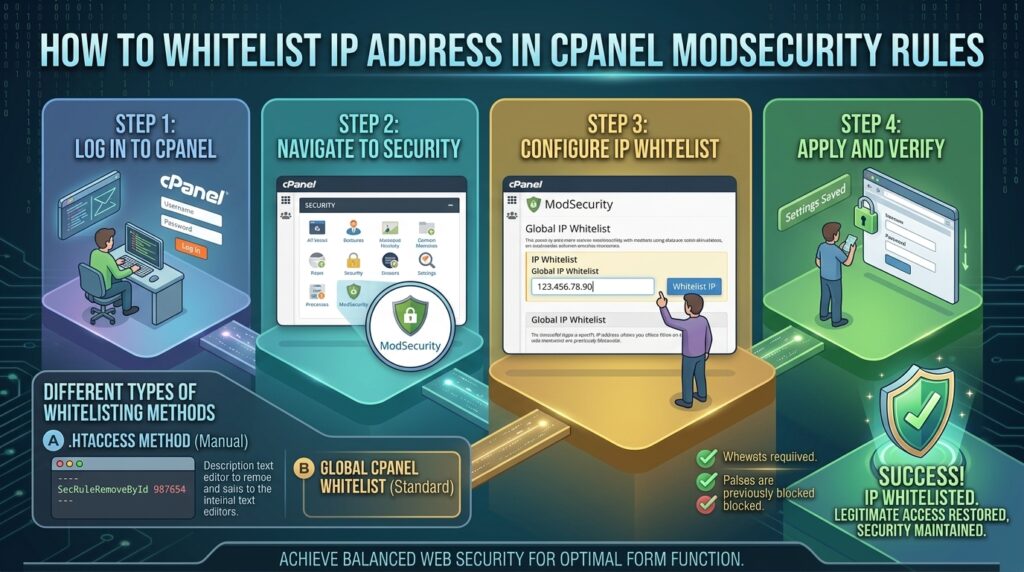
For business owners, system administrators, and web developers managing digital properties across major tech hubs like Texas, New York, California, Washington, and San Francisco, server security is a top priority. When operating high-traffic websites, e-commerce stores, or client portals, you rely heavily on Mod_Security—the robust web application firewall (WAF) built into cPanel and WHM environments—to block malicious hackers, SQL injections, and brute-force attacks.
However, security firewalls are notoriously strict. It is common for Mod_Security to misidentify safe, legitimate user actions as threats. Whether an administrator in your New York office gets locked out of the WordPress dashboard, a trusted API integration fails, or your own team triggers a false positive while testing contact forms, dealing with unexpected 403 Forbidden errors can grind operations to a halt.
When this happens, the most precise and secure solution is to whitelist your specific IP address within Mod_Security rules.
This comprehensive, step-by-step guide will walk you through diagnosing Mod_Security blocks and safely whitelisting IP addresses across cPanel and WHM hosting environments.
Understanding How Mod_Security Interacts with IP Addresses
Before making modifications to your server firewall configurations, it helps to understand how Mod_Security evaluates incoming connections.
Mod_Security acts as an inline security gatekeeper. When an HTTP request reaches your server (whether it’s a GET request to view a page or a POST request submitting a form), Mod_Security inspects the request parameters, headers, and the source IP address.
Why Whitelisting is Preferable to Disabling Rules Globally
When an IP address is blocked:
- Bad Approach: Disabling an entire Mod_Security rule globally leaves your whole website vulnerable to hackers exploiting that specific vulnerability pattern.
- Good Approach: Whitelisting your trusted IP address (or bypassing a specific rule for that exact IP) ensures your team or trusted services can operate securely while keeping the firewall fully active for the rest of the global internet.
Phase 1: Identifying If an IP Address Is Blocked by Mod_Security
Never guess why a connection is failing. You must verify whether a 403 error or connection drop is actually coming from Mod_Security.
1. Check cPanel Error Logs
If you have standard cPanel user access:
- Log into your cPanel dashboard.
- Navigate to the Metrics section and click on Errors.
- Scan the recent log entries for keywords like
ModSecurity,Access denied with code 403, or specific rule IDs. If your IP address appears alongside these denial messages, Mod_Security is the culprit.
2. Check WHM ModSecurity Tools (For Root/Reseller Users)
If you manage your server via WHM:
- Log into WHM as
root. - Navigate to Security Center > ModSecurity Tools.
- Check the Hit List tab. This interface displays real-time logs of every request blocked by the firewall, including the client IP address, the triggered rule ID, and the domain involved.
Phase 2: Whitelisting an IP Address in WHM (Root Access)
If you have root server access (common for VPS and dedicated servers managed by agencies and developers in California, Washington, and Texas), WHM provides built-in tools to whitelist IPs without touching manual configuration files.
Method 1: Using the WHM ModSecurity Configuration Interface
- Log into WHM.
- Go to Security Center > ModSecurity Tools.
- Click on Hits or Configuration.
- Look for the Rules Exclusion or Whitelisting section.
- Add a new exclusion rule specifying your trusted IP address and the scope (either bypassing all rules for that IP or bypassing a specific offending rule ID).
Method 2: Whitelisting via the Apache Configuration Include File
If you want to write a permanent rule using Apache directives to bypass Mod_Security for a specific trusted IP address:
- Log into your server via SSH as
root. - Open or create your Mod_Security pre-virtual host include file (usually located at
/etc/apache2/conf.d/includes/pre_virtualhost_global.confor a similar path depending on your cPanel version). - Add the following rule block (replace
YOUR_IP_ADDRESSwith your actual static IP):
Apache
<IfModule mod_security2.c>
    SecRule REMOTE_ADDR "@ipMatch YOUR_IP_ADDRESS" "phase:1,id:199999,pass,nolog,ctl:engine=Off"
</IfModule>
- What this does: This command tells Mod_Security that if an incoming request matches your specific IP address (
REMOTE_ADDR), it should turn off the Mod_Security engine (ctl:engine=Off) for that specific visitor, preventing any false-positive blocks.
- Save the file, test your Apache configuration for syntax errors (
httpd -t), and restart Apache:
Bash
/usr/local/cpanel/scripts/restartsrv_apache
Phase 3: Whitelisting via cPanel (Shared Hosting Level)
If you are on a shared cPanel hosting account, you typically do not have root privileges to modify global Apache or WHM firewall configurations.
1. Using cPanel’s ModSecurity Interface (If Available)
Many modern cPanel hosts include a user-facing Mod_Security management tool:
- Log into your cPanel account.
- Search for ModSecurity under the Security section.
- Find the domains listed and check if you can toggle Mod_Security Off for a specific domain (though turning it off completely for an entire domain is generally discouraged unless testing).
2. Contacting Your Hosting Provider’s Support Team
When shared hosting security rules block your home or office static IP address:
- Open a support ticket with your hosting provider.
- Provide your exact external IP address (you can find this via
whatismyip.com). - Include the timestamp and the error details. Ask them: “Can you please whitelist my static IP address
[Your IP]in the server’s Mod_Security configuration to prevent false-positive blocks on our admin login?” - Quality hosts with 24/7 support typically execute this whitelist request within minutes.
Phase 4: Whitelisting Specific Rule IDs for an IP (Targeted Approach)
Instead of completely disabling Mod_Security for your IP address (which removes all firewall protections for you), a best practice is to whitelist only the specific rule ID that is triggering the false positive.
Step-by-Step Targeted Whitelisting:
- Identify the Rule ID from your error logs (for example, rule
941100). - Add a targeted exclusion rule via WHM or your Apache include file:
Apache
<IfModule mod_security2.c>
    SecRule REMOTE_ADDR "@ipMatch YOUR_IP_ADDRESS" "phase:1,id:199998,pass,nolog,ctl:ruleRemoveById=941100"
</IfModule>
- Restart Apache. This ensures that while all other security rules remain active for your IP, the single blocking rule will ignore requests originating from your workstation.
Preventative Best Practices for IP and Firewall Management
- Use Static IPs for Administrative Teams: If your agency or development team operates out of offices in San Francisco, New York, or Austin, request static business IP addresses from your internet service providers so you can easily whitelist them across all client servers.
- Avoid Global Disabling: Never leave Mod_Security completely disabled on production servers for extended periods. Always use targeted IP whitelisting or rule exclusions.
- Monitor cPHulk Brute Force Protection: Remember that cPanel also features cPHulk, which blocks IP addresses at the system level after multiple failed login attempts. If your IP is blocked by cPHulk, whitelisting it in cPHulk is separate from Mod_Security whitelisting.
Frequently Asked Questions (FAQ)
1. What is the difference between whitelisting an IP in Mod_Security and cPHulk?
Mod_Security is a web application firewall that inspects HTTP request data for malicious patterns (like SQL injections). cPHulk is a brute-force protection system that blocks IP addresses after too many failed password login attempts (FTP, cPanel, WHM, SSH). You may need to whitelist your IP in both if you encounter persistent lockouts.
2. How do I find my public IP address to whitelist it?
You can easily find your current public IPv4 address by visiting websites like whatismyip.com or icanhazip.com. Ensure you use your static IP if you have one, so the whitelist doesn’t break when your dynamic IP changes.
3. Can I whitelist an IP address directly from the WordPress dashboard?
No. Because Mod_Security runs at the web server layer before WordPress initializes, WordPress plugins cannot modify server-level WAF or firewall rules. Whitelisting must be done via WHM, server configuration files, or your hosting provider.
4. Is it safe to disable Mod_Security entirely for my IP address?
Disabling Mod_Security for a trusted administrative IP address is generally considered safe because it is your own secure workstation. However, doing so for untrusted or dynamic public IPs introduces security risks.
5. Why does my IP keep getting blocked even after adding a whitelist rule?
This usually happens because Apache hasn’t reloaded its configuration files, or you added the rule to the wrong configuration block. Always test your Apache configuration (httpd -t) and restart the Apache service after making changes.
6. Can dynamic IP addresses be whitelisted effectively?
Whitelisting a dynamic IP address is difficult because your ISP changes your IP periodically. If you work from home with a dynamic IP, it is better to whitelist specific offending Rule IDs globally or use a secure VPN with a dedicated static IP address.
7. What does a “403 Forbidden” error mean in relation to Mod_Security?
A 403 error means the server understood your request, but authorization is refused. When triggered by Mod_Security, it means the WAF analyzed your input data and explicitly terminated the connection to protect the server.
8. How long does it take for hosting support to whitelist an IP?
If you are on managed shared hosting and submit a support ticket providing your exact static IP and error timestamp, hosting support teams typically implement the whitelist within 5 to 15 minutes.
9. Does whitelisting an IP in Mod_Security affect website speed?
No. Whitelisting an IP simply tells the WAF engine to skip deep payload inspection for requests originating from that specific address, which can actually marginally speed up response times for your administrative actions.
10. What should I do if a whitelisted IP still triggers WAF blocks?
If an IP still experiences blocks after being whitelisted, verify that your traffic isn’t passing through a cloud proxy or CDN (like Cloudflare) that masks your true visitor IP address. If a CDN is used, you must configure Mod_Security to look at the real client header (CF-Connecting-IP) rather than the edge proxy IP.
Conclusion
Encountering blocks from Mod_Security can be frustrating when trying to manage your websites, but learning how to properly whitelist an IP address gives you complete control over your server security. Whether you are using WHM to craft precise exclusion rules on a dedicated server or collaborating with your hosting provider to clear your office IP on shared hosting, following these expert guidelines ensures your team maintains seamless, secure access without sacrificing overall server protection.