Troubleshooting Subdomains Not Loading After Creation in cPanel
Setting up a new subdomain—whether it is blog.thehostreviews.com, shop.thehostreviews.com, or a staging environment—is a common task for web developers and site owners managing digital assets across major tech hubs like Texas, New York, California, Washington, and San Francisco.
However, there is few things more frustrating than carefully creating a subdomain inside cPanel, uploading your files, and then typing the URL into your browser only to be greeted by a “404 Not Found”, “Server DNS Address Could Not Be Found”, or a default Apache placeholder page.
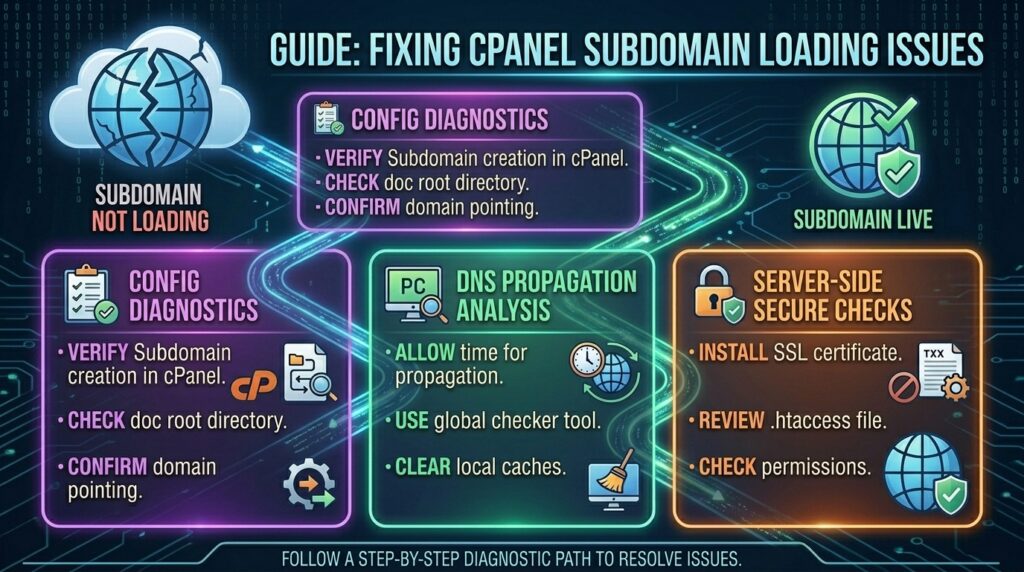
When subdomains fail to load after creation, it is usually due to DNS propagation delays, incorrect document root configurations, missing wildcard records, or server-side cache locks. This comprehensive, step-by-step troubleshooting guide will help you diagnose and permanently resolve subdomain loading errors on cPanel hosting.
Understanding How Subdomains Function in cPanel
To effectively troubleshoot a broken subdomain, it helps to understand what happens behind the scenes when you click Create in cPanel’s Subdomain manager:
- DNS Zone File Entry: cPanel automatically creates an
Arecord (or a CNAME record) in your domain’s Zone Editor pointing your new subdomain prefix to your server’s public IP address. - Directory Creation: cPanel creates a physical folder (the Document Root) on your server’s hard drive—typically located at
public_html/subdomainor a designated path outside public_html. - Apache Virtual Host Configuration: cPanel writes configuration directives telling the Apache web server which folder to serve when an incoming request matches that specific subdomain string.
If any of these three components fail to synchronize, your subdomain will fail to load.
Phase 1: Immediate Triage and DNS Verification
The vast majority of subdomain loading errors are not server code issues; they are DNS resolution problems.
1. The Global DNS Propagation Window
When you create a subdomain, global internet service providers (ISPs) need time to learn about this new address.
- What to expect: If your domain uses external nameservers (such as Cloudflare, GoDaddy, or Namecheap) instead of your cPanel server’s default nameservers, cPanel cannot automatically update your DNS records. You will have to manually log into your DNS registrar and add an
Arecord pointing your subdomain to your hosting server IP. - How to check: Use online tools like
dnschecker.orgto see if your subdomain resolves to your server’s correct IP address across the United States and global locations.
2. Verify A Records in cPanel Zone Editor
If your domain’s DNS is managed directly within cPanel:
- Log into your cPanel dashboard.
- Navigate to Domains > Zone Editor.
- Click Manage next to your primary domain.
- Search for your subdomain (e.g.,
blog.thehostreviews.com). Ensure there is a validArecord pointing to your server’s exact IPv4 address, and check that the TTL (Time to Live) is set correctly.
Phase 2: Fixing Document Root and File Path Errors
If your DNS resolves properly (meaning you reach your server, but the browser throws a 403 Forbidden or 404 Not Found error), the issue lies with your file structure or document root mapping.
1. Confirming the Document Root Match
When creating a subdomain, cPanel auto-assigns a folder path. If you delete, rename, or move this folder via the File Manager, Apache will fail to locate your index files.
- How to Fix:
- Go to cPanel > Subdomains.
- Look at the Document Root column for your broken subdomain.
- Open the File Manager and ensure that exact physical directory exists on your server.
- Ensure your subdomain folder contains a valid entry file (such as
index.htmlorindex.php). If the folder is entirely empty, Apache will serve a 403 Forbidden or Index Listing error.
2. Fixing Subdomain File Permissions
If file ownership or folder permissions are misconfigured, Apache will be blocked from reading your website files. Standard Linux permissions dictate that folders should be set to 755 and files to 644. You can fix ownership issues via SSH using:
Bash
/usr/local/cpanel/scripts/chownhomedirs username
Phase 3: Advanced Server-Side Troubleshooting (WHM & Apache)
If DNS and file paths check out, the problem is likely tied to stalled Apache configuration builds or SSL certificate mismatches.
| Error Symptom / Code | Likely Root Cause | Recommended Action |
|---|---|---|
| ERR_SSL_VERSION_OR_CIPHER_MISMATCH | Missing SSL certificate for the new subdomain | Install AutoSSL certificate via WHM/cPanel |
| 404 Not Found | Outdated Apache Virtual Host configuration | Rebuild Apache config via SSH/WHM |
| Default Apache Page / “It Works!” | Document root pointing to default public_html | Update Document Root path in cPanel |
| ERR_NAME_NOT_RESOLVED | Missing DNS A record or propagation delay | Add manual DNS entry at registrar |
1. Rebuilding the Apache Web Server Configuration
Sometimes cPanel fails to compile the new subdomain into Apache’s master configuration file (httpd.conf). If you have root or WHM access, you can force a complete rebuild of the web server configuration:
- Via WHM: Navigate to Service Configuration > Apache Configuration > Rebuild Apache Configuration, and click Rebuild.
- Via SSH:Bash
/usr/local/cpanel/scripts/rebuildhttpdconf
2. Fixing SSL Certificate Errors on New Subdomains
Modern browsers aggressively block unsecured subdomains (especially if your main domain forces HTTPS). If you created a subdomain and get a security warning or connection refused error:
- Go to cPanel > SSL/TLS Status.
- Locate your new subdomain. If it shows a red warning or missing certificate, click Run AutoSSL to generate a valid SSL certificate for that specific subdomain prefix.
Phase 4: CDN and Caching Interference (Cloudflare & Server Caches)
If you use a Content Delivery Network like Cloudflare in front of your cPanel hosting, caching layers can prevent new subdomains from loading instantly.
- Cloudflare Proxy Status: When you create a subdomain, Cloudflare needs a corresponding DNS record. If Cloudflare is set to proxy (
Proxiedorange cloud) before the record propagates fully on your origin server, it can throw a522 Connection Timed Outor1016 Origin DNS Error. Temporarily set the record to DNS Only (grey cloud) to test connectivity. - Browser Cache: Hard-refresh your browser (
Ctrl + Shift + Ron Windows,Cmd + Shift + Ron Mac) to ensure your local machine isn’t serving a cached error page of the non-existent subdomain.
Preventative Best Practices for Subdomain Management
- Always Create Subdomains via cPanel: Avoid manually hacking Apache configuration files or creating raw DNS zones without using cPanel’s built-in wizards, as this ensures all database hooks and folder paths align correctly.
- Test with an
index.htmlFile First: Before deploying heavy CMS platforms (like WordPress multisite or custom Node/PHP apps) on a new subdomain, upload a simpleindex.htmlfile containing text like “Subdomain Active” to verify that routing works properly. - Lower TTL Before Major Changes: If you plan to restructure subdomains or migrate DNS providers, lower your TTL to 300 seconds beforehand to ensure smooth propagation.
Frequently Asked Questions (FAQ)
1. Why does my new subdomain show a default Apache “Index of /” page?
This means your subdomain is loading correctly and reaching your server, but there is no default landing page (index.php or index.html) inside your subdomain’s Document Root folder. Upload your website files to fix this.
2. How long does it take for a new cPanel subdomain to load?
If your domain uses your server’s default nameservers, subdomains usually load within 1 to 5 minutes. If you use external DNS providers like Cloudflare or GoDaddy, propagation can take anywhere from 30 minutes to 2 hours.
3. What does “ERR_NAME_NOT_RESOLVED” mean when visiting my subdomain?
This error means your browser cannot find any IP address associated with that subdomain. It almost always points to a missing DNS A record or a propagation delay at your domain registrar.
4. Can I point a cPanel subdomain to an external server IP?
Yes. Instead of using cPanel’s default local IP, you can edit the subdomain’s Zone Editor entry and change the A record target to point to any external server IP address (such as a Shopify store or external VPS).
5. Why is my subdomain redirecting to my main website’s homepage?
If a subdomain loads your main website instead of its designated folder, check your .htaccess file inside the subdomain’s document root for rogue redirection rules, or verify that the document root path isn’t mistakenly pointing back to the primary public_html folder.
6. Do I need to buy a separate SSL certificate for a subdomain?
No. Standard cPanel servers include AutoSSL, which automatically generates free Let’s Encrypt or Sectigo SSL certificates covering your primary domain and all associated subdomains at no extra cost.
7. Why am I getting a “403 Forbidden” error on a newly created subdomain?
A 403 error typically indicates a permission restriction, an missing index file, or an .htaccess rule blocking access to the directory. Check that your folder permissions are set to 755.
8. How do I delete a subdomain and its files completely in cPanel?
Go to cPanel > Subdomains, locate the subdomain in the list, and click Remove. Note that while this deletes the subdomain configuration and DNS record, you may need to manually delete the physical folder inside the File Manager if you want to wipe all files.
9. Can I use wildcard subdomains (*.thehostreviews.com) in cPanel?
Yes. You can add a wildcard subdomain in cPanel by entering an asterisk (*) in the subdomain field. This routes any random prefix (e.g., anything.thehostreviews.com) to a designated folder, which is useful for SaaS platforms and multi-tenant applications.
10. When should I contact my hosting provider about a subdomain error?
If you have verified that your DNS A record points correctly to your server IP, your document root folder exists with proper index files, and you have cleared your browser cache, but the subdomain still throws server errors, contact your host’s support team so they can inspect Apache error logs and rebuild virtual hosts from the root level.
Conclusion
Troubleshooting a subdomain that fails to load after creation comes down to systematically verifying three core elements: DNS resolution, physical file path mapping, and server configuration synchronization. By following this comprehensive guide—checking your Zone Editor records, ensuring correct document root paths, rebuilding Apache configs when necessary, and verifying SSL certificates—you can resolve subdomain glitches quickly and keep your digital properties running seamlessly.