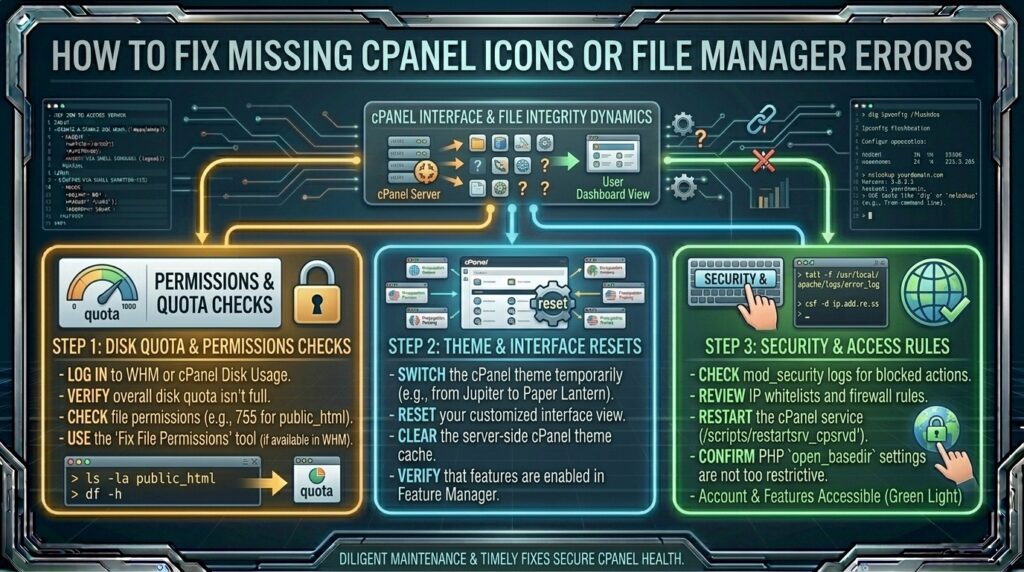
How to Fix Missing cPanel Icons or File Manager Errors
Encountering a broken control panel can instantly trigger a wave of panic. Whether you are managing websites from New York, California, Washington, Texas, or San Francisco, running into a blank screen, missing feature icons, or a crashing File Manager inside cPanel can bring your digital operations to a grinding halt.
When cPanel icons disappear or the File Manager throws critical errors, website owners often feel locked out of their own servers. Fortunately, these issues are usually tied to cached data, theme updates, permission misconfigurations, or PHP memory limits rather than a permanent loss of your web data.
This comprehensive, step-by-step troubleshooting guide will walk you through diagnosing and fixing missing cPanel icons and File Manager errors safely and efficiently.
Understanding the Anatomy of cPanel and File Manager Glitches
Before rolling up your sleeves to fix the code or server settings, it helps to understand why these errors happen. cPanel relies on a complex architecture combining backend daemons (cphulkd, cpsrvd), theme structures (such as the modern Jupiter theme), and server-side configurations managed through Web Host Manager (WHM).
Common Symptoms of cPanel Malfunctions:
- Specific icons (like File Manager, MySQL Databases, or SSL/TLS) are completely invisible.
- The entire dashboard looks broken, text-based, or unstyled (missing CSS/JS assets).
- Clicking the File Manager results in a
403 Forbidden,500 Internal Server Error, or an infinite loading loop. - An error message pops up stating that your account lacks the necessary permissions or features.
Phase 1: Quick Client-Side Fixes (Start Here)
Before blaming your hosting provider or diving into root server commands, rule out local browser and session glitches.
1. Clear Browser Cache and Force Hard Refresh
Outdated static assets (CSS or JavaScript files cached by your browser) often cause cPanel themes to render incorrectly or hide icons.
- Windows: Press
Ctrl + F5orCtrl + Shift + Deleteto clear your browser cache. - Mac: Press
Cmd + Shift + R. - Alternatively, log into your cPanel using an Incognito / Private Browsing window. If the icons appear normally, clearing your browser cookies and cache will resolve the issue.
2. Check for Browser Extensions
Ad-blockers, privacy extensions (like uBlock Origin or Privacy Badger), or corporate VPNs based in restricted networks can aggressively block cPanel’s internal script requests, hiding navigation icons or breaking File Manager AJAX calls. Temporarily disable extensions and reload the page.
3. Log Out and Clear Session Cookies
Expired sessions can misrepresent your user privileges. Log out of cPanel entirely, close your browser tab, navigate back to your login URL (e.g., yourdomain.com:2083), and log back in.
Phase 2: Fixing Missing cPanel Icons (WHM / Reseller Level)
If you are a web host, reseller, or have root/WHM access, missing icons usually point to feature list restrictions or corrupted interface caches.
Fix 1: Verify Package Feature Lists
If specific icons like the File Manager are hidden for a specific user account, the feature may have been disabled in the account’s package.
- Log into WHM as the
rootuser. - Navigate to Packages > Edit a Package.
- Select the package associated with the affected cPanel account and click Edit.
- Scroll down to the Settings section and verify which Feature List is assigned.
- Go back to Packages > Feature Manager, select that feature list, and ensure options like File Manager are explicitly checked/enabled.
Fix 2: Reset or Regenerate the cPanel Theme Cache
Sometimes cPanel’s interface cache fails to compile properly during a background update. You can clear and rebuild the cache via SSH:
Bash
# Log into your server via SSH as root
/usr/local/cpanel/scripts/restartsrv_cpsrvd
/usr/local/cpanel/bin/clear_problem_users_caches
This forces cPanel to flush corrupted user interface configurations and rebuild icon mappings.
Phase 3: Troubleshooting cPanel File Manager Errors
When the File Manager itself throws errors or refuses to open directories, the root cause is usually related to file permissions, disk quotas, or PHP memory allocation.
| Error Message / Symptom | Likely Cause | Primary Fix |
| 403 Forbidden | Incorrect folder permissions on user home directory | Reset permissions via WHM or SSH |
| 500 Internal Server Error | PHP memory limit exhaustion or corrupted .htaccess | Increase memory limit / rename .htaccess |
| Infinite Loading Spinner | JavaScript conflict or blocked backend socket | Check browser console (F12) for blocked scripts |
| Disk Quota Exceeded | Account has run out of allocated server space | Delete unnecessary files or upgrade hosting plan |
Phase 4: Advanced Server-Side Troubleshooting Steps
If client-side tricks and basic cache clearances do not work, you must dig deeper into the server logs and configuration files.
1. Inspect cPanel Error Logs
The cPanel error log records precise details regarding why an interface component or File Manager request failed. Access your server via SSH and tail the log file:
Bash
tail -f /usr/local/cpanel/logs/error_log
Reproduce the error by clicking the File Manager inside your browser and watch the terminal output for real-time error traces. Look for permission denied entries or missing module warnings.
2. Repair File and Directory Permissions
If your account’s home directory or core folders (public_html, etc, mail) have incorrect permissions, the File Manager will crash. Standard Linux file permissions dictate that directories should be set to 755 and standard files to 644.
You can fix home directory ownership issues via SSH using the following command (replace username with your actual cPanel username):
Bash
/usr/local/cpanel/scripts/chownhomedirs username
3. Update or Reinstall cPanel
Corrupted package installations can result in missing assets. Forcing an update of cPanel/WHM files often replaces broken or missing binary icons and interface scripts:
Bash
/usr/local/cpanel/upcp --force
Note: Running an update can take anywhere from 5 to 15 minutes depending on your server resources.
Preventative Best Practices for Stable Server Management
To prevent future control panel anomalies and maintain seamless website administration, adhere to these professional guidelines:
- Maintain Regular Backups: Always generate a full account backup via cPanel or JetBackup before executing manual server updates or modifying core configuration files.
- Monitor Disk Space: Keep a close eye on your resource usage. Hitting 100% disk allocation will immediately freeze the File Manager and block write operations.
- Avoid Manual Root Edits on Default Files: Unless necessary, avoid altering system files inside
/usr/local/cpanelmanually, as subsequent cPanel updates will overwrite them anyway. - Use Stable Themes: Stick to officially supported cPanel interface themes (such as Jupiter) to prevent custom layout breakages.
Frequently Asked Questions (FAQ)
1. Why is only the File Manager icon missing while other icons are visible?
This usually happens because the File Manager feature was specifically disabled in your hosting package’s Feature List, or your user account was restricted by a reseller/administrator. Contact your hosting provider to verify your feature permissions.
2. How can I access my website files if the File Manager is completely broken?
If the File Manager UI is down, you can safely access, upload, and manage your website files using an FTP/SFTP client such as FileZilla, or by connecting securely via SSH/Terminal if your hosting plan permits shell access.
3. What does a “403 Access Denied” error mean when opening cPanel?
A 403 error typically indicates that your current IP address has been blocked by cPHulk Brute Protection due to multiple failed login attempts, or your account permissions have been suspended by the server administrator.
4. Can a corrupted .htaccess file break the cPanel File Manager?
While .htaccess primarily affects your public-facing website directories, severe syntax errors or misconfigured server directives inside web root folders can sometimes interfere with script execution routines tied to backend panels. Try temporarily renaming public_html/.htaccess to .htaccess_bak to test.
5. How do I fix a blank white screen when I log into cPanel?
A blank white screen usually indicates a PHP memory exhaustion issue or a fatal syntax error triggered by a customized plugin hook. Restarting the cPanel service daemon (/usr/local/cpanel/scripts/restartsrv_cpsrvd) usually resolves temporary rendering lockups.
6. Does changing my cPanel password fix missing icon bugs?
Changing your password forces a complete session reset across all backend authentications. While it won’t fix structural missing files, it clears corrupted cached tokens that might be messing with your interface rendering.
7. Why do my cPanel icons disappear after a server update?
Sometimes, browser caching retains old theme pointers while the server has upgraded to a newer version. Doing a hard browser refresh (Ctrl + Shift + R) immediately resolves this mismatch.
8. Is it possible to reinstall just the cPanel File Manager module?
cPanel applications are bundled tightly into the core system distribution. Instead of reinstalling a single component, running /usr/local/cpanel/upcp --force will safely re-download and repair any corrupted core system files.
9. What should I do if my disk space is full and blocking cPanel features?
If you cannot access the File Manager to delete large files due to a full disk, use SSH to log in and locate large log files or caches to delete, freeing up immediate breathing room for the server.
10. When should I contact my web hosting technical support?
If you have cleared your browser cache, verified that your package permissions are correct, and tried restarting services via SSH (if you have root access) without success, the issue is likely tied to a deeper backend server corruption. At this point, opening a ticket with your host’s support team is the best course of action.
Conclusion
Encountering missing cPanel icons or broken File Manager errors can be intimidating, but by following a systematic troubleshooting checklist—ranging from simple browser cache clears to fixing package feature lists and file permissions—you can restore full functionality to your hosting dashboard. Keep your software updated, monitor your server logs closely, and always maintain reliable backups to ensure a smooth, error-free website management experience.